Supports configuring screen watermarks and print watermarks on terminals, and allows tracing the source of leaks caused by screenshots, photos, and other methods. It supports watermark formats such as text and QR codes, and allows configuring parameters such as watermark content, tilt angle, transparency, size, row and column spacing, position, and color.
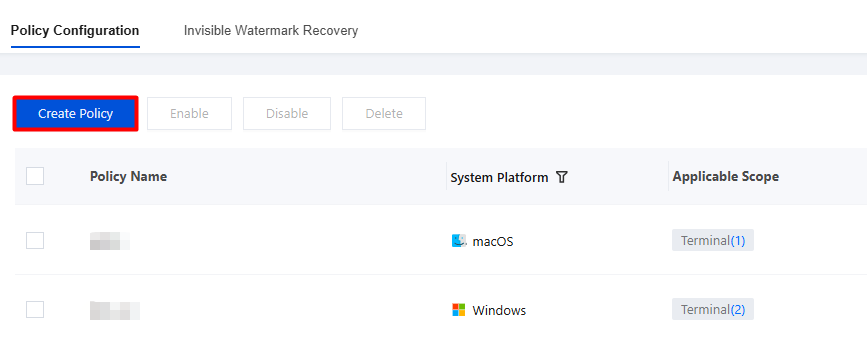
2. On the page, click Create Policy to go to the Create Watermarking Policy page.
3. On the Create Policy page, configure the relevant parameters.
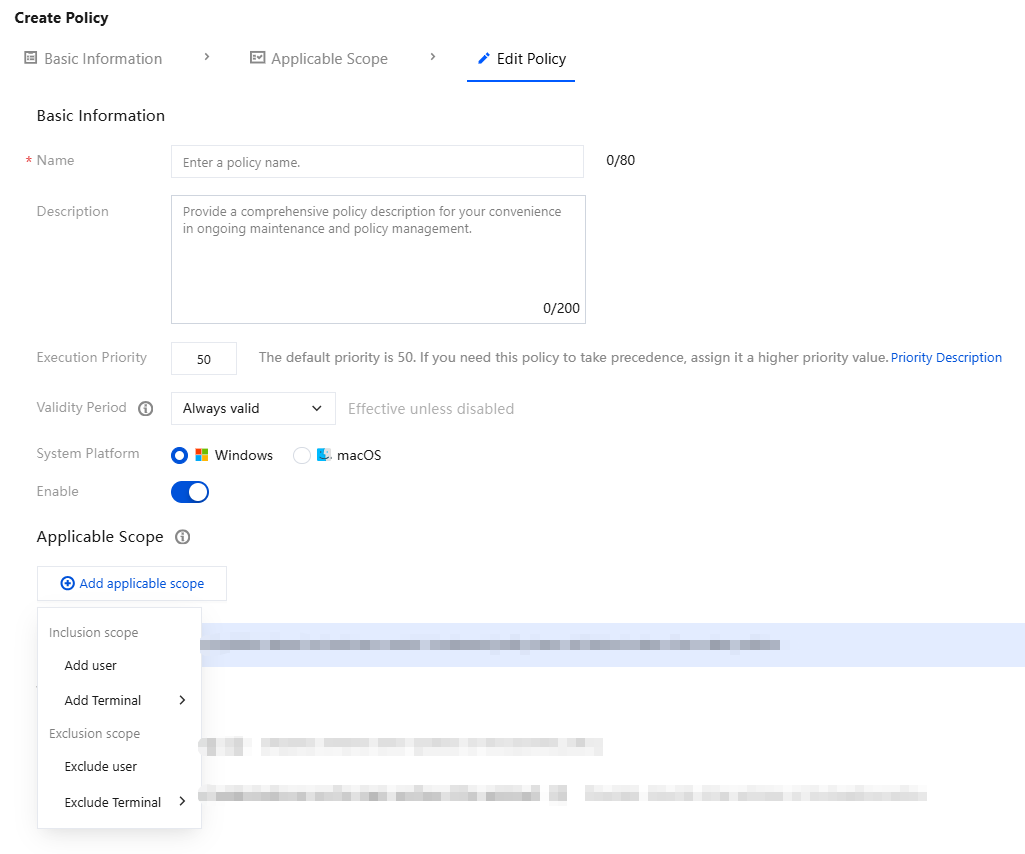
3.1 Enter the policy name and parameters such as the policy description.
3.2 Click Add Applicable Scope. You can configure a refined control scope by adding or excluding users, organizational structures, custom user groups, and terminals.
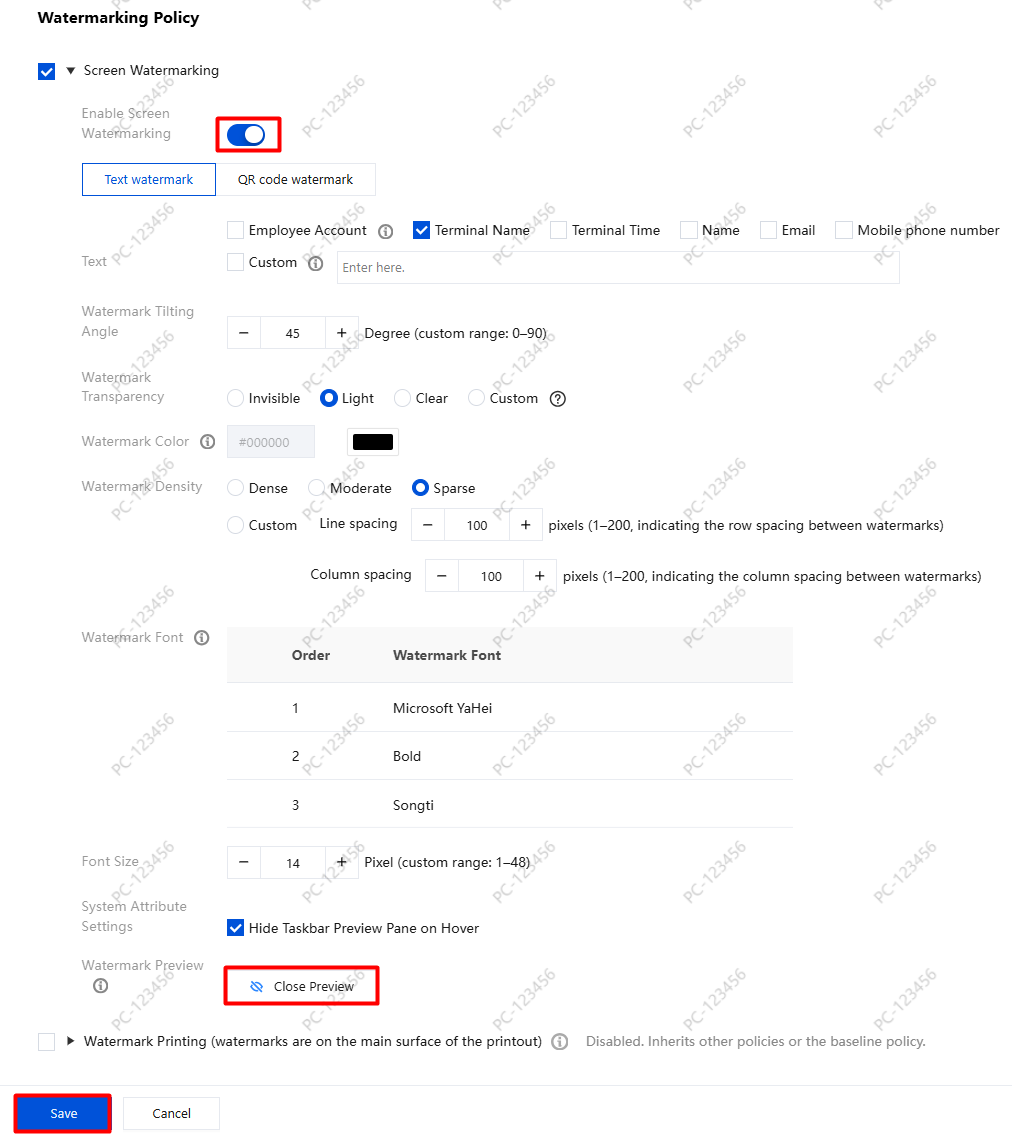
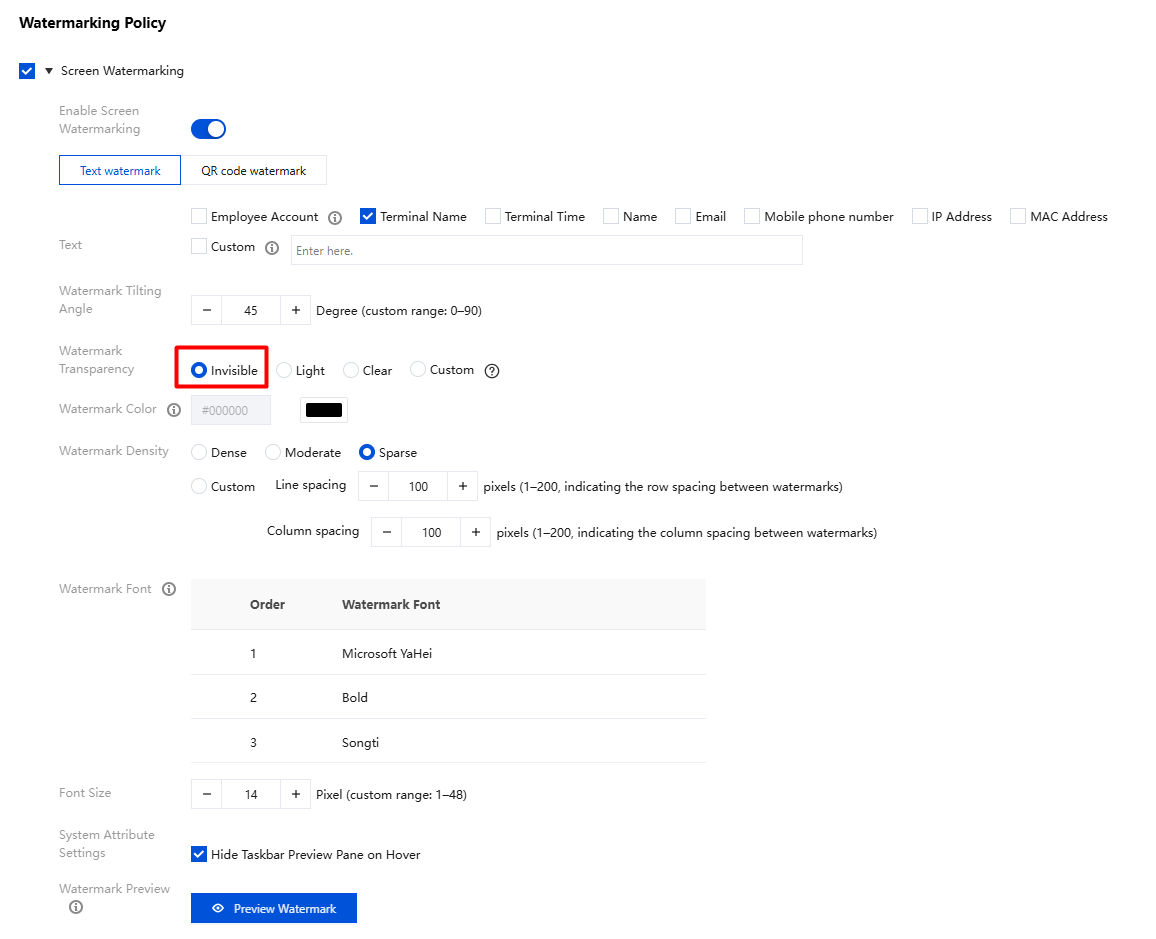
to enable screen watermark protection, and configure the relevant policies. After configuration, click Preview Watermark
. After previewing, close the preview and click Save.
Parameter Name
Description
Enable screen watermarking
Enabled.
Watermark type
Text watermark: The watermark is displayed in character style.
QR code watermark: The watermark is displayed as a QR code.
Set watermark information
The watermark information supports the following configurable items: employee account, terminal name, terminal time, name, email, phone number, IP address, and MAC address.
You can customize the watermark information.
Watermark Transparency
The default visibility is faint (20%) and can be adjusted as needed.
Other parameters
Keep default settings.
5. After the watermark is delivered successfully, the desktop is generated automatically.
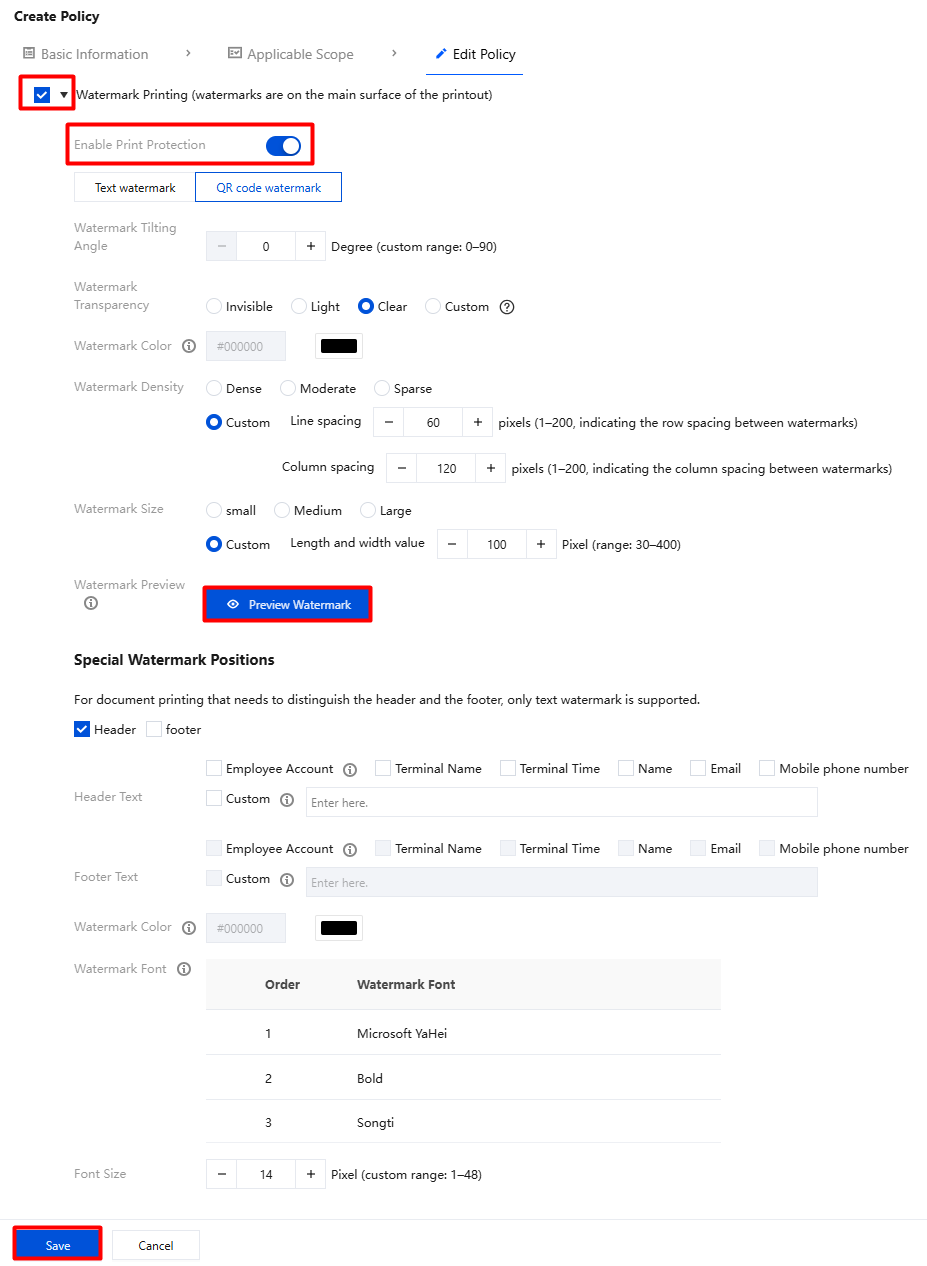
Watermark Printing
When a document is printed, the print watermark adds a watermark mark to the document, which helps trace the document source and prevent copying.
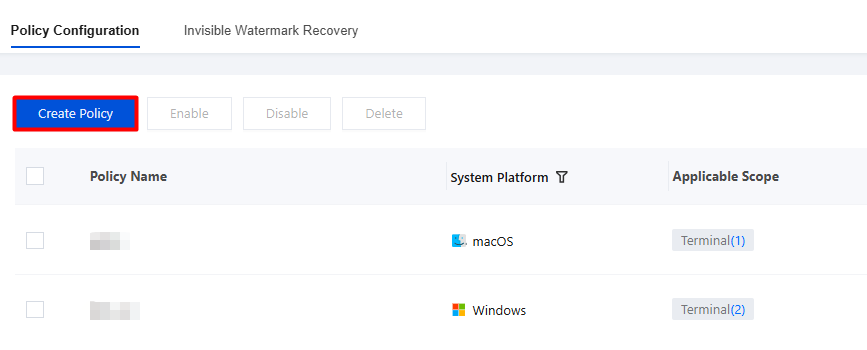
2. On the Policy Settings page, click Create Policy.
3. On the Create Policy page, select Print Watermark, click
to enable print protection, configure the relevant policies, and click Save.
Note:
Print watermarks support character printing and QR code watermarks. They are watermarks output during document printing, and their general settings can follow those of screen watermarks. Configure whether to set watermarks for headers and footers based on your actual needs.
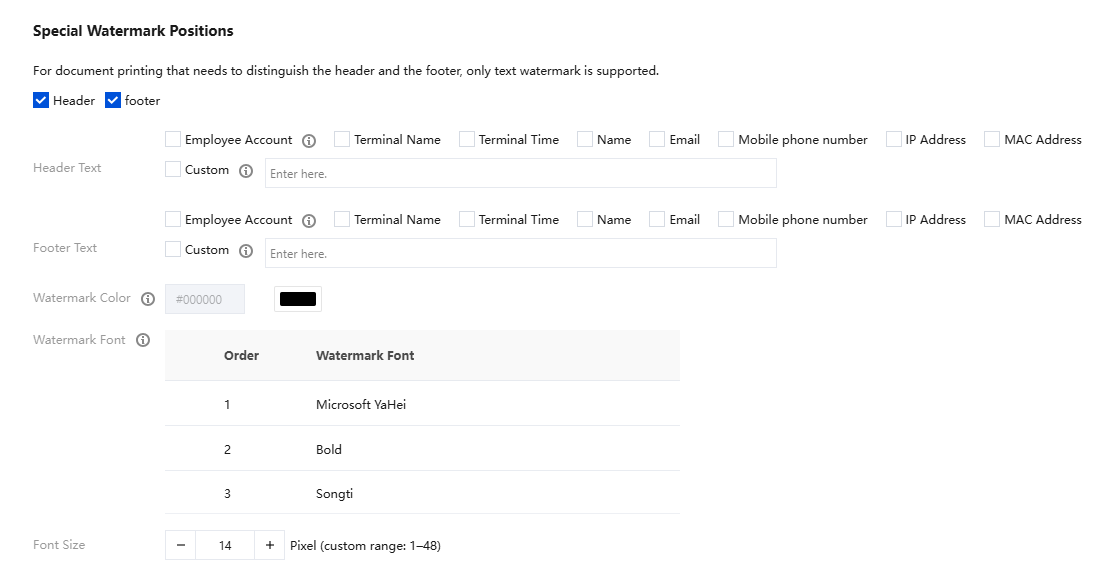
4. Watermark for special positions: For document printing that needs to distinguish the header and the footer, text watermarks and QR code watermarks are supported. Select the header/footer, configure the relevant policies, and click Save after configuration.
5. You can print directly from the terminal or choose XPS printing. After saving the file in .xps/.oxps format, open it to see the effect.
Note:
XPS, short for XML Paper Specification, is an electronic file format developed by Microsoft. It is designed to provide a specification for document saving and viewing. Only Microsoft Office supports saving files in XPS format.
Invisible Watermark Restoration
Prerequisites
In Policy Settings > Screen Watermarking, after configuring an invisible watermark, you can restore the invisible watermark.
3. After the administrator uploads an image containing an invisible watermark, the system automatically calls the backend watermark restoration service for parsing and displays the watermark information in plaintext in the restoration result area.