개인 정보 보호 정책
데이터 개인 정보 보호 및 보안 계약
Status Name | Status Property | Status Description |
Creating | Intermediate status | The cluster is created but has not yet entered the running status. |
Running (Healthy/Alarm) | Steady status | The cluster is running normally, with node health, disk utilization, and other metrics within normal ranges. |
Migrating | Intermediate status | Data migration is in progress while the cluster configuration is being adjusted. |
Deleting | Intermediate status | The cluster is being deleted through the console or an API. |
Isolated | Intermediate status | The cluster has overdue payments and enters isolation status. Clusters in isolation status cannot produce or consume data. Data and configurations saved in the cluster are not deleted. |
Creation Failed | Intermediate status | The fee is deducted successfully, but cluster allocation fails during a purchase through the console or an API. If this occurs, contact Online Customer Service for assistance. |
Deletion Failed | Steady status | TDMQ for MQTT fails to release cluster resources when the cluster is manually deleted or not renewed within 7 days after expiration. |
Category | Description |
Basic Information | Displays basic configuration information. You can adjust some parameters in this section according to business needs. |
Cluster Overview | Displays the current overall resource usage and message production/consumption status of the cluster. These metrics help you understand the cluster's operational status. If abnormal fluctuations in production/consumption rates are detected, it may indicate performance pressure or potential issues. Scale the cluster or troubleshoot timely to ensure messaging service stability and availability. |
Access Information | Displays public and private network access endpoints. For details, see Network Connection Description. |
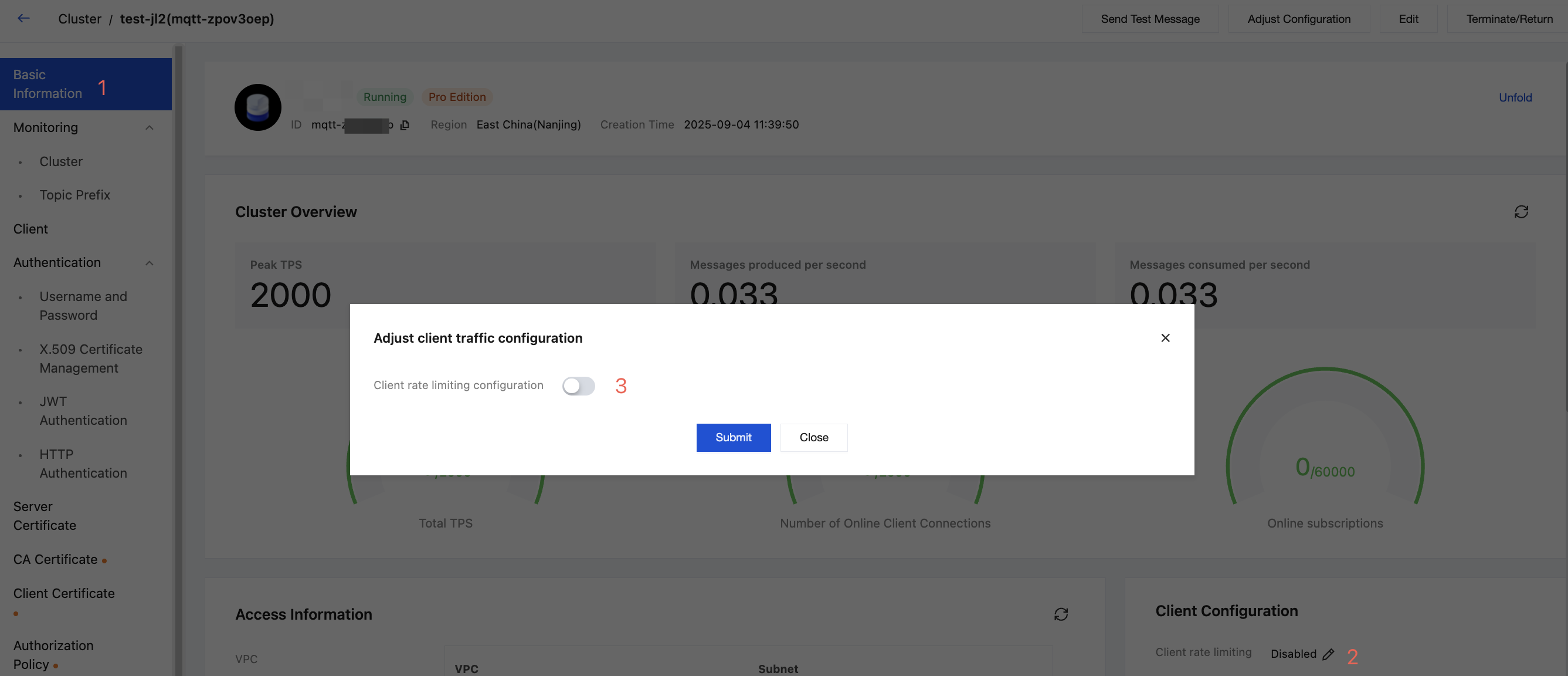
Client Configuration | You can adjust the client throttling configuration in this module. |
Parameter | Modification Method |
Cluster Name and Description | Click Edit next to Description, enter the cluster name and description, and then click Submit. Cluster Name: The name must be 3–64 characters long and can only contain letters, digits, hyphens (-), and underscores (_). Cluster Description: The description cannot exceed 128 characters. |
Resource Tags | Click Edit next to Resource Tags to bind or modify tags for the cluster. For details, see Configuring Resource Tags. |
피드백