Tencent Cloud ADP is an enterprise-grade solution for building LLM-powered applications and supports multiple types of AI agent applications. These applications leverage large language models to either perform autonomous orchestration and decision-making or execute tasks efficiently with constructed workflows. The characteristics of each application mode are as follows:
Mode Name
Description
Claw Mode
Claw Mode applications drive agents to autonomously think and solve complex problems through natural language. They have an independent workspace and can autonomously write and run code, and invoke various capabilities such as Skills / tools / connectors. This mode is suitable for complex task scenarios such as data analysis, content generation, and automated processing.
Standard Mode
Standard mode applications use the platform's preset standardized processing flow and the dual-model collaboration of the thinking model and the generation model to achieve stable and precise knowledge Q&A results. They also support adding workflows to implement complex process-based business. This mode is suitable for serious Q&A scenarios such as enterprise knowledge services and product consultation.
Single-workflow mode
Single-workflow mode applications support selecting a specific workflow for execution, using the designated workflow to respond to all user conversations, ensuring the completeness and standardization of business processes. They are suitable for enterprise service scenarios with clear business objectives and unified operational procedures.
Multi-Agent mode
Multi-Agent mode applications autonomously plan execution paths and flexibly invoke tools using large models. Their core feature is to delegate more conversational initiative to the model, fully leveraging the model's proactivity. This mode is suitable for scenarios requiring flexible responses, multi-tool invocation, and multi-agent collaboration.
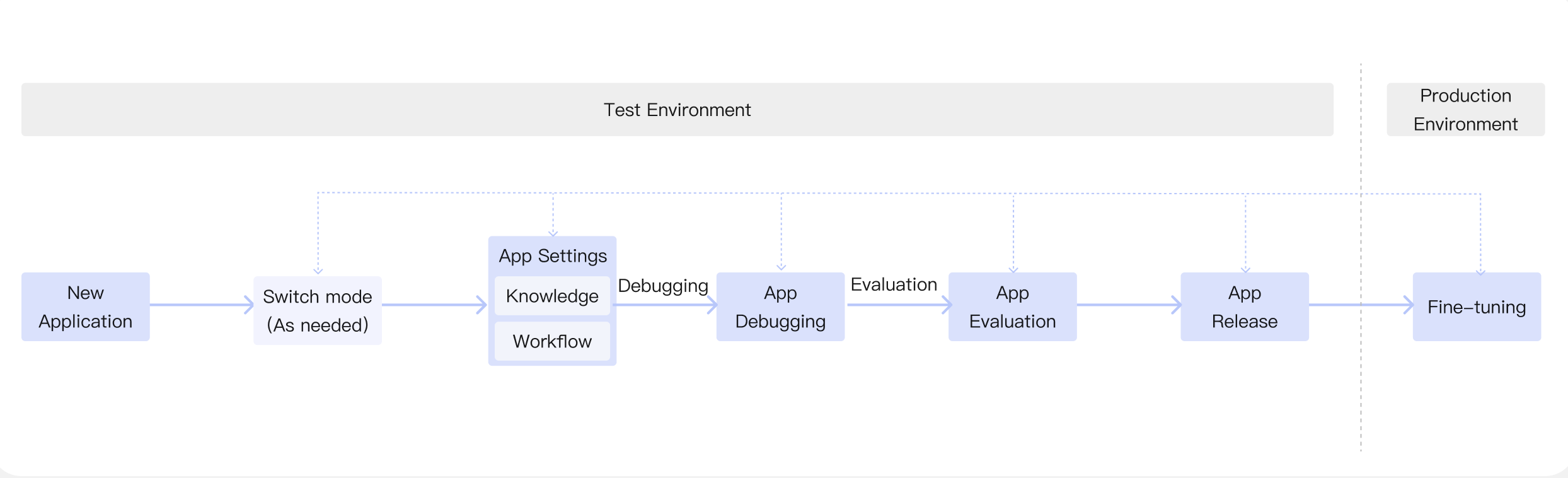
After creating an application, you can adjust its settings, upload knowledge, and build workflows. Once dialogue debugging and evaluation in the test environment meet the required standards, you can publish the application to the production environment. After publishing, you can optimize its performance based on feedback and update the debugging configuration accordingly. The complete process of building an application is shown below:
Core Differences Between Claw Mode and Other Modes
Out-of-the-box: After creating a Claw mode application, you can immediately use the platform's built-in models (which support switching to custom models) without the need to configure additional model services or a dual-model think-generate system.
Skills Capability Expansion: It supports adding up to 80 Skills, enabling the Agent to acquire ready-to-use professional capabilities (such as office document processing, healthcare, Image Process, audio/video, and more).
Independent Workspace: A Claw mode application has an independent workspace, making it suitable for long-running, autonomous tasks that involve file reading and writing.
Mode Switching Not Supported: Once created as a Claw mode application, switching to the other three modes is not supported. Conversely, the other three modes can be switched among each other (see the detailed comparison table below).
Application Mode Switching
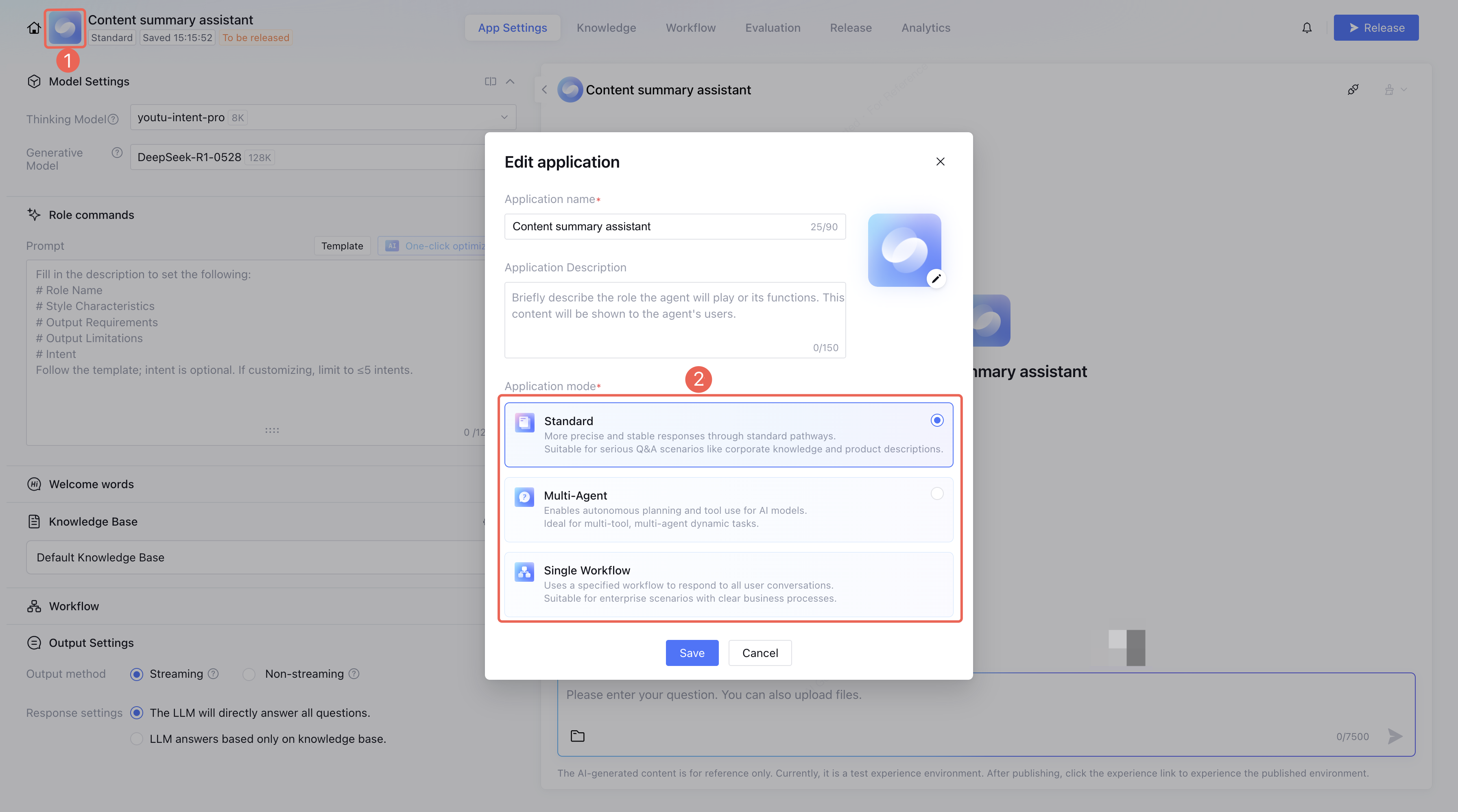
Standard mode, single-workflow mode, and Multi-Agent mode support switching between each other based on the requirements of the application's deployment scenario. To switch the application mode, click the avatar or the mode tag in the Edit Application section.
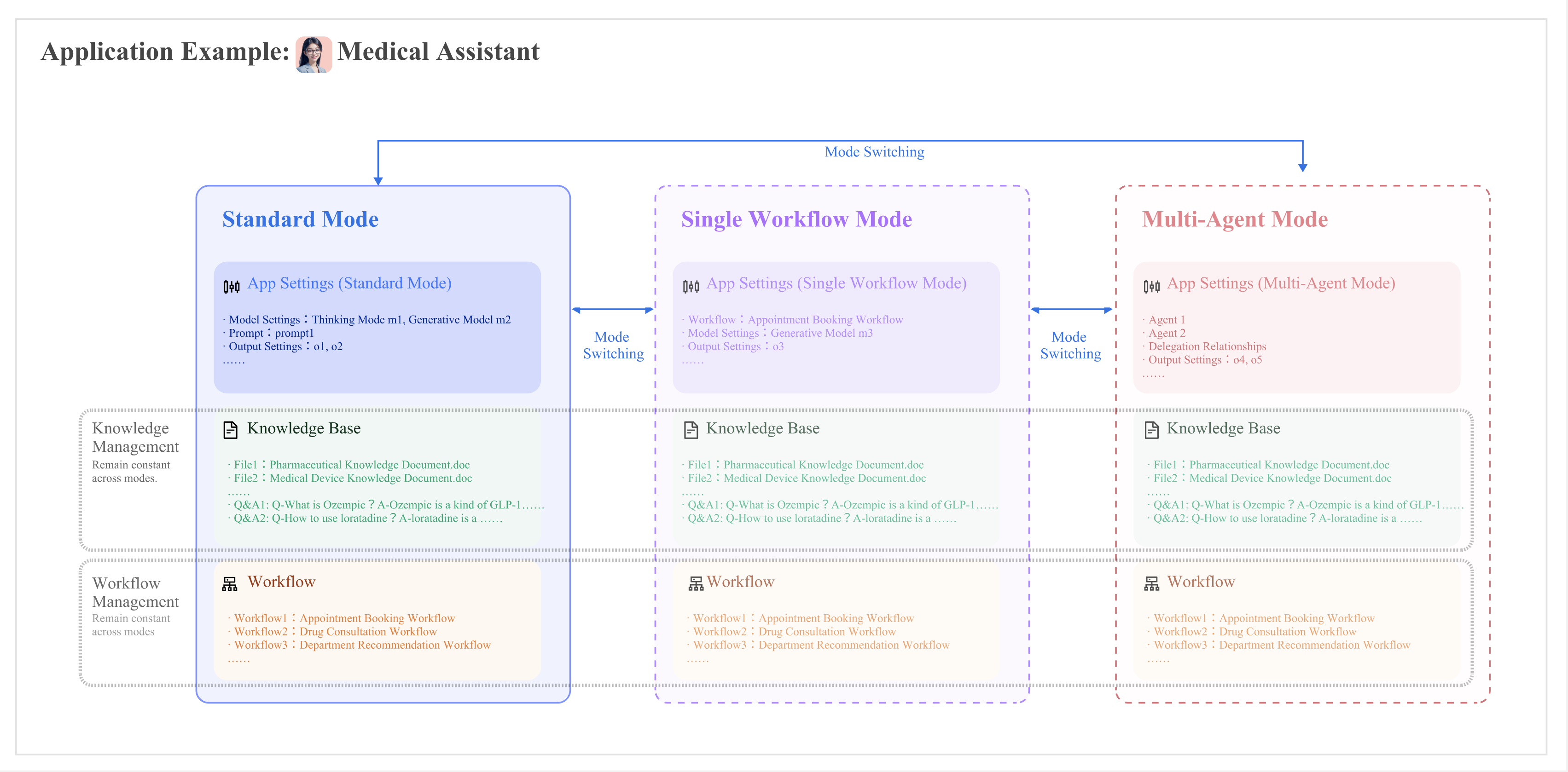
When switching modes, the knowledge base and workflows under the application remain unchanged. However, application setting items, such as prompt content and model settings, are not inheritable between different modes. The following diagram illustrates the configuration update principles when switching modes:
The specific differences in configuration items during mode switching are detailed in the table below.
Configuration Items
Standard Mode
Single Workflow Mode
Multi-Agent Mode
Application Information
After mode switching, the application name, avatar, and opening statement remain unchanged.
Application Settings
After mode switching, configurations such as role instructions, knowledge bases, connectors, and tools are not inherited, and settings for each mode are independent of each other.
Knowledge
After mode switching, the knowledge base settings and publishing status remain unchanged.
After mode switching, the knowledge base settings and publishing status remain unchanged.
Only supported for use in knowledge-related nodes within a workflow, including large model knowledge Q&A and knowledge search nodes.
After mode switching, the knowledge base settings and publishing status remain unchanged.
In Multi-Agent mode, you need to select the "Knowledge Base Q&A" tool to enable knowledge base content Q&A.
Workflow
After mode switching, the workflow settings and publishing status remain unchanged.
After mode switching, the workflow settings and publishing status remain unchanged.
Single-workflow mode only supports adding a single workflow.
After mode switching, the workflow settings and publishing status remain unchanged.
Only when workflow orchestration is selected as the collaboration method, adding a single workflow is supported.
After modes are switched, workflow settings and the publication status remain unchanged.
Adding a single workflow is supported only when workflow orchestration is selected as the collaboration method.
Note:
Mode switching is not supported for Claw mode. Because configurations such as workspace, Skills, and connectors in Claw mode differ significantly from those in the other three modes, an application created as a Claw mode application can only be edited within Claw mode. To use the capabilities of other modes, create a new application.
Applications created in the other three modes also cannot be switched to Claw mode. To use Claw mode capabilities, create a new application.