Enabling Public Network Address
ダウンロード
フォーカスモード
フォントサイズ
TencentDB for PostgreSQL supports two address types: private network addresses and public network addresses. By default, it provides a private network address for you to access the instance internally. To enable public network access, you can enable a public network address in the console.
Note:
Primary instances in Beijing, Chengdu, Chongqing, Guangzhou, Hong Kong (China), Nanjing, Seoul, Shanghai, Singapore, Tokyo, Frankfurt, Virginia, and Silicon Valley support the public network feature. You can enable a public network address in the console. Read-only instances do not support this feature.
After the public network is enabled, there is a risk of attacks. Enable it with caution.
To enable a public network address, you must configure security group rules before access is allowed.
Enabling Public Network Address via the Console
Note:
Failures that occur during public network access are not included in the overall availability calculation of TencentDB for PostgreSQL.
Public network access reduces instance security and is recommended only for managing, testing, or assisting with database management. It does not provide an availability SLA guarantee. Use private network access for business access.
We recommend that you use the public network domain name instead of the IP address for access. Adjusting the database instance specifications, re-enabling public network access, or upgrading the network may cause the public IP address to change. Using the public network domain name for access minimizes the impact on your business and eliminates the need to modify your application.
1. Log in to the TencentDB for PostgreSQL console, select a region, and in the instance list, click the Instance ID or Manage in the Operation column to go to the instance management page.
2. On the Instance Details page, locate Basic Info > Public IPv4 Address, and click Enable.
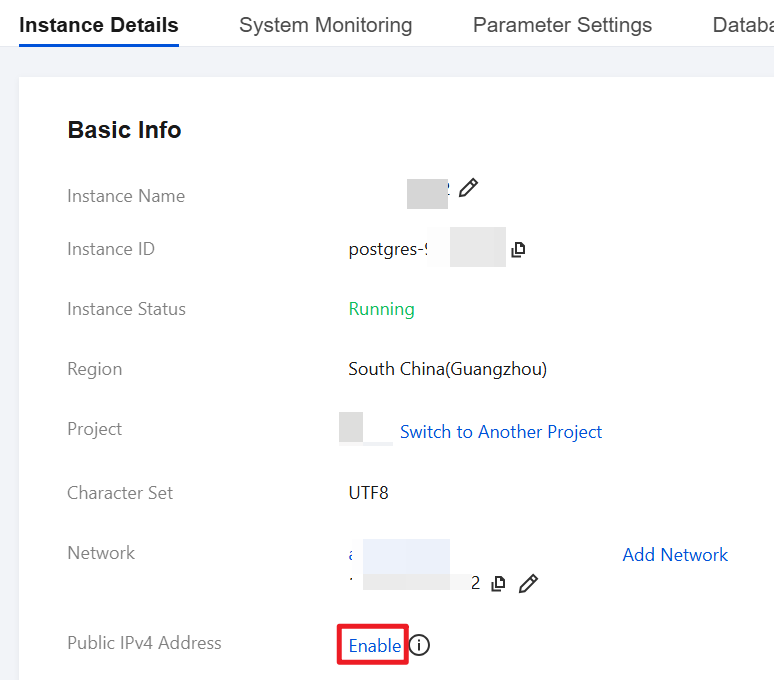
3. In the pop-up dialog, read the notes and click OK.
4. After the instance status changes to Running, you can view the public network address on the instance details page.
Configuring PostgreSQL Security Groups
1. Log in to the TencentDB for PostgreSQL console, select a region, and in the instance list, click the Instance ID or Manage in the Operation column to go to the instance management page.
2. On the instance management page, select the Security Group tab, click Configure Security Group, configure the security group rules to allow all ports, and confirm that the security group allows access from external IP addresses. For detailed configuration instructions, see Managing Security Groups.

Verifying Public Network Connectivity
Access PostgreSQL from any public network client tool. For detailed instructions, see Connecting to a PostgreSQL Instance.
フィードバック