After completing the Expanding Cloud Disks, you need to expand the partition and file system as necessary before the instance can recognize the new capacity. You can refer to this document to perform the relevant operations on Windows systems.
If you expand a cloud disk that is attached to a running CVM, you need to rescan the disk to recognize the disk capacity after expansion.
If the cloud disk to be expanding is not attached to a CVM or the attached CVM is shut down, the disk capacity after expansion will be automatically recognized.
Note:
To extend the file system, you need to restart the instance or rescan the disk, which will lead to business interruption for a certain period. We recommend you choose an appropriate time for this operation.
After extension of the file system, we strongly recommend you rescan the disk to recognize the capacity. If you refresh the system or perform other operations, the expanded capacity may not be recognized.
Prerequisites
The instance status is Running.
The cloud disk status is In Use.
System disk utilization has not reached 100%.
The CBS has been mounted to the Windows CVM and initialization has been completed before scaling out is performed. For details, see Initializing CBS.
Extending the file system may affect existing data. We strongly recommend that you manually create a snapshot to back up your data before performing the operation.
Operation Steps
(Optional) Step 1: Rescan the disks
Note:
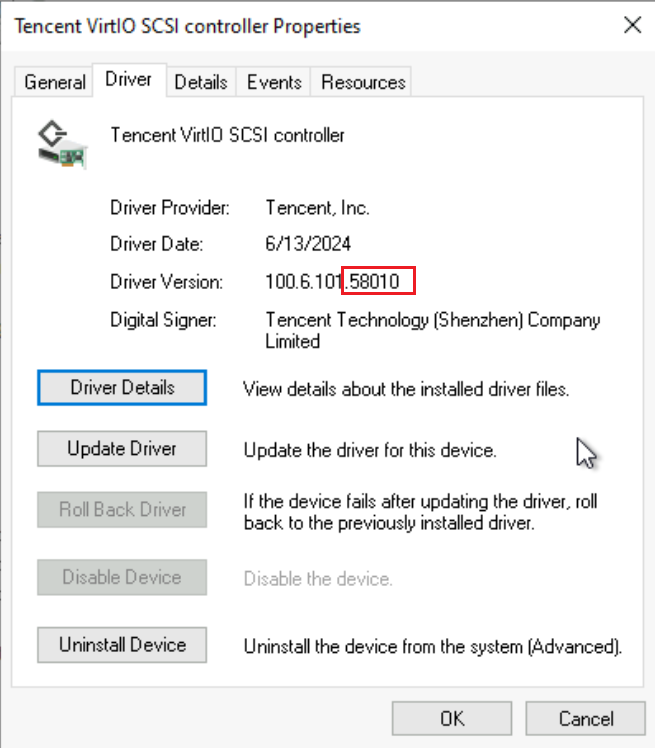
When the Virtio driver version of the Cloud Virtual Machine (CVM) storage controller is lower than 58003, you need to restart the CVM before expanding the storage space and reboot it after completing the expansion operation. If you encounter the unique status where the system still cannot recognize the newly added space after restart, you can unmount the disk via the Console after powering off the CVM and then remount it. Finally, power on the CVM. See Check the Virtio driver version to confirm the Virtio driver version in use.
Note:
1. Only some older versions of Windows systems need to perform this step. If you can directly see the expanded space in
> Disk Management by right-clicking on the desktop, then there is no need to perform this step.
2. This example uses a CVM with the Windows Server 2012 R2 operating system. Operation methods may vary slightly for different operating systems.
3. In the left sidebar of the Computer Management window, choose Storage > Disk Management.
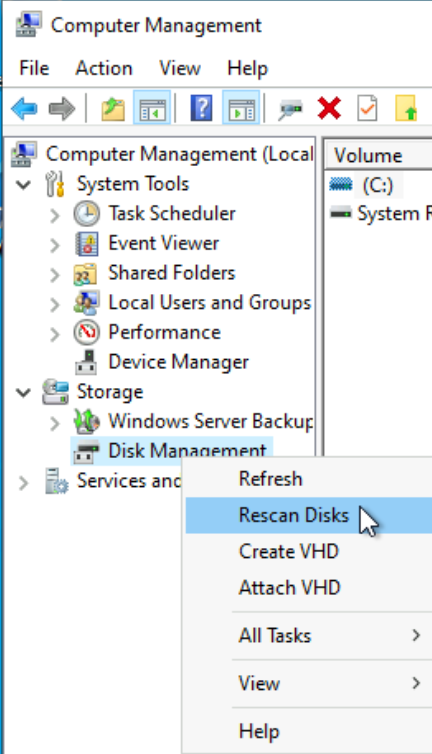
4. Right-click Disk Management, select Rescan Disks.
5. After the scan is complete, check whether the CBS has been expanded to the new size (in this example, the scan identified that the disk was expanded from 10GiB to 50GiB).
Step 2: Expanding the existing partition or create a new partition
You can expand the file system of the existing partition on the data disk or create a new partition by following the steps below based on your actual needs.
Note:
This example uses a CVM with the Windows Server 2022 64-bit operating system. Operation methods may vary slightly for different operating systems.
Scaling out the File System of the Original Partition
Create a new partition
The following uses a data disk (E:) that has completed Step 1: Expanding Cloud Disk (expanded from 50GiB to 70GiB) as an example.
1. Right-click the initialized disk space and select Extend Volume.
2. Complete the volume extension operation by following the Extend Volume Wizard. Click Next.
3. By default, the expanded disk space is selected. Click Next.
4. Confirm the settings and click Finish.
5. After completion, the newly added disk space will be merged into the existing volume. The file system of drive E has been expanded from 50GiB to 70GiB.
The following uses a data disk (E:) that has completed Step 1: Expanding Cloud Disk (expanded from 70GiB to 100GiB) as an example.
1. Right-click the unallocated space on the disk and select New Simple Volume.
2. Complete the simple volume operation by following the default settings of the New Simple Volume Wizard. Click Next.
3. By default, the total space size after expanding is allocated. You may also manually specify it according to your needs. Click Next.
4. A drive letter is assigned by default. Click Next.
5. Format this volume with the following settings is selected by default. Click Next.
6. Confirm the configuration and click Finish.
7. After completion, the newly added disk space will create a new partition.
Related Documentation
Check the Virtio driver version
1. Right-click
and select Device Manager.
2. In the Device Manager window, expand the Storage Controller item, and double-click the Tencent VirtIO SCSI controller.
3. In the Tencent VirtIO SCSI controller Properties window, select Driver to check the current version.