tencent cloud

TencentDB for MariaDB

Release Notes and Announcements
Release Notes
Announcements
Product Introduction
Overview
Strengths
Use Cases
System Architecture
Instance Types
Instance Architecture
TDSQL Edition
Database Version
Purchase Guide
Billing Overview
Pricing
Refund
Payment Overdue
Upgrade Pricing
Backup Space Billing
Getting Started
Creating Instance
Managing Account
Accessing Instance
Operation Guide
Precautions
Instance Management
Disaster Recovery Read-Only Instance
Account Management
Read/Write Separation
Changing Networks
Backup and Rollback
Migrating Data
Database Sync(Legacy)
Security Management
Monitoring and Alarms
Killing Threads
Parameter Templates and Settings
Database Audit
Practical Tutorial
Programming and Usage Specification
Programming and Usage Specification of Distributed Version
Using Hotspot Update for Flash Sales
Security White Paper
Platform Security Features
Tenant Security Features
Development Guide
Functional Limitations
Performance Test
Intra-city Active-Active Solution
Binlog Consumption Format
Slow Query Analysis
Database Audit
Syntax Supported
API Documentation
History
Introduction
API Category
Making API Requests
Security Group APIs
Other APIs
Account APIs
Parameter Management APIs
Monitoring Management APIs
Instance Management APIs
Backup and Restoration APIs
Data Types
Error Codes
FAQs
Product
Account Login
Features
Performance
Backup
Ops
Disk Overuse
IO Metric Exception
General References
Standards and Certification
Main Specification Performance Description
Performance Comparison Data for Strong Sync
Glossary

Enabling Database Audit

PDF
フォーカスモード
フォントサイズ
最終更新日: 2024-01-11 15:28:38
TencentDB for MariaDB has database audit capability, which can record accesses to databases and executions of SQL statements to help you manage risks and improve the database security.
Note:
The database audit feature is currently in the beta testing phase. To use this feature, submit a ticket.

Enabling SQL Audit

1. Log in to the TencentDB for MariaDB console, select Database Audit on the left sidebar, select a region at the top, click the Audit Instance tab, and click Disabled to filter audit-disabled instances.

Note:
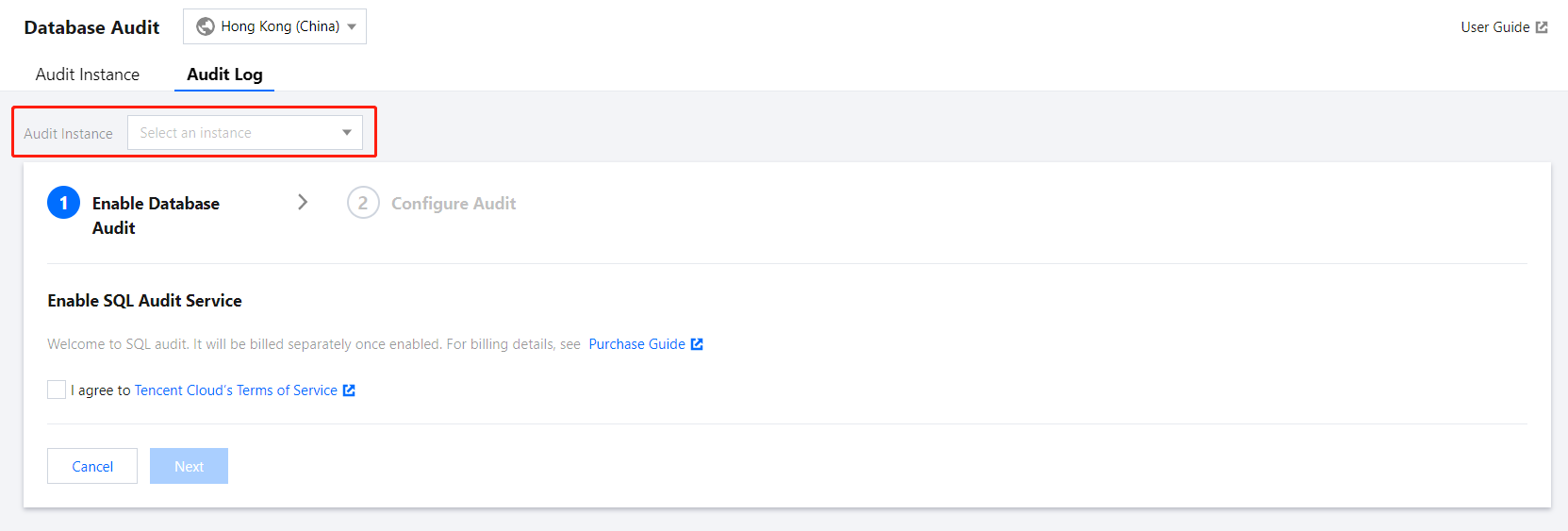
Alternatively, in Audit Instance on the Audit Log tab, directly search for audit-disabled instances and then enable audit for them.

2. On the Audit Instance tab, click the ID of the target instance to enter the enablement page, indicate your consent to the agreement, and click Next.
3. On the Configure SQL Audit page, select the audit log retention period and click Enable.
Note:
You can select 7 days, 30 days, 3 months, 6 months, 1 year, 3 years, or 5 years as the audit log retention period. You can also modify it in the console after enabling audit. For more information, see Modifying Log Retention Period.
In order to meet the security compliance requirements for the retention period of SQL logs, we recommend you select 180 days or above.

Viewing Audit Log

After enabling audit, you can view SQL audit logs on the Audit Log tab. For more information, see Viewing Audit Logs.

ヘルプとサポート

この記事はお役に立ちましたか?

フィードバック