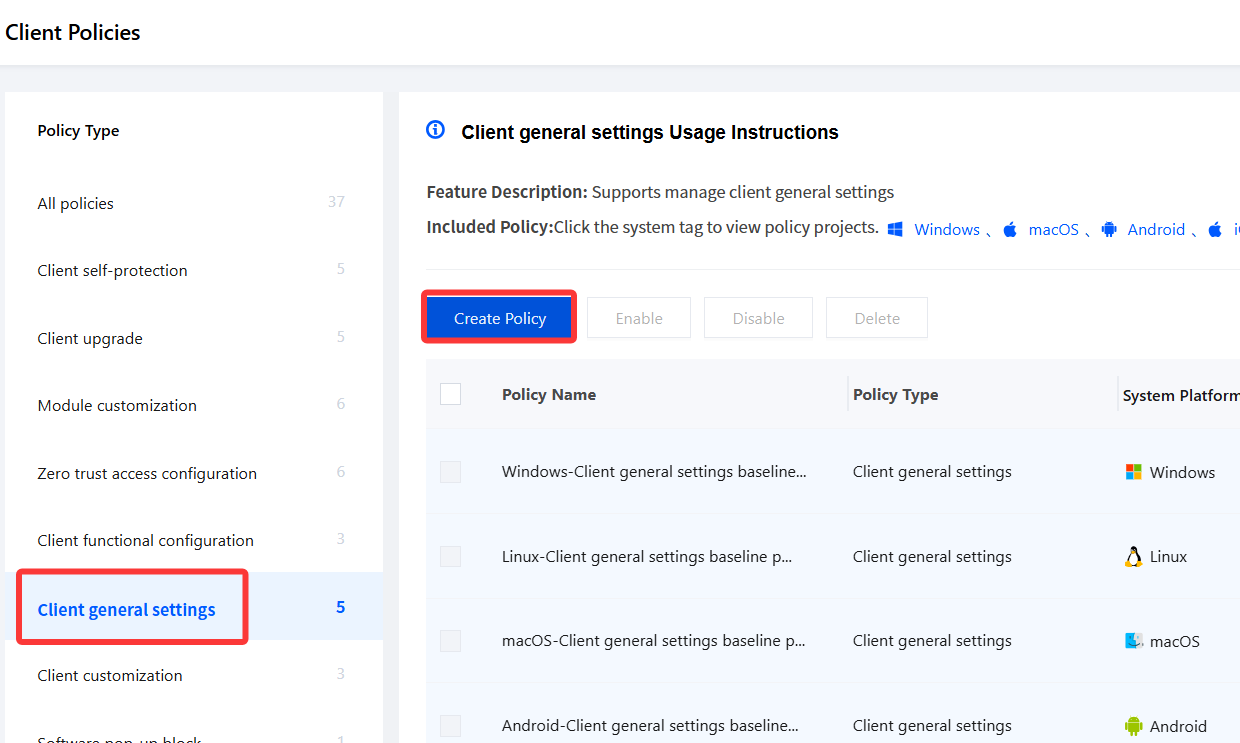
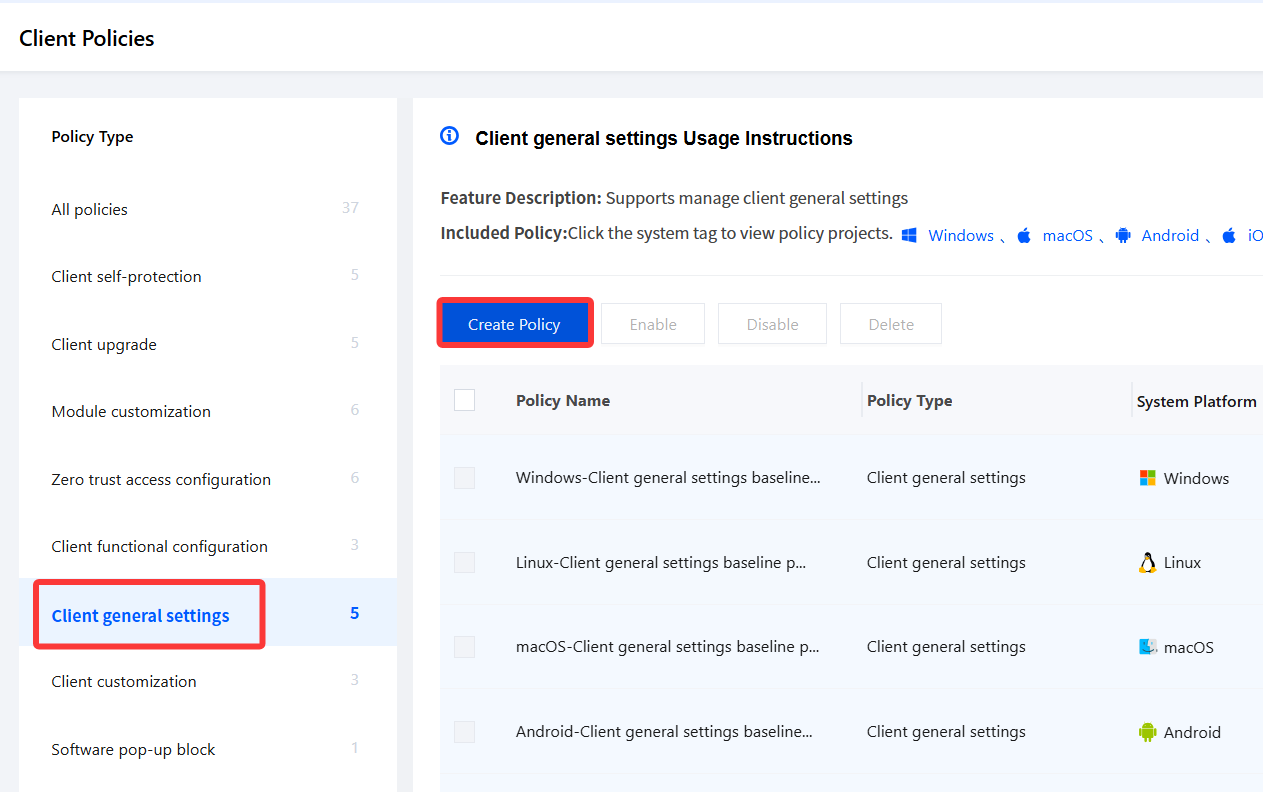
2. On the Client Policy page, select client general settings and click Create Policy.
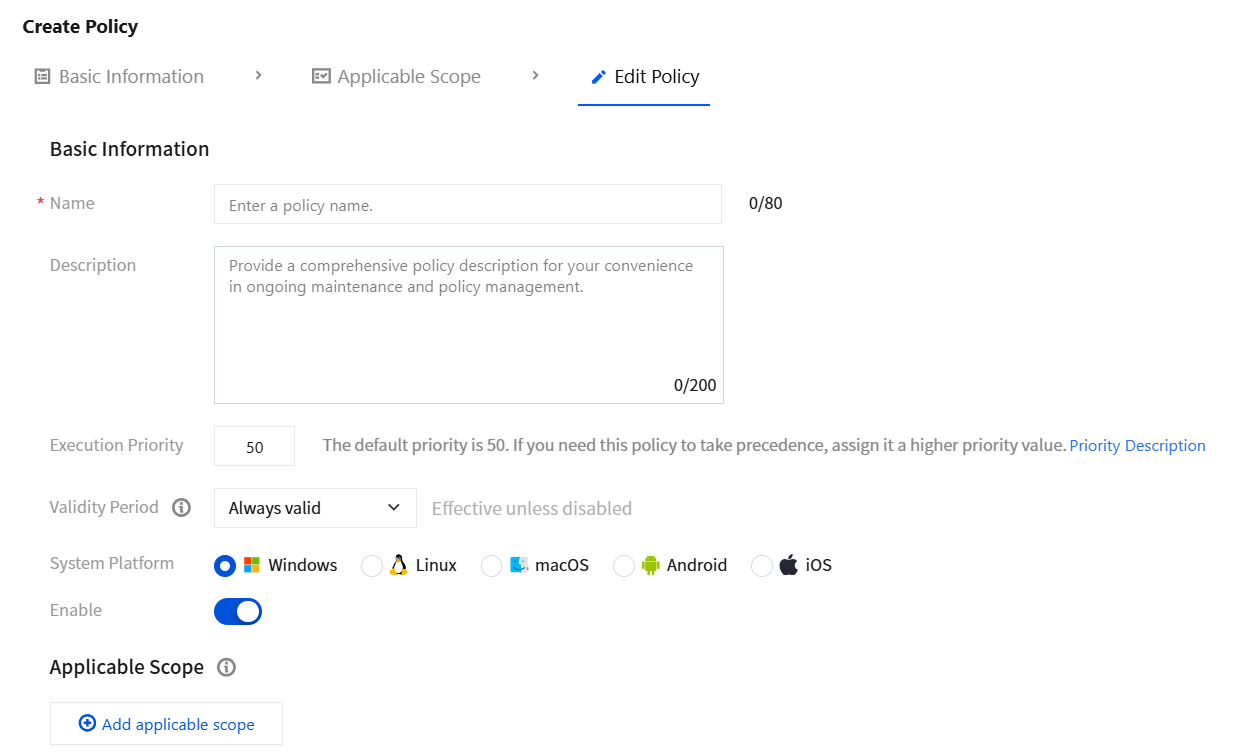
3. On the Create Client General Settings Policy page, configure the relevant parameters.
3.1 Enter the policy name and policy description and other parameters.
3.2 Click Add applicable scope, select the terminal names to be controlled/excluded, and click OK.
4. Based on your actual needs, select the following client general settings policy and click Save.
Device Binding Policy
Must-Knows
Manage client login methods by configuring account-device binding.
The account-device binding switch is disabled by default.
If the device-account binding function is disabled (device-account binding is not allowed), terminals can log in with any account.
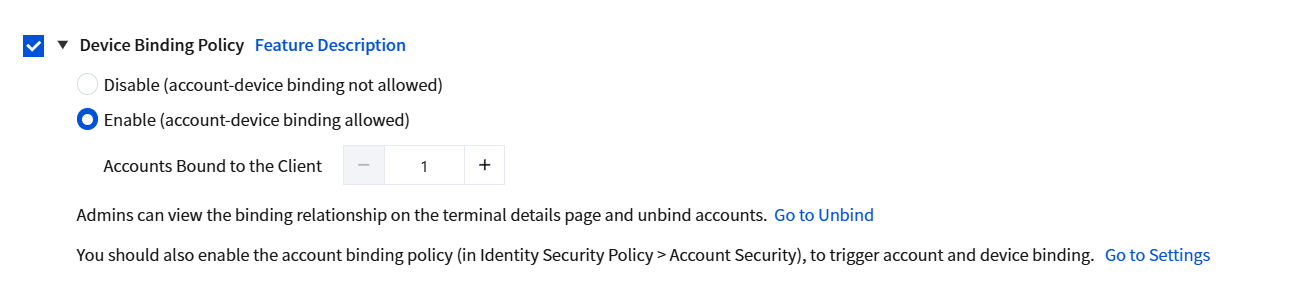
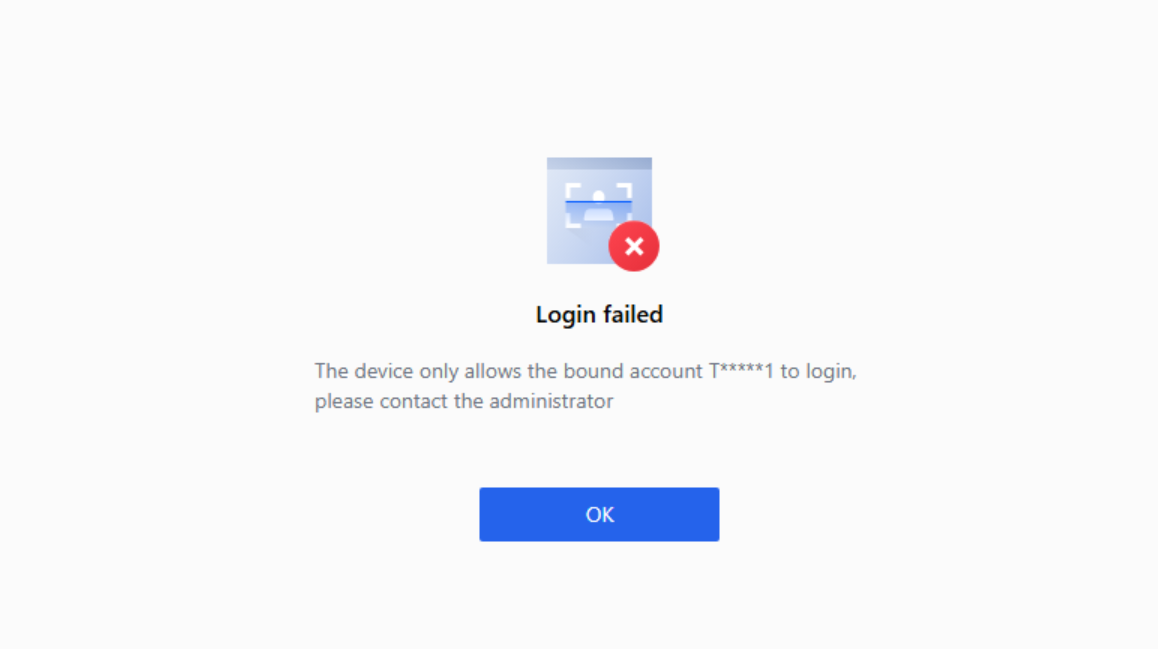
Enable (device-account binding is allowed): If the device-account binding function is enabled, the client on a device is automatically bound to the login account upon the first login. Other accounts cannot log in on this device, implementing two-way binding management between devices and accounts. When a user logs in with a different account after logout, a message appears indicating that the account is bound to the device.
Configuration Example
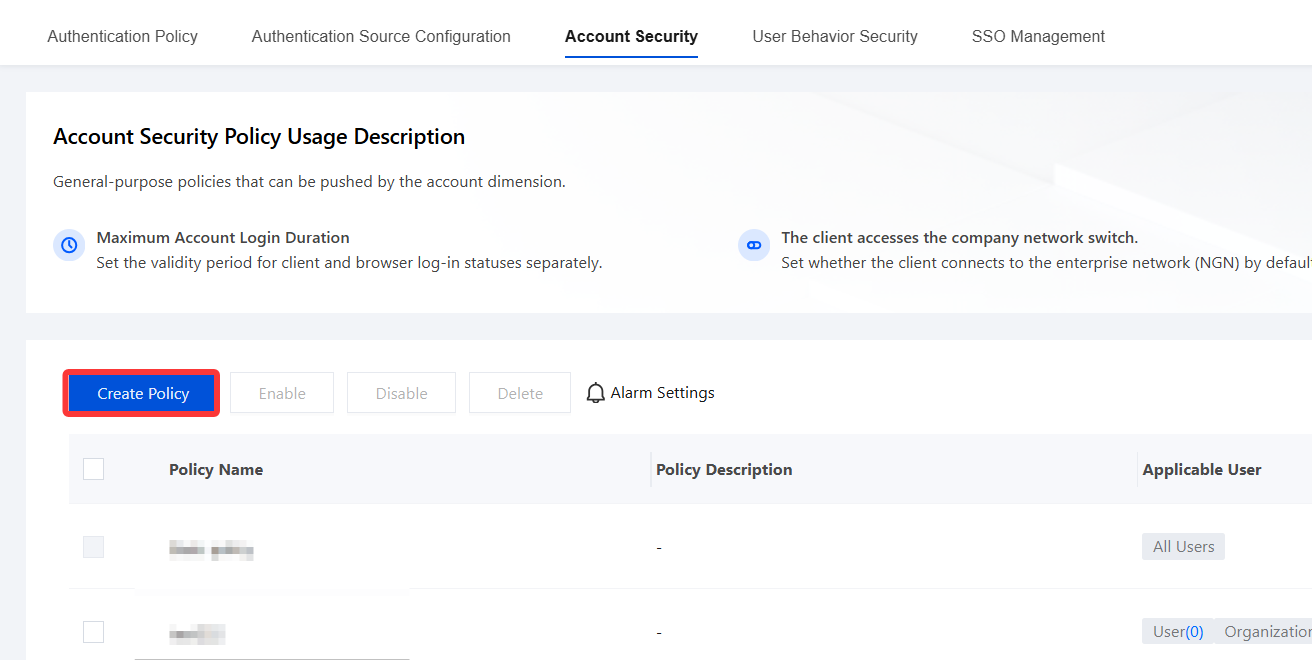
1. Go to Identity Security Management > Account Security and click Create Policy.
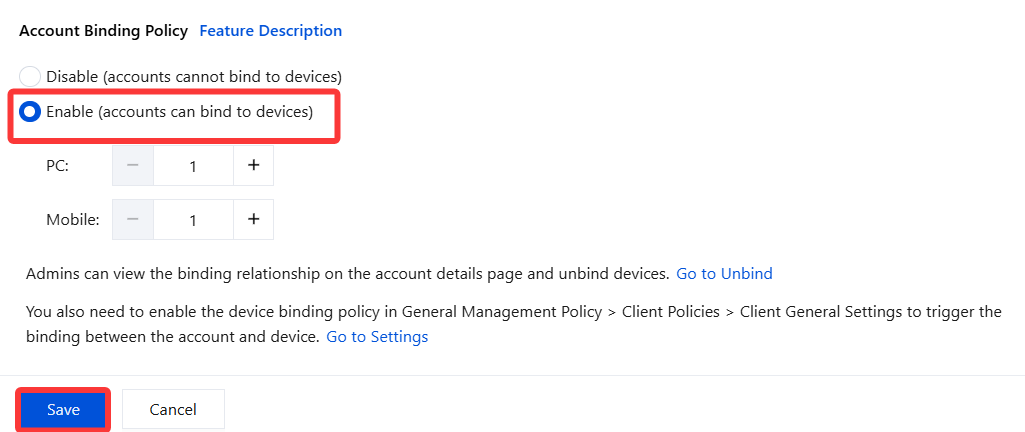
2. Click Enable Account Binding Policy and set the number of terminals that can be bound to an account. You can set separate limits for PC/mobile terminals. After editing, click Save.
3. Go to General Management Policy > Client Policies > Client General Settings and click Create Policy.
4. Configure a device binding policy.
5. Open the iOA client and log in with your account. The terminal is then bound to the account.
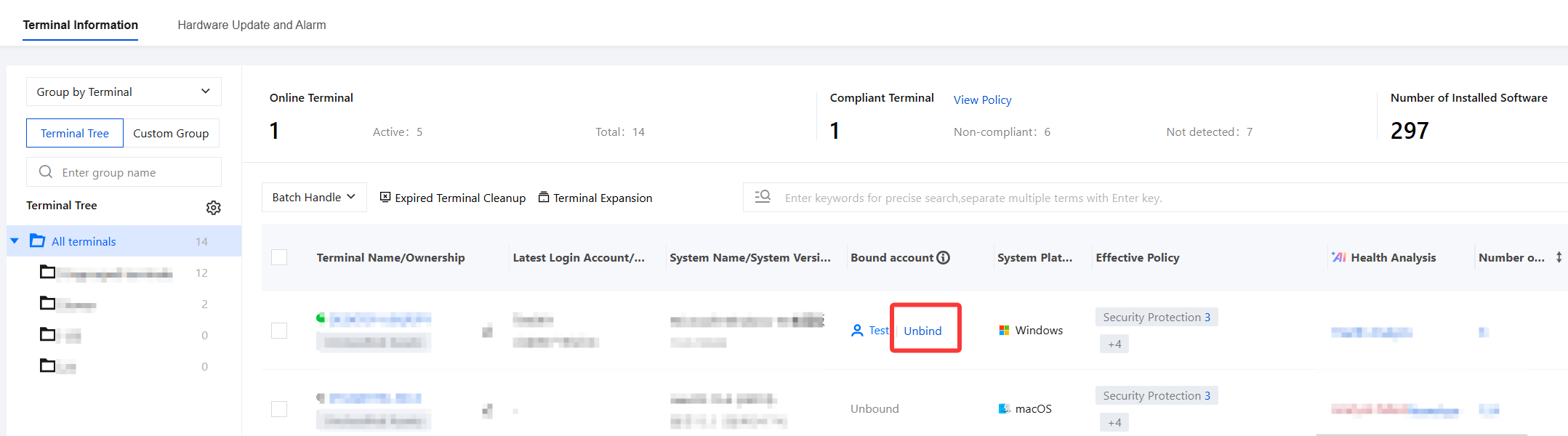
6. Go to Terminal Management > Terminal List > Terminal Information to view the status of bound accounts.
7. If you try to log in with a different account on the client of this terminal, the login fails because other accounts cannot log in on this device.
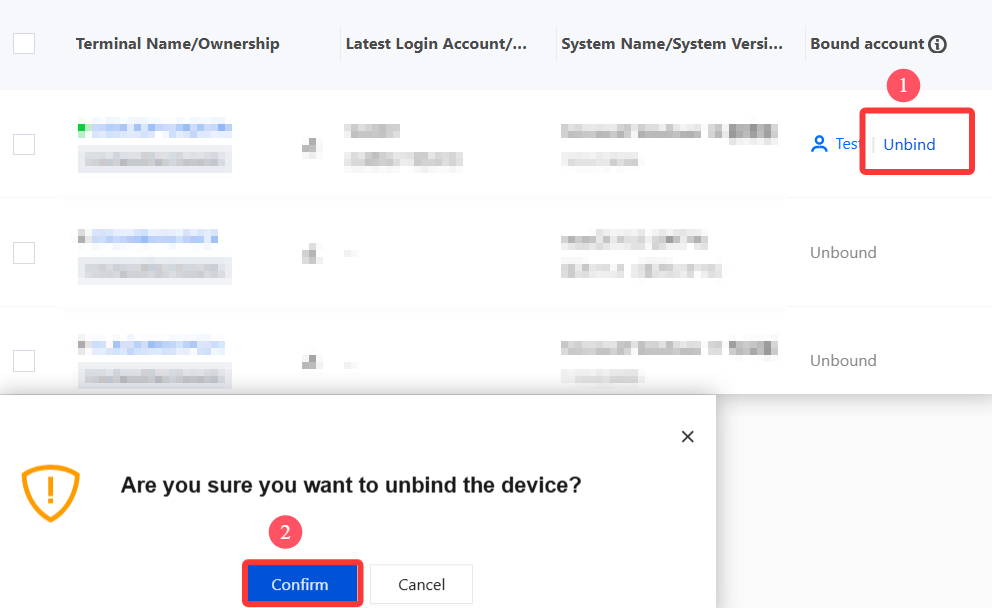
8. To unbind an account from a device, click Unbind.
Terminal Running Status Monitoring
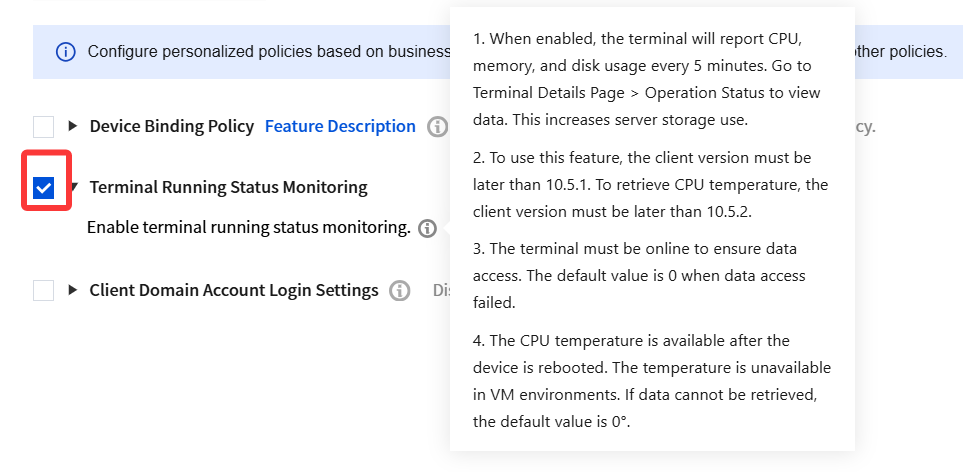
1. Enable terminal running status monitoring.
Note:
After you enable the terminal running status monitoring switch in Client Management - Client Policies - Client General Settings and restart the device, the terminal updates data every five minutes.
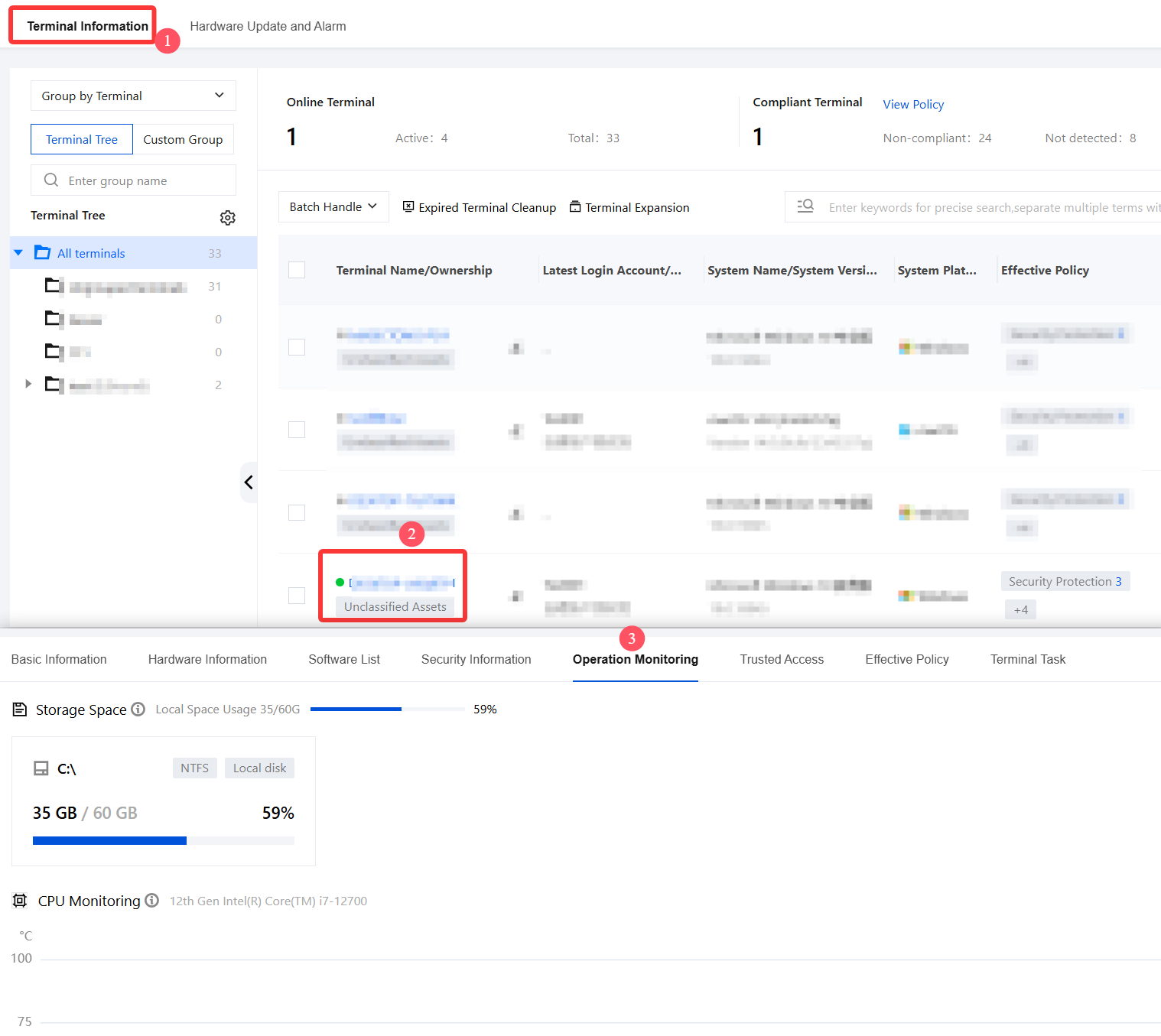
2. Terminals that receive this policy will report and display the local CPU temperature, CPU usage, memory usage, and iOA memory usage in Terminal Management > Terminal List > Terminal Information > click the terminal name > Terminal Details > Run Monitoring.
Client Domain Account Login Settings
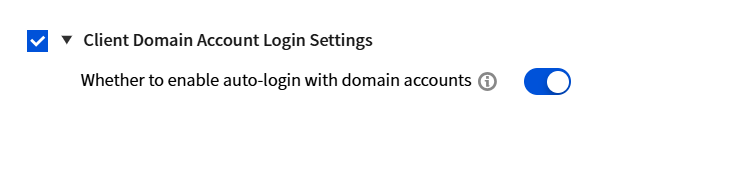
Select client domain account login settings and click
Enable Domain Account Auto Login.
Note:
Before enabling domain account auto login, go to Employee and Identity Management > Identity Security Management > Authentication Policy, select AD authentication source as the primary authentication method, and select AD domain environment password-free authentication.
After the system logs in with a domain account and password, the client can log in without entering the account and password again.
After the feature is enabled, it takes over and controls the login interface of the terminal system.