The connector primarily provides network connectivity and enables service invisibility by using a reverse connection to the gateway without opening listening ports, keeping services in a more secure network environment. The local server must meet the following condition: one side of the network can reach Tencent Cloud, and the other side can reach the service. Deploying a connector on such a server essentially establishes a bidirectional encrypted tunnel from the service side to the iOA zero trust gateway on Tencent Cloud, allowing traffic to pass through.
How Connectors Work
1. The connector starts and registers with the connector management service using TLS mutual authentication. The long-lived connection then periodically sends heartbeat messages.
2. When a user initiates access, the iOA client intercepts the traffic and forwards it to the SaaS gateway.
3. After successful SaaS gateway authentication, the SaaS gateway intercepts and maintains the client connection, and sends a control command to the connector management service. The command contains information such as the connector ID, gateway address, and resource ID.
4. The connector management service obtains the connector's long-lived connection based on the connector ID, and notifies the connector to access business resources and connect to the gateway.
5. The connector initiates a connection to the business resource (Layer 4) and a reverse connection to the corresponding gateway (Layer 4/TLS mutual authentication). After the connection is established, traffic is forwarded between the business resource and the gateway.
6. The gateway connects the client connection to the reverse connection, and the tunnel from the iOA client to the business resource is established.
7. Request and response packets are forwarded through the tunnel.
Hardware and Software Requirements for Connector Deployment
Machine Type
Operating System
CPU
Memory
Storage
Other
Local host/CVM
It is recommended to use CentOS 7.6 or later, or other Linux kernel-based systems.
Windows and Windows Server are also supported.
2-4 cores
4-8G
100G or more
Deploy on a dedicated machine and do not run other business systems at the same time.
How to Deploy a Connector
For connector deployment scenarios, installation, and uninstallation, see Connector Deployment.
Connector Troubleshooting
1. Access Link for iOA Proxy Resources
When troubleshooting abnormal iOA proxy resource access caused by connector-related component failures, note the following points:
Control commands can be received only when the control channel is connected.
Business resources can be accessed successfully only when the access channel is connected.
Ensure that the iOA client network functions properly and that the client establishes connections with the control plane (for ticket requests) and the data plane (gateway).
Ensure that the connector remains in a normal connectivity state, meaning it can receive control channel commands delivered by the connector management component.
Ensure that resource connectivity is normal. Make sure that the network of the server where the connector resides can reach the business resources.
Ensure normal connectivity between the connector and the gateway. The network of the server where the connector resides must be able to reach the gateway.
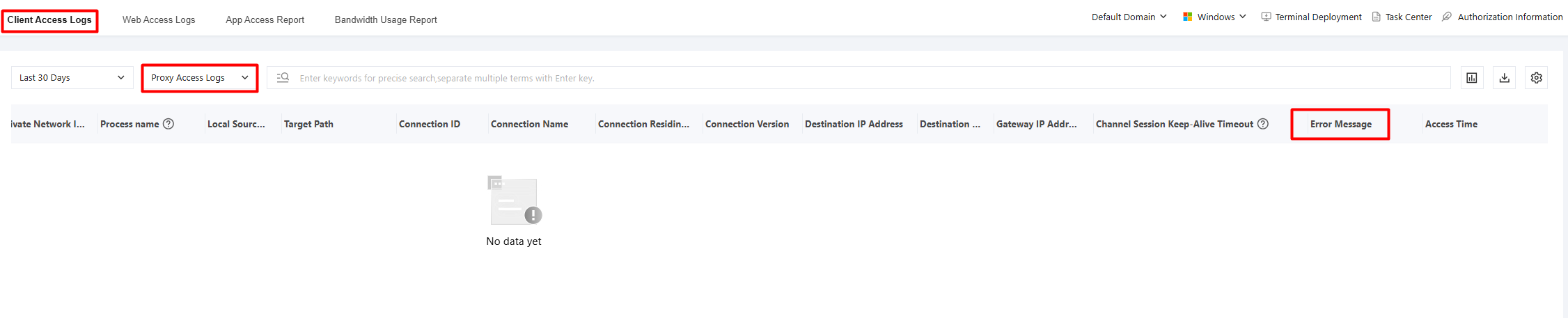
Connector troubleshooting focuses primarily on links 2-4. Before that, you can go to the iOA console to check the Error Information column in Resource Access Logs.
2. Viewing Error Information in Proxy Access Logs
On the Client Access Logs page, select the target log and view the error information.
Error Message
Remarks
Solution
Channel connection timeout
Connector egress network exception
Troubleshoot the network of the machine to which the connector belongs.
Tenant group connector does not exist.
Abnormal resource configuration
Reconfigure the connection group in the gateway resource list of the console.
3. Viewing Connector Connectivity Status
On the Third-Party Cloud Services page, click Refresh Connectivity Status to obtain the latest connector status and check the connection connectivity.
Resource connectivity depends on connectivity from the connector to the business side and from the connector to the iOA gateway side. Therefore, ensure that the connector has network reachability to both sides.
The connector periodically sends probe packets to the business and reports the probe results to the console. The connector can have the following states:
Connection Status
Remarks
Processing Method
Normal
The network connection from the connector to the business/iOA gateway is normal.
No action is required.
Abnormal
Abnormal network connection from the connector to the business/iOA gateway.
1. Check whether the network between the connector and the business is reachable.
2. Check whether the network between the connector and the iOA gateway is reachable.
3. If you configure resources by address range, port range, or wildcard domain name, the connector performs random probes and may probe unreachable addresses, resulting in abnormal display.
Detecting
Checking resource connectivity
1. Wait until the connectivity check passes.
2. If a tunnel resource is configured with a wildcard domain name, it may remain in the detection state. You can change the resource to a specific domain name. If this does not affect usage, you can ignore it.
5. Viewing Network Connectivity Between the Connector and the Gateway
The connector accesses the resource, then a reverse connection is established to the service, and then the gateway is connected. After the connection is established, the resource can be accessed.
For users with shared bandwidth, the port of the reverse connection service address is one of ports 30225 to 30324, and it is assigned during iOA initialization.
Control plane data reporting address
scs.gateway.tencent.com:443
Report NGN proxy access logs, resource connectivity status logs, and connector connectivity status logs.
WireGuard tunnel service address
wg1.channel.gateway.tencentwsd.cn(ip:13303)
Gateway WireGuard service address (UDP protocol).
6. How to Verify Connectivity Between the Connector and the Gateway
On the machine where the connector resides, run the Telnet command:
The above address is only an example. For the detailed address, go to the description column on the Non-Tencent Cloud Services page to obtain it.
The domain name can be replaced with the IP address obtained from the console.
The WireGuard tunnel service uses the UDP protocol. You only need to allow access to it, and no Telnet test is required.
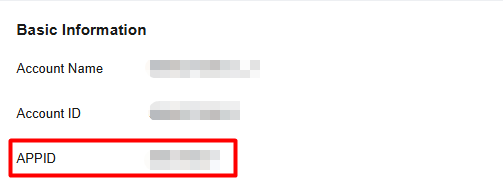
The tenant ID refers to the APPID of a Tencent Cloud account. You can view it in Account Information.
7. Testing Business Access Latency Between the Connector and the Client
Legend for the client access latency test:
Flow No.
Description
0
Ticket application: affects the first access to a resource. After a ticket is applied for the same resource, the local device caches it for 30 minutes.
1
Device access: uses the backbone network of your network carrier, and the quality of this part of the network depends on the network carrier.
2
Ticket verification: the gateway can currently reduce network interactions with the ticket service by adding caching.
3
Notification information: uses the backbone network of your network carrier, and the quality of this part of the network depends on the network carrier.
4
Connector access: uses the backbone network of your network carrier, and the quality of this part of the network depends on the network carrier.
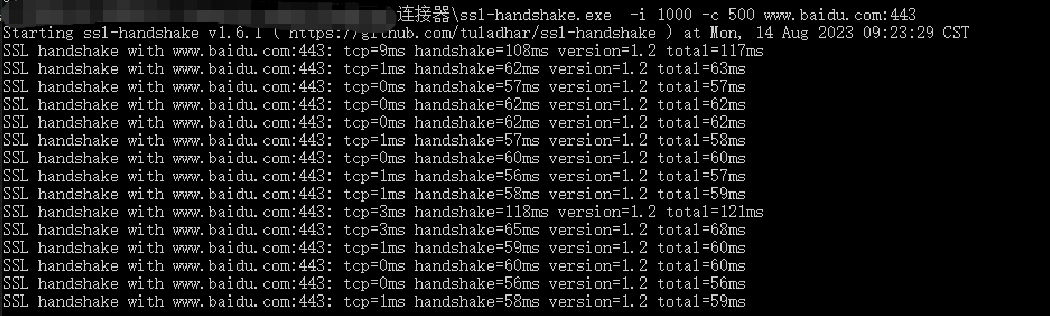
The current latency tests focus on two processes: iOA client-side (user-side) access and connector access. Use the attached tool for testing, as shown in the following example:
appid}.channel.gateway.tencentwsd.cn:9443//It is recommended to use the IP format. For details on how to obtain the address, see the instructions below.