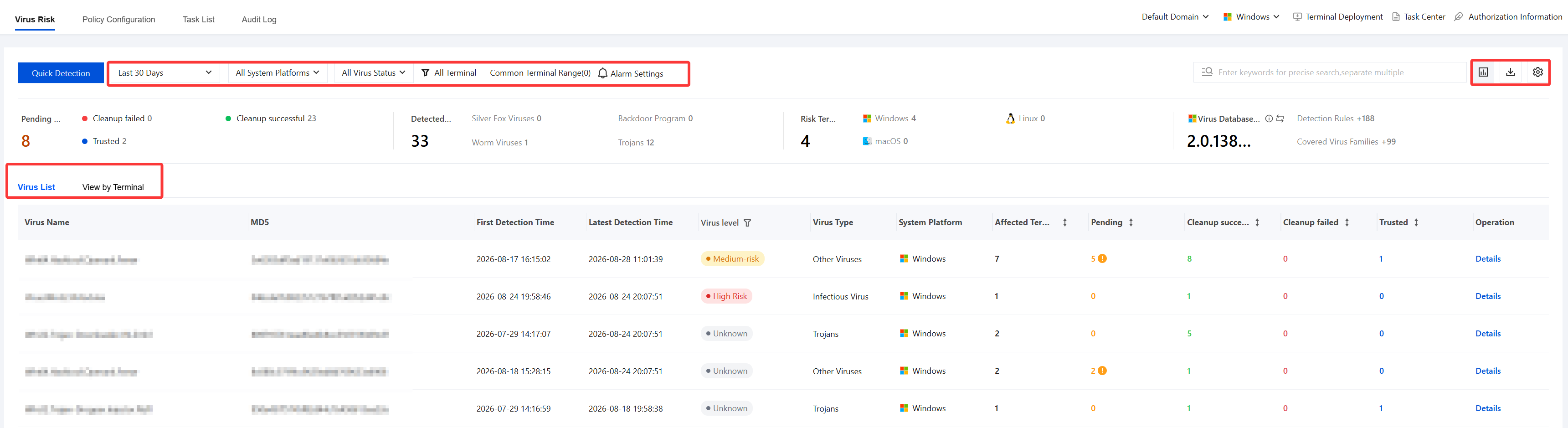
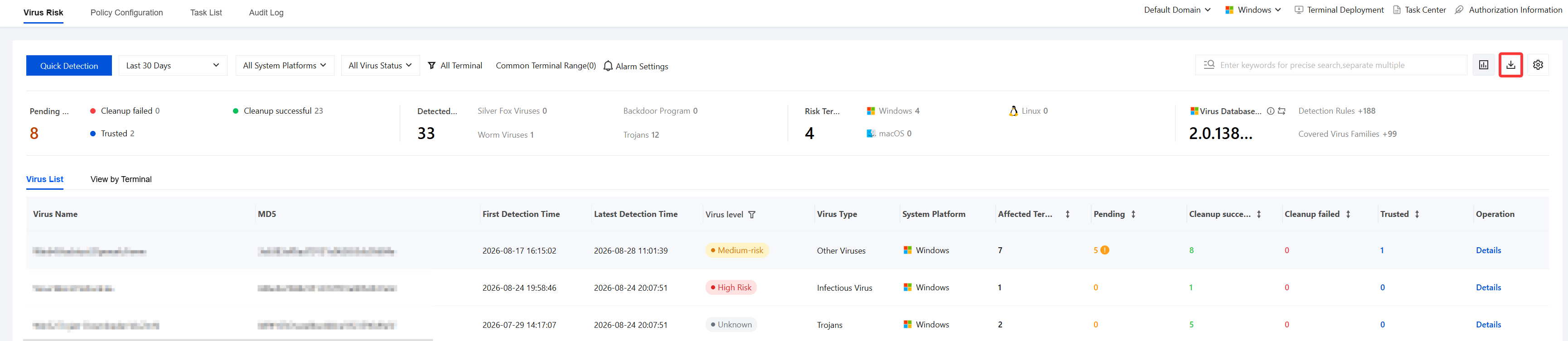
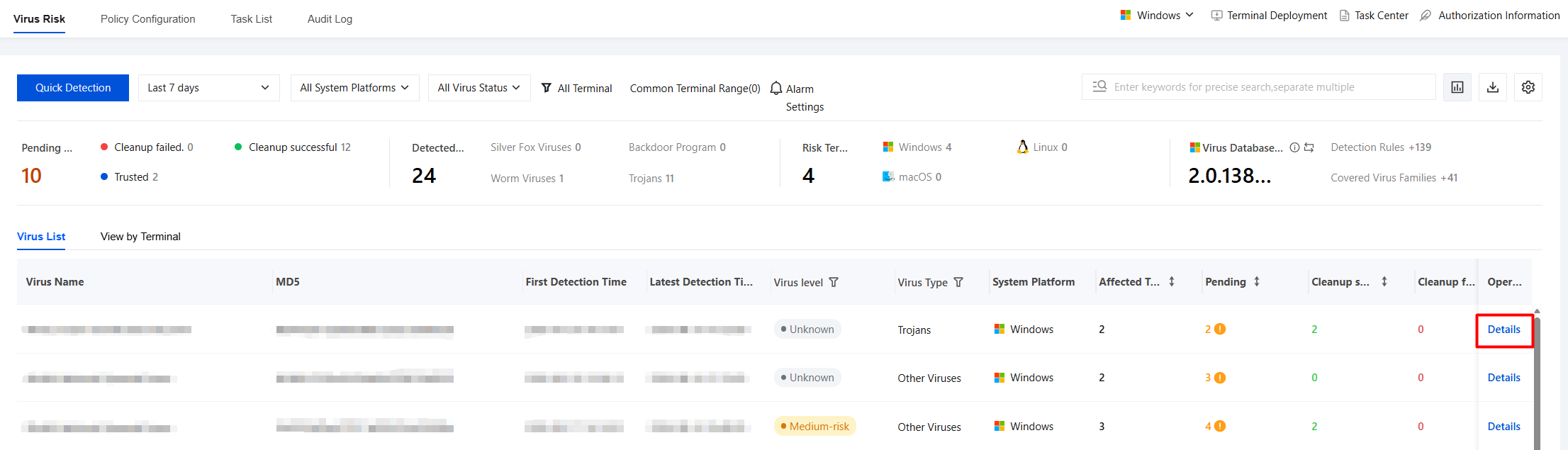
2. On the Virus Risks page, the detected virus risk details are displayed, and data filtering and statistics are supported.
Time filtering: 7 days by default, and users can customize the filtering range.
System platform: supports filtering by Windows / macOS / Linux.
Virus status: supports filtering by Pending, Removal Succeeded, Removal Failed, and Trust Added.
Terminal scope: Click to display the terminal filtering component, which shows virus-related data for the target terminals. All terminals are selected by default.
Common terminal scope: a general preset capability for saving and managing terminal filtering criteria that users frequently query, facilitating quick access.
Supports viewing by virus list perspective and terminal perspective.
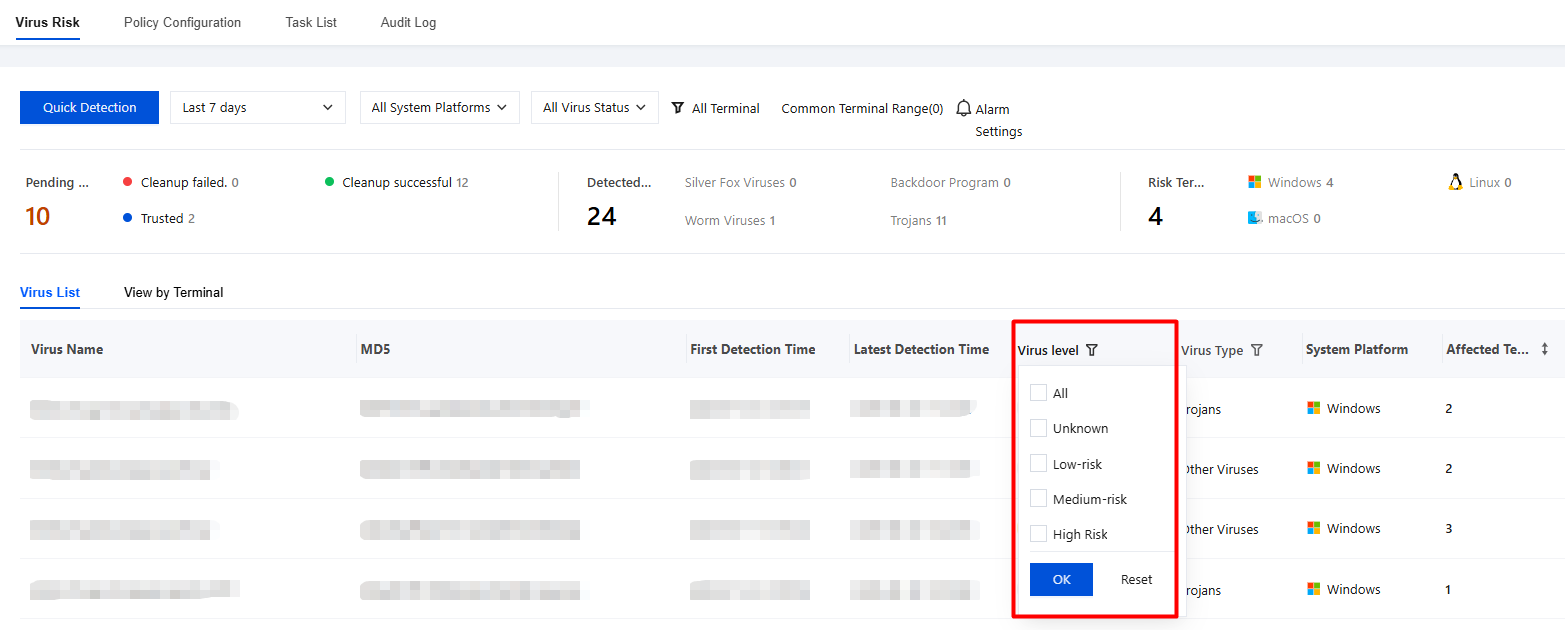
3. On the Virus List tab, you can view virus severity levels, which are classified as High, Medium, Low, and Unknown, and filter the list by severity level.
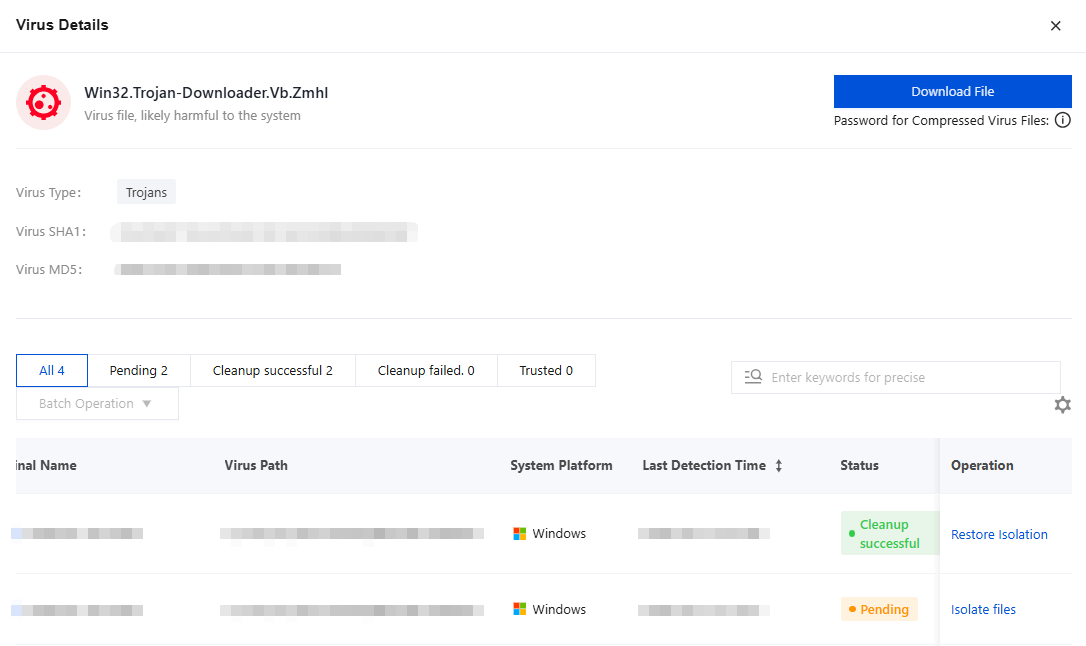
4. On the Virus List page, select the target virus and click Details to view its detailed information.
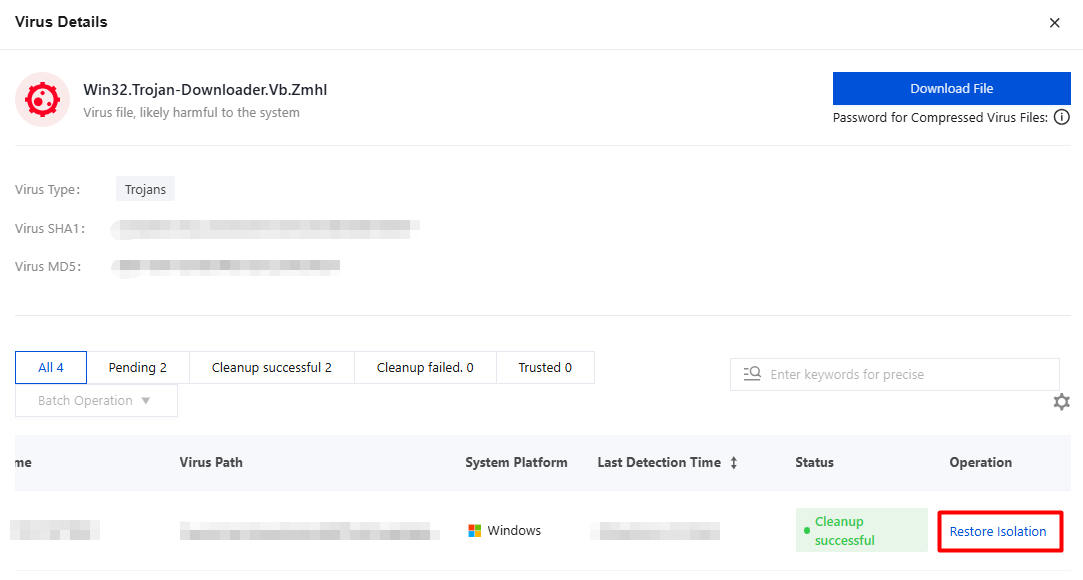
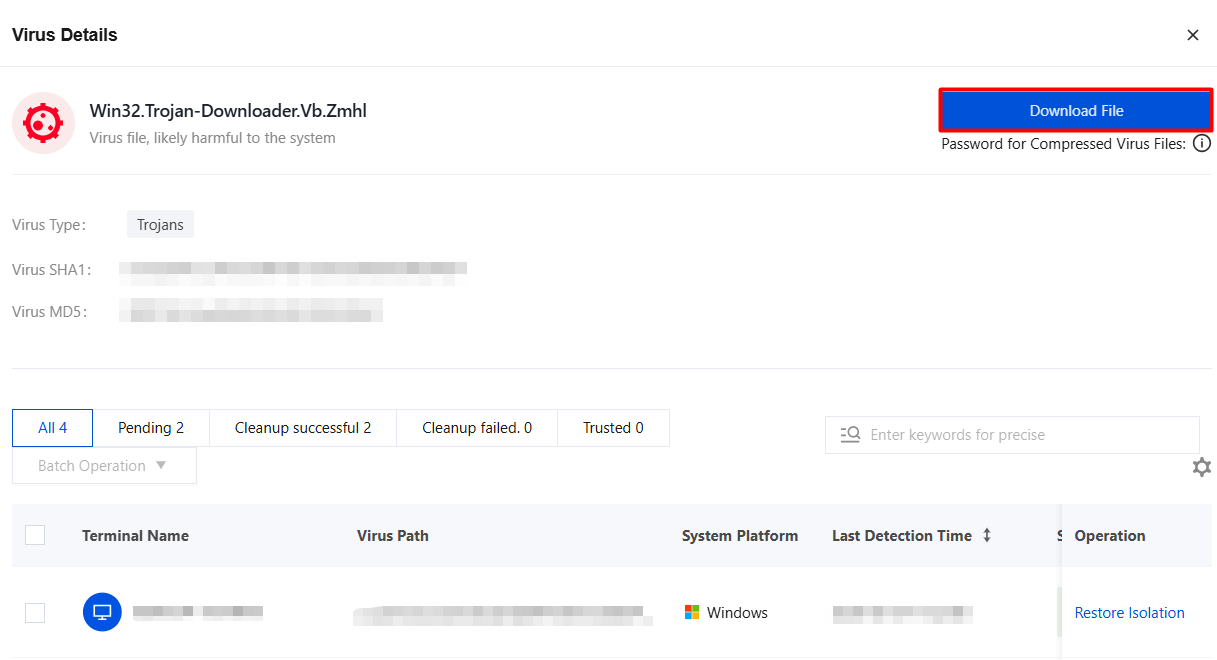
5. On the Virus Details page, administrators can quickly isolate Pending viruses and click Restore Quarantine for viruses whose removal succeeded.
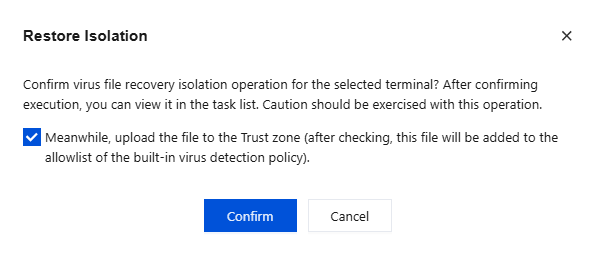
6. Click Restore Quarantine. You can select Also add the file to the Trust Zone to add it to the built-in policy allowlist.
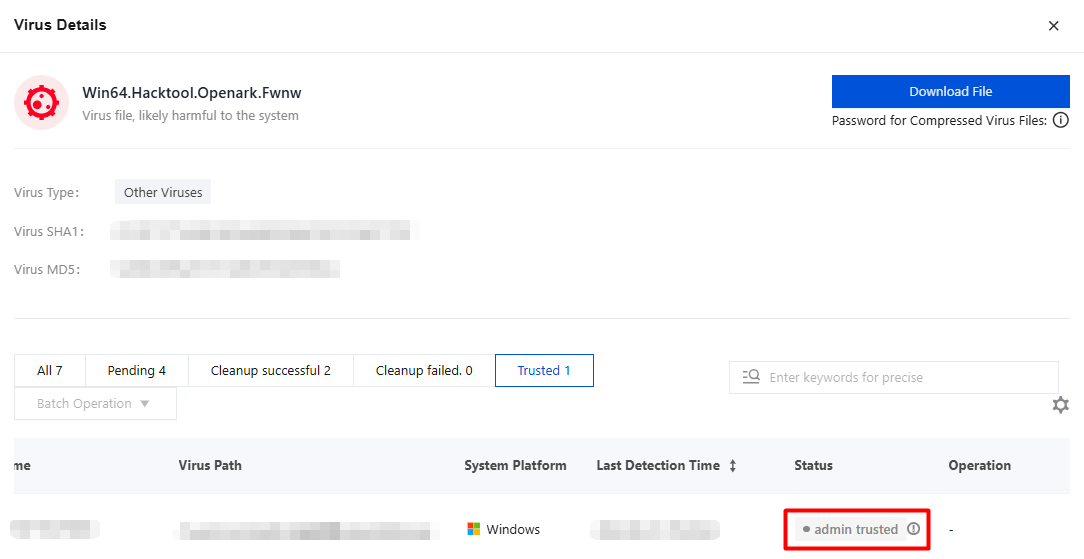
7. On the Virus Details page, viruses restored from quarantine by an administrator are marked as "Trusted by Administrator", distinguishing them from the "Trusted" status manually set by employees on the client.
One-Click Virus Detection/Database Update
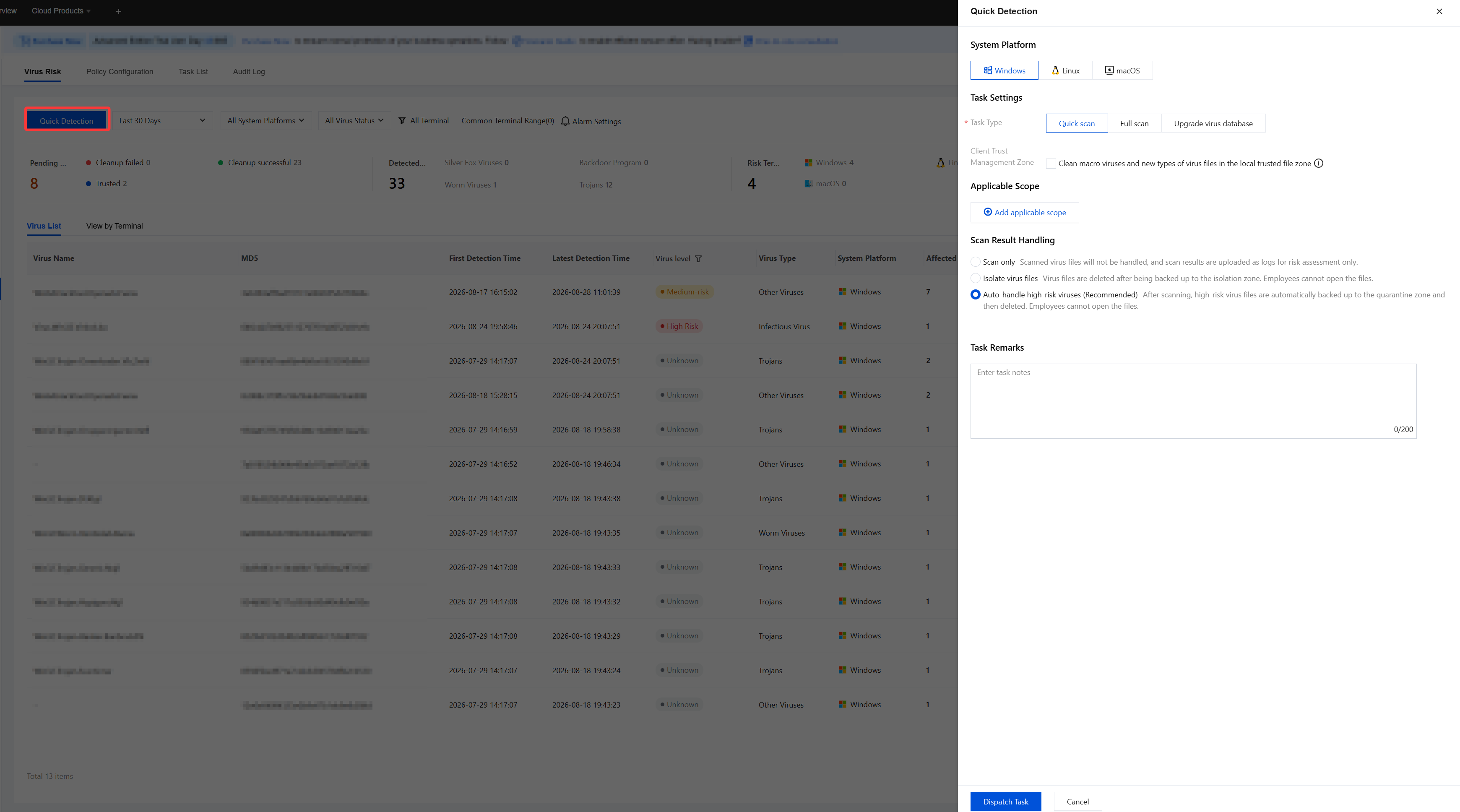
1. On the Virus Risks page, click Quick Detection.
2. On the Quick Detection page, configure the system platform, task settings, applicable scope, scan result handling, and task remarks, then click Dispatch Task.
Exporting data
1. On the Virus Risks page, click the button in the upper-right corner
.
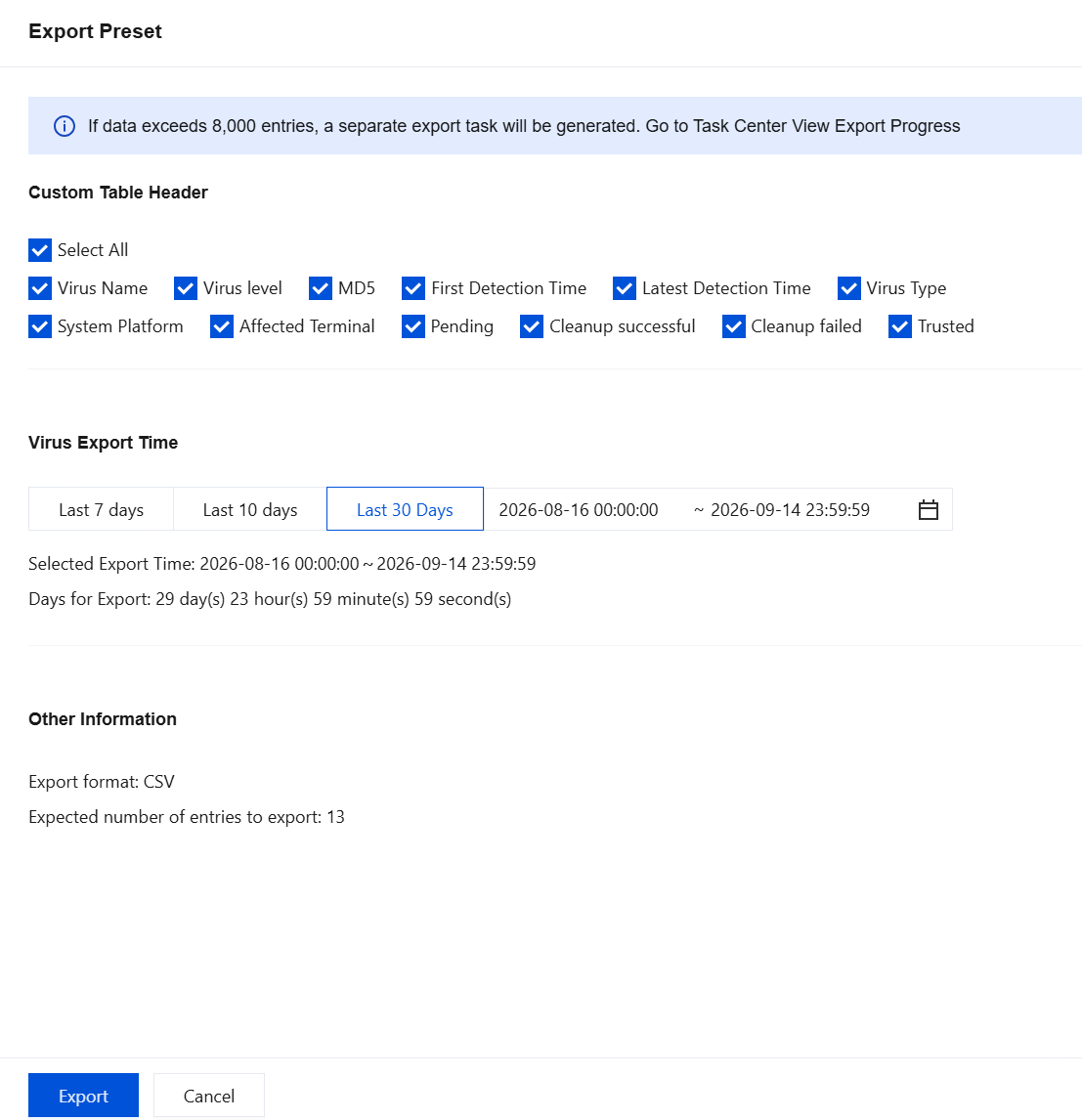
2. Select the custom header and export time parameters, and then click Export.
Closed-Loop Virus Management and Auditing
System Repair Details
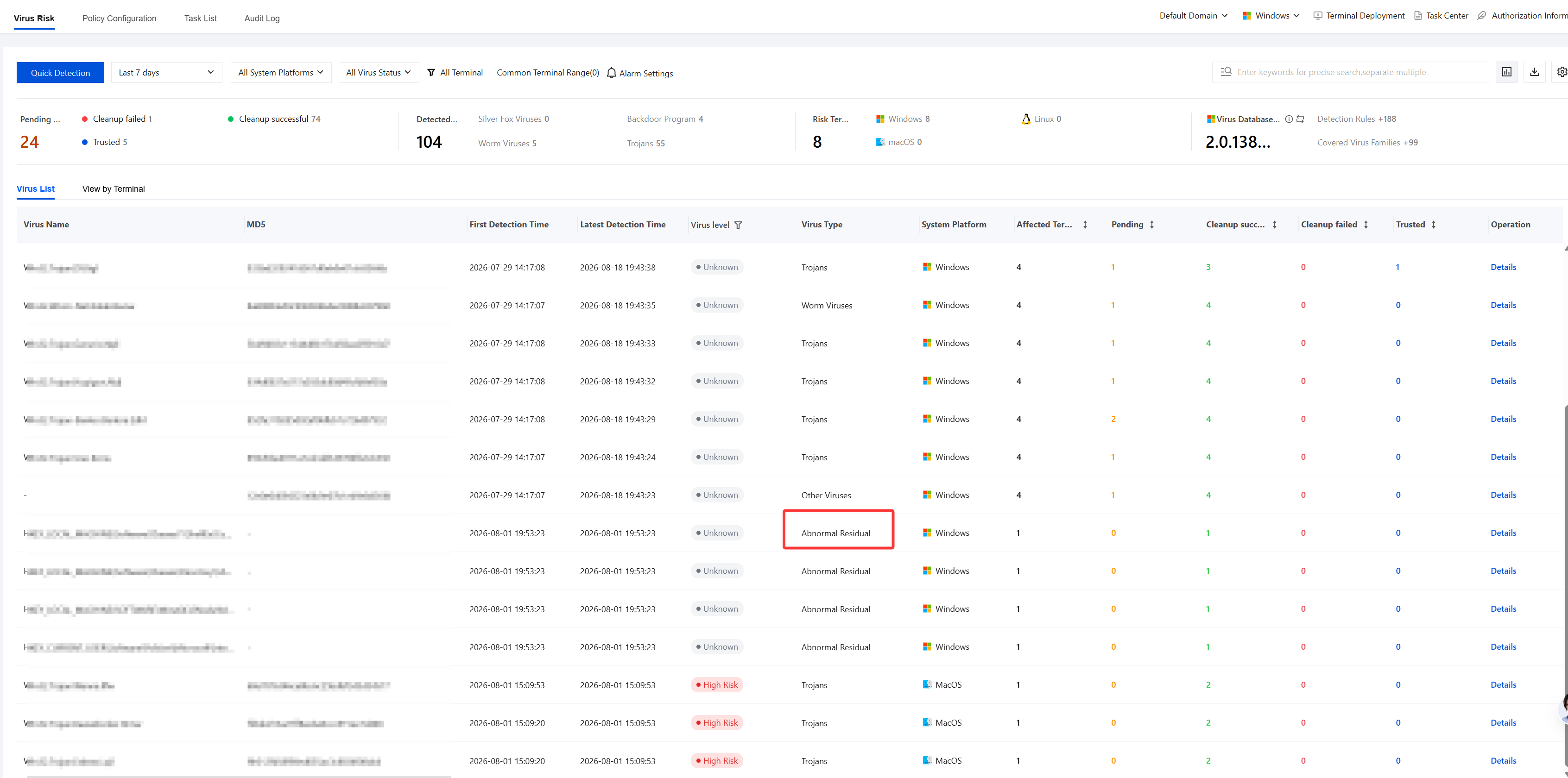
On the Virus List page, system repair details are displayed. You can filter by virus type, view abnormal remnants, and quickly locate specific categories of threats.
Isolation Zone Recovery Status Display
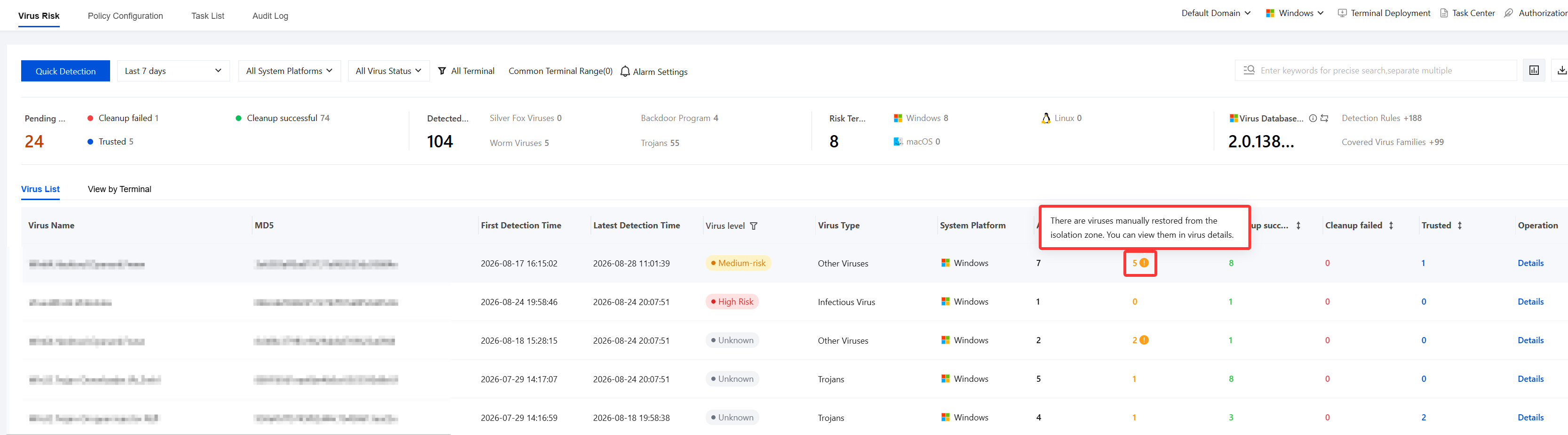
1. On the Virus Risk page, log auditing is supported for virus files that users manually restore from the isolation zone after virus detection. The Virus Risk page specially marks such viruses with the status "Pending", so you can clearly see that the virus was manually restored from the isolation zone by the user.
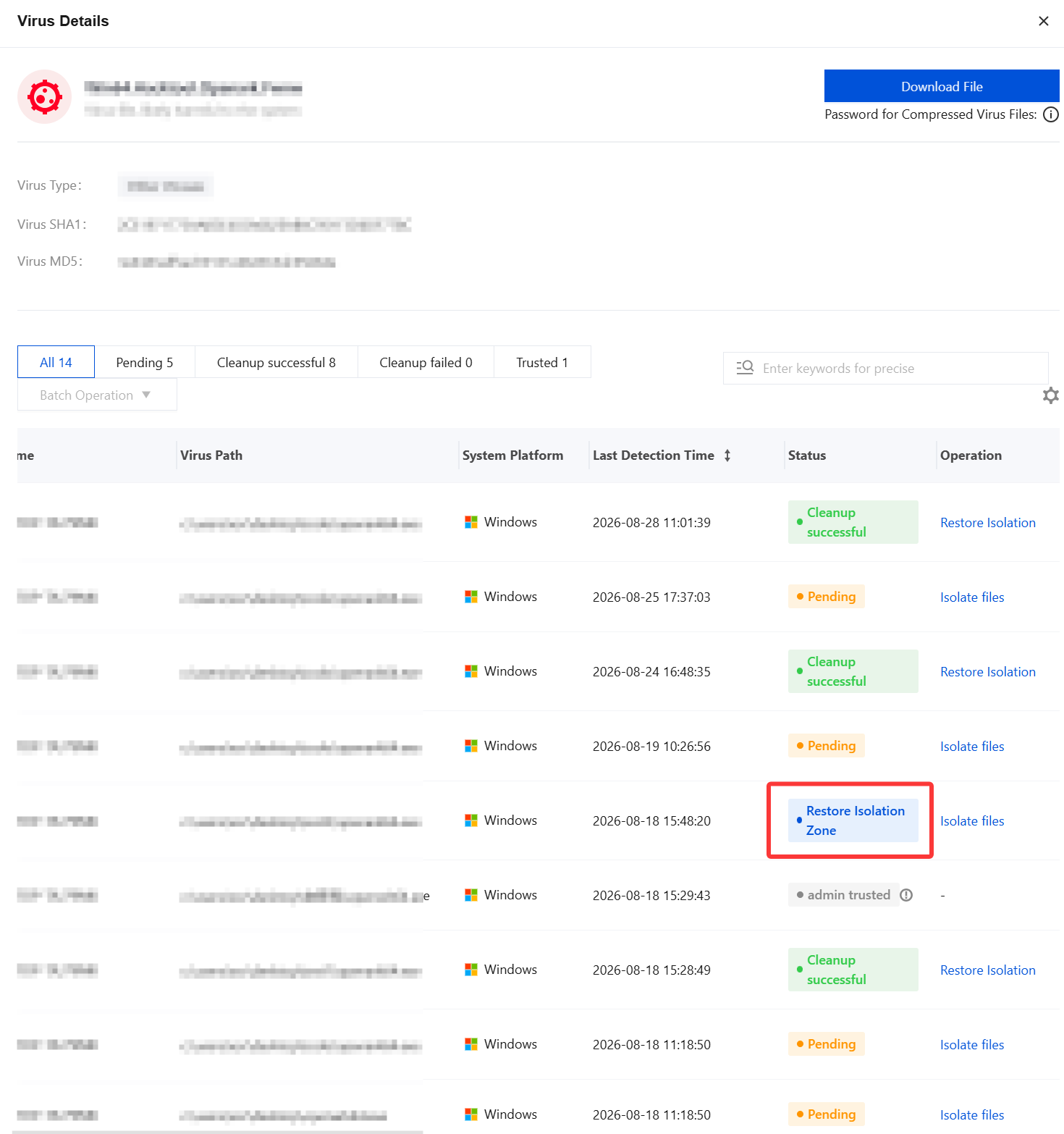
2. Click the number corresponding to Pending. You can view in the status bar that the virus file was restored from the isolation zone.
Secure Download of Infected Files
1. On the Virus Risk page, select the View by Terminal tab and click Details.
2. On the Virus Details page, you can safely download the virus file. Click Download File. To view the decompression password for the downloaded archive, click