Through the remote terminal channel of the Smart Desk, you can converse with the Smart Desk anytime, anywhere. This channel supports WeCom intelligent bots and WeChat.
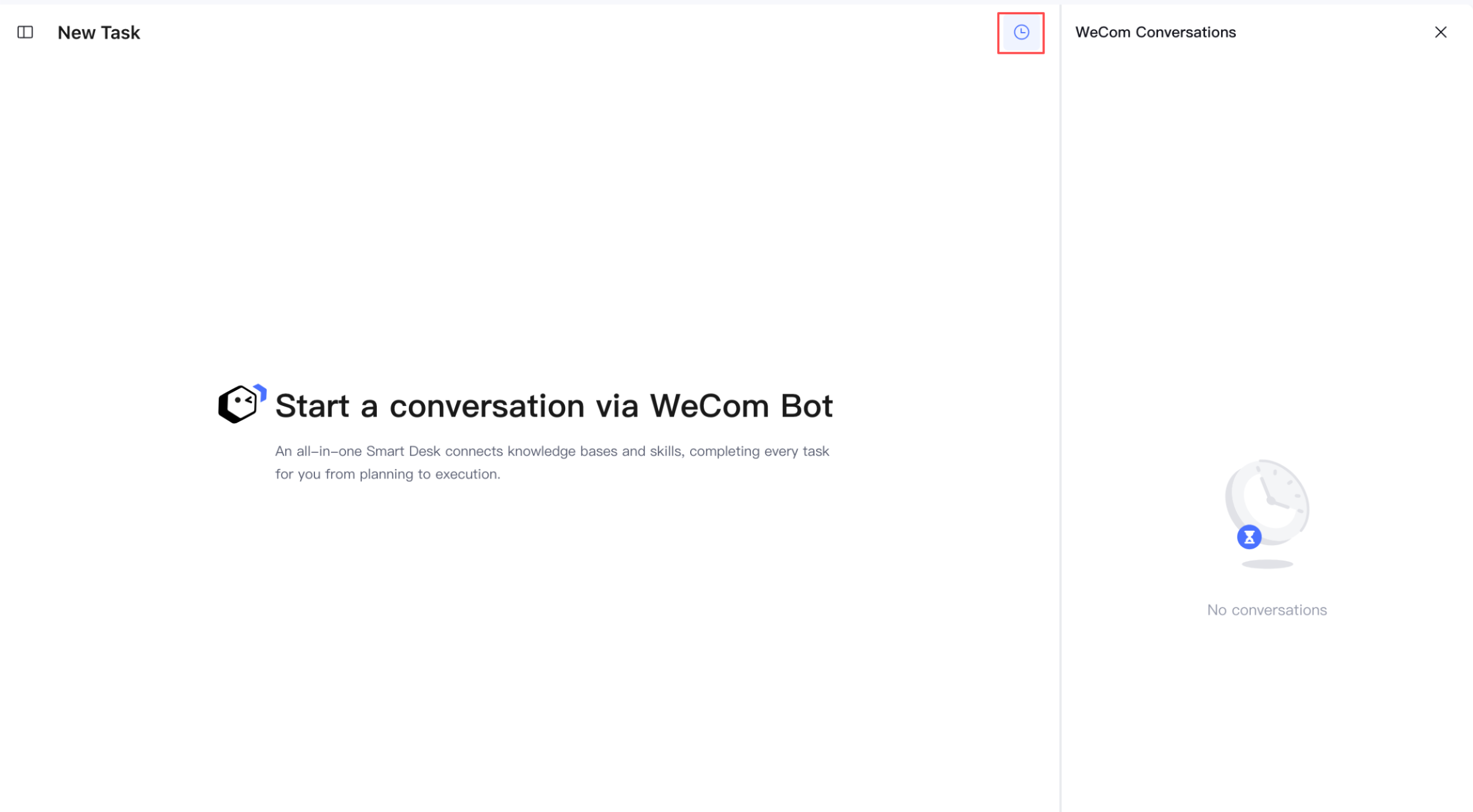
You can view the conversation history and artifacts from the remote terminal channel in the Smart Desk and continue the conversation.
Channel Settings
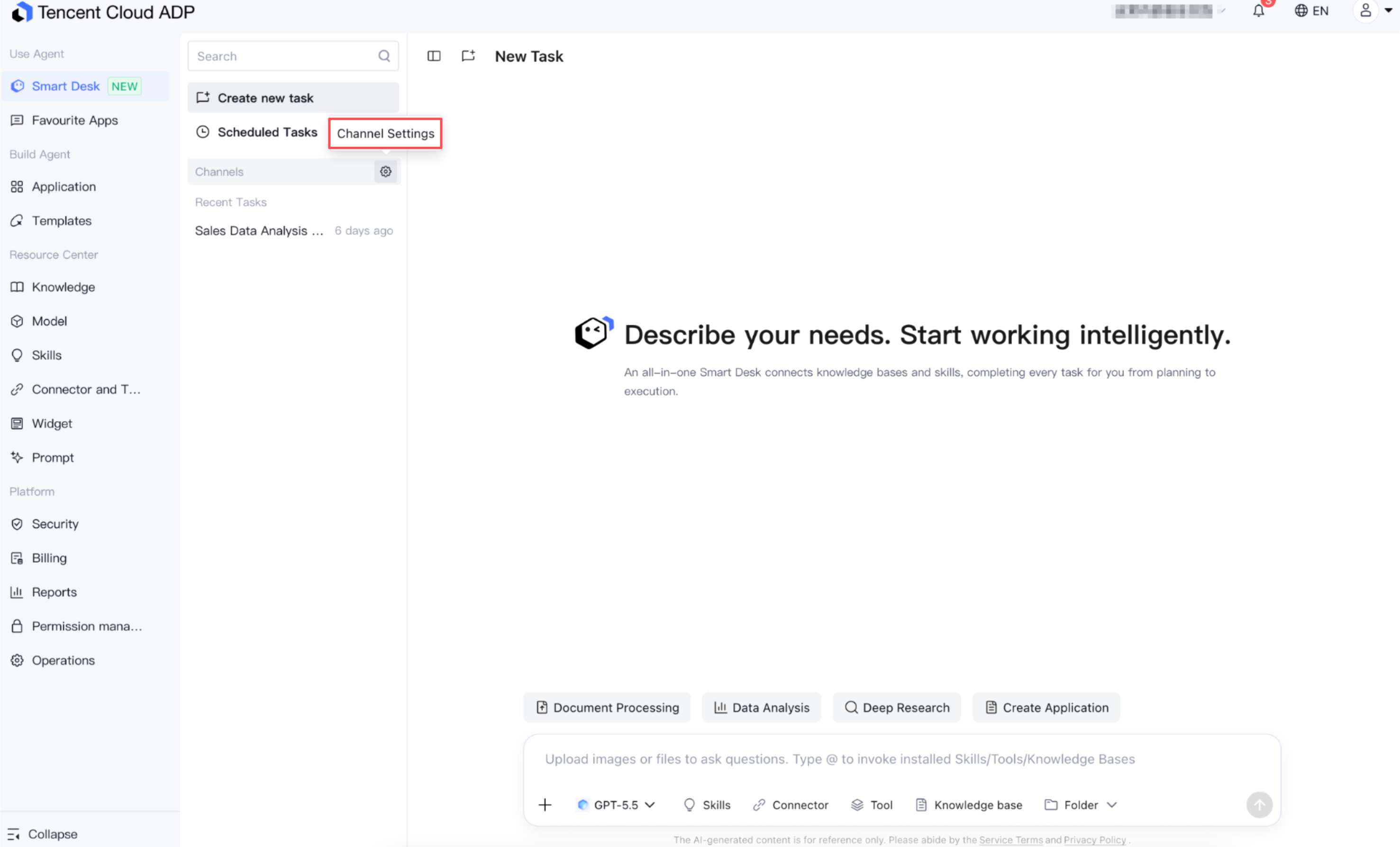
Go to the Smart Desk and click Channel Settings next to Remote Terminal.
WeCom Bot
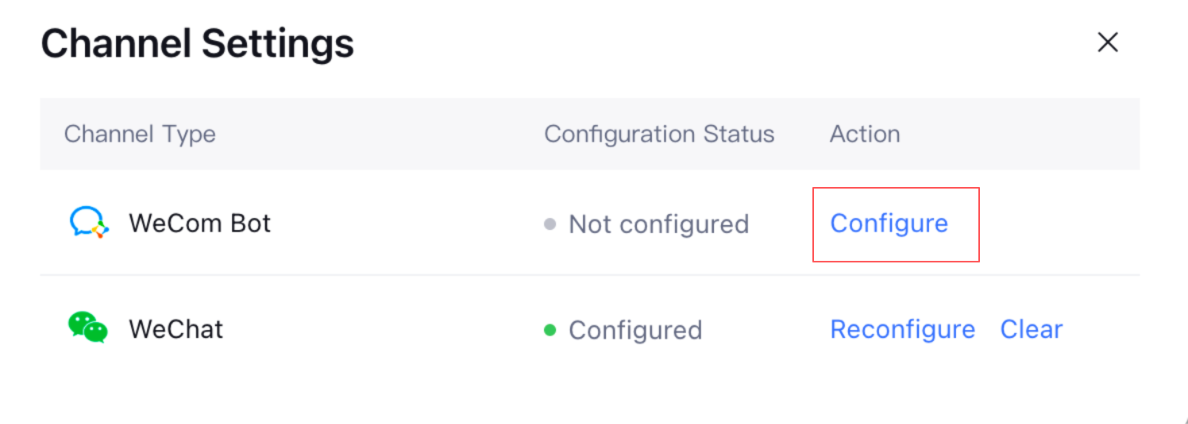
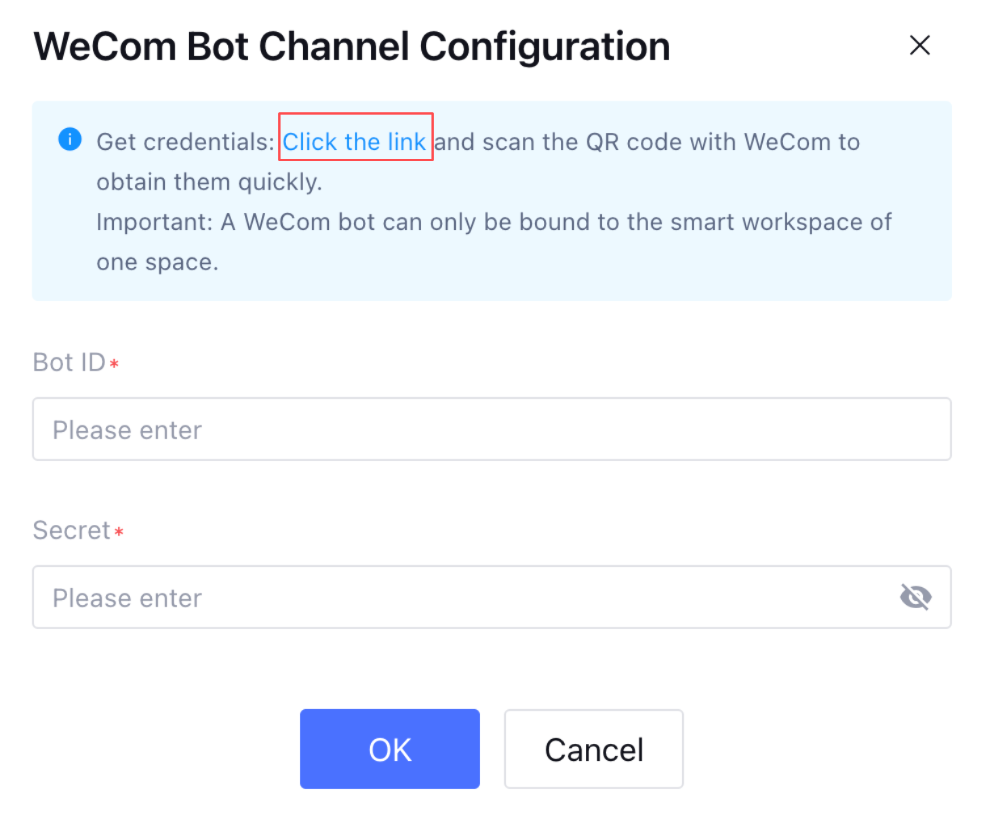
1. For the WeCom intelligent bot channel, click Configure. You need to enter the Bot ID and Secret, and then save the settings to complete the channel configuration.
You can obtain the Bot ID and Secret through either Scan Authorization or Manual Configuration. It is recommended to use the Scan Authorization method, which enables quick channel integration.
Note:
If you have permissions for multiple spaces, the remote terminal channel for each space can be configured separately. However, note that a WeCom intelligent bot can only be bound to one Smart Desk. A new connection will override and invalidate the old one.
Method 1: Scan to Authorize (Recommended)
On the page, locate and click the link. Then, scan the QR code using WeCom. After the bot is created with one click, you can authorize the Bot ID and Secret to the Agent Development Platform.
Method 2: Manual Configuration
Phase 1: Create a bot.
1. Log in to the WeCom client and go to the Workbench. Select Smart Bot. (You can also find the Smart Bot by searching.)
2. Click Create Smart Bot and select API Mode Creation.
3. Select "Configure via Long Link", obtain the Bot ID and Secret, and then save the bot.
WeChat Channel
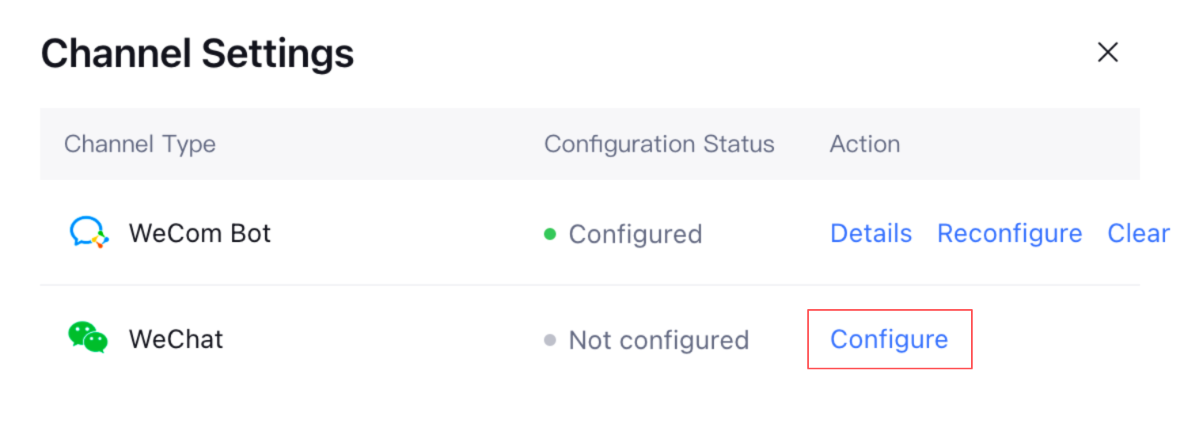
1. Locate Channel Settings and click Configure.
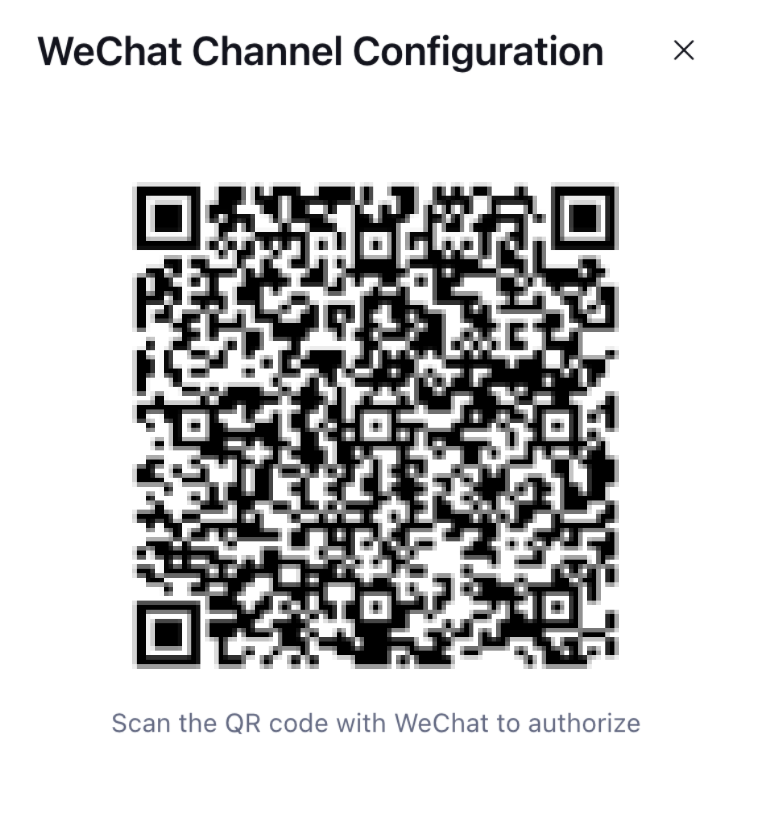
2. Scan the QR code below using your mobile WeChat to enter the WeChat Clawbot window for conversation.
Note:
1. The QR code is valid for 120 seconds. Please complete the scan within this validity period.
2. If you have permissions for multiple spaces, the remote terminal channel for each space can be configured separately. However, note that a WeChat account can only be bound to one Smart Desk. A new connection will override and invalidate the old one.
Conversation Feature
Viewing Sessions: If you use the bound remote terminal in multiple one-on-one or group chats, you can expand different sessions in the list on the right.
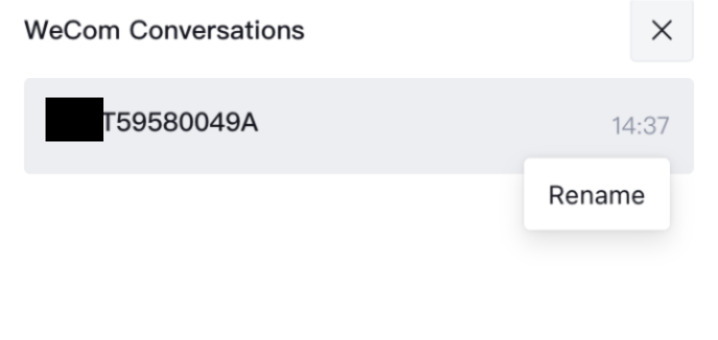
Session Title: The session title is automatically generated based on the chat object ID. You can click Rename to change it to a more memorable name.
Continuing Conversations: You can continue conversations with any session in the Smart Desk. The conversation context remains coherent, but replies are only visible within the Smart Desk and are not synchronized to the original terminal.