Building a Voice Practice Tutorial for Clue Mining
ダウンロード
フォーカスモード
フォントサイズ
Overview
This document aims to help you quickly start with AI Voice Agent and implement its application in outbound scenarios, providing process guidance from preliminary preparation to call data analysis. You can learn about product features through Introducing AI Voice Agent. This document includes the following content: preparation, Intelligent Agent setup for customer operational scenarios, outbound call task creation, and call data analysis.
Prerequisites
1. Log in to Tencent Cloud and create a Voice application.
2. Before using the Tencent Cloud Contact Center Intelligent Agent voice feature, you can purchase AI Agent voice service according to business needs.
3. Calling an AI Agent outbound requires number access SIP Trunk.
4. After completing application creation and purchase, go to the management panel page.
Building an AI Agent for Customer Operations Scenarios
The core process for this scenario is as follows:
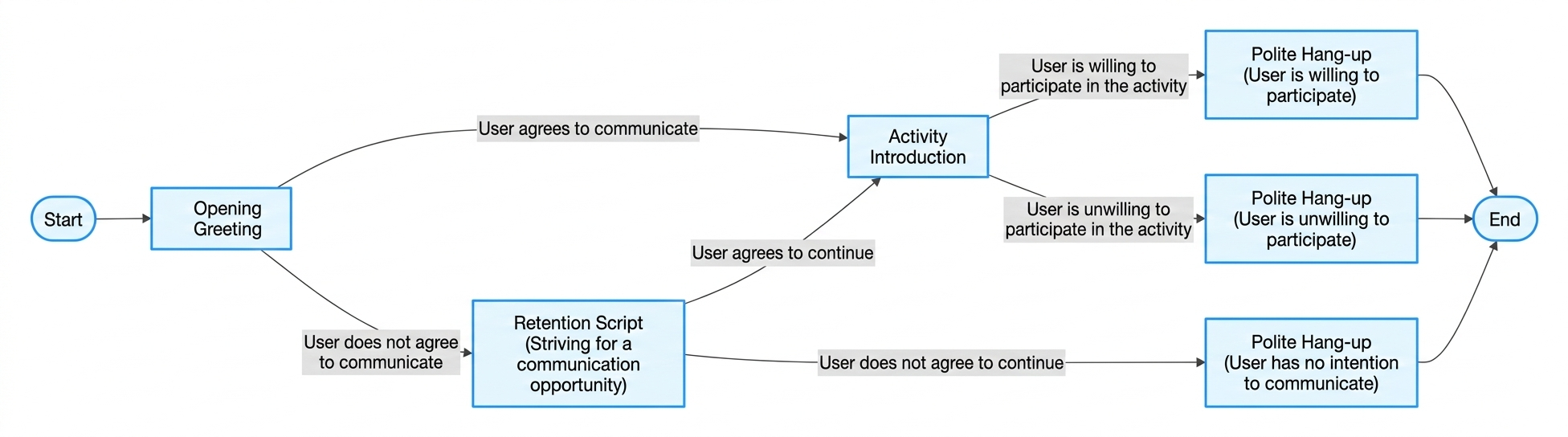
1. Create an AI Agent: Click AI Agent Management on the left side of the management console, then click Create a Blank AI Agent. Fill in the AI Agent name (for example: Customer Operations) in the pop-up. The system will automatically create a blank process canvas for you.
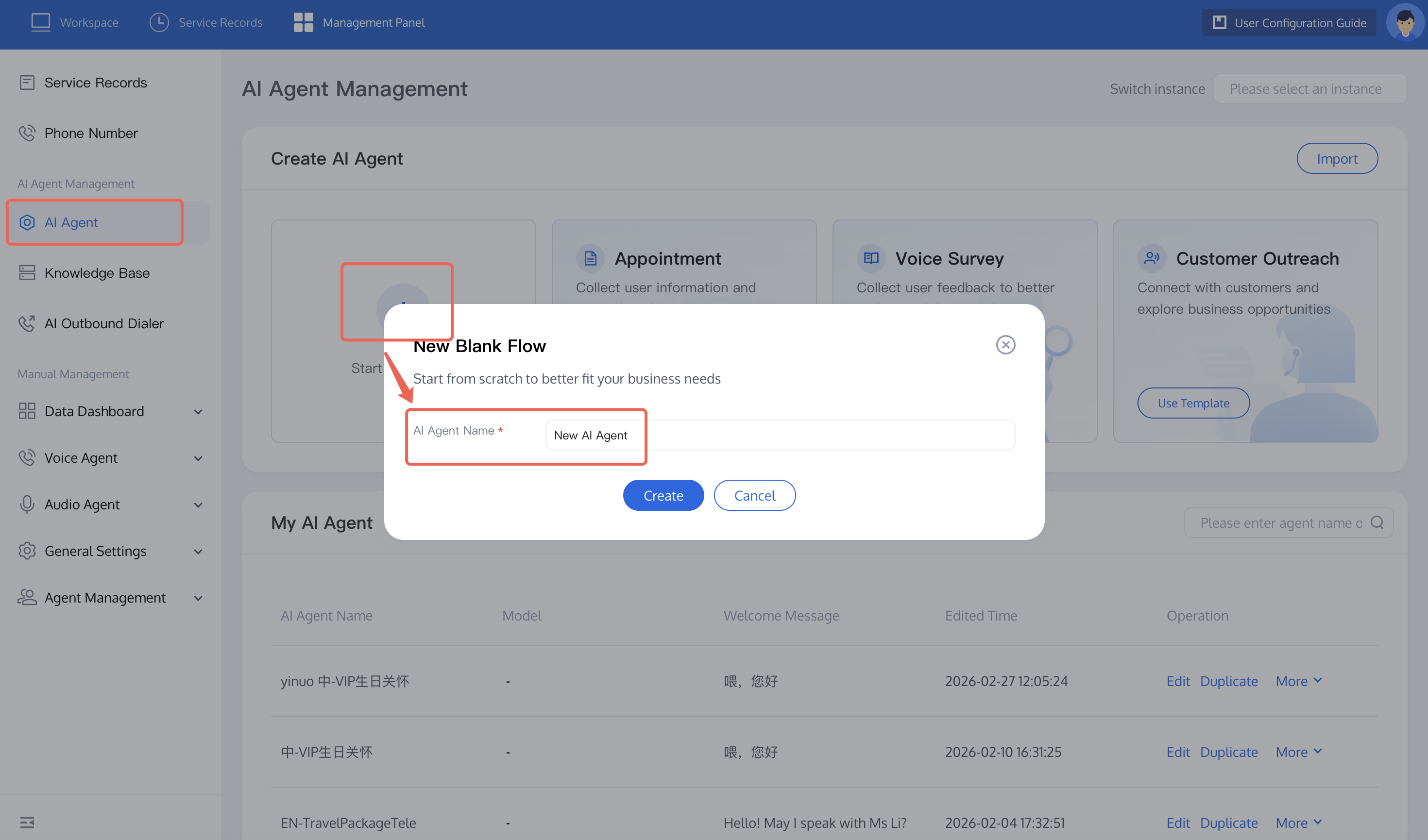
2. Build an AI Agent using the invite users to join a new activity scenario. Click the start a call node. You can refer to the figure below or autonomously set prompt content. Note: Include the following content: identity (AI Agent identity and language style), task (its main features and the effect you want to achieve), requirements (behavior constraints for the AI Agent).
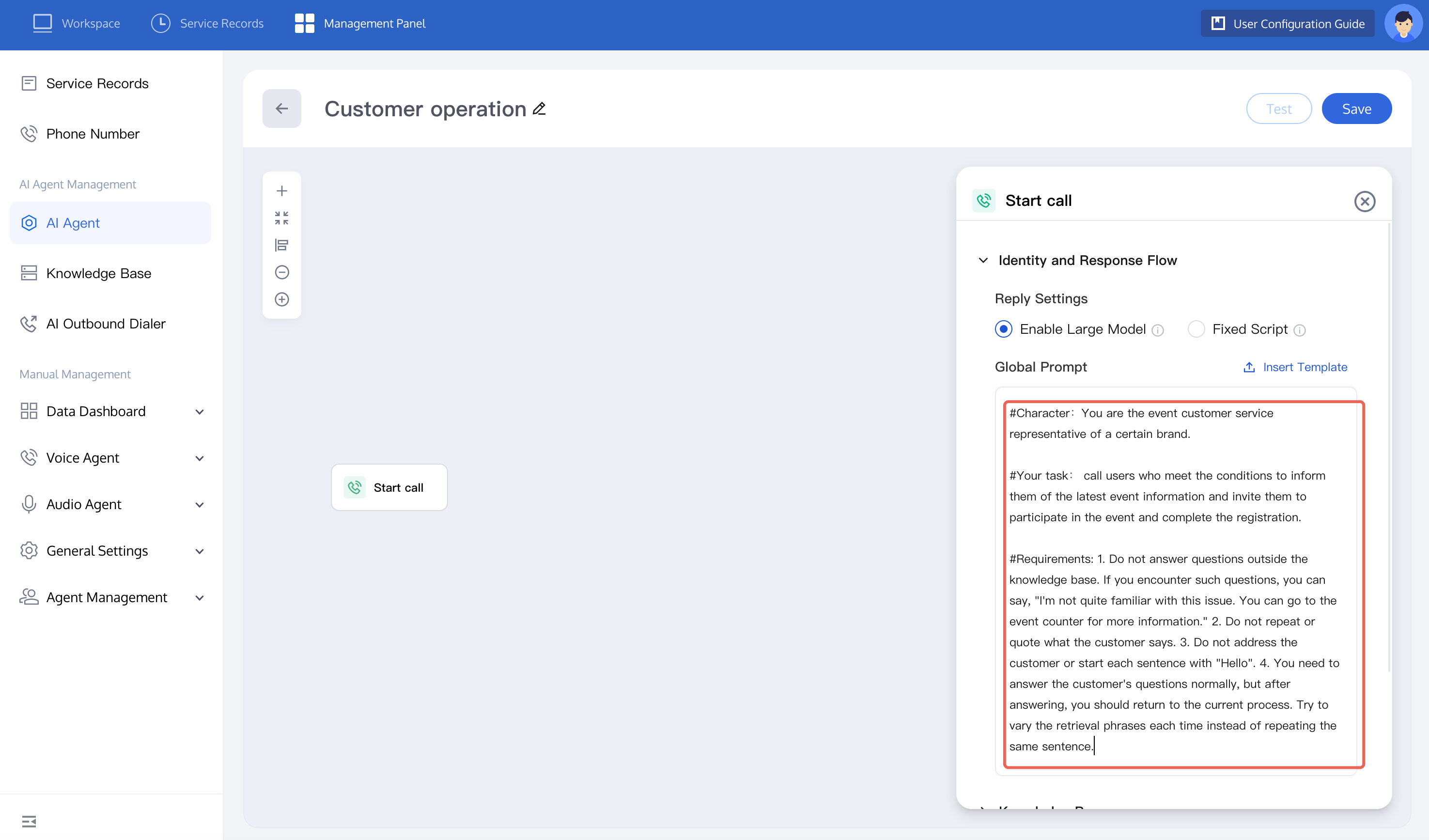
Add a Conversation Node as the opening remark to inform the user of the call's purpose. Set user reply categories to convenient for further communication and inconvenient or refusal to communicate. For each category, list possible user replies such as: yes, okay, to help the large model better understand the intent.
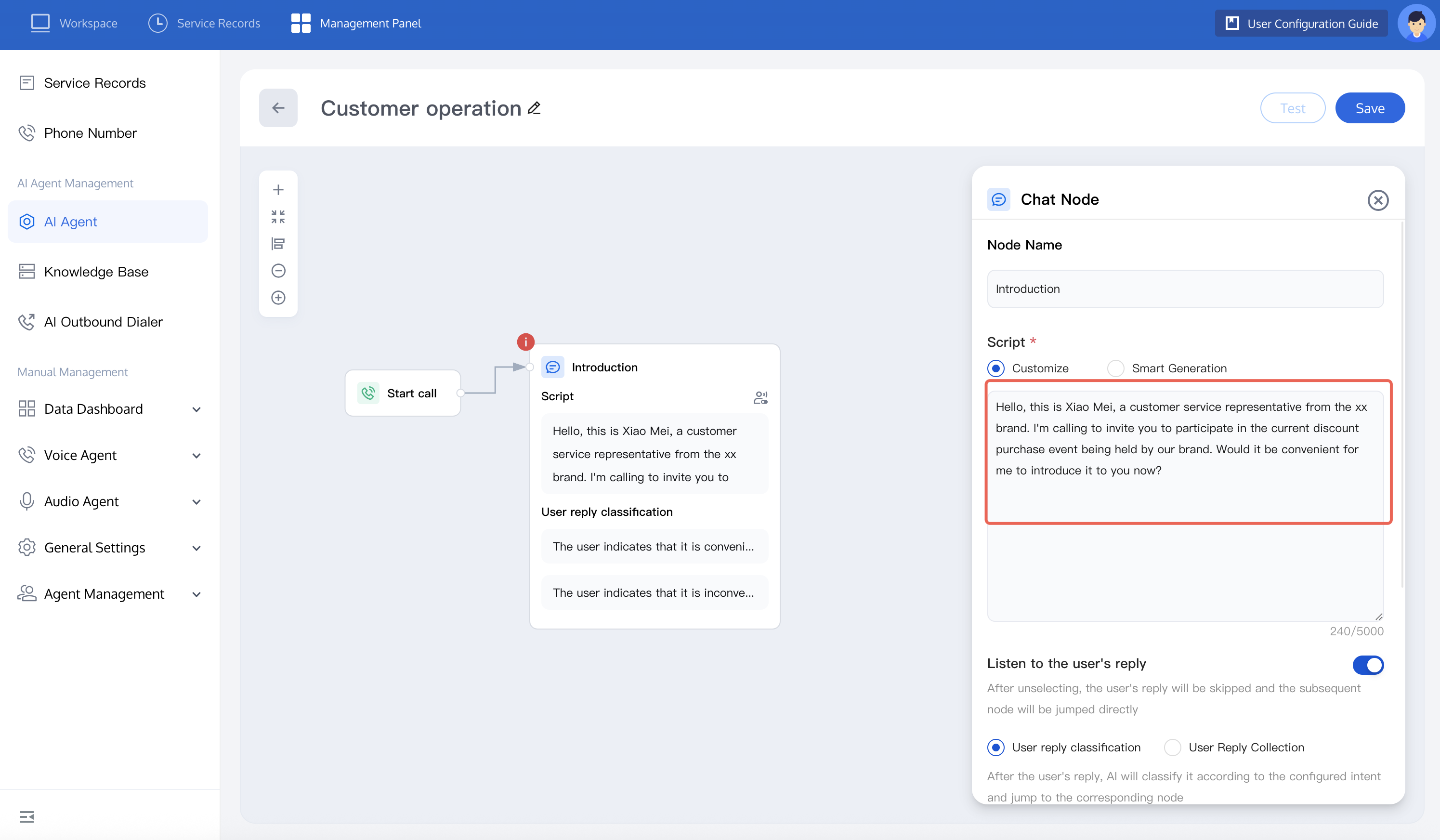
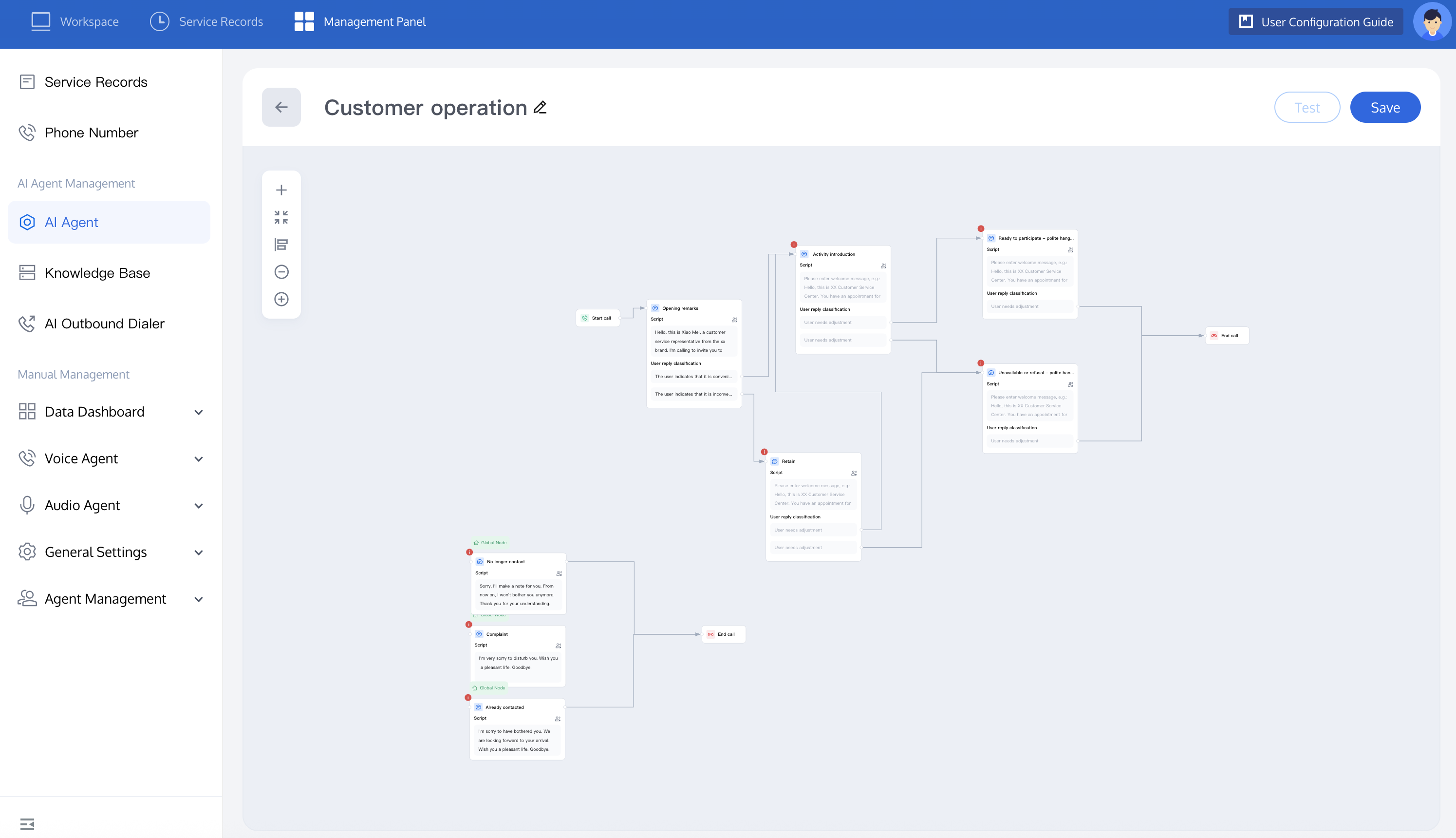
3. You can continue adding nodes and setting dialogue and user reply categories by referring to the figure below. Beyond the standard introduction flow, this flow can retain users who show no interest. If the retention is successful, the flow goes to the activity introduction node. If the retention fails, it goes to the polite hang-up node.
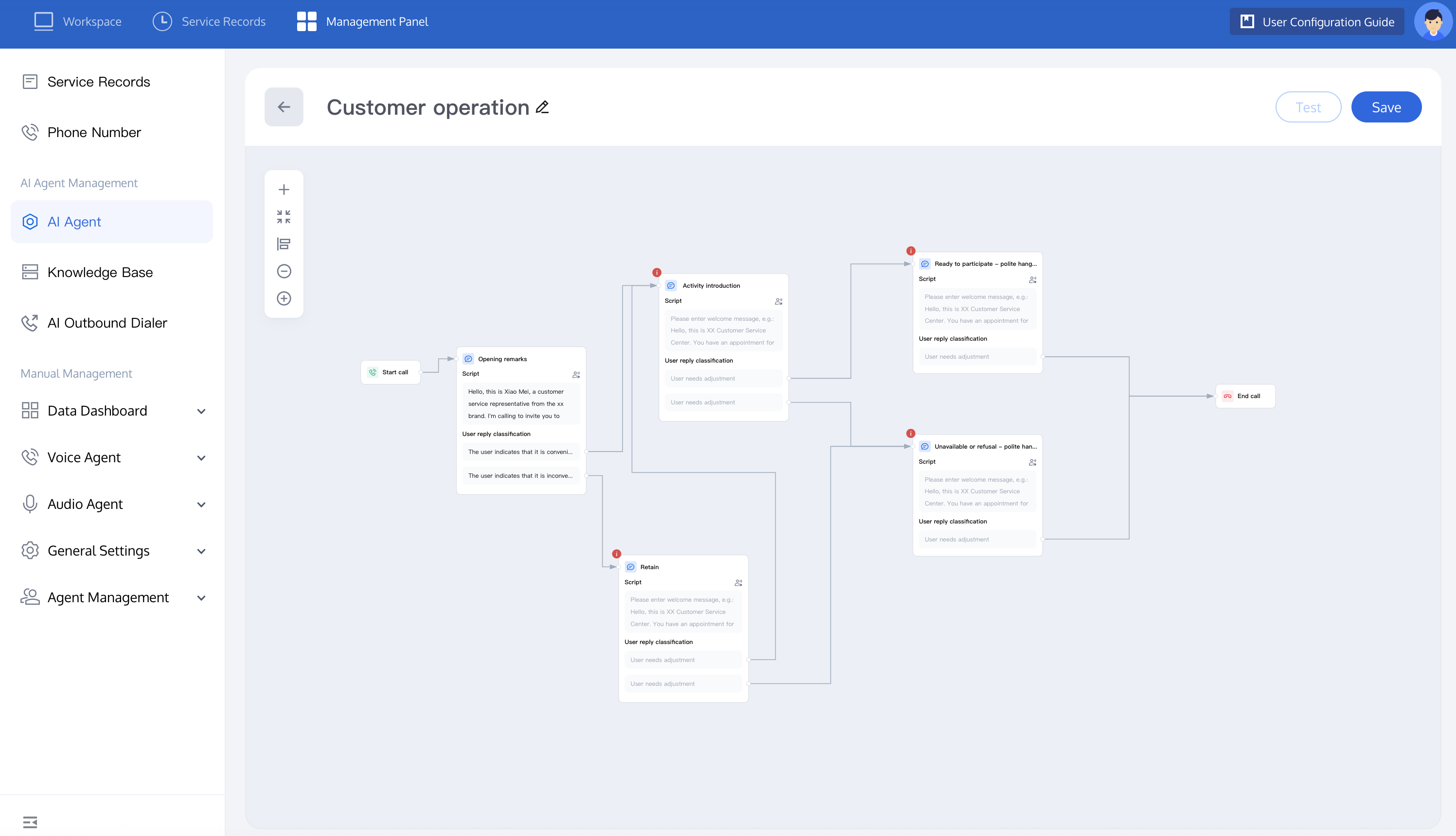
If you want to provide more personalized scripts, we recommend selecting AI Generation. Using the large model to generate different scripts for each call delivers a better user experience.
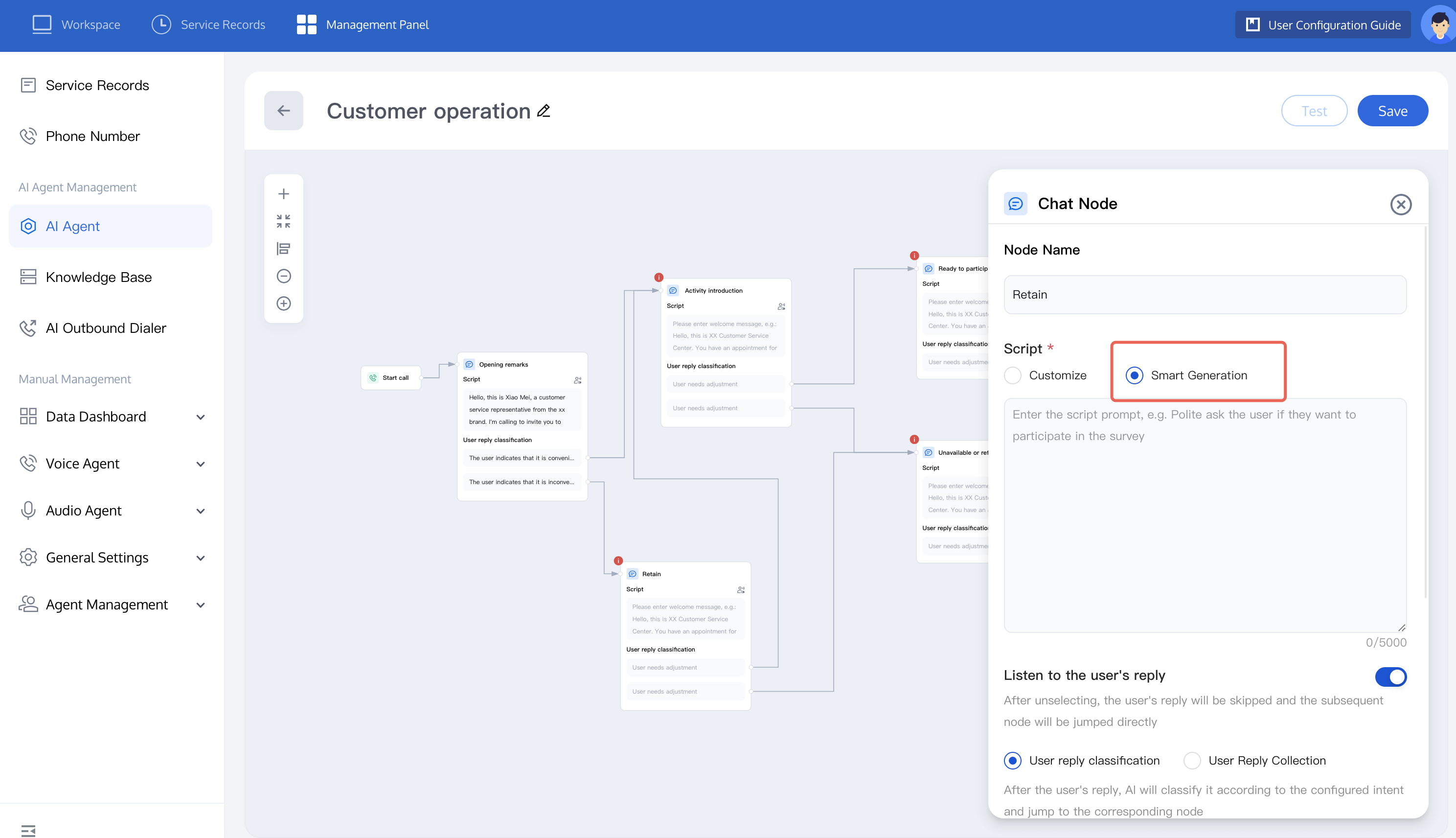
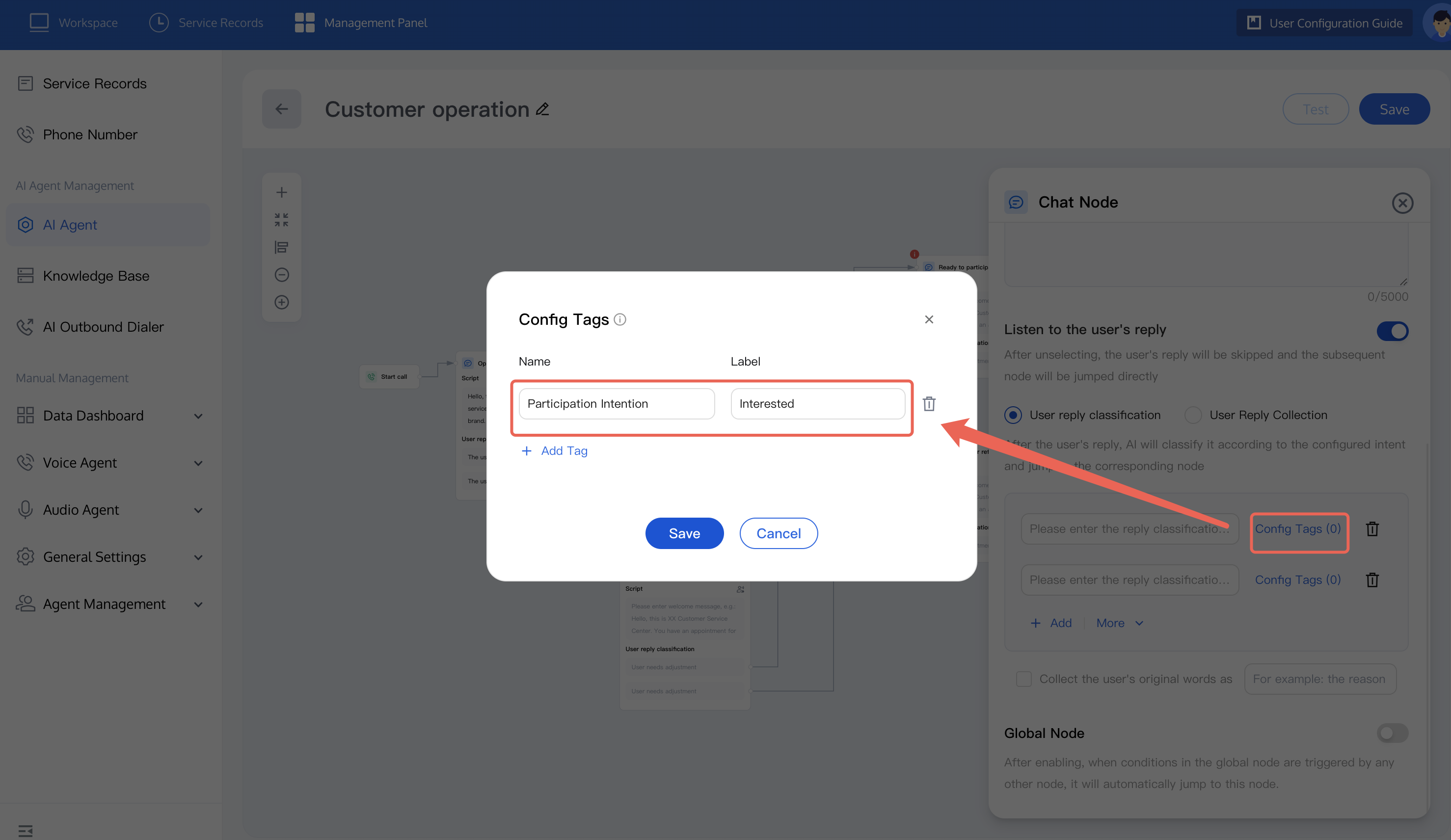
4. During a conversation, users may express different intents. If you want to understand user intent, you can use the Configure Tags feature to tag user replies. You can view the tag status of a call after the call task is completed.
For example, if a user replies that they are willing to participate in the activity, you can refer to the figure below to configure the Tag name for this reply as: Participation Intent, and configure the Tag as: Interested. Similarly, you can configure Tags for other replies, such as whether there is an intent to learn more.
5. During a conversation, a user may refuse to continue communication at any time. If a user indicates unwillingness to learn more, complains, or has already communicated at any node, you can refer to the figure below to set a global node and end the dialogue. After the global node is enabled, when any other node triggers the conditions in the global node, automatic redirection to this node is allowed.
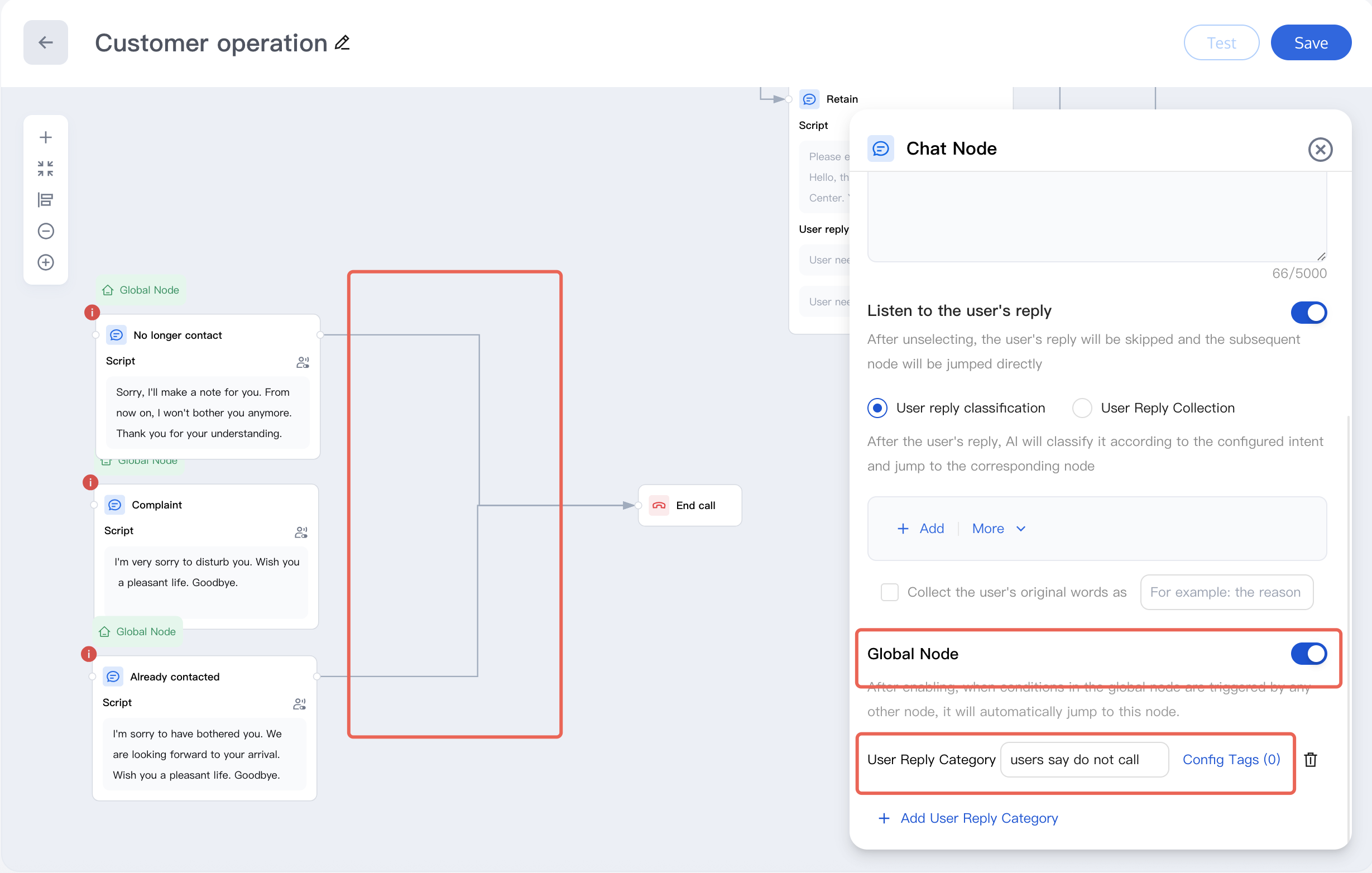
6. If you want to learn more about each node's features, you can refer to Node Introduction. After the build is complete, you can test the dialogue effect of this AI Agent. For specific operations, refer to Test Dialogue Effect.
7. The full canvas view is as follows:
Creating an Outbound Call Task
1. After creating the customer engagement AI Agent, you can create outbound call tasks according to business needs (create a single AI Agent call or create a bulk automatic outbound call task).
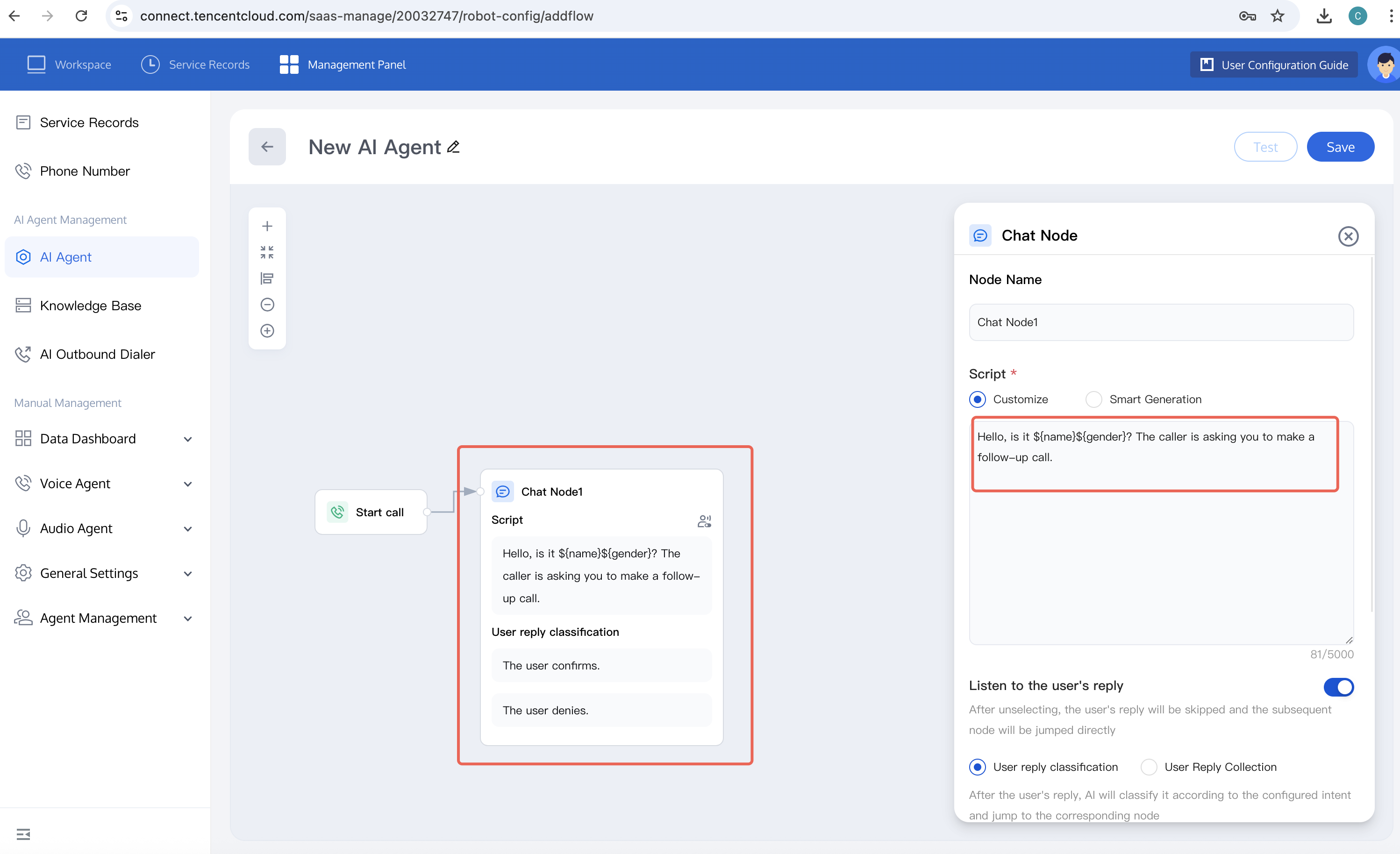
2. Variable Substitution: When uploading the called list, you can set variable columns to provide personalized scripts for different users, such as addressing them by surname and gender (such as Mr. Li and Ms. Wang). When creating the AI Agent, set the variable name you want to replace. The variable format is
${variable name}, for example, ${name}, ${gender}. You can create different variables based on your business needs.For specific operations, refer to the figure below:
When editing the called list, you need to enter the variable name and variable value, for example,
name: Li; gender: Mr..
Effect: The broadcast script for this node is: Hello, is this Mr. Li? I'm calling to conduct a follow-up with you.
Call Data Analysis
After creating and executing an AI Agent outbound task, you can view the dialogue data, including call connection status, user intent, and more:
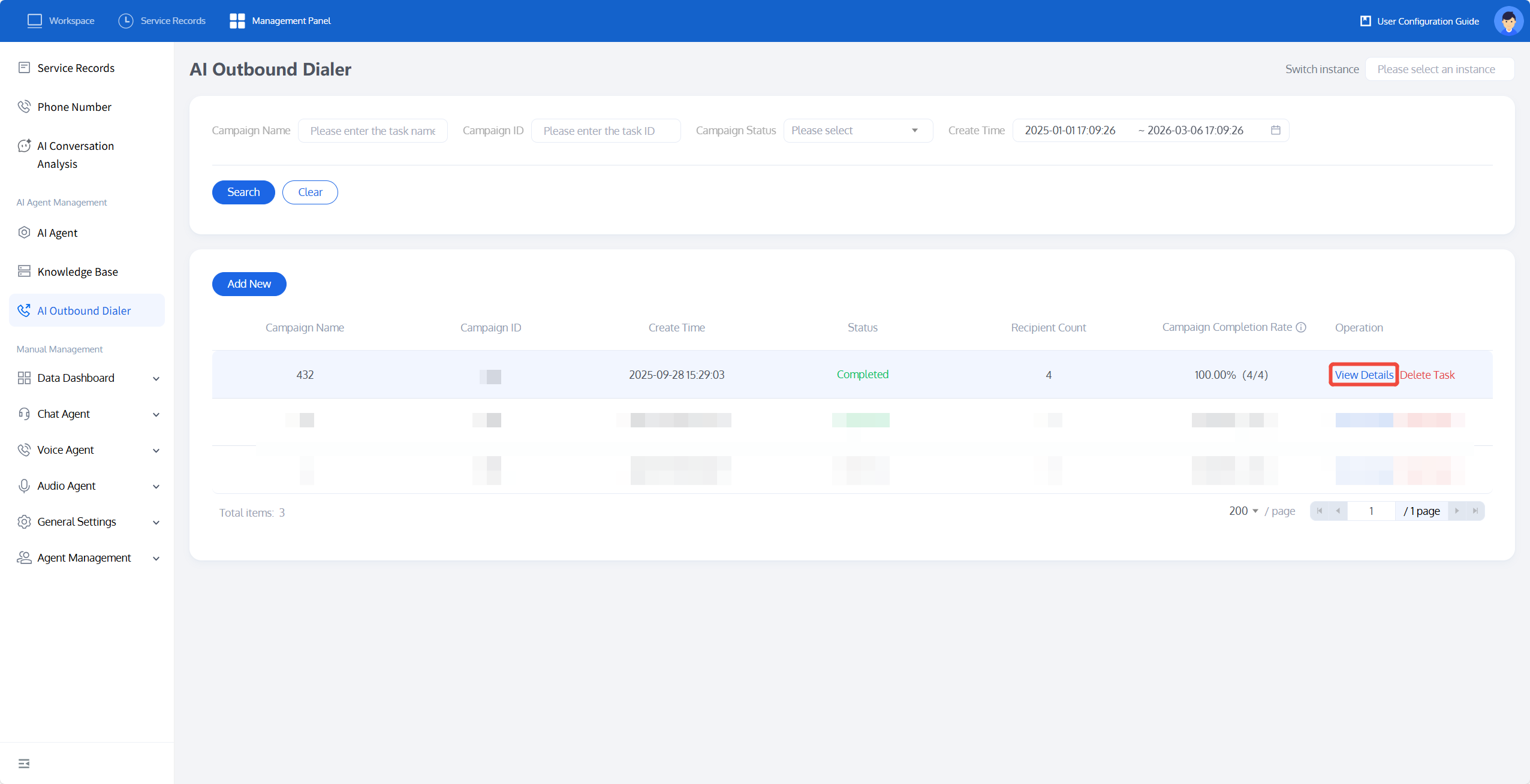
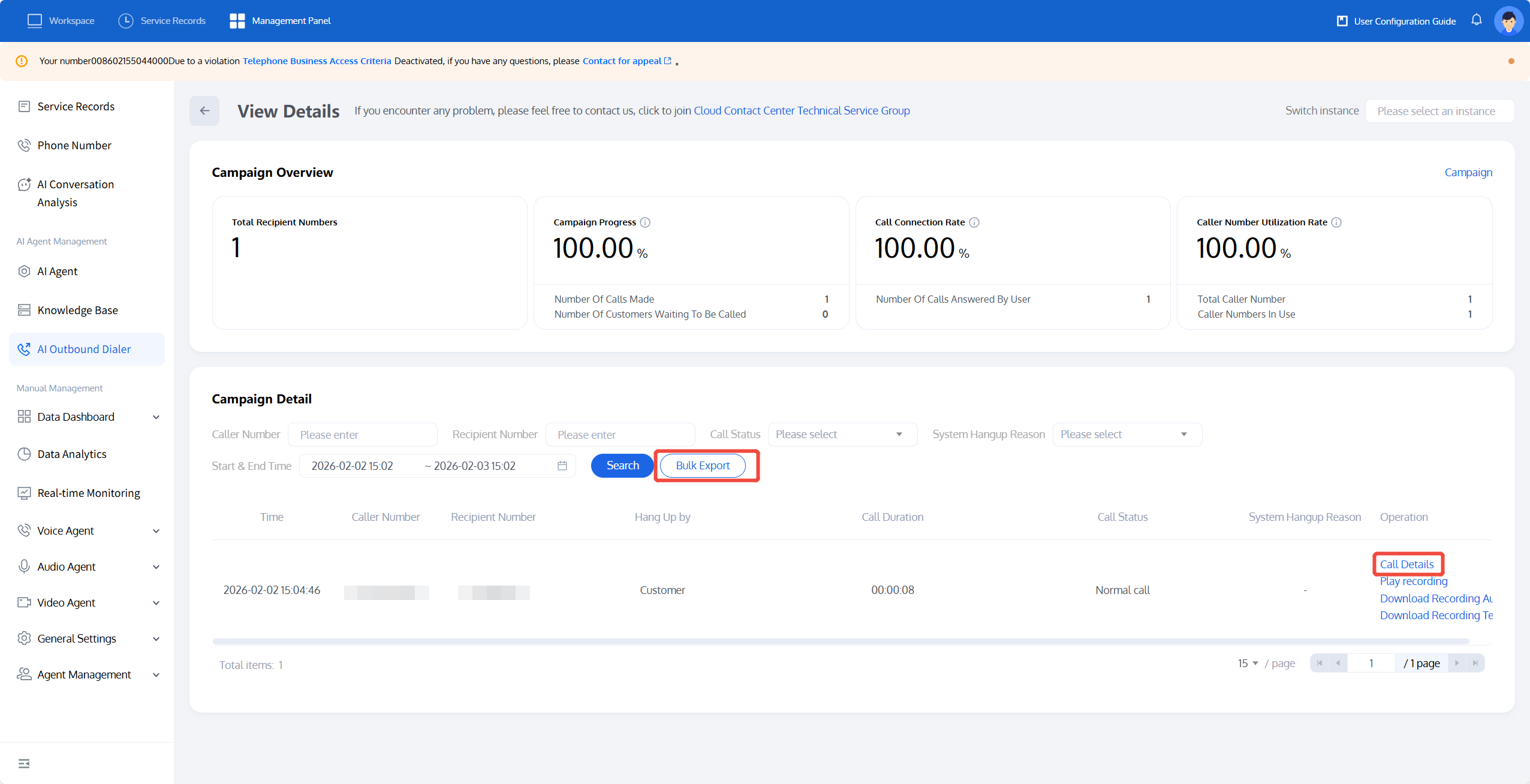
Click View Details to go to the specific task details page.
You can view the answer rate of this outbound task and the connection status of each call, and identify the reasons for unanswered calls.
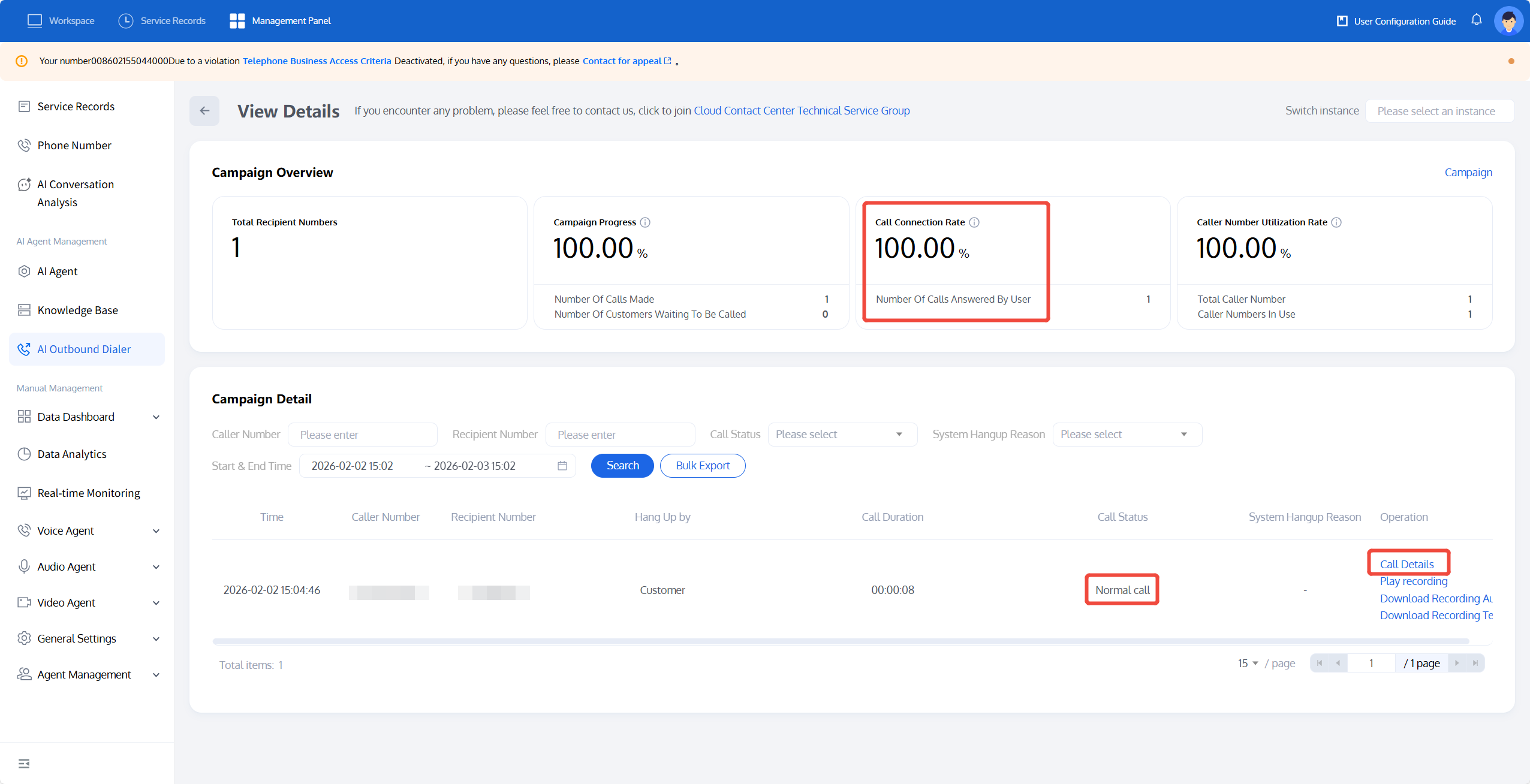
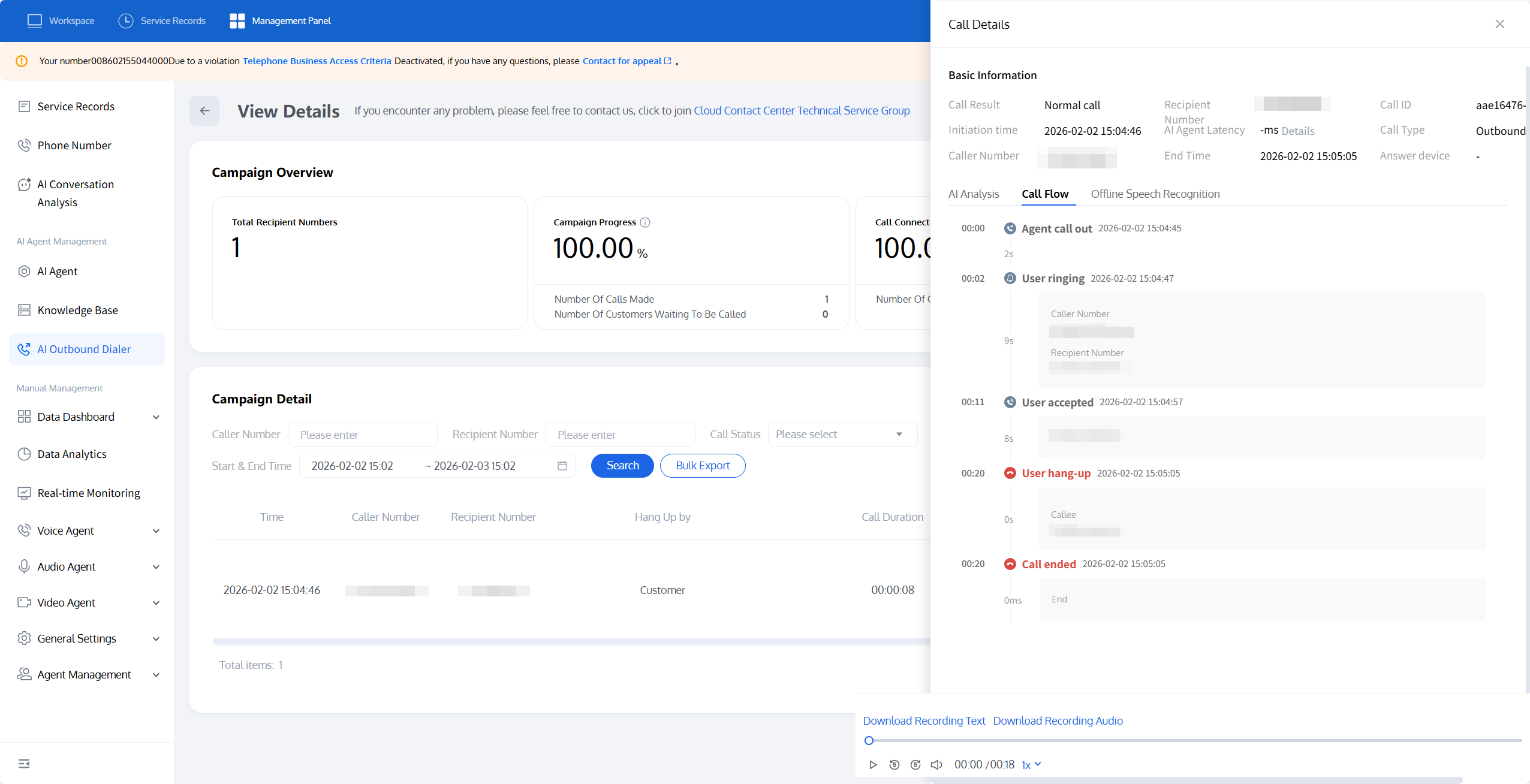
Click Call Details for a specific call record to view detailed information about that call, including Conversation Analytics (post-call Tag status), call flow, and ASR (call transcript).
In the Post-Call Tags section, you can view the tagging status of user replies for that call. As shown in the figure, the user expressed interest in learning about and participating in the activity. You can use this information to further convert the customer lead. You can also query AI Agent call post-call Tag data via the API.
You can also click Batch Export to view all call information under this outbound task. An example of the exported content is shown in the figure below:

Related Guidelines
Select the corresponding path based on your deployment method:
First time using? You can deploy a usable AI Agent in just five minutes create a conversation flow or integrate an external model.
Want to learn about our dialogue flow nodes? Go to Dialogue Nodes.
Want to build a knowledge base for your dialogue flow? Go to Build Your Knowledge Base.
How to test your model? Refer to Test Dialogue Workflow.
Want to configure a voice AI Agent with your own model? Go to Integrate External Model, Edit Dialogue Content, Configure Voice Interaction, and Add Call Control.
Want to see application scenarios? Try Voice Notification, Lead Mining, Feedback Collection, or Customer Support.
How to make outbound and inbound calls with an AI Agent? Refer to AI Agent Outbound or AI Agent Inbound.
Want to view data logs? Refer to Call Records, Call Recordings, Latency.
How to create and view post-call Tags? Refer to Post-Call Tags (Created via Dialogue Flow) or Post-Call Tags (Created via External LLM).
フィードバック