Mini Game Management
ダウンロード
フォーカスモード
フォントサイズ
Mini games are a special type of mini program that can be played instantly without downloading, installing, or uninstalling.
From version 2.2.0, the Exclusive and Enterprise plans support the mini game features. You can develop, manage, and publish mini games using the Mini Program IDE and console.
Prerequisites
The mini game feature is currently available through an allowlist. Contact the product team to discuss your needs and enable it.
Mini game development guide
Mini game console operations
Roles and permissions
Feature | Role | Super admin | Platform admin | Mini program team admin | Senior mini program developer | Mini program developer | Mini program operator | Mini program release approver |
Mini game list | ✓ | ✓ | ✓ | ✓ | ✓ | ✓ | ✓ |
Create, edit, remove, and delete mini games | Read-only | Read-only | ✓ | ✓ | - | - | - |
Super admins/platform admins: Have read-only access to the mini game list module. They cannot create, edit, remove, or delete mini games.
Mini program team admins/senior mini program developers: Have full access to the mini game list module, including the permissions to create, edit, remove, and delete mini games.
Mini program developers/mini program operators/mini program release approvers: Have view-only access to the mini game list module.
Key features
Create a mini game
On the mini game list page, click "Create mini game" to enter the mini game information page.
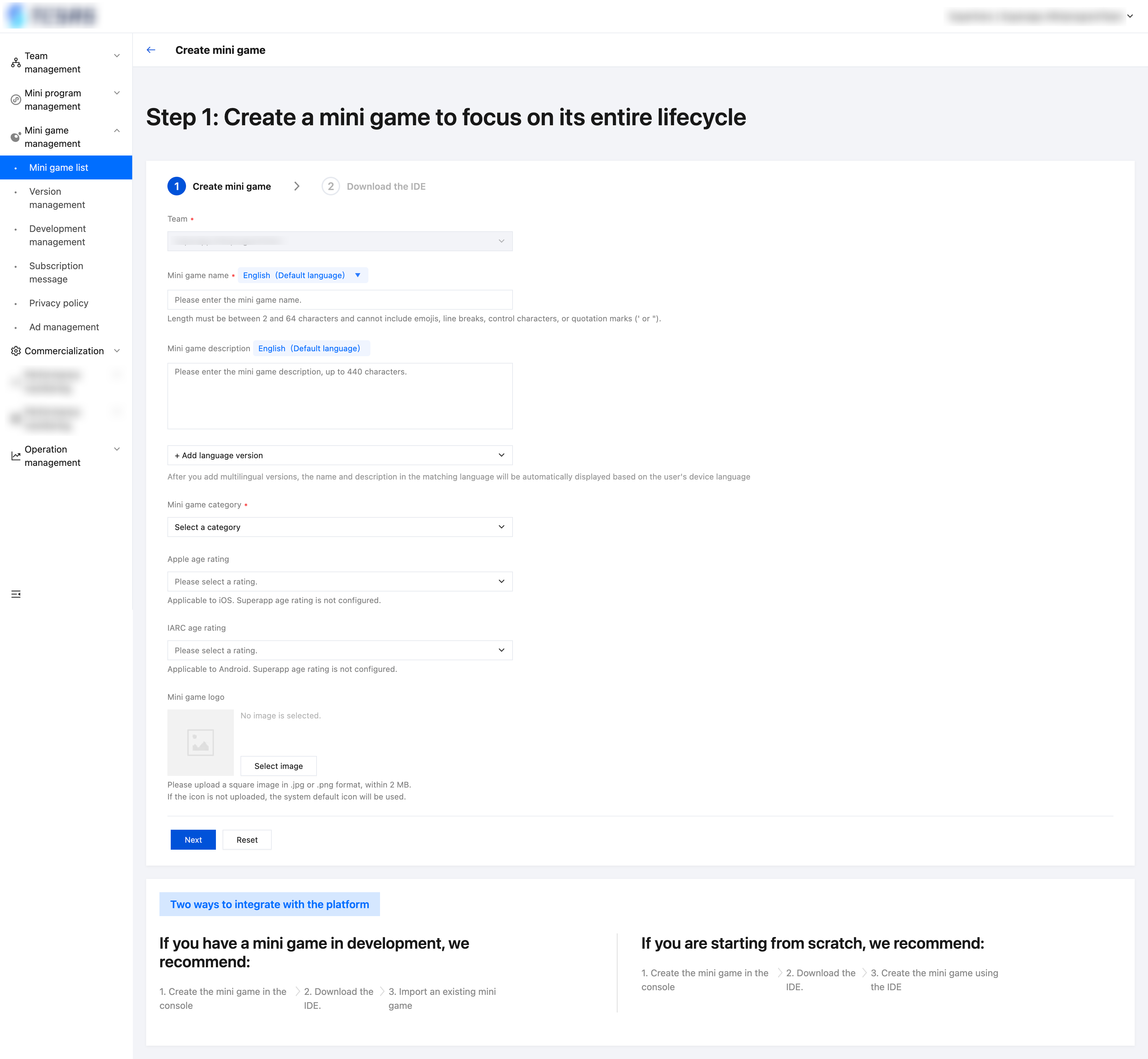
Field description
Field | Required | Validation rules/description |
Mini game name | Yes | Length must be between 2 and 64 characters and cannot include emojis, line breaks, control characters, or quotation marks (' or \\"). |
Mini game introduction | No | Up to 440 characters. |
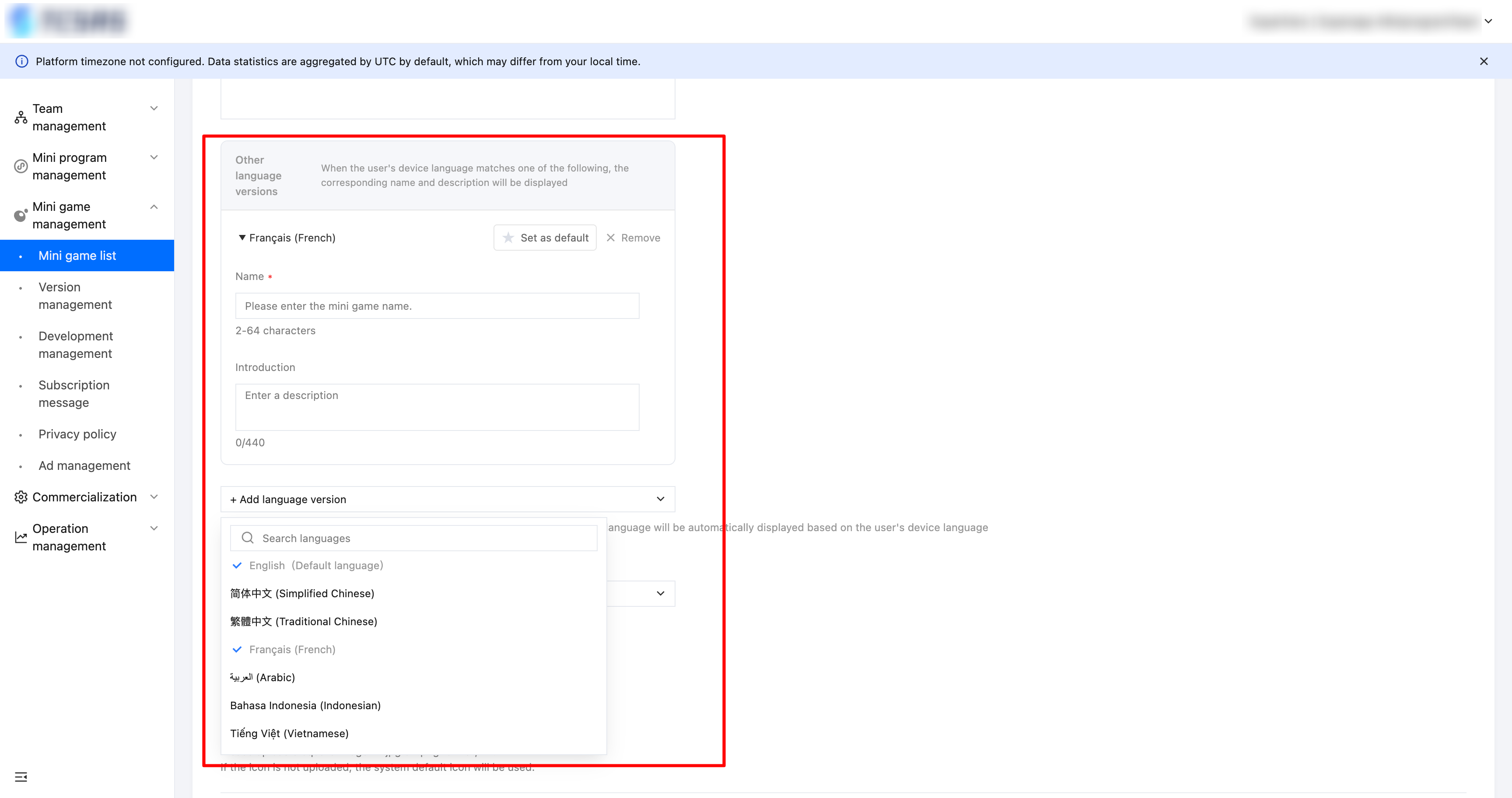
Add language version | No | After you add multilingual versions, the name and description in the matching language will be automatically displayed based on the user's device language. |
Mini game category | Yes | Select a category for the mini game. |
Age rating | No | You can set the age rating for the mini game. Since the superapp is released in different app markets, there are two different age rating standards for iOS and Android. |
Mini game icon | No | Please upload a square image in .jpg or .png format, within 2 MB. If the icon is not uploaded, the system default icon will be used. |
Multi-language instructions
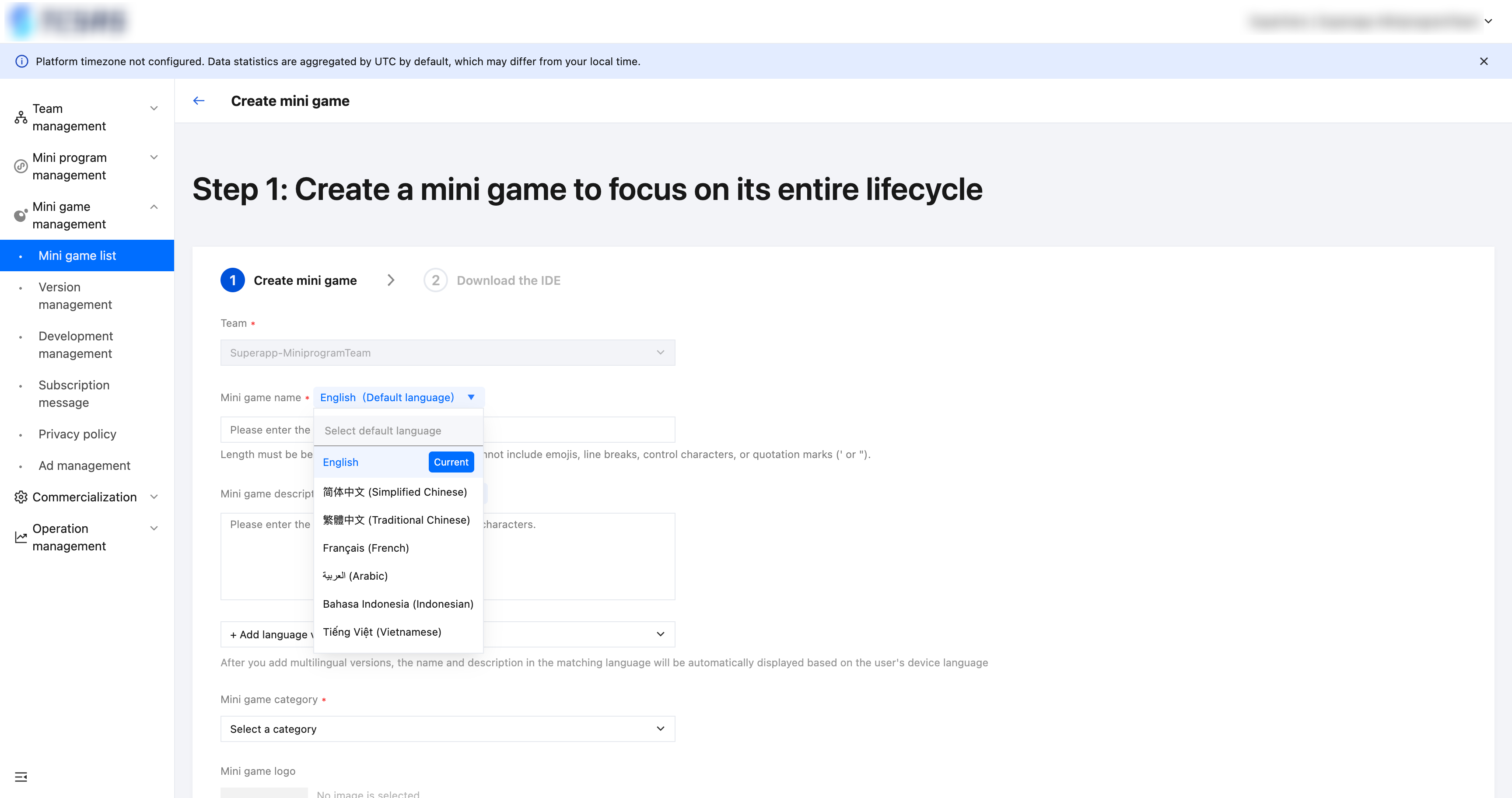
Default language
Click the item to the right of the mini game name: "Default language" drop-down list to switch the default language of the mini game. When querying or searching for a mini game, the superapp will return the default language if no specific language is requested or if the requested language has not been added to the mini game.
Add language version
You can add other language versions for the mini game besides the default language. When querying or searching for a mini game, the superapp can specify which language version to return.
Currently supported languages include: English, Simplified Chinese, Traditional Chinese, French, Arabic, Indonesian, and Vietnamese.
Other operations
Filter: Use the filter box at the top to select the team and further filter the mini game list.
Edit: Authorized users can modify the basic description of the mini game.
Release/remove: Release or remove a mini game. Once a mini game is removed, its services will no longer be available on the superapp, and no new versions can be released. However, you can still submit versions for approval.
Details: Authorized users can view the mini game appid (please keep it properly), and download the latest version of the IDE.
Development management
Development management includes setting domain names, applying for sensitive API permissions, querying real-time logs, and more.
Roles and permissions
Feature | Role | Super admin | Platform admin | Mini program team admin | Senior mini program developer | Mini program developer |
Domain settings | Read-only | Read-only | ✓ | ✓ | - |
API permissions (sensitive APIs) application | Read-only | Read-only | ✓ | ✓ | - |
Real-time logs | Read-only | Read-only | ✓ | ✓ | ✓ |
Key management | Read-only | Read-only | ✓ | - | - |
Super admin/platform admin: Has read-only permissions for the development management module.
Mini program team administrators: Have permissions for the development management module, including Domain settings, API permissions (sensitive APIs) application, Real-time logs, and Key management.
Mini program senior developers: Have permissions for the development management module, including Domain settings, API permissions (sensitive APIs) application, and Real-time logs.
Mini program developers: Have permissions for the development management module, including Real-time logs.
Domain management
To ensure the security of superapp and its users, mini games are generally required to pre-configure their backend communication domains and may only communicate with specified domains.
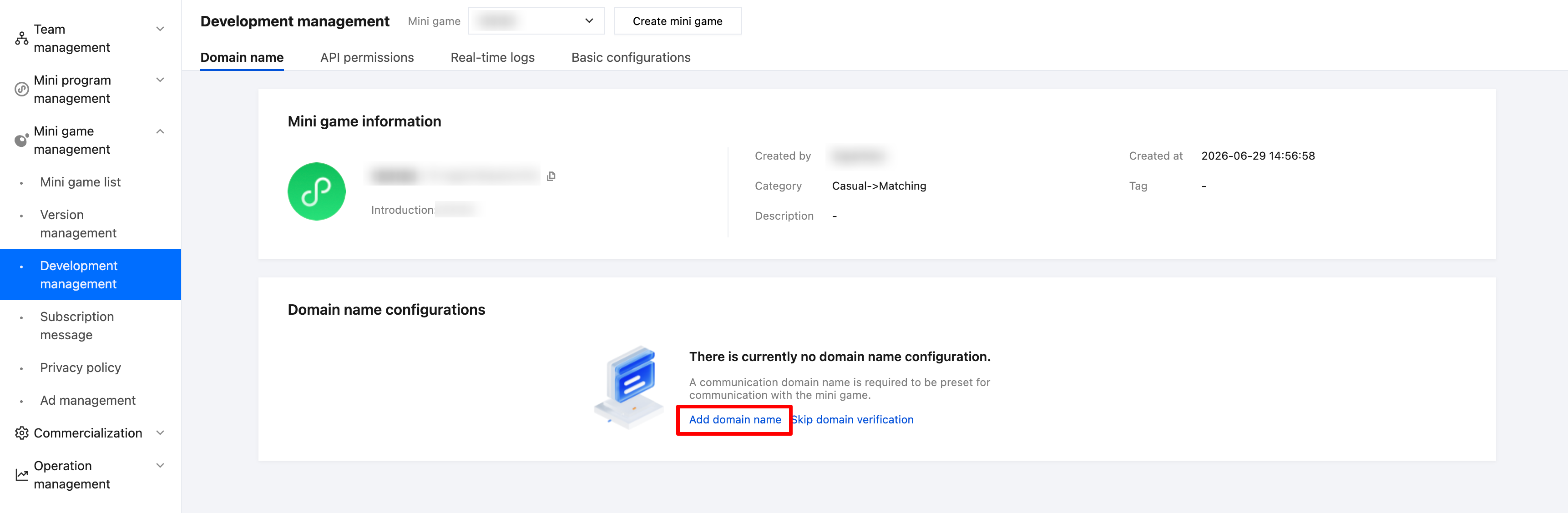
Click "Add domain name"to fill in the domain information, including regular HTTPS requests (wx.request), file uploads (wx.uploadFile), file downloads (wx.downloadFile), and WebSocket communication (wx.connectSocket). Embedding webpages in a mini game is supported (H5 page) to facilitate flexible configuration of the mini game.
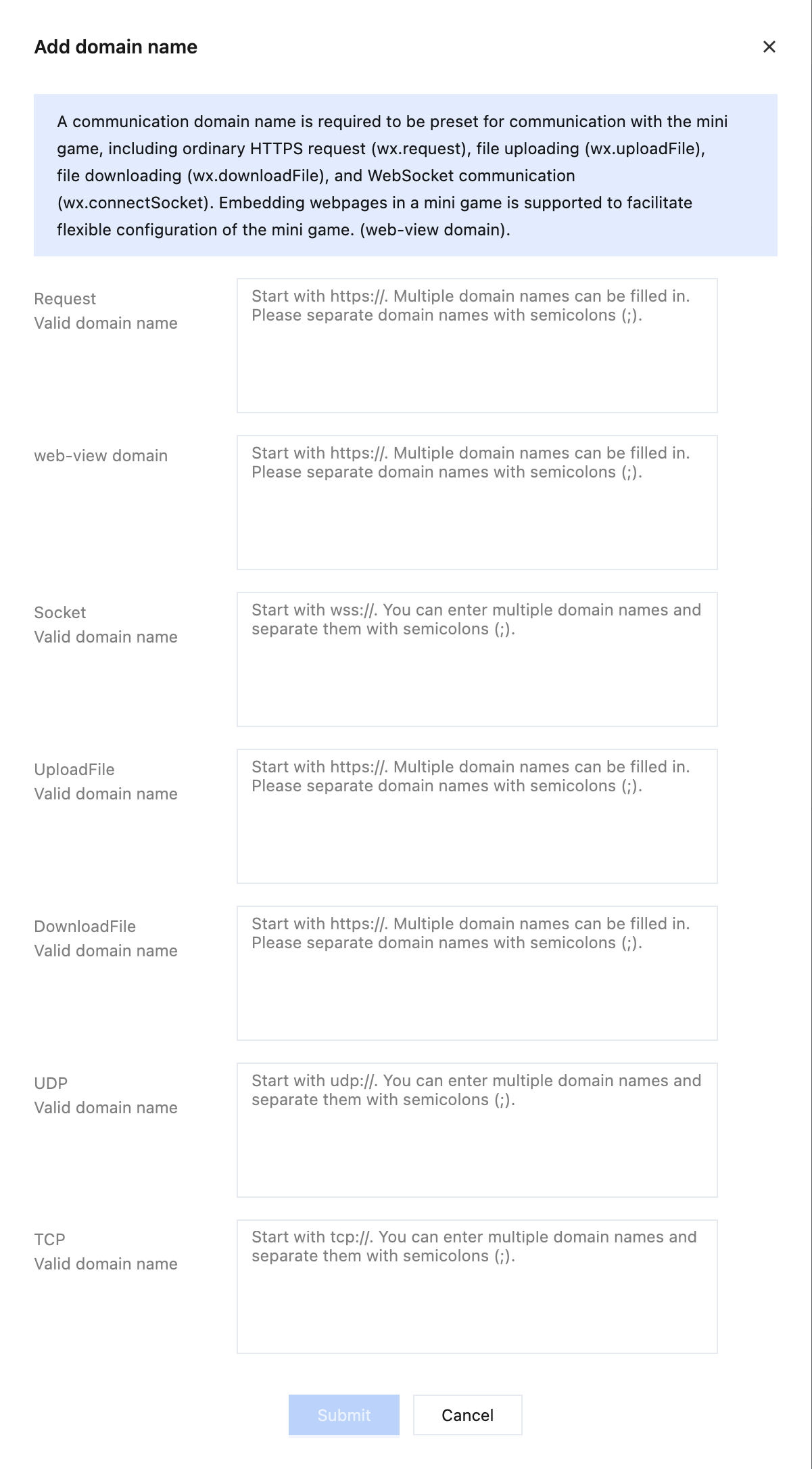
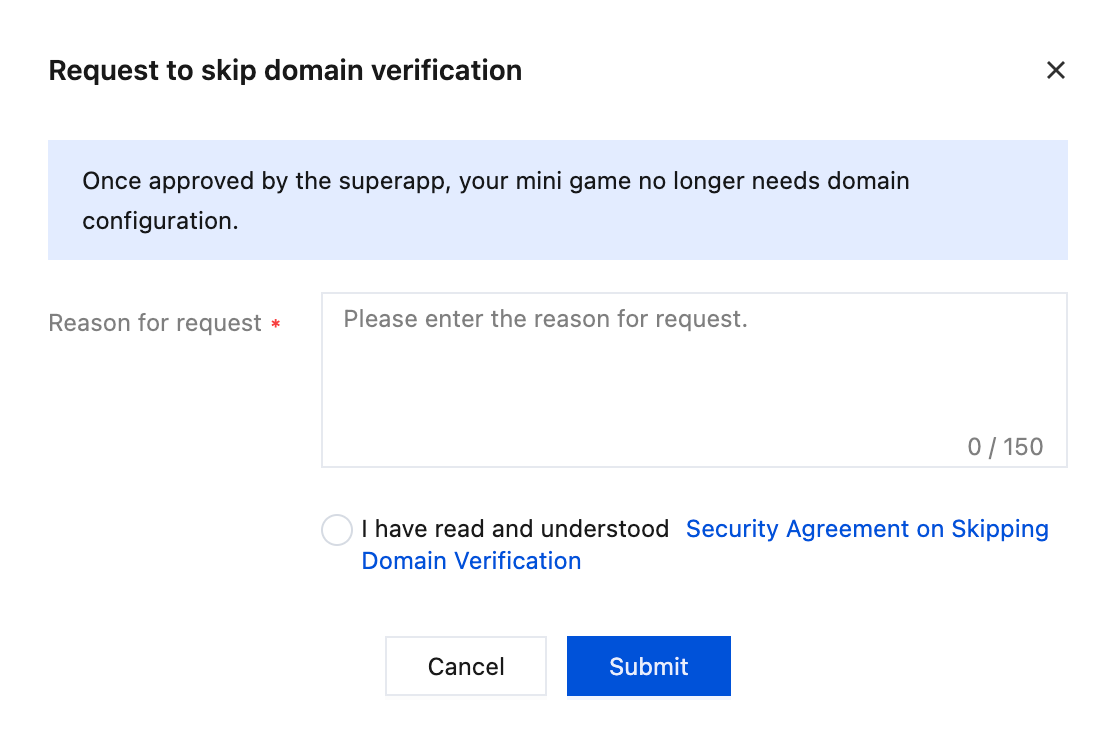
If the mini game business is complex and domain names are difficult to configure comprehensively (e.g., dynamic ad request domains), the mini game can request to skip domain verification.After approval, domain settings are no longer required. Click "Skip domain verification", enter the reason, read and confirm the security agreement, and submit.
API permissions
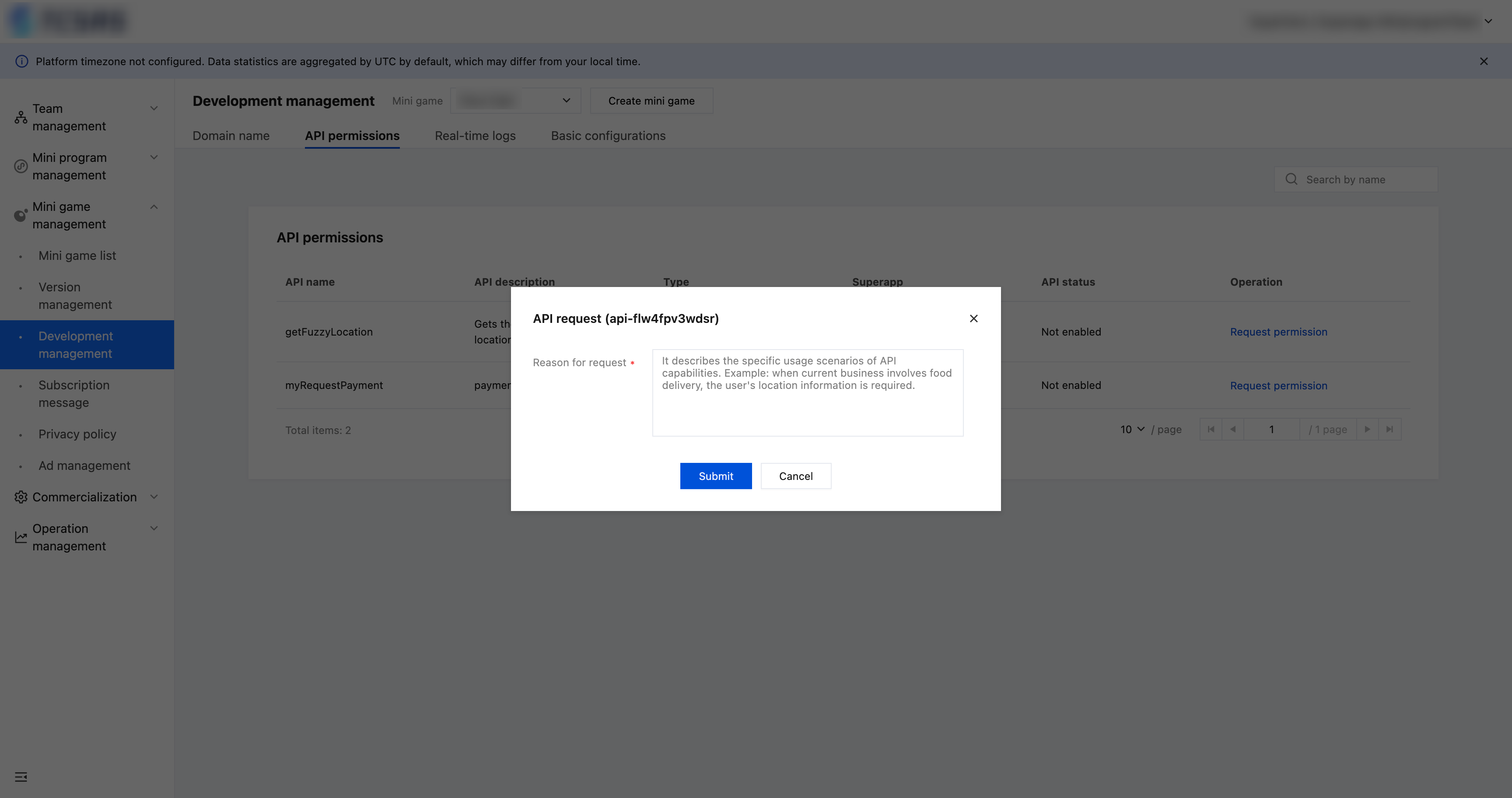
When the superapp that a mini game is linked to has enabled sensitive APIs, mini game developers must apply to the superapp for permission to use these sensitive APIs. The mini game can only access these APIs after approval from the superapp's administrator or approvers.
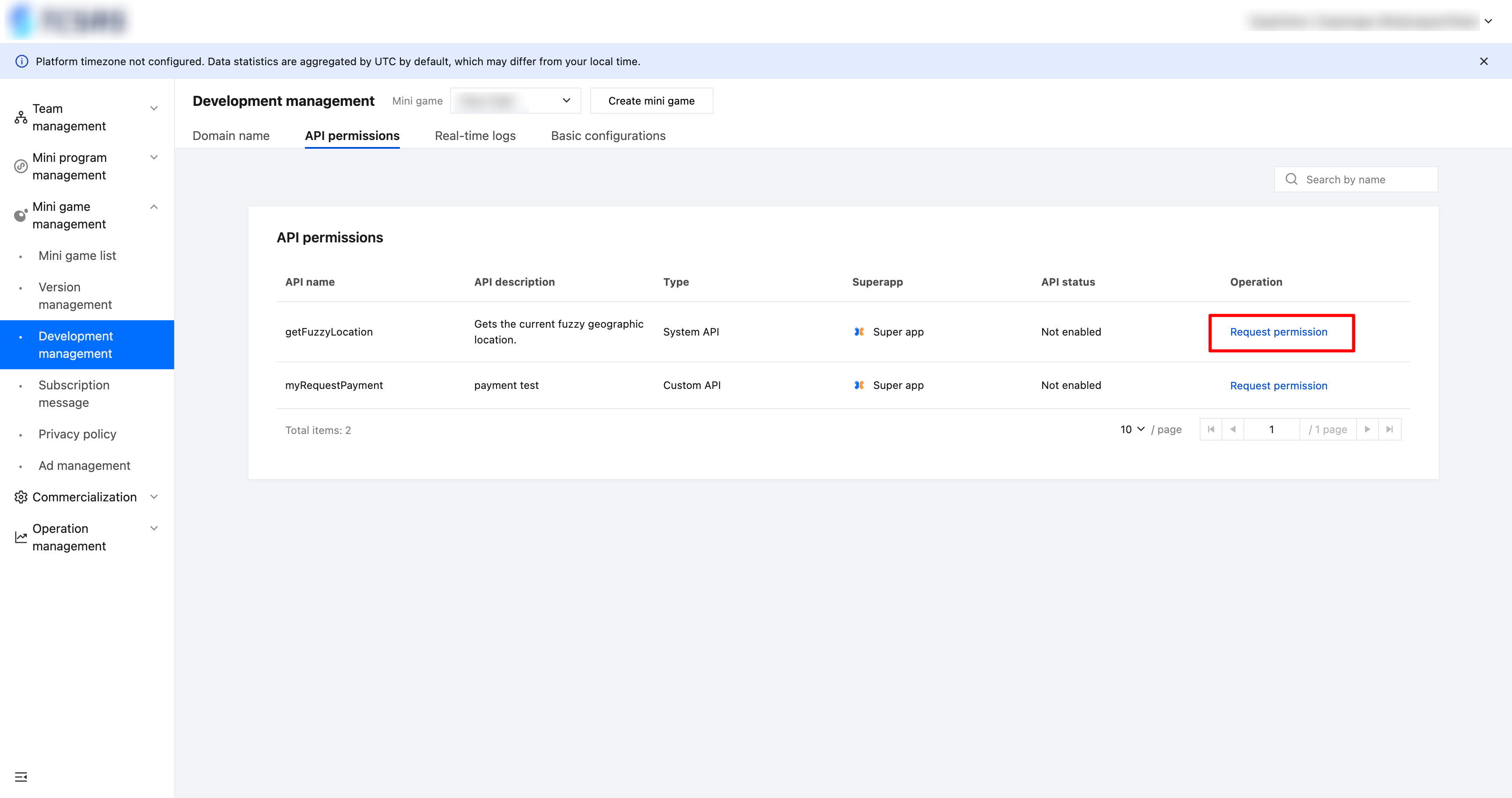
Specific operations:
Request permissions: Apply for permission to use sensitive APIs from the superapp.
Real-time logs
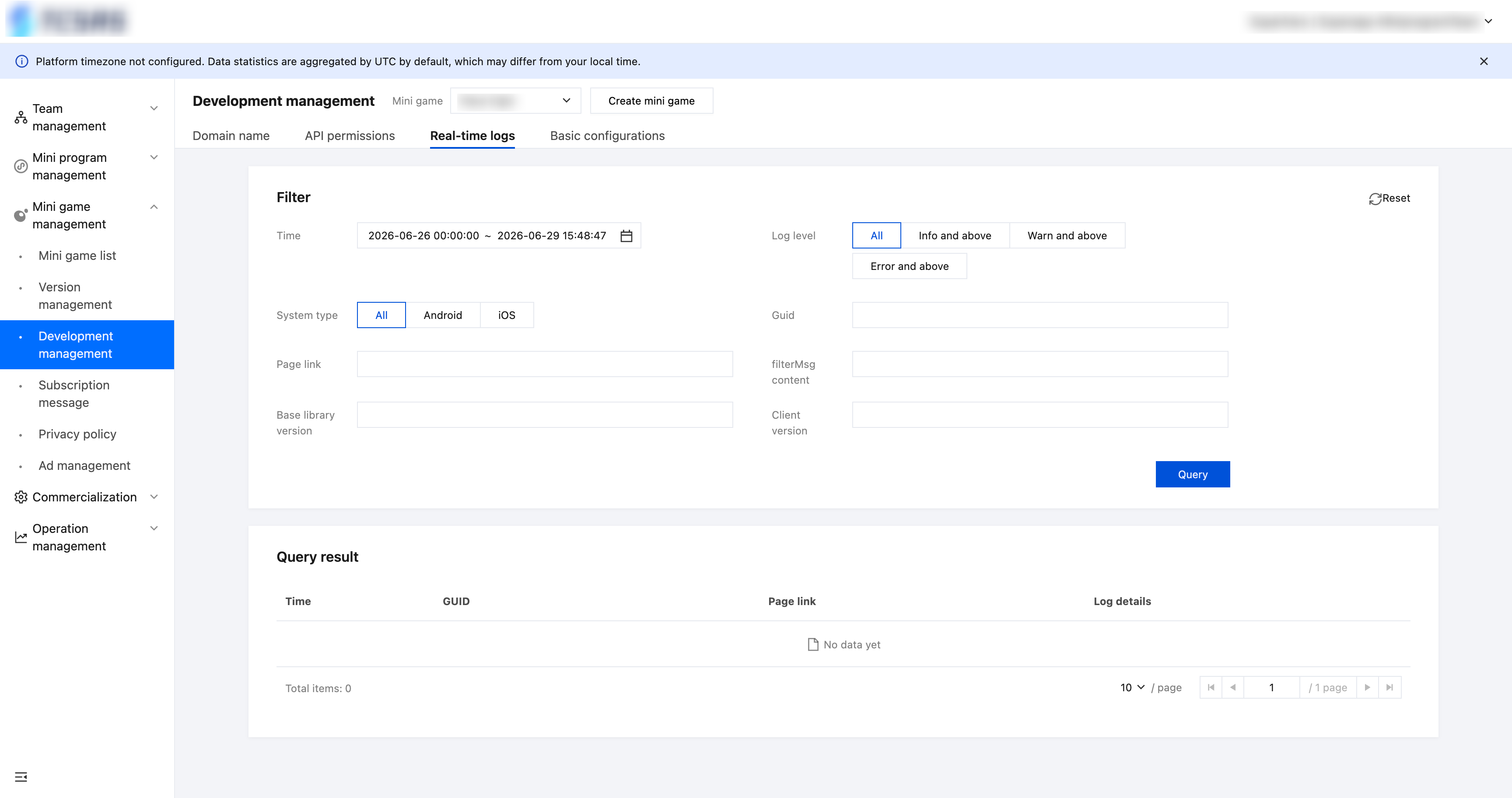
Filters: Time, log level (All, Info and above, Warn and above, Error and above), system type, GUID, page link, filterMsg content, base library version, and client version.
Basic configuration
AppSecret
AppSecret (the mini game key) is essential for authentication in mini game login. Only mini program team administrators have the authority to view and manage the keys. They can generate, reset, and freeze keys in the key management section.
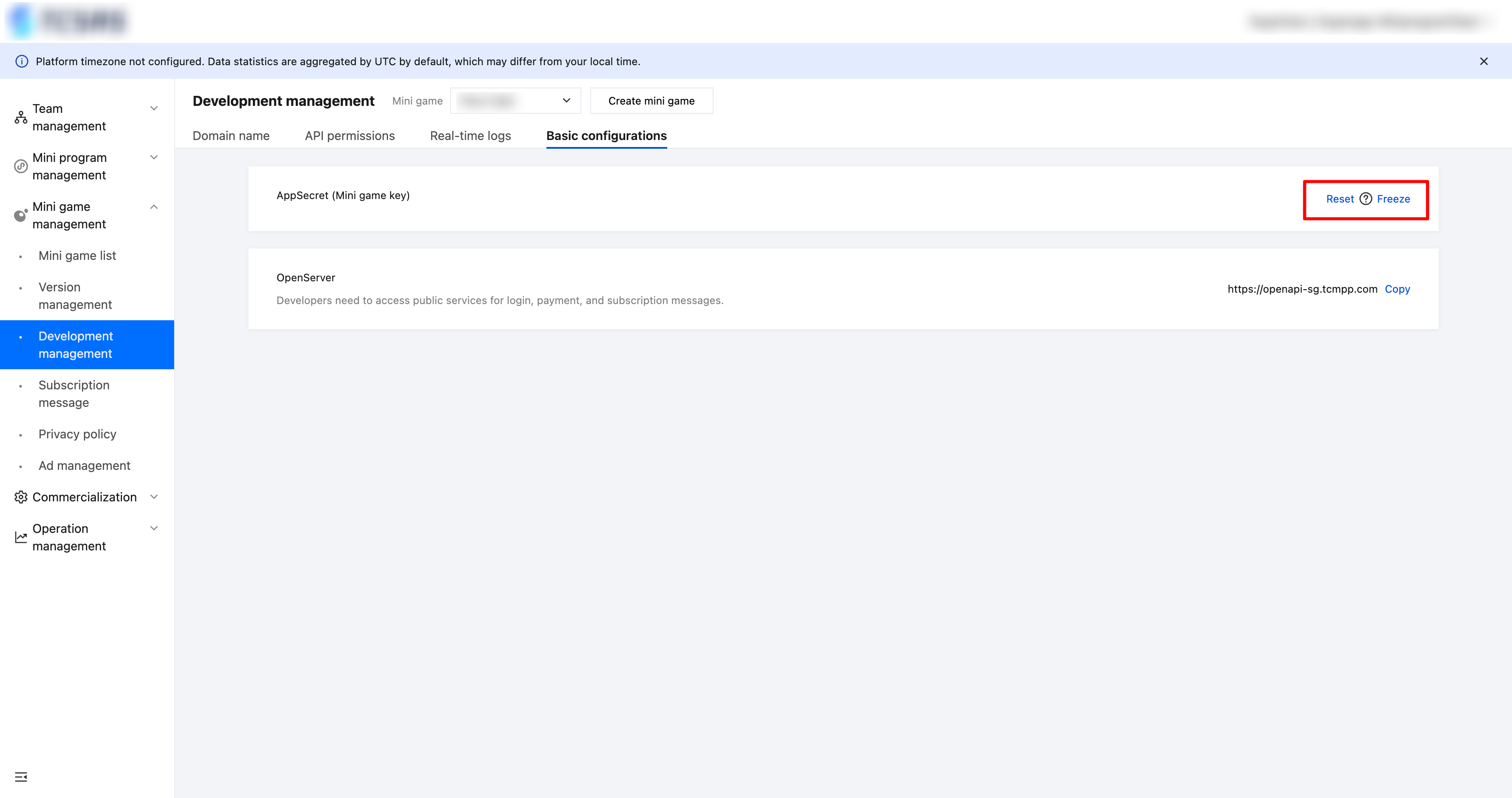
Specific operations:
Generate
After clicking "Generate," the mini program team admin needs to copy the key and securely save the key. Once the popup is closed, the key cannot be copied again. If the key is forgotten, it must be reset. The platform does not display or save the key in plain text.
Reset
The mini program team admin can reset the key.After you confirm to reset the AppSecret, the mini game features using the original AppSecret cannot work properly, so please update it promptly.
Freeze
To ensure the mini game service's security, if the key is leaked or suspected to be leaked and has not yet been replaced, developers should freeze the key to prevent any security incidents.
The mini program team admin can click "Freeze" to freeze the key. After that, the mini game features using the original AppSecret will not work properly, so please update it promptly.
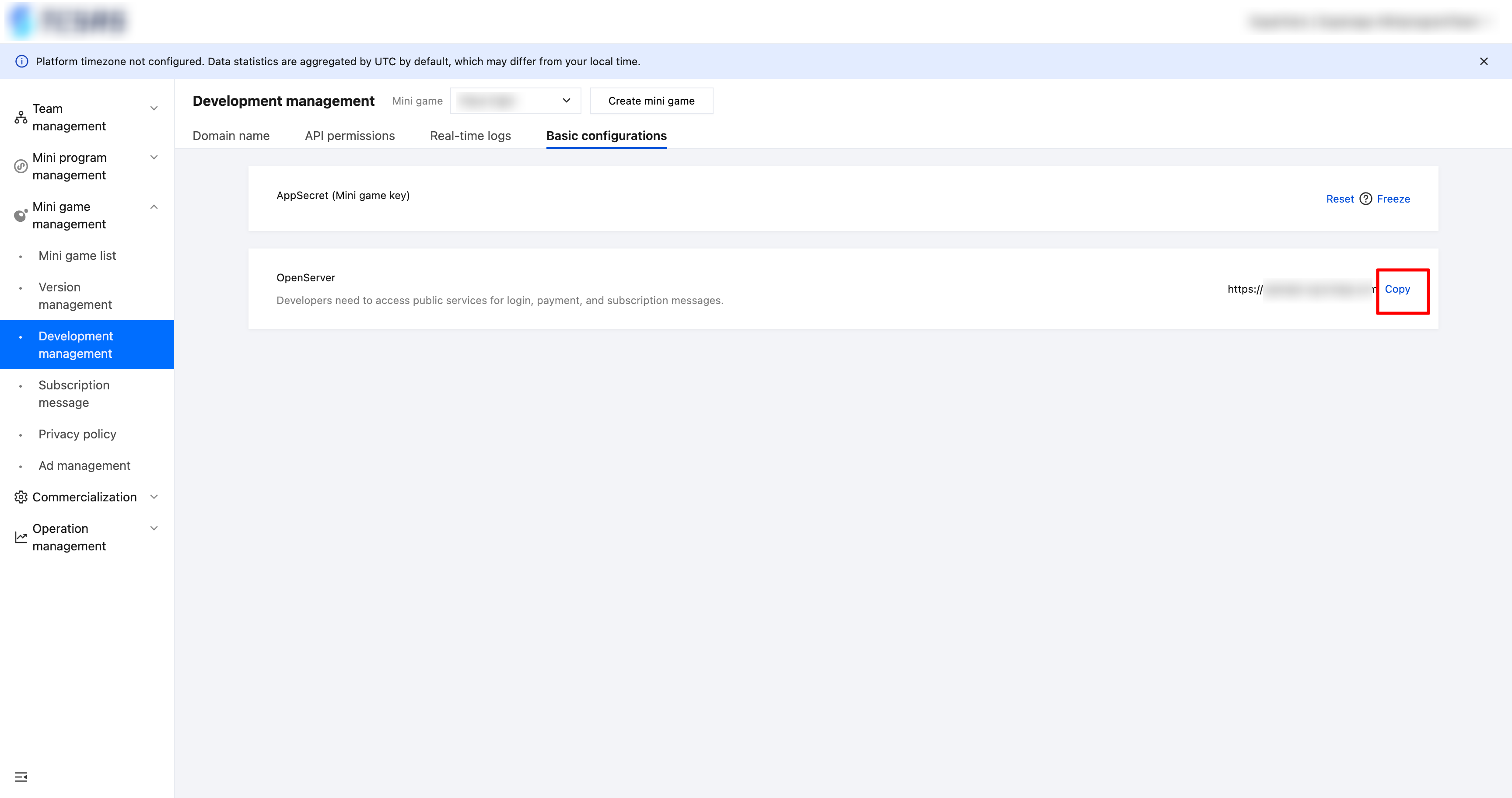
OpenServer
OpenServer is the public service domain that developers need to access when integrating features such as login, payment, and subscription messages.
Version management
Mini game version management provides lifecycle management for mini games.
Roles and permissions
Feature | Role | Super admin | Platform admin | Mini program team admin | Senior mini program developer | Mini program developer | Mini program operator | Mini program release approver |
Submit mini game code/code package | Read-only | Read-only | ✓ | ✓ | ✓ | - | - |
Submit the version for approval | Read-only | Read-only | ✓ | ✓ | - | - | ✓ |
Mini game preview | Read-only | Read-only | ✓ | ✓ | ✓ | ✓ | ✓ |
Canary release | Read-only | Read-only | ✓ | ✓ | - | - | - |
Mini game release | Read-only | Read-only | ✓ | ✓ | - | - | ✓ |
Delete a development version | - | - | ✓ | ✓ | ✓ | - | - |
Super administrator/platform administrator: Has read-only permissions for the version management module and cannot delete development versions.
Mini program team administrator/mini program senior developer: Has permissions for the version management module, including Submit mini game code/code package, Submit the version for approval, Mini game preview, Canary release, Release mini game, and Delete a development version.
Mini program developer: Has permissions for the version management module, including Submit mini game code/code package, Mini game preview, and Delete a development version.
Mini program operator: Has permissions for the version management module, including Mini game preview.
Mini program release approver: Has permissions for the version management module, including Submit the version for approval, Mini game preview, and Mini game release.
Version definition
Development version
After the developer submits the version of the mini game through the IDE, a development version is generated in the "Development version" section on the "Version management" page. Click"Submit for approval" on the right to submit the mini game to the app for approval.

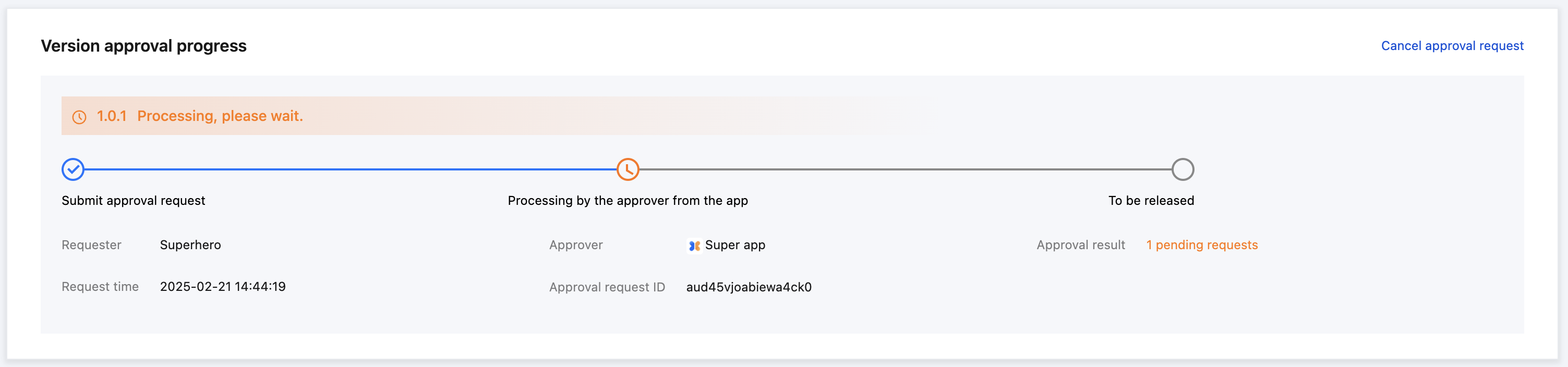
Version for approval
When a version is under approval, it is displayed in the section of "Version approval progress." After it is approved, you can click "Release" to release the version.
Released version
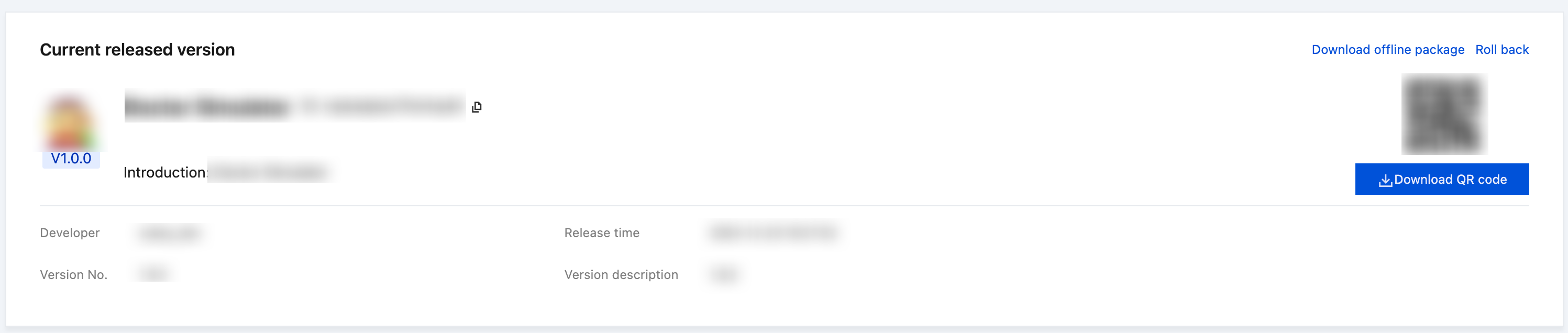
This section displays the latest mini game version released on the superapp. Click "Download QR code" on the right to save the QR code locally, which can be scanned with the superapp to open the mini-game.
Note
1. A developer can submit multiple development versions.
2. Different developers submitting development versions with the same version number will result in two versions with the same number under "Version management" - "Development version."
3. The version number submitted for approval must be greater than the online version number and cannot use previously released version numbers.
4. After a version is released, the corresponding version number will be removed from the list of development versions.
Canary release
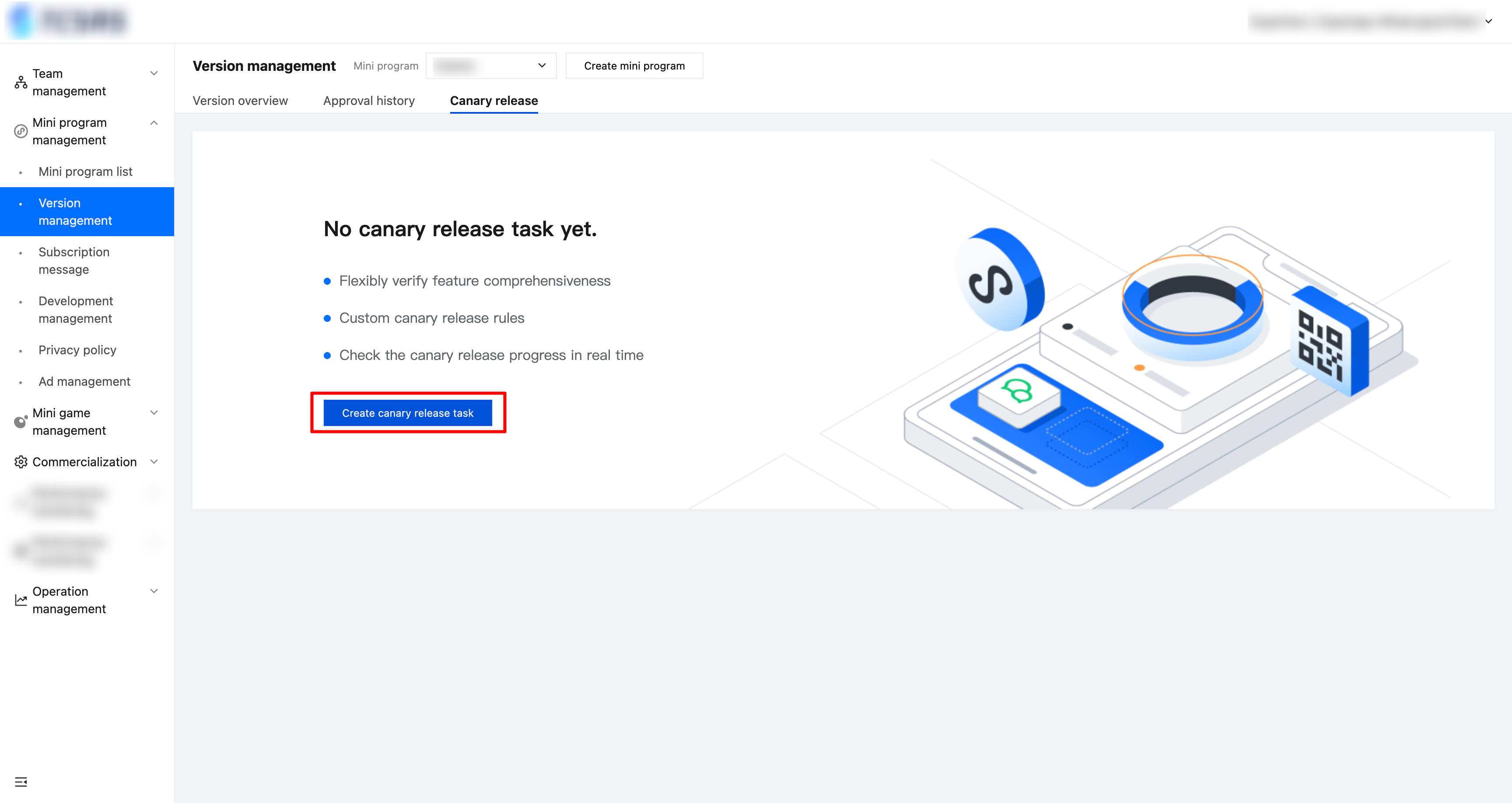
Developers can perform a canary release of a mini game to a subset of users before officially releasing a new version. Go to the console, navigate to "Game management" > "Version management" > "Canary release" , and click "Create canary release task."
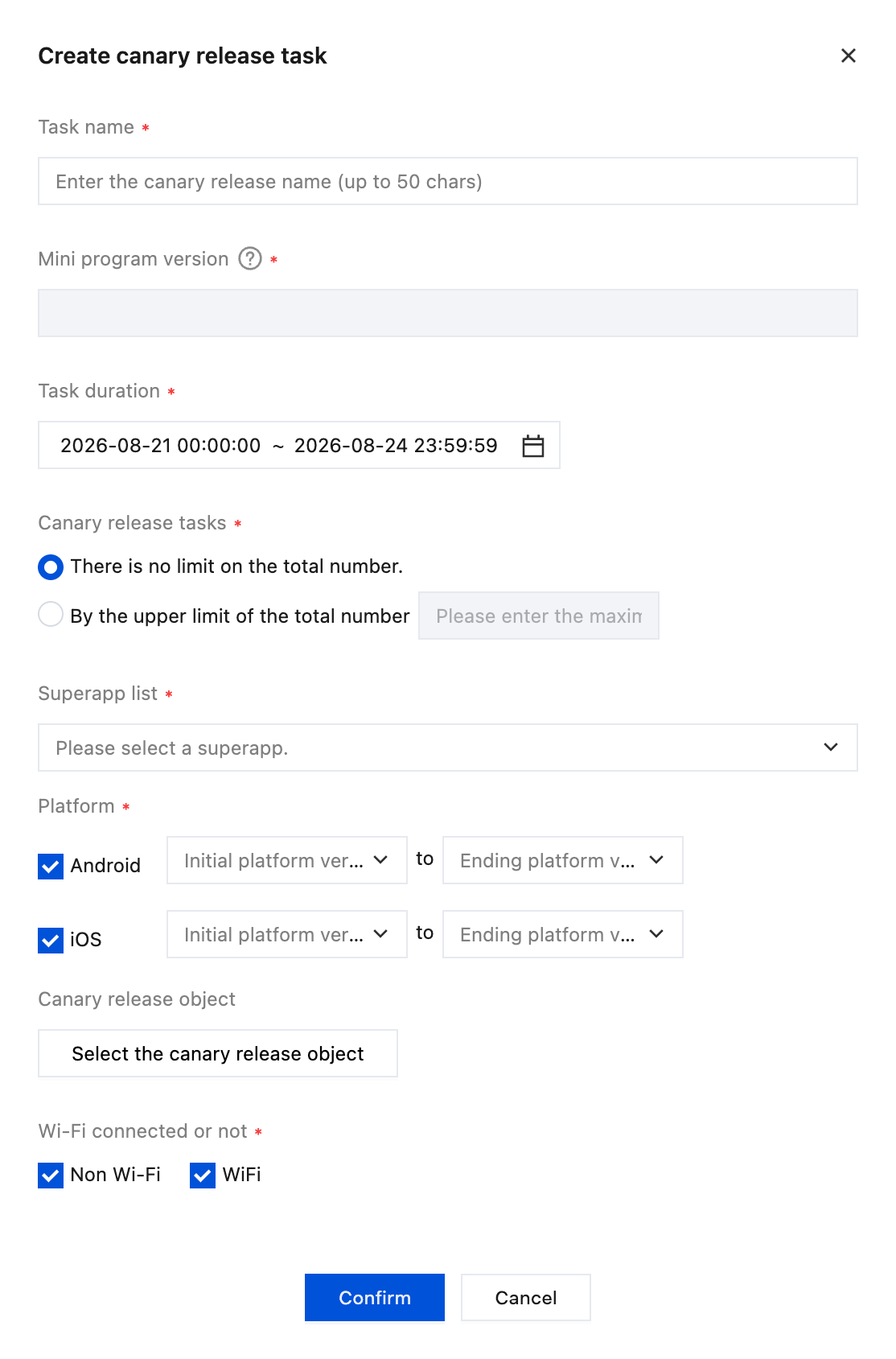
Canary release task settings
Canary release task name: Fill in the name of the canary release task with up to 20 characters.
Canary release version: The canary release version must be approved, not yet released, and the version must be later than the online version.
Canary release time: Select the start and end time for the canary release task. The end time cannot be earlier than the creation time of the canary release task.
Canary release limit: Set a limit on the total number of users for the canary release.
Applicable platform: Choose between Android and iOS platforms, and specify the start and end version numbers for each.
Target users: Set filters for target users of the canary release versions. Currently, three conditions are supported: GUID, custom device ID, and user account. Developers can manually enter the target user information or batch upload target user allowlist in a .txt file.
Networking: Choose whether to pull the canary release version in WiFi environment.
Note:
Multiple canary conditions are intersected; once one condition limit is reached, the canary release will stop.
Canary release task management
In the canary release task list, multiple canary release tasks are sorted from latest to earliest based on the creation time. The status of a canary release task includes: Pending, In progress, Paused, and Completed. The status flow is shown in the following figure:
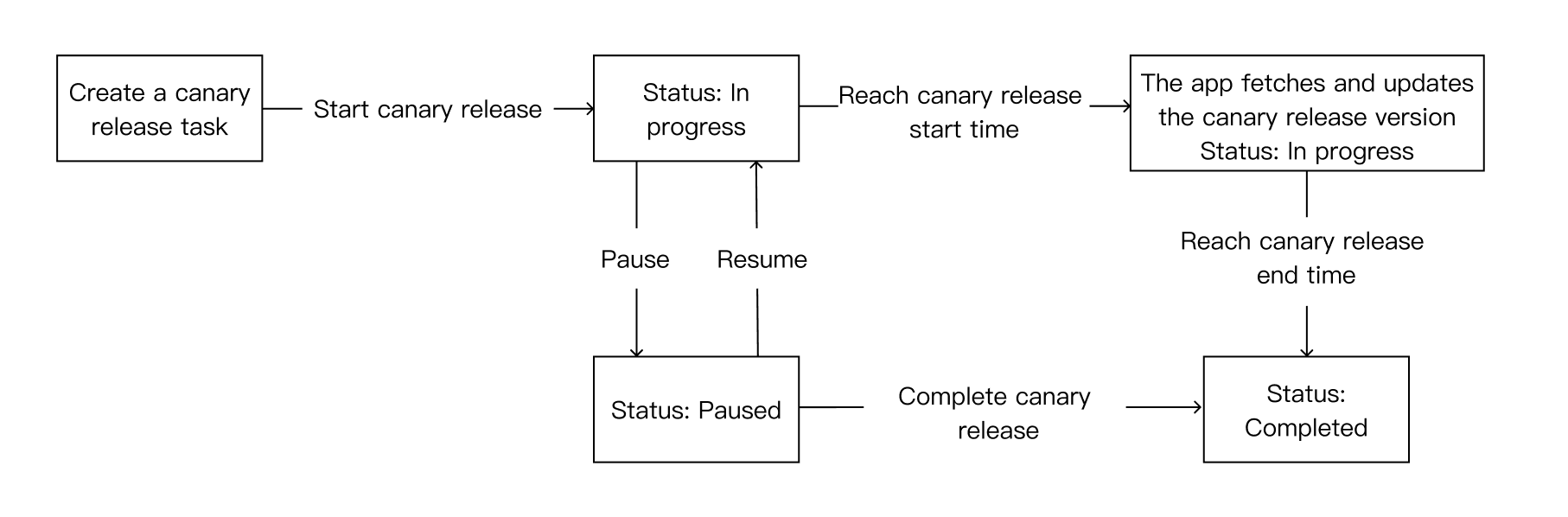
Click "Canary release progress" to view the current status of the canary release task.
Note:
When a mini game version is officially released, any canary tasks with the same or lower version number will automatically end, and all users will be updated to the latest version.
Other features and operations
Mini game offline package
Offline mini games are built in the superapp. Developers need to download the mini game package from the console and import it into the superapp project, where it gets packaged with the superapp. Users can open the embedded mini game without downloading it from the backend, even without an internet connection.
Directions
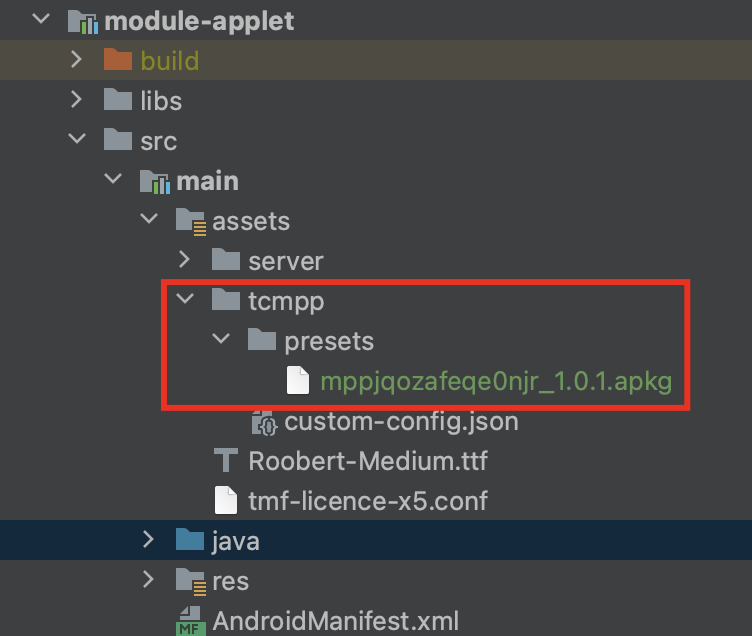
1. Download the mini game offline package.
2. Copy the downloaded mini game package to the custom assets directory. You need to strictly follow the naming rules for offline mini games.
Note:
Naming rules for offline mini games: {miniAppId}_{miniAppVersion}.apkg
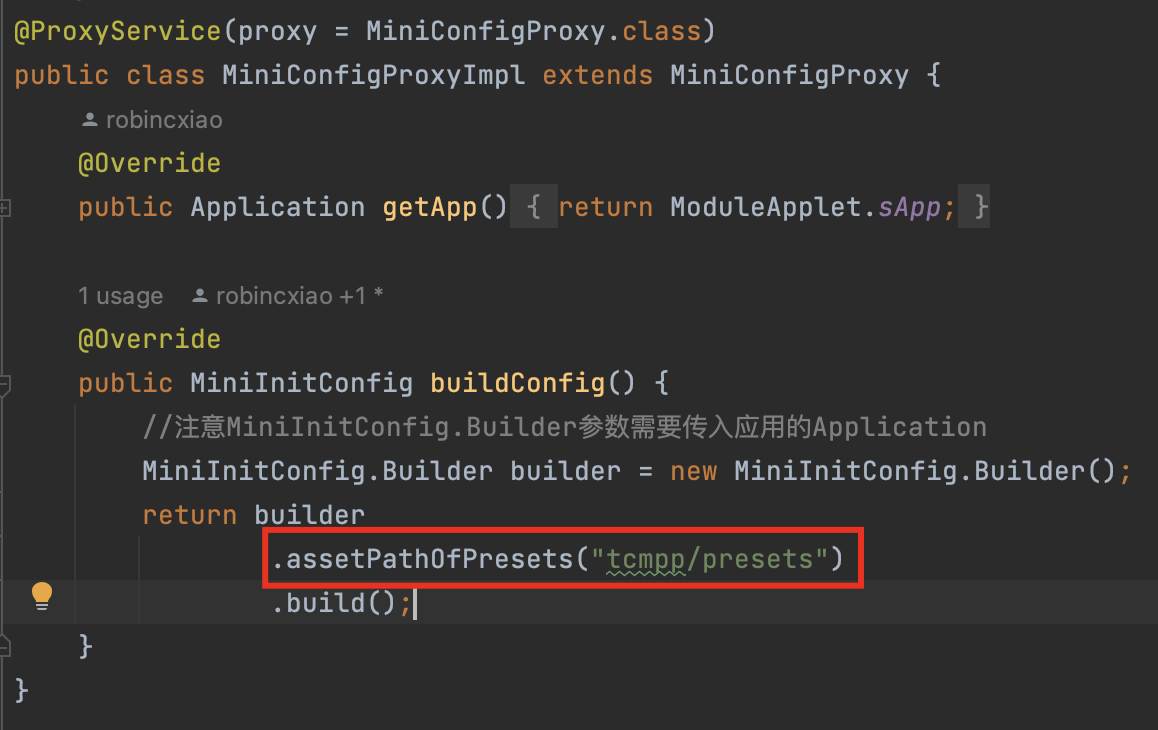
3. In the SDK initialization configuration, specify the asset directory where the offline mini game was placed in the previous step.
Note
Offline mini games must go through the normal releasing process. Only the offline packages of released versions of mini games can be downloaded.
Version management such as new version release, version rollback, and removal are applicable to offline mini games. When the released version is inconsistent with the preset version, the client will fetch the released version.
The offline mini game preset in the superapp doesn't work when the corresponding mini game is removed.
Mini game version rollback
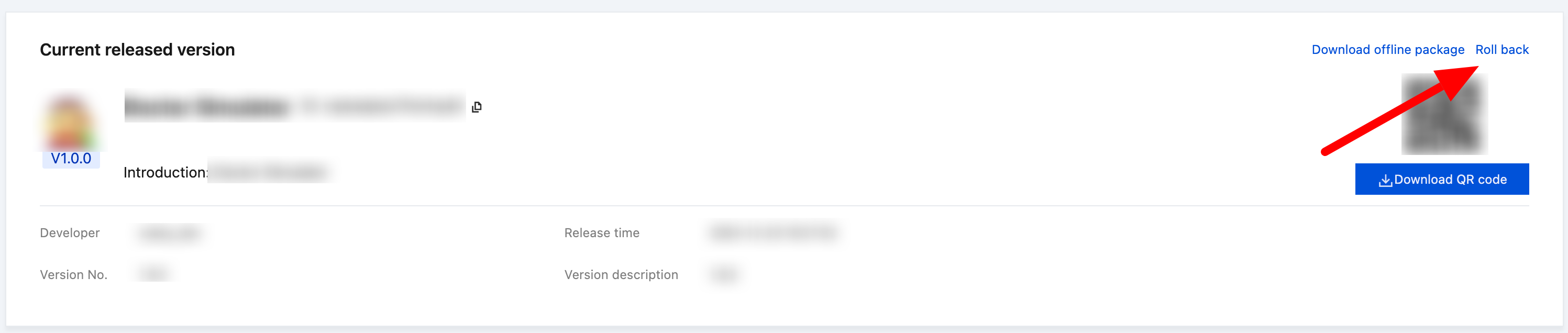
Version rollback: Roll back the released version of the mini game to a previously released version. Continuous rollback is not supported.
Mini game removal
In the mini game list, click "Remove" to remove a mini game from the superapp. After that, the mini game can not be searched, and the cached mini game can not be opened.
Subscription message
Introduction
Messaging is a core mini game feature. The superapp provides subscription messages to help developers build closed-loop services and push timely business updates to users. To use this feature, go to the console, select "Mini game management," and "Message subscription." Then, pick suitable templates from the public library, configure the fields, and add them to "My templates."
Roles and permissions
Feature | Role | Super admin | Platform admin | Mini program team admin | Senior mini program developer | Mini program developer |
My templates - View | Read-only | Read-only | ✓ | ✓ | ✓ |
My templates - Delete | - | - | ✓ | ✓ | - |
Public template library - View | Read-only | Read-only | ✓ | ✓ | ✓ |
Public template library - Select | - | - | ✓ | ✓ | - |
Super administrators/platform administrators/mini program developers: Have read-only permissions for the subscription messages module, including view permissions for My templates and the Public template library.
Mini program team administrators/mini program senior developers: Have permissions for the subscription messages module, including view and delete permissions for My templates, and view and select permissions for the Public template library.
Mini program developers: Have permissions for the subscription messages module, including view permissions for My templates and the Public template library.
Console operations
Public template library
Developers can browse the public template library and select templates based on their business needs. Templates can also be searched by name.

Subscription types
One-time subscription
One-time subscription messages notify users about follow-up service steps after using the mini game.
When developers call the requestSubscribeMessage, a popup lets users opt-in to receive messages. Once subscribed, developers can send one service message at any time.
Note:
Long-term subscription is not supported in mini games.
Template selection
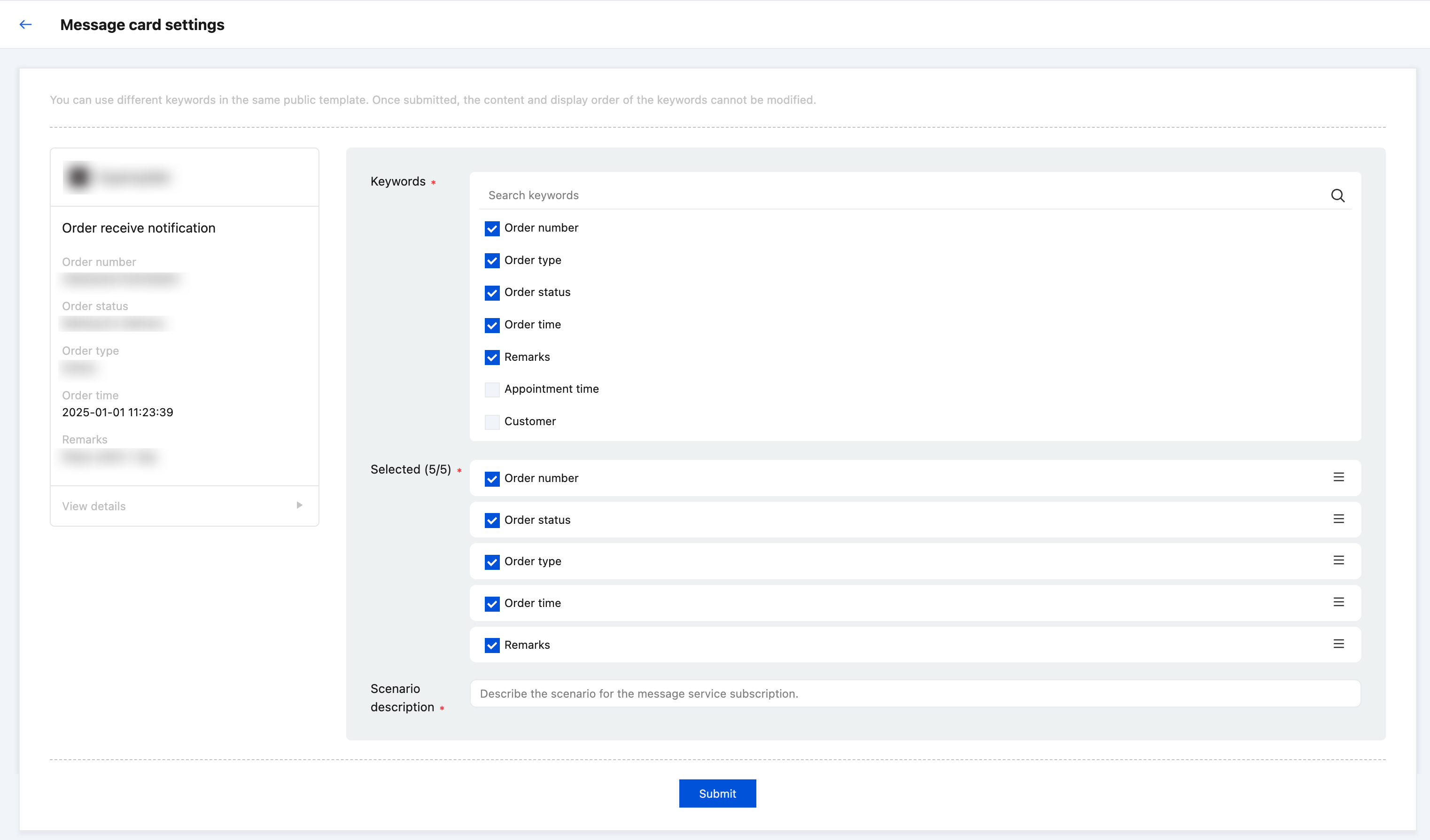
In the public template library, find the target template and click "Select" to enter the template configuration page. There are multiple keywords under each public template. Developers can select 1 to 5 keywords from the keyword list. Refer to the preview on the left for the pop-up content displayed to users on the superapp. Drag and drop the sorting button on the right side of the selected keywords to arrange their orders.
Click "Submit" to save the template to "My templates."
Note:
If a same public template is added to "My templates," the keywords in the template cannot be the same as those in the already added templates.
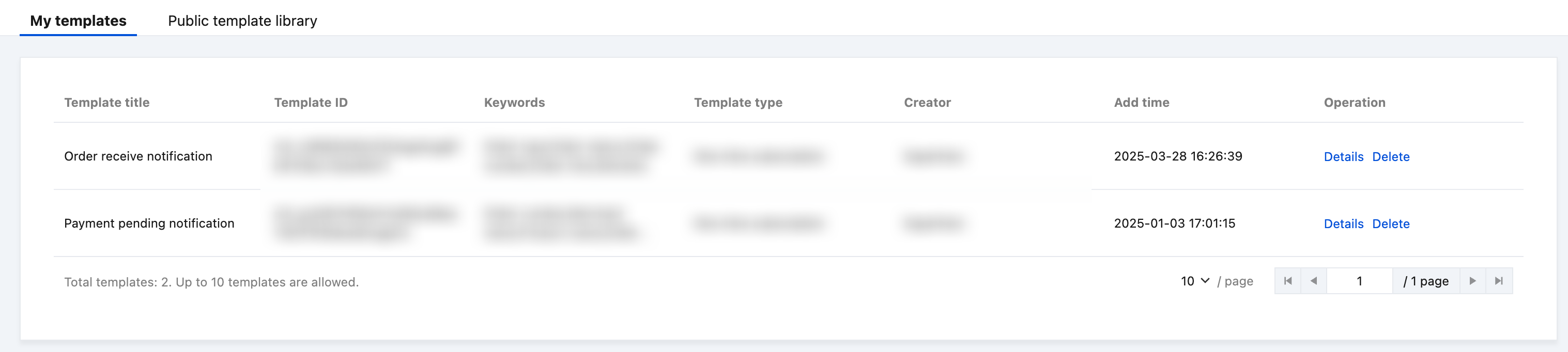
My templates
Templates selected and configured from the public template library will be added to My templates. Developers can use these templates to develop the message subscription feature.
Note:
One-time template IDs and long-term template IDs cannot be used simultaneously.
Up to three messages can be subscribed to in a single call.
The subscription message page can only be triggered after the user has performed a click action.
In a single authorization call, each tmplId corresponding to a template title must be unique; if duplicates are found, only one will be retained.
Privacy agreement
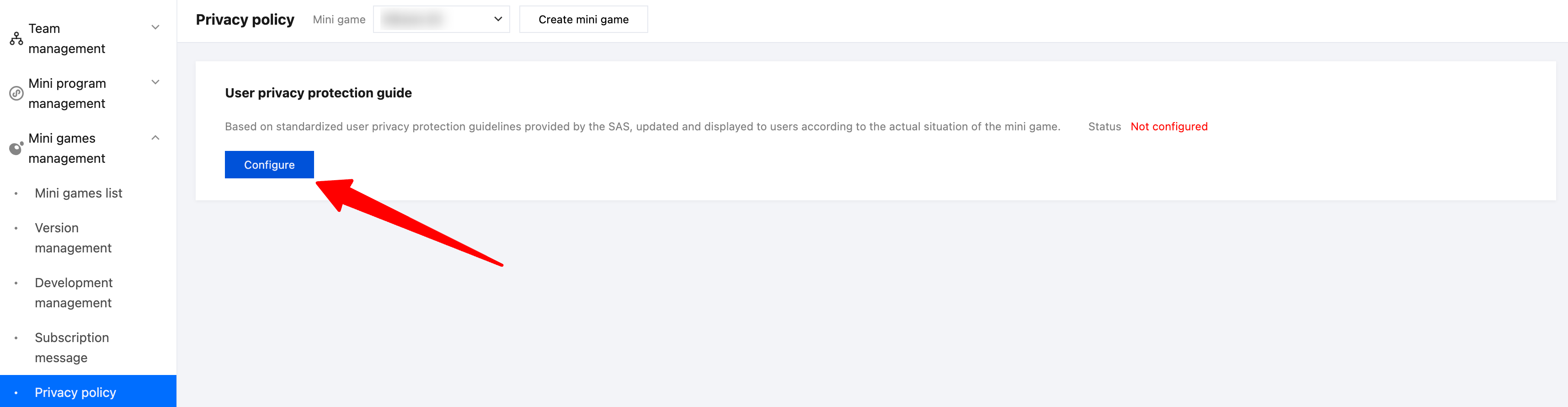
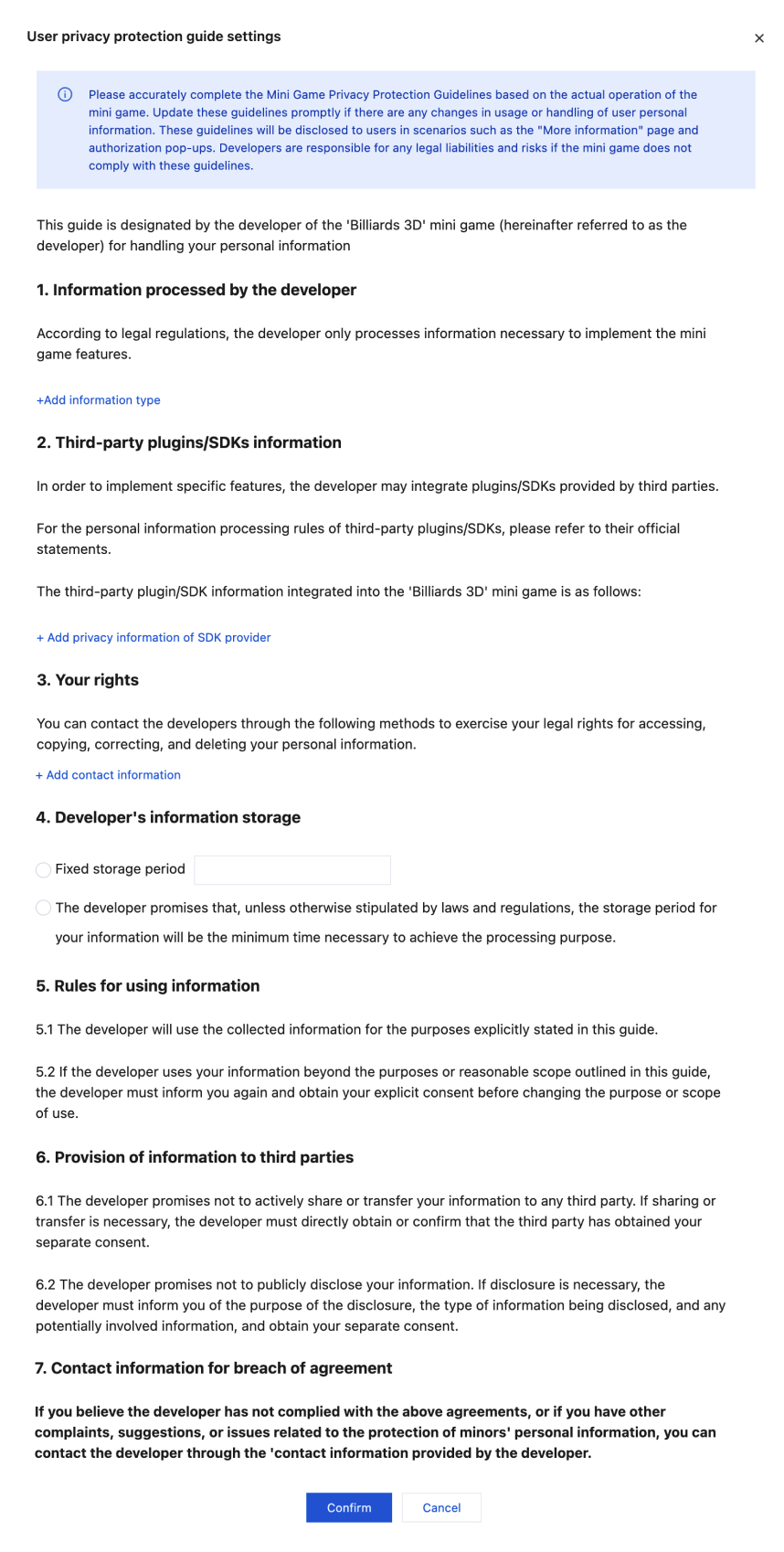
Configure the user privacy protection policy in the settings. Use the provided template to fill in the personal data collected by the mini game. After saving, the user privacy protection policy will be generated.
1. Click "Configure".
2. Fill in the privacy information.
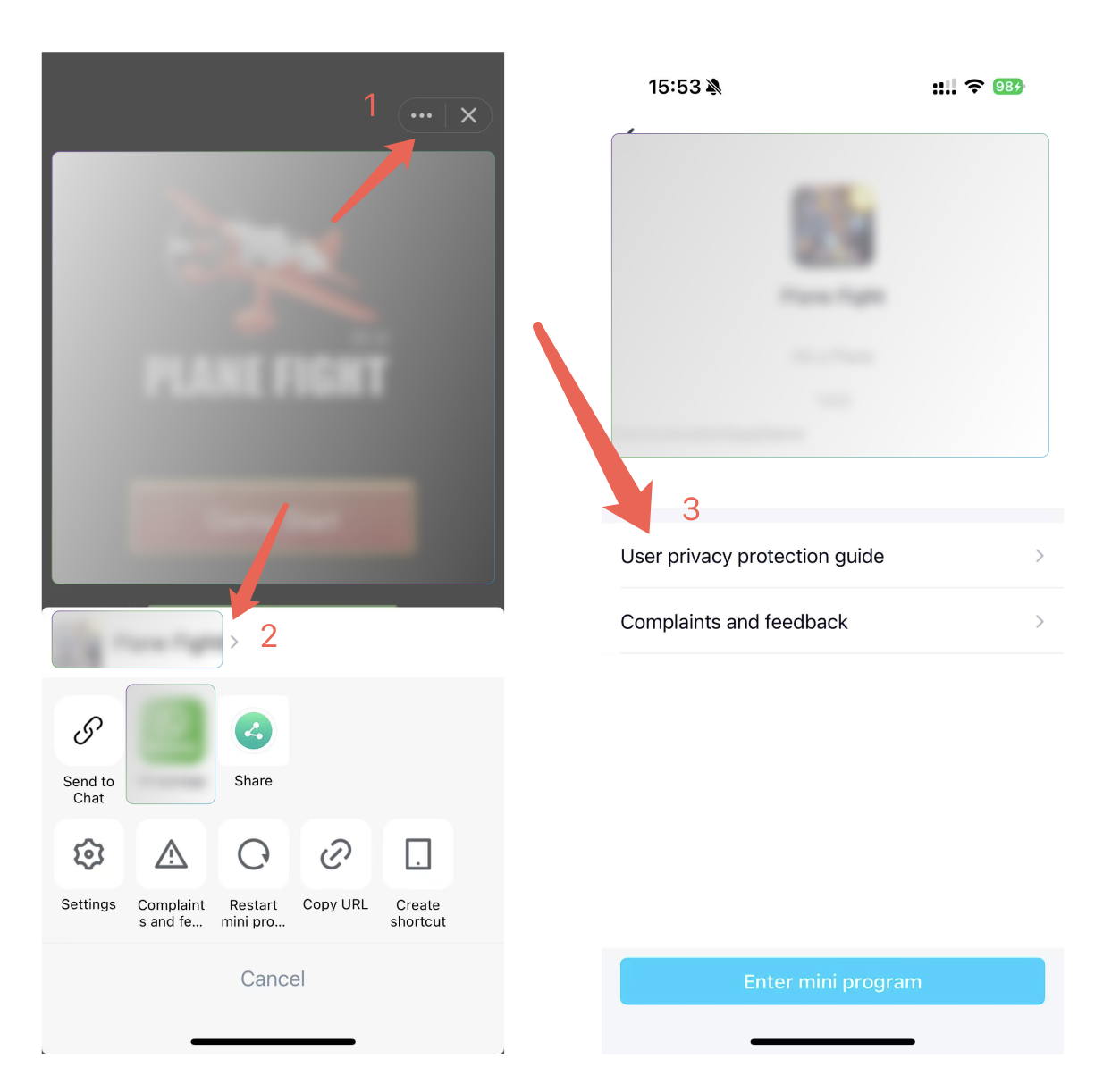
After saving, you can view the generated policy in"More" > "Mini game details."
フィードバック