Internet Firewall Toggle
ダウンロード
フォーカスモード
フォントサイズ
CFW provides the Internet Firewall Toggle feature. On the Internet Firewall Toggle page, your public IP addresses and associated cloud assets are automatically detected, and the corresponding Firewall Toggles are configured for you. The Firewall Toggle supports one-click protection enablement, requiring no network access deployment, routing policy configuration, or installation of any image files, delivering an out-of-the-box product experience.
Explanation of Access Mode
Working Principles | Serial Firewall |
Deployment path | Serial firewalls are deployed directly in the path of network data flow, where all passing packets must be inspected and processed by the firewall. |
Processing data | Since serial firewalls need to process all passing packets, they have high requirements for performance and processing capability. If the firewall performance is insufficient, it may become a network bottleneck, affecting network speed and stability. Therefore, a new firewall instance must be created in each region for serial firewalls, with corresponding bandwidth allocated. |
Security Protection | Serial firewalls can perform deep inspection and processing of data packets, providing a high level of security. They prevent malicious packets from entering the network, protecting internal resources from attacks. |
Supported Asset Types
Internet Firewall supports the following asset types:
Product name | Internet Firewall (Serial Mode) | |
| Supported | |
| Not supported | |
General BGP IP addresses | After the EIP is bound to an instance, this feature is supported, subject to whether the firewall toggle can be enabled in the console. If you have any questions, submit a ticket to contact us. | |
| Dedicated BGP IP addresses | |
| Accelerated IP addresses | |
| Static single-line IP address | |
| Anti-DDoS EIP | |
| Internet access (dedicated line) | Not supported |
Triple-carrier IP | | Not supported |
CLB | Support is available in some regions. If you require support in other regions, submit a ticket to contact us for assessment. | |
| Domain-named CLB | |
| IPv6 CLB | Not supported |
| Classic CLB | Not supported |
| Not supported | |
| Not supported | |
| Not supported | |
Serial Firewall Toggle Operations
1. Log in to CFW console, navigate to Firewall Toggle > Internet Firewall in the left sidebar.
2. On the Internet Firewall page, locate the asset that requires protection.
3. Enable the Firewall Toggle to apply boundary protection to the asset.
4. Enabling the serial firewall is expected to take about 1 minute and has no impact on the network. In serial mode, Private Link is required to establish the network connection from the VPC to the firewall. When you enable the serial firewall for an EIP within a VPC for the first time, new endpoints and a traffic diversion private IP address for the Private Link need to be created. Private Link usage within your serial firewall specification (allocated bandwidth) incurs no additional charges. Excess usage may incur fees. For details, see Private Link Billing. Subsequent enabling or disabling of the serial firewall within the same VPC does not require creating a Private Link again.
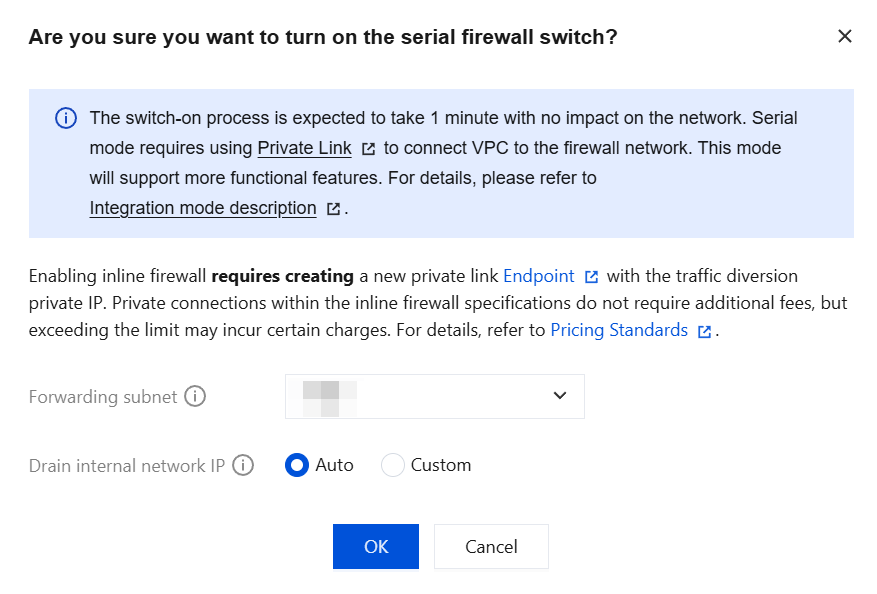
Note:
After the toggle is enabled, all traffic from the public IP address will pass through CFW, and features such as Access Control, Intrusion Defense, and Log Auditing will take effect for that public IP address.
After the toggle is disabled, all traffic from the public IP address will no longer pass through CFW.
The serial firewall no longer consumes general instance quota, and the consumed quota from existing resources is returned.
Firewall Settings
Bandwidth Configuration
1. Log in to CFW console, navigate to the Firewall Toggle page in the left sidebar, and click Firewall settings.
2. In the Bandwidth Configuration > North-south bandwidth allocation > North-south bandwidth allocation status area, you can view the available bandwidth for the Internet Firewall.
3. The Internet Firewall bandwidth cannot be directly edited. It is calculated as follows:
Available bandwidth for the Internet Firewall = Total north-south bandwidth − Allocated bandwidth for NAT Firewall (Cluster Mode) − Allocated bandwidth for NAT Firewall (Primary/Secondary Mode)
To adjust, you can reduce the bandwidth for the NAT Firewall Toggle (Cluster Mode) or (Primary/Secondary Mode). For details, see NAT Firewall Toggle (Cluster Mode) and NAT Firewall Toggle (Primary/Secondary Mode).
4. Click Expand to purchase additional north-south bandwidth. For details, see Purchasing Methods.
Asset Protection Setting
1. Log in to CFW console, navigate to the Firewall Toggle page in the left sidebar, and click Firewall settings.
2. In the Feature Configuration > Internet Firewall Toggle Settings > Asset protection area, you can configure asset protection for the Internet Firewall:
New Asset Auto On: After enabling, when the public network address protection quota permits, the Internet Firewall Toggle is automatically enabled for newly added public network address assets.
Auto-create private link: After enabling, when the automatic enabling of new assets requires a Private Link, the firewall automatically selects and creates one from existing subnets and private IP addresses.
Firewall Overload Handling
When traffic exceeds the bandwidth of the Internet Firewall, the Bypass policy is triggered. The system automatically disables some Firewall Toggles based on their weight to reduce traffic to within the bandwidth specification. When traffic returns to normal, the toggles are automatically enabled.
Overload Impact
Bandwidth overload of the Internet Firewall will not cause packet loss in customer business traffic or affect the traffic rate, but will be unable to provide the protection feature.
Starting from September 25, 2024, when business bandwidth exceeds 100% of the Internet Firewall bandwidth, the following measures will be taken:
Disable some Internet Firewall Toggles to Bypass a portion of traffic, only protecting traffic within the bandwidth specification.
Support configuring the weight of Firewall Toggles to set the priority for automatically disabling Firewall Toggles.
Weighting Mechanism
Weight range: 0 - 100 (default is 1). Larger values represent higher priorities.
Traffic throttling mechanism: when real-time bandwidth exceeds purchase specs, the system automatically closes high-weight resolutions first (if weights are identical, close in descending order of peak bandwidth) until real-time bandwidth drops to within purchase specs.
Recovery mechanism: when real-time bandwidth ≤ purchase specs, the system preferentially enables high-weight resolution (if weights are identical, enable in descending order of peak bandwidth) and automatically turns on the firewall.
Configuring Weights
1. Log in to CFW console, navigate to the Firewall Toggle page in the left sidebar, and click Firewall settings.
2. In the Feature Configuration > Internet Firewall Toggle Settings > Firewall Overload Handling Configuration area, you can directly edit the weight of the protected object.
3. Alternatively, click Edit weight, select the protected object, edit the toggle weights in batches, and click OK to save.
Status Monitoring
You can fully monitor the protection status of the firewall and resource usage via the two main panels in the console.
Asset Protection Overview
In the Asset Protection Overview panel, you can quickly grasp the overall protection posture and manage resources. This panel displays the number of unprotected and protected assets, the public IP address protection quota, and the peak bandwidth at the Internet boundary over the past 7 days.
Click Enable One-Click Protection to enable the firewall in batches for all supported public IP addresses.
Click Adjust Bandwidth to view and adjust bandwidth allocation. For details, see Bandwidth Configuration.
If resources are insufficient, click Expand to navigate to the purchase page for quota expansion. For details, see Purchasing Methods.
Bandwidth Usage Detail
The Bandwidth Usage Details panel provides you with fine-grained traffic monitoring and analysis based on time and dimensions.
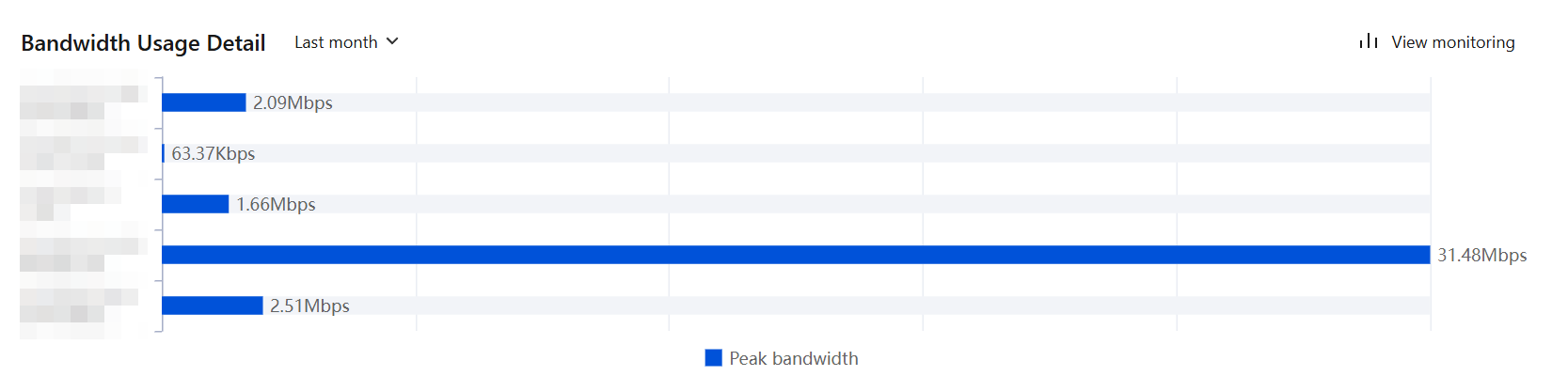
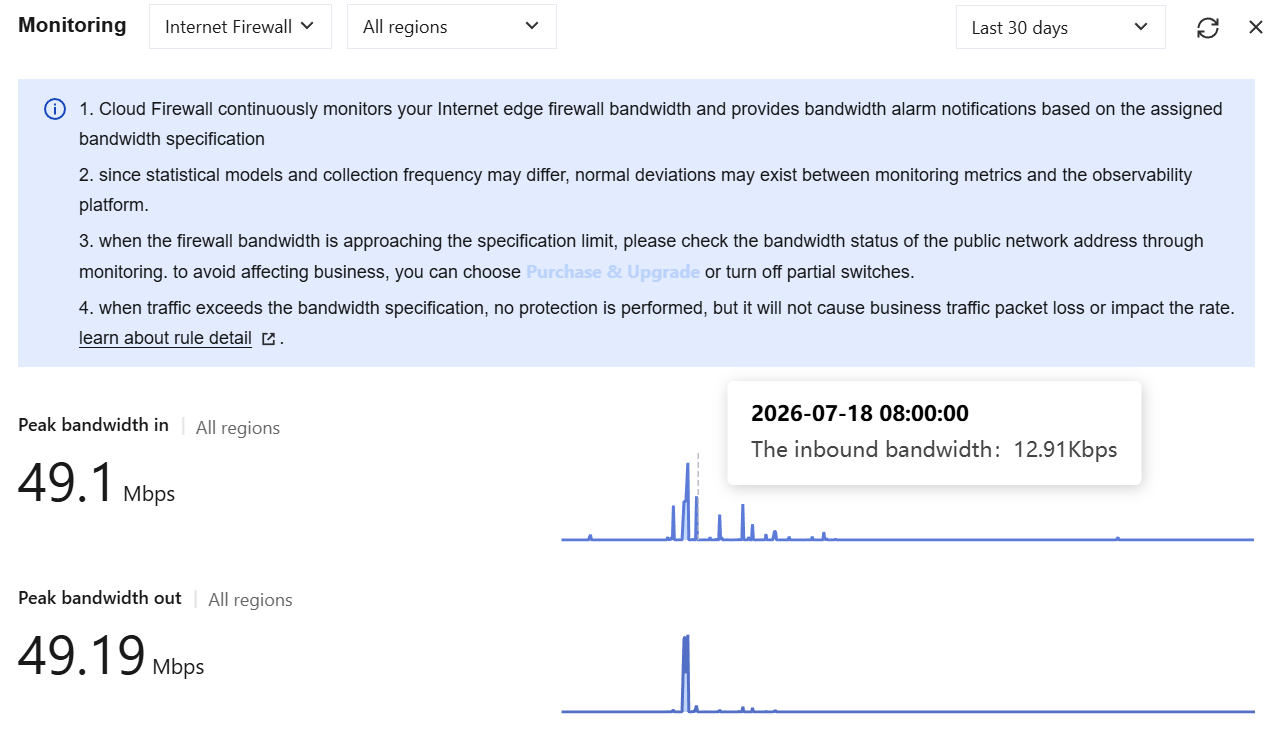
Click View monitoring to view and monitor the bandwidth status of public IP addresses in real time, and perform operations such as scaling out or disabling some toggles.
Note:
Peak bandwidth refers to the maximum value of upstream and downstream traffic. For example, if you purchase 100 Mbps bandwidth, CFW can concurrently process 100 Mbps upstream and 100 Mbps downstream traffic.
Synchronizing Assets
The background system polls user asset information every 10 minutes. Therefore, if the user's asset scale changes within this interval but has not been synchronized by the background system, you can click Sync assets above the list to promptly call the background API to re-read and synchronize the user's asset information and data.
If newly added assets do not appear in the Firewall Toggle list, click Sync assets above the list to attempt synchronization.
Viewing Rules, Alarms, or Logs
In addition to enabling the Firewall Toggle in the asset list, you can also perform the following other operations, which mainly include viewing the rules, alarms, and logs associated with the asset.
View rules: In the asset list, click View rules in the operation column to redirect to the rules page associated with the asset.
View alarms: In the asset list, choose More > Related alerts in the operation column, select a specific event type, and you will be redirected to the corresponding event page in the Alarm Center.
View logs: In the asset list, choose More > View logs in the operation column, select a specific log type, and you will be redirected to the corresponding log page.
Related Information
If you need to manage traffic and provide security protection for private network assets, or forward network traffic based on SNAT and DNAT, see NAT Firewall Toggle (Cluster Mode) and NAT Firewall Toggle (Primary/Secondary Mode) for operations.
To automatically detect VPC information and interconnection relationships, and create a CFW Toggle between each pair of interconnected VPCs, see VPC Firewall Toggle (Cluster Mode) and VPC Firewall Toggle (Primary/Secondary Mode).
If you encounter issues related to the Internet Firewall, see the Internet Firewall documentation.
フィードバック