Adjust Cluster Configuration
ダウンロード
フォーカスモード
フォントサイズ
Scenarios
If the current cluster specifications do not meet your business requirements, you can upgrade or downgrade the compute and storage specifications of your cluster in the console.
Note:
Currently, only Pro Edition/Standard Edition clusters support specification upgrades and downgrades. Virtual clusters do not support this feature yet. The upgrade or downgrade process is theoretically imperceptible to businesses. However, clients may experience disconnections and reconnections when the server rebalances Topic traffic.
Currently, one-way upgrades from Standard Edition clusters to Pro Edition clusters are supported to meet higher demands for performance, stability, and enterprise-grade features as business scales. However, downgrades from Pro Edition to Standard Edition are not supported due to differences in the underlying architecture and resource isolation between the two editions. Evaluate your business plans carefully when selecting an edition. For more information, see Product Selection.
Cluster specification adjustments are subject to the physical resource inventory of the current AZ. If resources in the current AZ are sold out, the specification adjustment request cannot be submitted. You need to migrate the cluster to an AZ with sufficient resources before initiating the specification adjustment again. For more information, see Product Selection.
Upgrading or downgrading a Pulsar cluster involves data migration. The time required depends on the current data volume of the cluster and typically completes within 30 minutes. You can also click the note icon next to the specification change to view the change progress in real time.
Pulsar employs a storage-compute separation architecture. When cluster specifications are adjusted (upgraded/downgraded), the number of compute-layer Broker nodes is scaled horizontally. Because the monitoring collection component is bound to Broker nodes, the number of monitoring instance nodes changes synchronously and proportionally with the number of Broker nodes.
Operation Steps
TDMQ for Pulsar pro clusters support specification adjustments in two dimensions:
Adjustment Dimension | Description | Supported Cluster |
Compute specification adjustment | Supports scaling up or down between MINI, SMALL, and other series specifications to adjust the computing and throughput capabilities of a cluster. | Pro fixed storage cluster Pro elastic storage cluster Standard elastic storage cluster |
Storage space adjustment | Supports independent scaling up of disk storage space, allowing on-demand capacity expansion without adjusting compute specifications. | Pro fixed storage cluster |
Scaling Up a Cluster
1. Log in to the TDMQ for Apache Pulsar console.
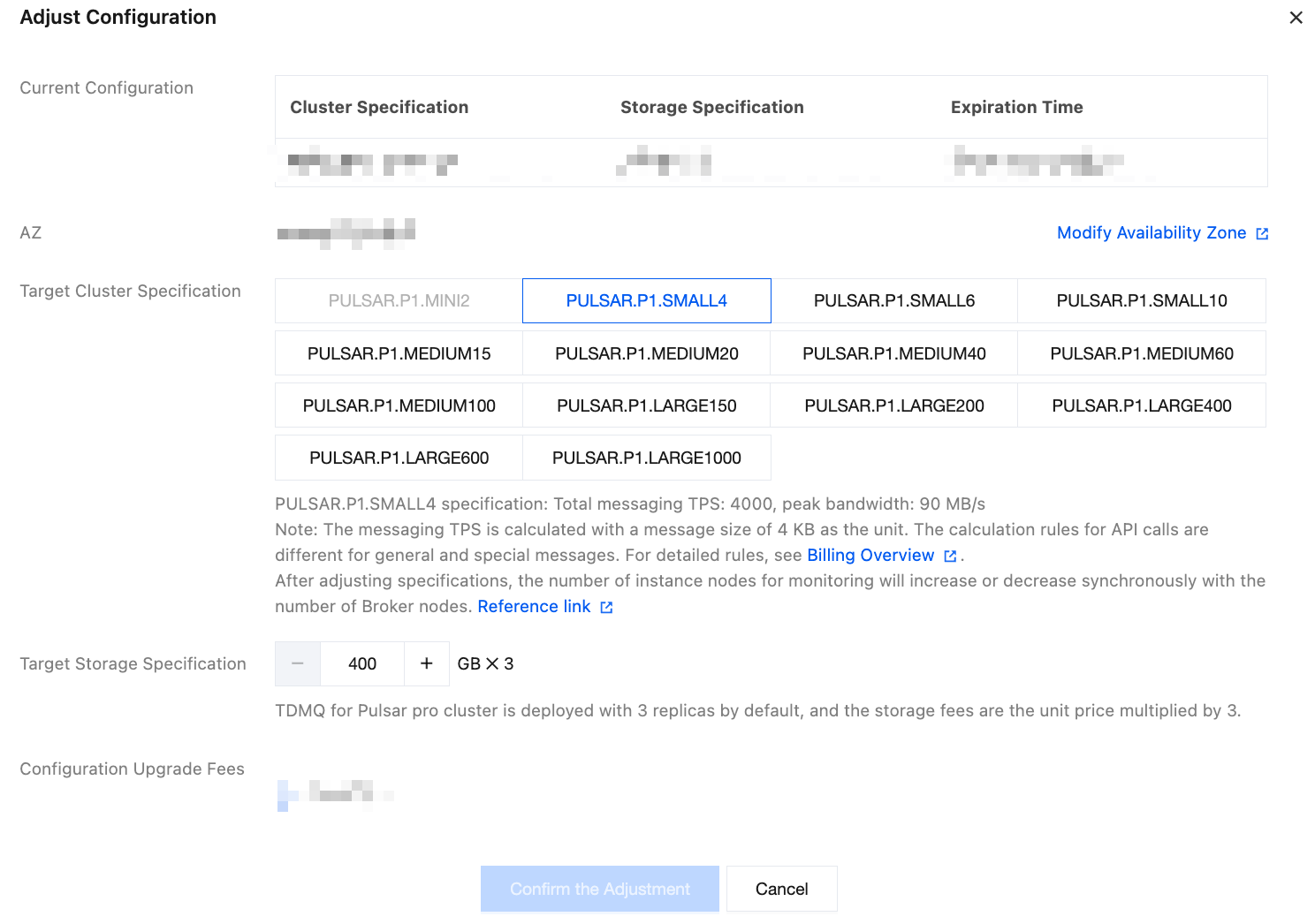
2. In the left sidebar, choose pulsar > Cluster. On the cluster management list page, locate the target cluster, and then choose More > Upgrade in the Actions column.
3. After selecting the target cluster specifications, click Confirm the Adjustment.
Note:
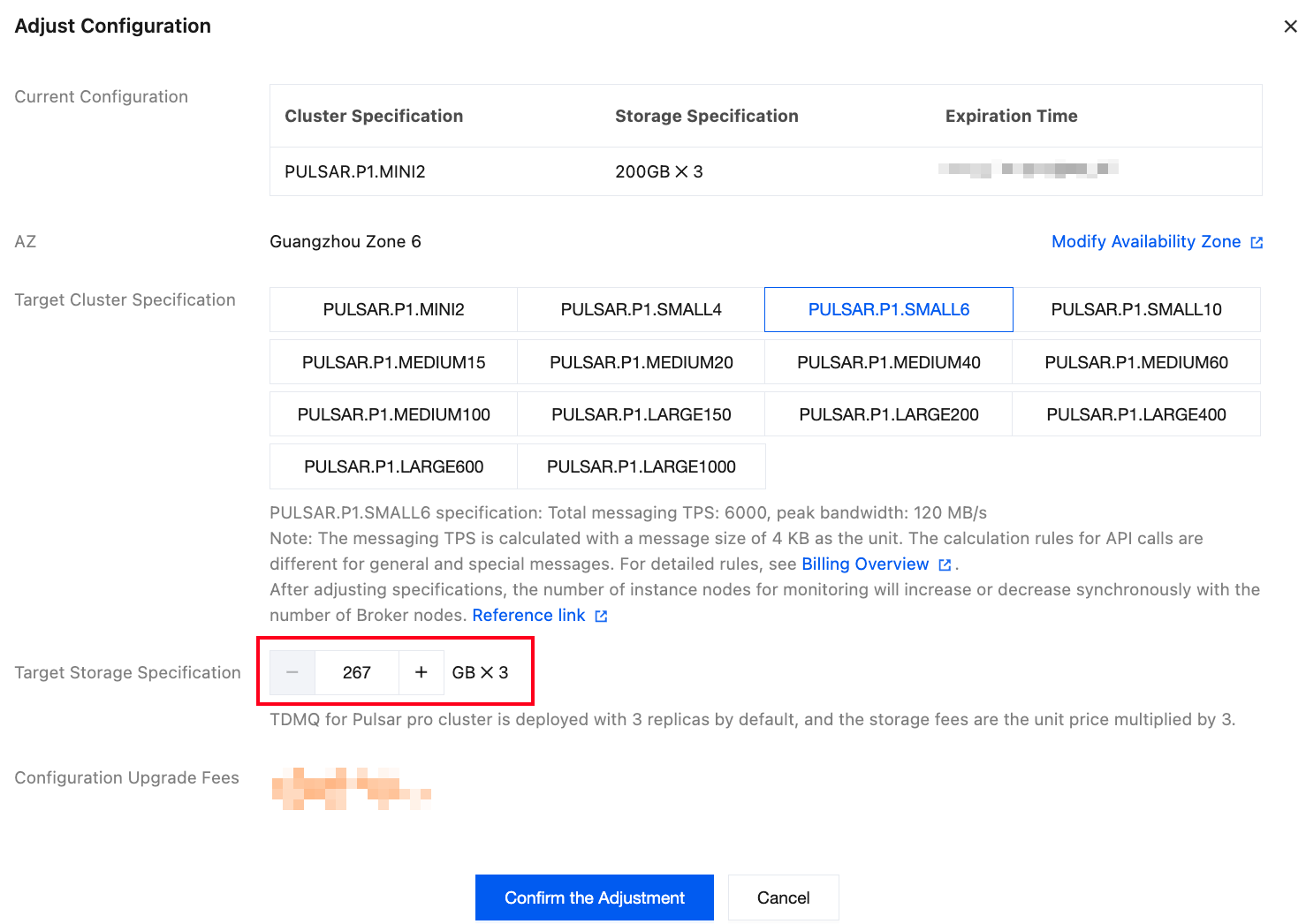
Pro Edition fixed storage clusters support independent storage upgrades. When storage usage is too high, you can scale out storage capacity separately without upgrading the entire cluster.
Pro Edition/Standard Edition elastic storage clusters are billed elastically based on actual usage. You do not need to monitor disk usage, and disk-level specification adjustments are not involved.
The maximum disk upgrade limit for a single cluster is 20000 GB × 3 replicas (60000 GB in total).
1. Log in to the TDMQ for Apache Pulsar console.
2. In the left sidebar, choose Pulsar > Cluster. On the Cluster list page, find the target cluster and choose More > Upgrade in the operation column.
3. Enter the target storage value in the storage specifications, and click Confirm Adjustment to upgrade.
Scaling Down a Cluster
1. Log in to the TDMQ for Apache Pulsar console.
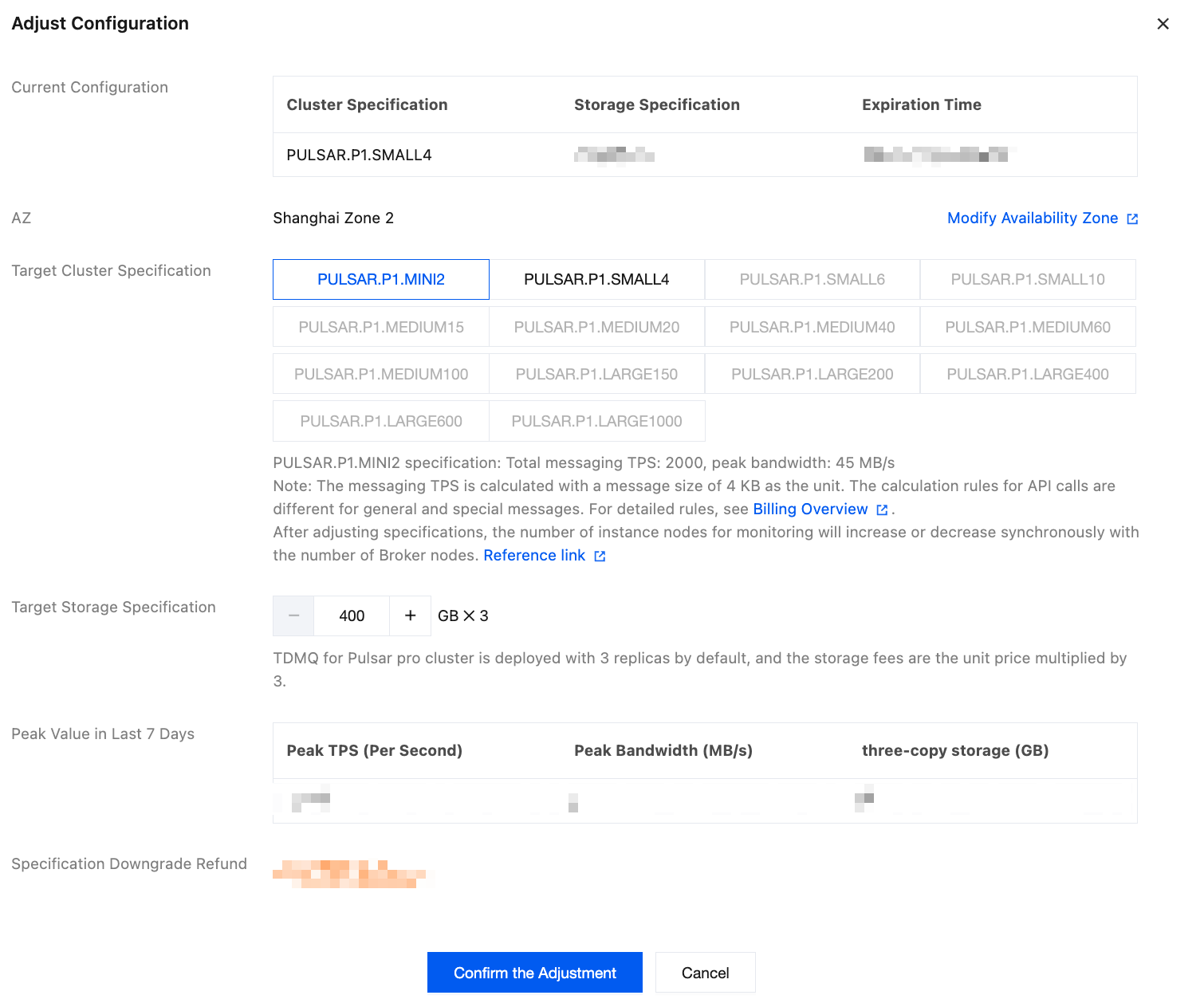
2. In the left sidebar, choose pulsar > Cluster. On the cluster management list page, locate the target cluster, and then choose More > Downgrade in the Actions column.
3. After selecting the target cluster specifications, click Confirm the Adjustment.
フィードバック