Customer Bill
ダウンロード
フォーカスモード
フォントサイズ
Data Range Description
Note:
The bill is viewed from the customer's perspective, showing the bill data generated by using cloud services.
The bill is issued on the 5th of each month. The complete bill for the current month can be viewed or downloaded after the bill is issued on the 5th of the following month (all times are in China Standard Time, UTC + 8:00).
The Bill Overview data for the current month is up to the day before the current date.
The data displayed on Bill by Instance interface and in the downloaded files for the current month is up to 1 day before the current date. The bill by instance only supports data starting from November 2023.
The bill data for prepaid products displayed on the Bill Details interface for the current month is generated about 1 hour after purchase. The bill data for pay-as-you-go products is generated about 1 hour after the product settlement cycle. The data in the downloaded files is up to about 7 hours before the current time.
Bill Overview
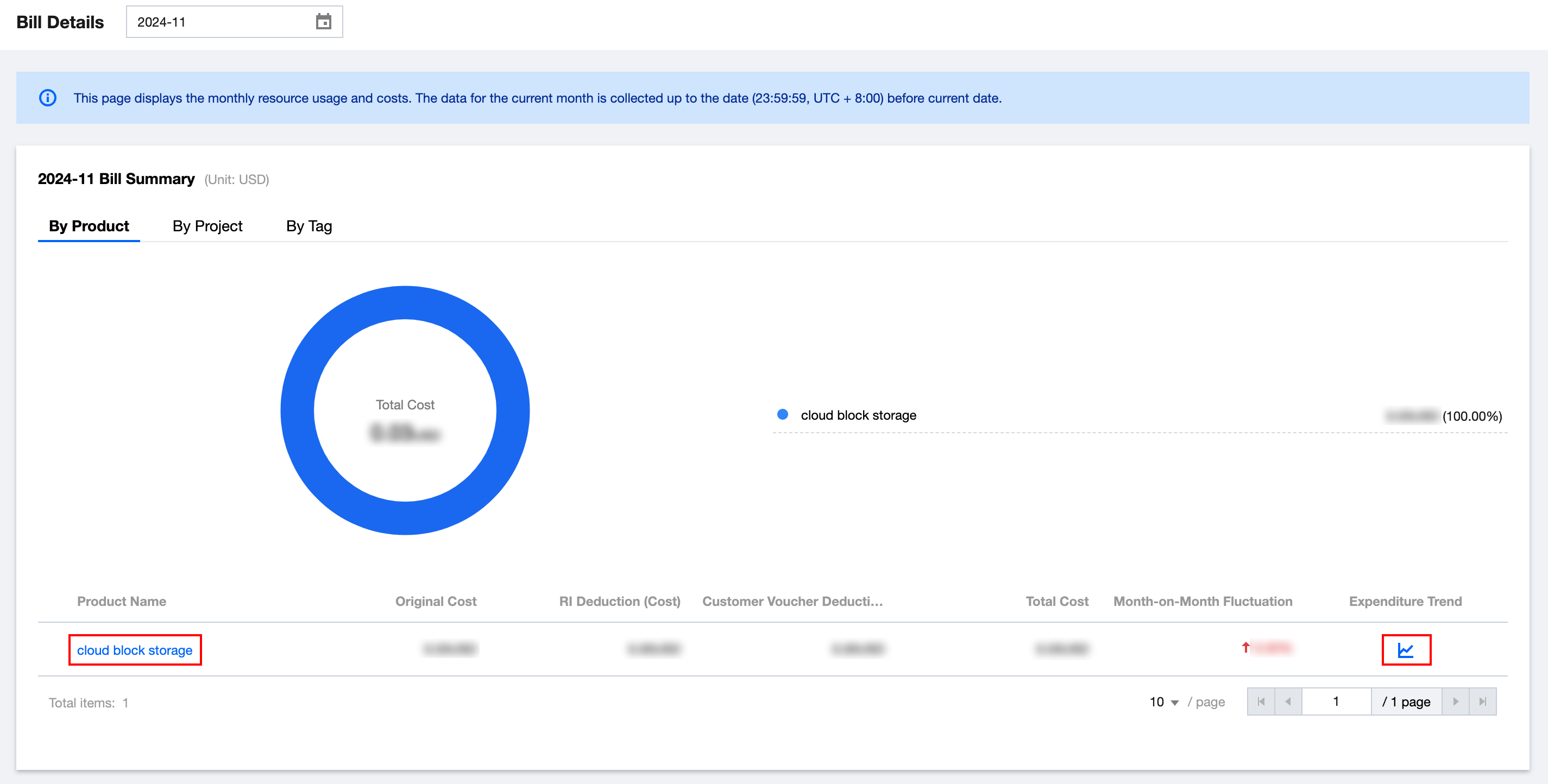
1. Log in to the Tencent Cloud with your customer account and enter the Billing Center.
2. Click the left menu Bills > Bill Overview to enter the Bill Overview page.
3. Select the month to display the bill for the corresponding month.
4. Click By Product, By Project, or By Tag to view the monthly summary bill data by product from different dimensions.
5. Click the product name, project name, or tag in the list to enter the bill details page and view the corresponding instance bill.
6. Hover on the fee trend icon to view the fee trend for the past 6 months.
Bill Details
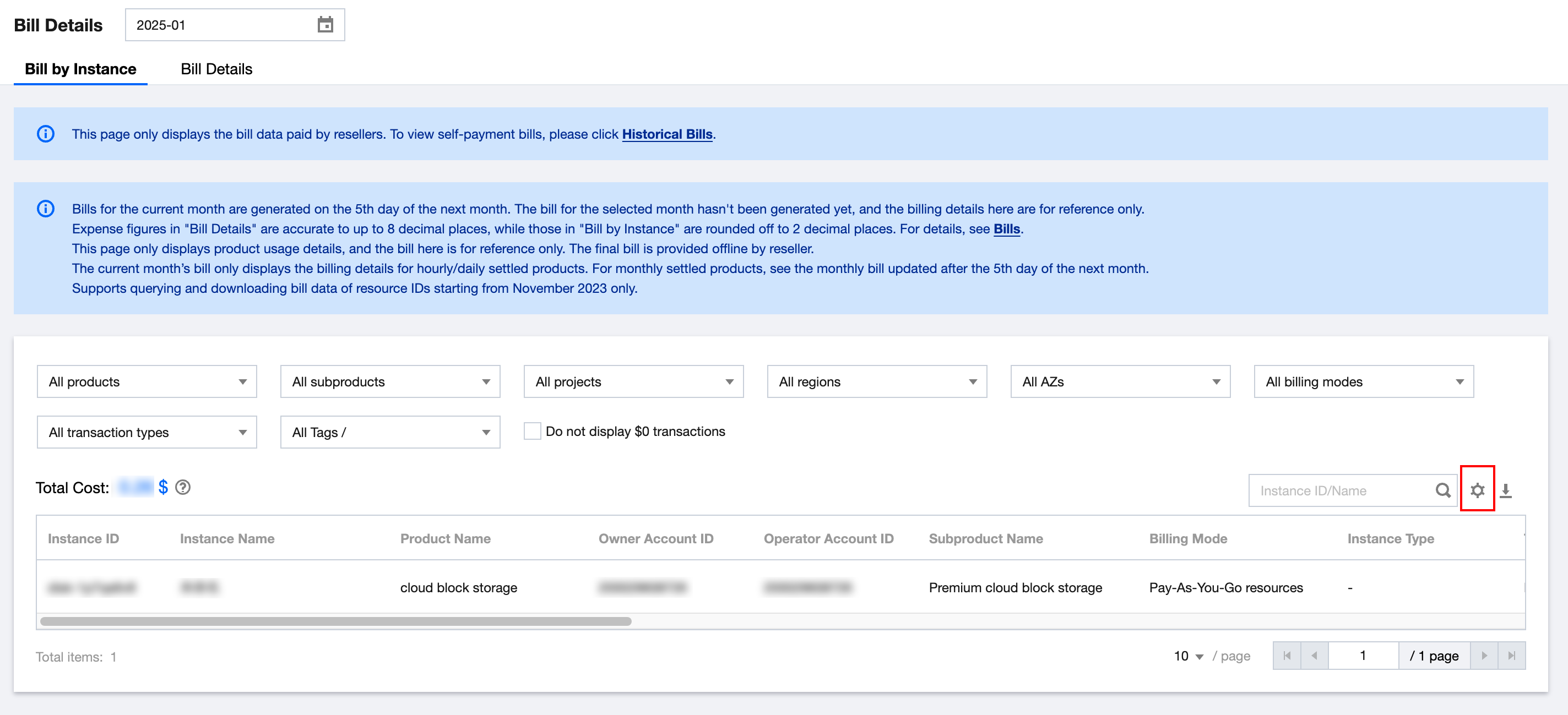
1. Click the left menu Bills > Bill Details to enter the Bill Details page.
2. Select the month to display the bill for the corresponding month.
3. Click Bill By Instance or Bill Details to switch between different levels of bills.
4. Click the options in the filter area to filter and display bill data by product, project, region, etc.
5. Click the "Settings" button at the top right of the Data table to set the fields displayed in the table.
Notes:
To query the bill of a direct customer, click Historical Bill to view.
Set Table Display Fields
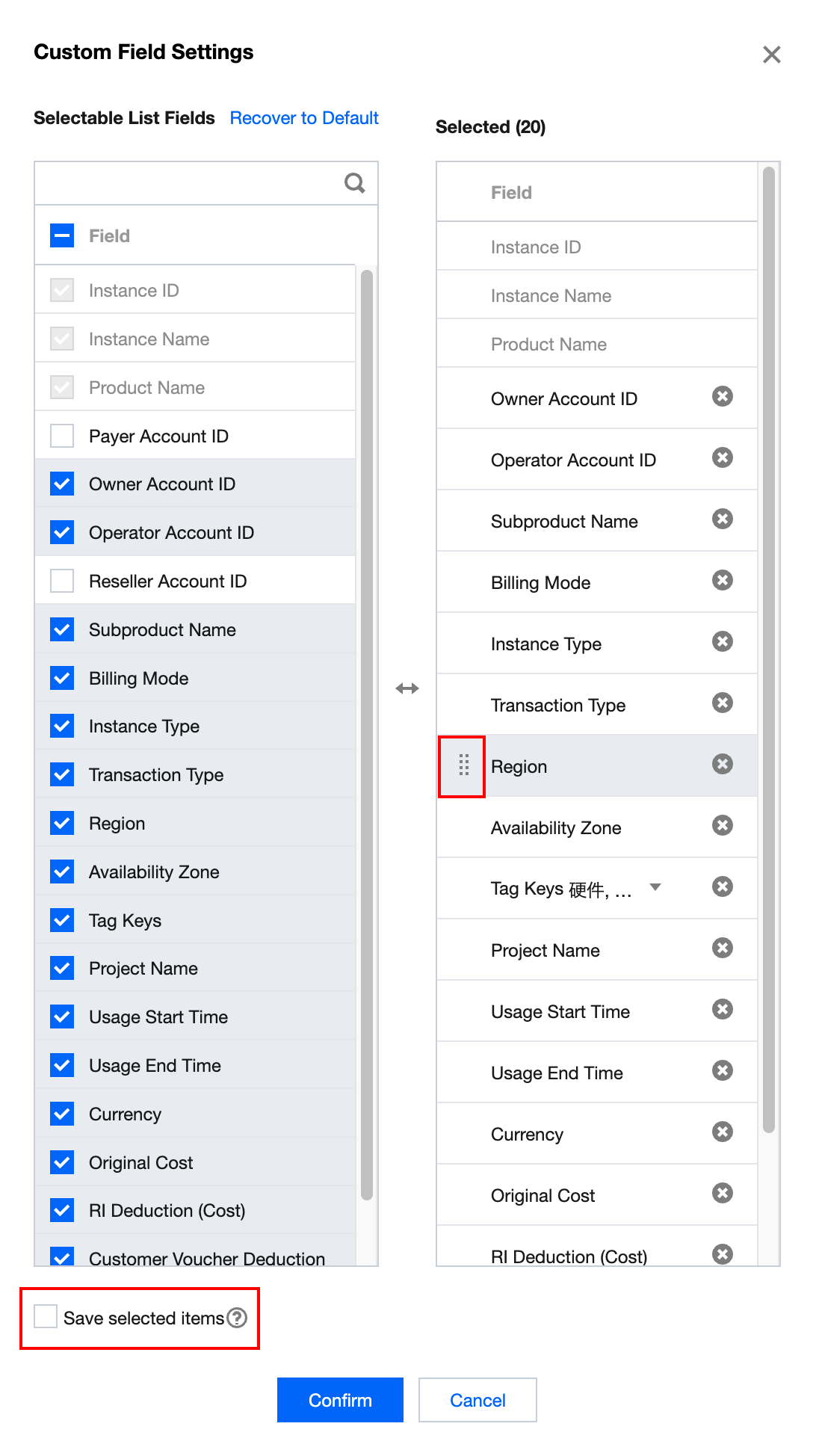
1. Hold and drag the selected field name up or down to arrange the fields displayed in the table.
2. Select the Save Selected Item to save the current field settings.
Notes:
If the Save Selected Item is not selected, it will only take effect for the current session and will revert to default settings after refreshing the interface.
The setting result is only applied to the interface display, not to the bill download.
For detailed field descriptions, please refer to Fields in Customer Bills.
Bill Download
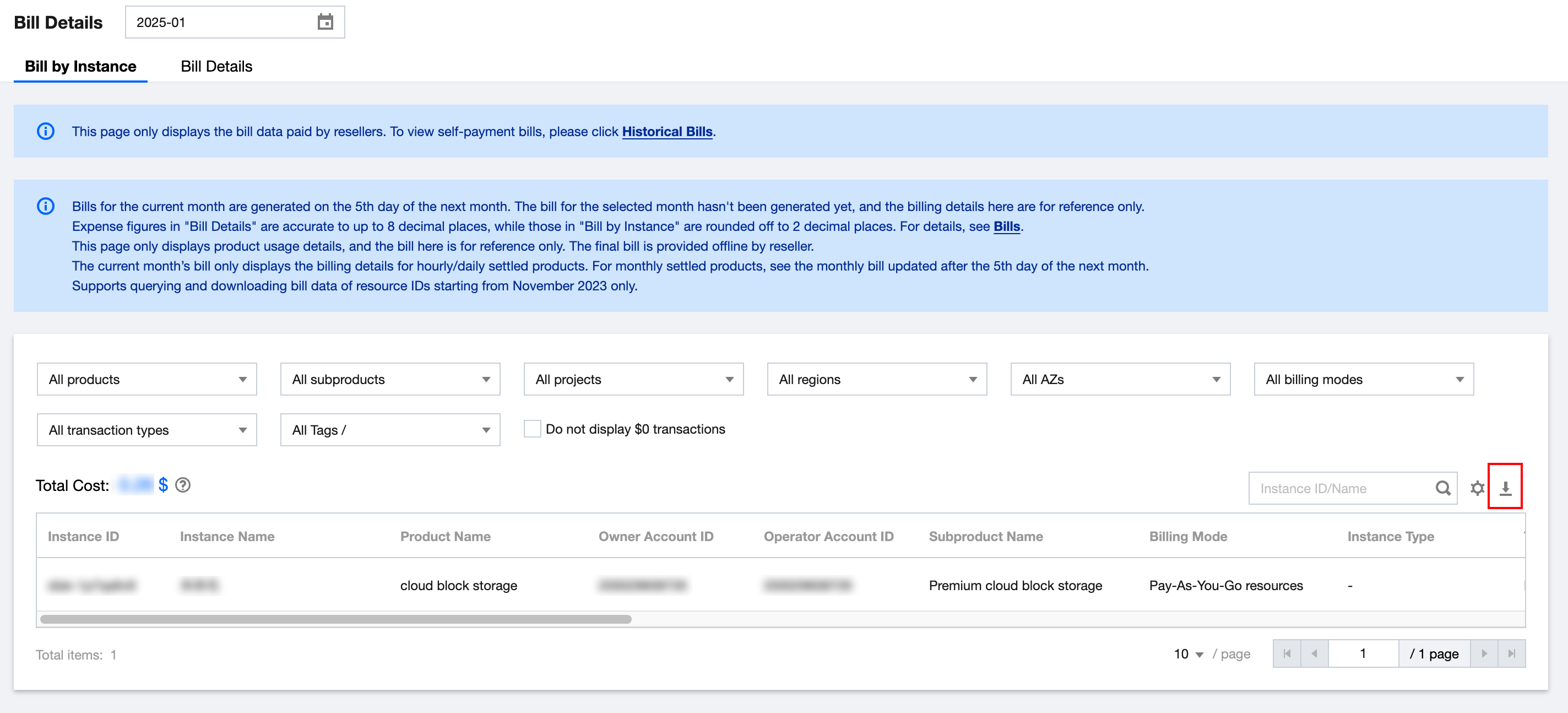
Click " Download " at the top right corner of the data table to download the bill file for the selected month.
Notes:
The results of filtering bill data are only applied to the interface display and not to bill downloads.
Organization-Customer Bills
If multiple customers belong to the same organization, all costs incurred by the admin and all members shall be settled uniformly by the admin to the Reseller. That is, credits will be deducted from the admin's account only, and no credits will be deducted from the accounts of members.
If the currently logged in a admin account, the data queried in this page includes the admin's own expenses and the expenses paid on behalf of all members. They can be distinguished by the Owner UIN.
If the currently logged in is a member account, if you need to query the fee data paid by the admin, please click Tencent Cloud Organization > Pay-On-Behalf Bill Management to query.
Organization Cost Allocation Tags
After setting the same tag key as the members and setting it as a cost allocation tag, the admin can view this tag in the admin's bill. The operation steps are as follows:
1. Members purchase resources and assign the Tag Key: Squad and Tag Value: Finance to the resources.
2. The admin creates a tag with Tag Key: Squad and Tag Value: (any value), and sets this tag as a cost allocation tag. This tag does not need to be bound to resources.
3. The admin can see a column for Tag Key: Squad in the bill on the next day, with the value of this column being Finance, and the Owner UIN of the resource being the UIN of the corresponding member.
フィードバック