CCN-type private network VPN over Direct Connect implements encrypted communication
ダウンロード
フォーカスモード
フォントサイズ
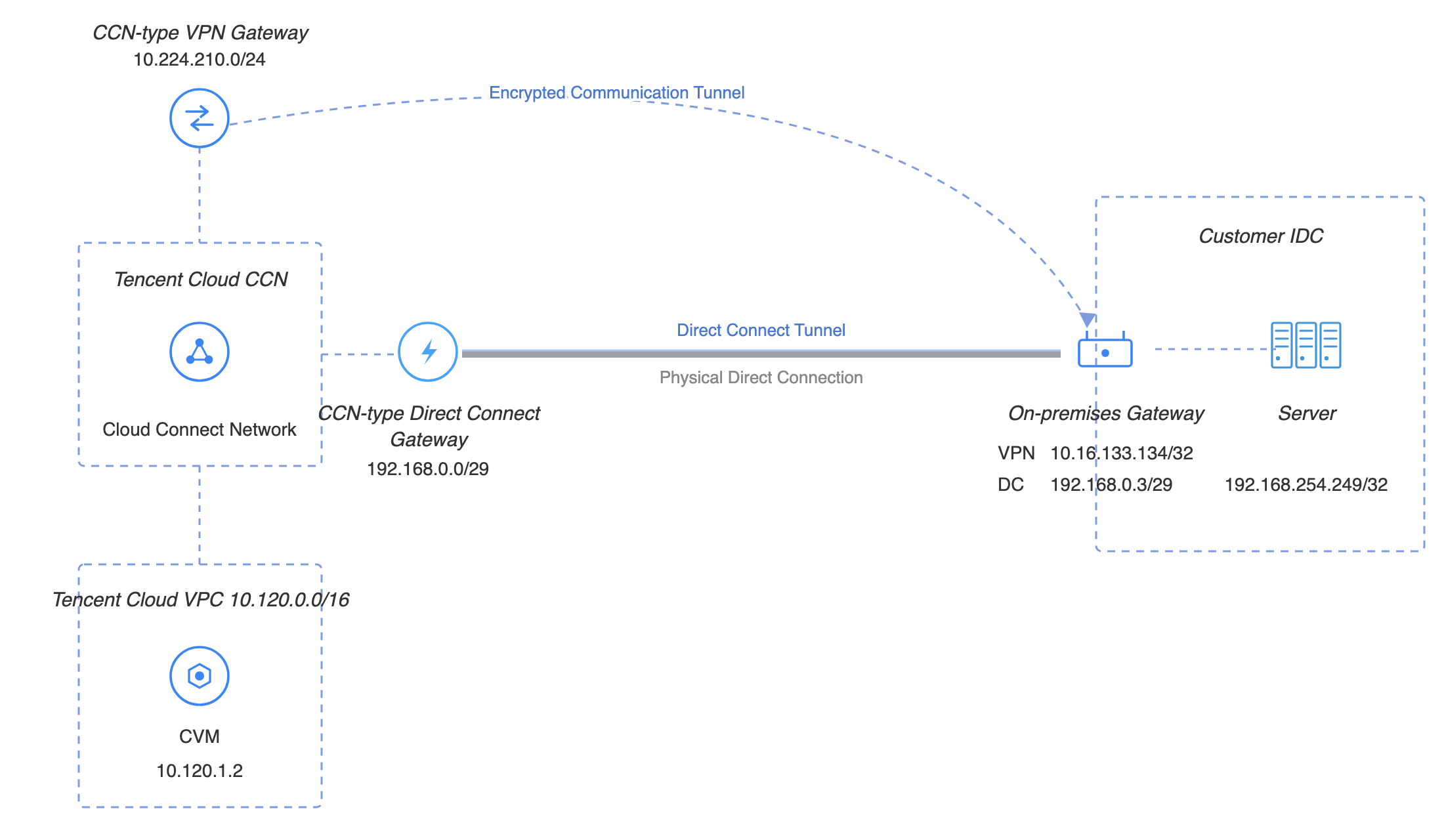
Private network communication is implemented at the local IDC through connections, Cloud Connect Network (CCN), and interconnection across different VPCs in the cloud. The private network VPN gateway can establish an encrypted communication tunnel with the local gateway device over the existing private network linkage. You can configure routing rules to direct traffic between the local IDC and the VPC into the encrypted tunnel, thereby enabling encrypted communication for private network traffic.
Business Scenario
This solution is applicable when your cloud resources require traffic encryption across multiple VPCs and need to communicate between cloud and on-premises environments.
Use Limits
If you need to use dynamic BGP routing, select a CCN-type IPSec private network gateway with a specification of 200 Mbps or higher.
Only VPN 4.0 IPsec VPN is supported.
The Direct Connect gateway must be a CCN-type Direct Connect gateway.
The negotiation type does not support traffic mode negotiation. Use active or passive negotiation instead.
Currently, only tunnel-level monitoring is supported; gateway-level monitoring is not yet available.
Gateway access IP range & limitations: Supported IP ranges include
10.0.0.0/12–10.0.0.0/28, 172.16.0.0/12–172.16.0.0/28, and 192.168.0.0/16–192.168.0.0/28. IP addresses should not conflict between gateways or with business IP addresses on the same gateway.Monthly subscription is currently not supported.
Network Planning
Responsible Party | Configuration Object | IP Range Planning | IP Address and Description |
Cloud | Business VPC | 10.120.0.0/16 | CVM: 10.120.1.2 |
| Private VPN gateway | 10.224.210.0/24 | Private VPN gateway IP address: 10.224.210.2 |
| Direct Connect Gateway | 192.168.0.3/29 | VLAN ID: 998 Tencent Cloud Boundary IP address 1: 192.168.0.1/29 Tencent Cloud Boundary IP address 2: 192.168.0.2/29 |
Customer Side | Local gateway (VPN) | 10.16.133.134/32 | VPN local gateway IP address: 10.16.133.134 |
| Local gateway (DC) | 192.168.0.3/29 | Local IP range (DC): 192.168.0.3 |
| Local IDC server | 192.168.254.249/32 | 192.168.254.249 |
Prerequisites
The connection has been provisioned and is operational.
You have created a CCN instance and associated the VPC with the CCN.
Private network VPN access has been enabled. To use this feature, submit a ticket.
The IDC-side device is ready.
Configuration Process

Deploy Direct Connect Gateway
Step 1: Creating a CCN-Type DC Gateway
1. Log in to the Direct Connect console, and click Direct Connect Gateway in the left sidebar.
2. At the top of the Direct Connect Gateway page, select the region and VPC, and then click Create.
3. In the Create A Dedicated Line Gatewaydialog box, configure the gateway details. After completing the configuration, click Confirm. For detailed instructions, see Create a Direct Connect Gateway.
Field | Meaning |
Name | The name of the DC gateway. |
AZ | Select the availability zone where the region is located. |
Associated Network | Select the CCN. |
Network | Associate the created CCN instance, ccn-xxxxxxxx. |
Step 2: Creating a Dedicated Tunnel for DC
1. Log in to the Direct Connect - Dedicated Tunnel console.
2. In the left sidebar, click Dedicated Tunnels > Exclusive Virtual Interface. At the top of the page, click Create, and then configure the basic settings such as name, DC type, access network, region, and the associated DC gateway. After completing the configuration, click Next: Advanced Configuration.
Field | Meaning |
Dedicated Tunnel Name | Name of the dedicated tunnel. |
Direct Connection Type | Select "My Direct Connect". |
Connection | Select the available physical direct connection. |
Access Network | Select the CCN. |
Gateway Region | Automatically show the region where the target CCN type DC gateway instance is located, such as Guangzhou. |
Direct Connect Gateway |
3. On the Advanced Configuration page, configure the following parameters. For more details, see Create An Exclusive Dedicated Tunnel.
Field | Meaning |
VLAN ID | Configure the planned VLAN, for example, 998. One VLAN corresponds to one tunnel. The valid value range is [0, 3000). |
Bandwidth | The maximum bandwidth of the dedicated tunnel, which should not exceed the bandwidth of the associated connection. Under the postpaid-by-95th-percentile billing mode, this parameter does not represent the billed bandwidth. |
Tencent Cloud Boundary IP Address 1 | Configure the planned interconnected IP address on the Tencent Cloud side of the connection, for example, 193.168.0.1/29. Do not use the following IP ranges or addresses: 169.254.0.0/16, 127.0.0.0/8, 255.255.255.255/32, 224.0.0.0/8–239.255.255.255/32, and 240.0.0.0/8–255.255.255.254/32. |
Tencent Cloud Boundary IP Address 2 | Configure the planned standby interconnected IP address, for example, 193.168.0.2/29. When the primary peer IP address becomes unavailable due to a failure, the standby IP address is automatically enabled to ensure service continuity. If the mask of the Tencent Cloud boundary IP address is set to /30 or /31, a standby peer IP address cannot be configured. |
User Boundary IP Address | Configure the cloud-side IP address used for interconnection with the IDC over DC, for example, 193.168.0.3/29. |
Routing Mode | Select BGP routing. |
Health Check | Health check is disabled by default. |
Check Mode | Select the BFD mode. |
Health Check Interval | Interval between two health checks. |
Number of Health Checks | If the configured number of consecutive health checks fail, a route switch will be triggered. |
BGP ASN | Enter the AS number of the BGP peer on the CPE side. The Tencent Cloud ASN is 45090. If it is left blank, the system will assign a random value. |
BGP Keys | Enter the MD5 value of the BGP peer. The default value is "Tencent". Leaving it blank indicates that no BGP key is required. The BGP key does not support the following six special characters: ?, &, space, ", \\, +. |
4. Click Enable Now.
Deploying a VPN Gateway
Step 1: Creating a Private Network VPN Gateway
1. Log in to the VPC Console.
2. In the left sidebar, select VPN Connections > VPN gateway to enter the management page.
3. On the VPN gateway management page, click Create.
4. In the pop-up Create VPN Gateway dialog box, configure the following gateway parameters.
Parameter Name | Parameter Description |
Billing Mode | Select billing by traffic. Private network VPN currently does not support monthly subscription. |
Gateway Name | Enter the VPN gateway name, with a maximum length of -60 characters. |
Region | Displays the region where the VPN gateway is located. |
Protocol Type | Select IPSec. |
Network Type | Select "Private Network". |
Associated Network | Select CCN here. |
Access IP Range | Cloud-side VPN gateway external IP range. Supported IP ranges include 10.0.0.0/12–10.0.0.0/28, 172.16.0.0/12–172.16.0.0/28, and 192.168.0.0/16–192.168.0.0/28. IP addresses should not conflict between gateways or with business IP addresses on the same gateway.Example: 10.224.210.0/24. |
Bandwidth Cap | Select the required bandwidth, for example, 200 Mbps. |
Tag | Tags are identifiers for VPN gateway resources, designed to facilitate faster querying and easier management. This is an optional configuration that you can define as needed. |
5. After completing the gateway parameter configuration, click Create. For more information, see Creating an IPSec VPN Gateway.
6. Click the instance name to enter the details page, and associate the created CCN instance in the Network section.
Step 2: Creating a Customer Gateway
1. In the left sidebar, select VPN Connections > Customer Gateway.
2. On the Customer Gateway management page, select the region and click Create.
3. Enter the customer gateway name. For the private IP, enter the private IP of the local gateway device on the IDC side, such as
10.16.133.134.4. Click OK to confirm.
Step 3: Creating a VPN Tunnel
1. In the left sidebar, select VPN Connection > VPN Tunnel.
2. On the VPN tunnel management page, select the region and click Create.
3. On the pop-up page, enter the VPN tunnel information.
This section only describes the key parameter configurations. For details on other parameters, see Creating VPN Tunnel.
Parameter Name | Parameter Description |
Tunnel Name | Enter the tunnel name. |
Network Type | Select the VPC. |
VPC | Select the created VPC instance. |
VPN Gateway | |
Customer Gateway | |
Pre-shared Key | Set to 123456. |
Negotiation Type | Select "Proactive Negotiation". This option is selected by default. |
Communication Mode | Select "Destination Route". |
Advanced Configuration | Select the current default value. |
4. Click Enable Now.
Step 4: IDC Local Configuration
After the first three steps are completed, the VPN gateway and VPN tunnel on Tencent Cloud have been configured. You now need to configure the VPN tunnel information on the local gateway at the IDC side. For detailed instructions, see local gateway configuration. The "local gateway" on the IDC side refers to the IPsec VPN device, whose private IP was specified in the "customer gateway" section in Step 2.
Configuring Gateway Routes
Step 1: Configuring VPN Gateway Routes
1. Log in to the VPC Console.
2. In the left sidebar, click Private Network > VPN Gateway. Then click the specific gateway instance and go to the Route Table tab.
3. Click Add Route, and configure the VPN gateway route in the pop-up dialog box.
Parameter Name | Description |
Destination | Enter the local IDC IP range, such as 193.168.0.0/24. |
Next Hop Type | Select "Private VPN Gateway". |
Next Hop |
4. Click OK.
Step 2: Publishing Routes from the DC Gateway to CCN
1. In the left sidebar, click Private Network > Direct Connect Gateway.
2. On the Direct Connect Gateway page, click the gateway instance ID to enter the details page.
3. On the Instance Details page, click the Publish IP Range tab, and then click Create.
Configuration Item | Description |
Enter IP range | Enter the IP range to be published to the CCN, which corresponds to the off-cloud IDC-side IP range. Example: 10.16.133.134/32. |
4. After completing the route policy configuration, click Confirm.
Service Verification
After the above configurations are completed, private encrypted communication between the local IDC and the VPC is now available. Test the private network connectivity between the IDC and the VPC, and verify that traffic is encrypted through the VPN gateway.
1. Test connectivity
Log in to the CVM instance and use the ping command to access a server in the local IDC IP range.
2. Encryption verification
In the VPN console, check the traffic monitoring status of the VPN tunnel. The presence of traffic indicates that encryption is working properly.
フィードバック