2. In the left sidebar, click Instance Management.
3. Select the database type at the top of the page.
4. (Optional) In the search box at the top of the page, select resource attributes (including instance ID, instance name, and status), enter keywords, and click
.
5. In the instance list, select one or more instances with sessions to be killed, and click Kill Session at the top of the page.
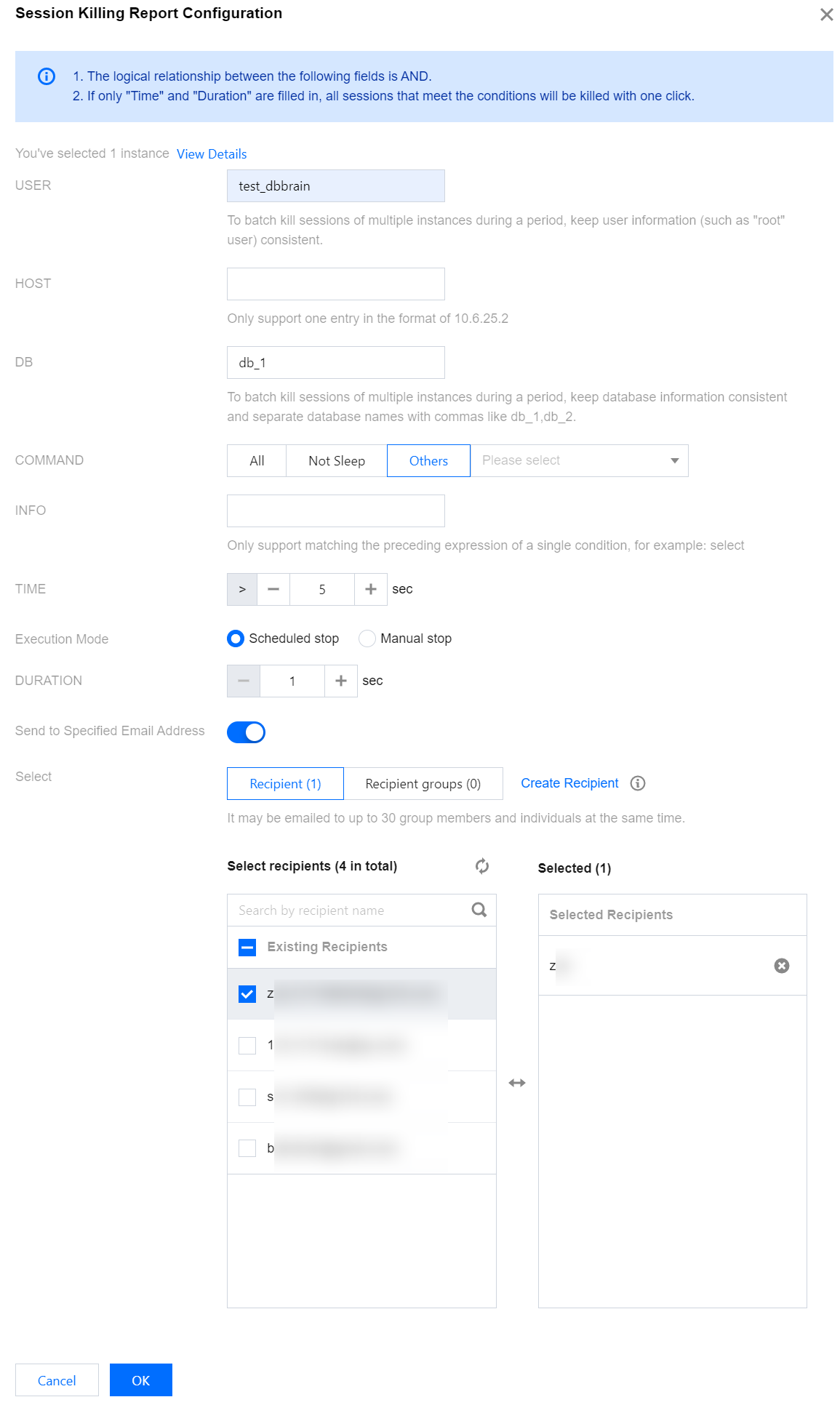
6. Configure the Kill Session parameters according to the interface prompts.
Parameter
Description
USER
The user who initiated the session.
For batch Kill operations across multiple instances, the user information, such as root, should be consistent.
HOST
The Client IP address and port number where the session is initiated.
Only single-condition input is supported. Take 10.6.25.2 as an example format.
DB
The database name of the session connection.
For batch Kill operations across multiple instances, the database information should be consistent. Use commas to separate multiple databases, such as db_1,db_2.
COMMAND
SQL command type, including ALL, Not Sleep, and others.
ALL
Not Sleep
Others: Including Binlog Dump, Change user, Close stmt, Connect, Connect Out, Create DB, Daemon, Debug, Delayed insert, Drop DB, Error, Execute, Fetch, Field List, Init DB, Kill, Long Data, Ping, Prepare, Processlist, Query, Quit, Refresh, Register Slave, Reset stmt, Set option, Shutdown, Sleep, Statistics, Table Dump, and Time.
INFO
The SQL statement that is executed.
Supports single-condition prefix matching. Example format: select.
TIME
The session duration.
Execution Mode
Select scheduled shutdown: select the duration for the Kill task. The task will automatically stop once the duration ends.
Select manual closure: After the task is created successfully, enter Performance Optimization > Real-Time Session page, select the instance, and manually close the task in the operation column of the Kill task duration list.
DURATION
The duration for the Kill Session.
Send to Specified Email
Address
To push the Kill session report to a specified contact person or contact group, turn on the switch to send to a specified email and select the contact person or contact group. To create a new contact person or contact group, click Create Recipient or Create Recipient Group. For detailed operations, see Contact Management.
After you set the specified contact person or contact group, the Kill session report configuration on the Performance Optimization > Report Settings page of the corresponding instance will be automatically enabled, displaying the recipient or recipient group information.
After successful configuration, when a session meeting the specified conditions is killed, a session report will be sent via email to the designated contacts or contact groups.
Note:
The relationship between each parameter is AND.
If only TIME and duration are filled in, all sessions meeting the conditions will be killed with one click.Operate with caution.
7. Click OK after you complete the configuration.
Related Operations
The Real-time Session page of DBbrain supports killing current sessions and killing sessions during a period, and allows viewing the history of killed sessions. For detailed instructions and operations, see Killing Sessions.