tencent cloud

NAT Gateway

Release Notes and Announcements
Release Notes
Announcements
Product Introduction
Overview
Features
Use Cases
Product Specifications
Relevant Products
Purchase Guide
Public NAT Gateway Billing Overview
Private NAT Gateway Operation Guide
Purchasing in the Console
Overdue Payment and Service Expiration Policies
Getting Started
Public NAT Gateway Operation Guide
Modifying NAT Gateway Configuration
Managing EIPs of NAT Gateway
Routing to NAT Gateway
Managing SNAT Rules
Managing Port Forwarding Rules
Public NAT Usage Limits
NAT Gateway Flow Logs
Binding with Anti-DDoS Pro
Monitoring and Alarms
Deleting NAT Gateway
Adjusting the Priorities of NAT Gateways and EIPs
Private NAT Gateway Operation Guide
Creating and Managing a NAT Gateway
Configuring a Route to Private NAT Gateway
Managing SNAT Rules
Managing DNAT Rules
Cloud Access Management
Practical Tutorial
Enabling Cross-VPC Access to Public Network via Standard NAT Gateway
Enabling Mutual Access between a Specified VPC Subnet and Public Network Resources via Private NAT Gateway
Enabling Secure Mutual Access with Public Network via Public CLB and NAT Gateway
Adjusting the Priorities of NAT Gateways and EIPs
API Documentation
FAQ
Billing
Concepts
Features
Service Level Agreement
Contact Us
Glossary

Setting Alarms

PDF
フォーカスモード
フォントサイズ
最終更新日: 2024-01-04 21:49:21
You can set an alarm for your NAT Gateway to monitor its status.
1. Log in to the Cloud Monitoring Console.
2. In the left sidebar, choose Alarm Configuration -> Alarm Policy to go to the Alarm Policy page, and then click Add.
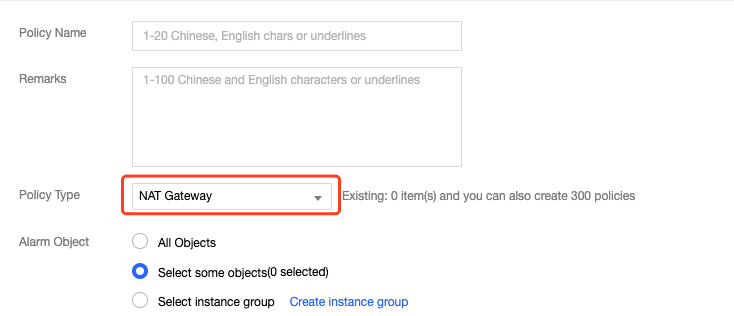
3. Enter a name and remarks for the alarm policy. Select NAT Gateway for Policy Type. Configure the alarm object, triggering condition, and alarm channels. You can optionally input the URL that can be accessed by the public network as the callback API address, so Cloud Monitoring will push the alarm information to this address in time.

4. Click Complete. Then, you can view the alarm policy that you configured in the alarm list.
Note:
To delete an alarm policy, you must first unbind all resources from it.
5. When the alarm condition is triggered, you will receive an alarm notification via SMS, email, or in Message Center according to the alarm channel you configured. You can also select Alarm List in the left sidebar to view alarms. For more information, see Creating Alarm Policies.
Note:
Packet loss caused by bandwidth glitches may not be reflected on the bandwidth view, because the minimum granularity for bandwidth statistics is 10 seconds (total traffic in 10 seconds/10 seconds).
ヘルプとサポート

この記事はお役に立ちましたか?

フィードバック