Scenario-Specific Demo
Unduh
Mode fokus
Ukuran font
Tencent Cloud Game Multimedia Engine (GME) is a one-stop voice solution for the gaming industry, featuring top-of-the-line audio quality and supporting a variety of use cases. GME provides various features such as group voice chat, 3D positional voice chat, voice messaging, and speech-to-text conversion.
This demo simulates a simple game scenario and showcases the features of GME, including voice chat, 3D voice, range voice, voice changing, and howling suppression.
Directions
Step 1. Download the demo
For Android or iOS, scan the QR code below | Windows |
 |
Step 2. Install the demo
Decompress the downloaded package and open the software named GMEDemo.
Step 3. Enter a voice chat room
Open the demo and select a voice chat room to enter.
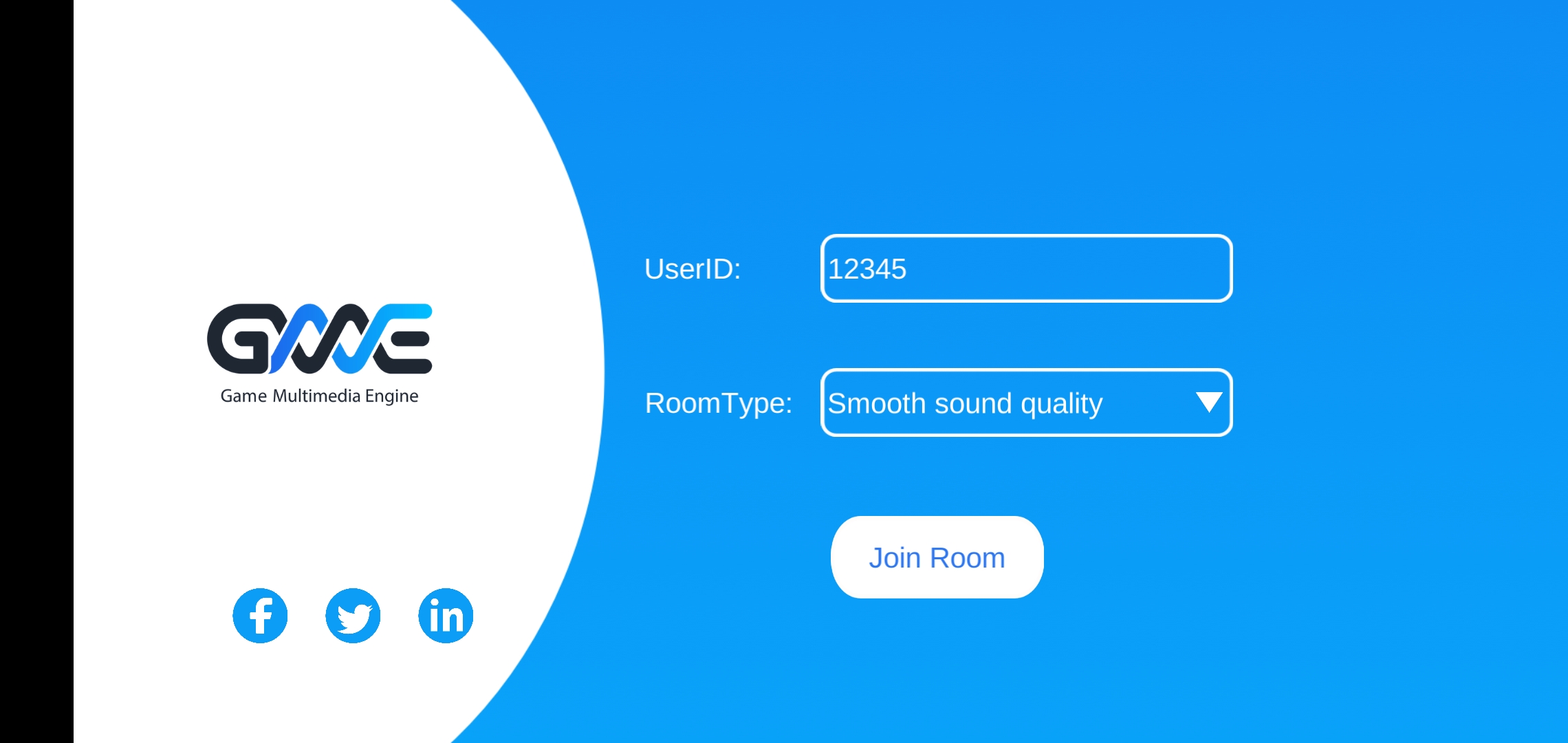
UserID: It is automatically generated in the demo and can be set as needed. It must be unique.
RoomType: Choose the sound quality of the room. Players who select the same RoomType option will enter the same room. The options are as follows:
Smooth sound quality
Standard sound quality
High sound quality (HD)
Click JoinRoom to enter the voice chat room.
Step 4. Main UI of the game
You will see the main UI of the game upon entering the voice chat room.
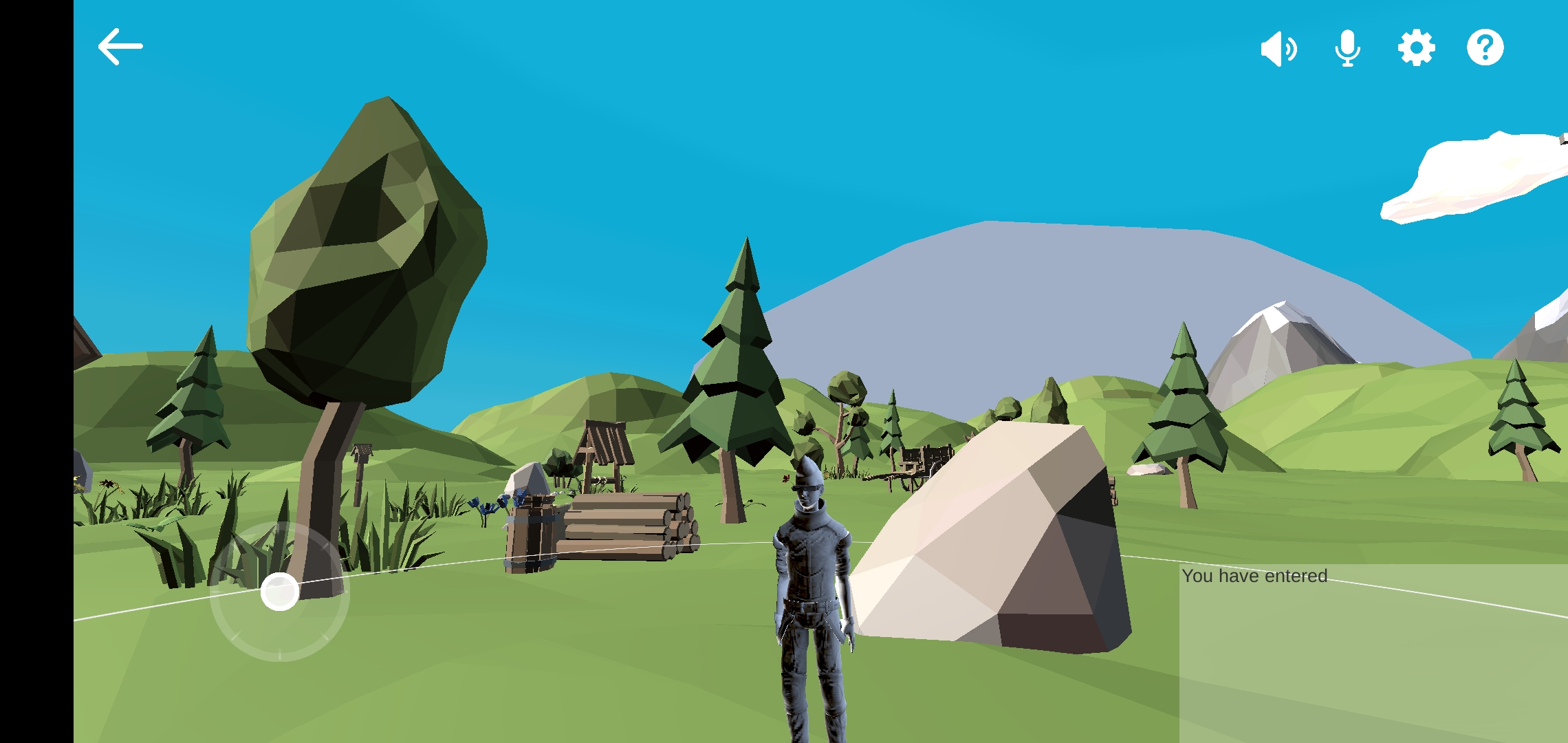
Instructions:
Back button: Click the arrow in the upper left corner to return to the page for selecting a voice chat room.
Microphone button: By default, the microphone is on when you enter the room. At this point, you can speak in the room.
Speaker button: By default, the speaker is on when you enter the room. At this point, you can hear other members in the room.
Settings button: Click the button to set the language, and enable or disable the following features: 3D voice, range voice, voice changing, and howling suppression.
Help button: Click the button to read the game guide.
Bottom left corner of the interface: The virtual joystick used to control the movement of the character.
Bottom right corner of the interface: Room logs showing users who entered and exited the voice chat room.
Information for determining whether the connection succeeds:
1. The game character of the other player can be seen on the game UI.
2. The logs in the bottom right corner of the UI display the room entry records of the other player's game character, indicated by their
userID.Step 5. Settings page of the game
Click the settings button to go to the game settings page.
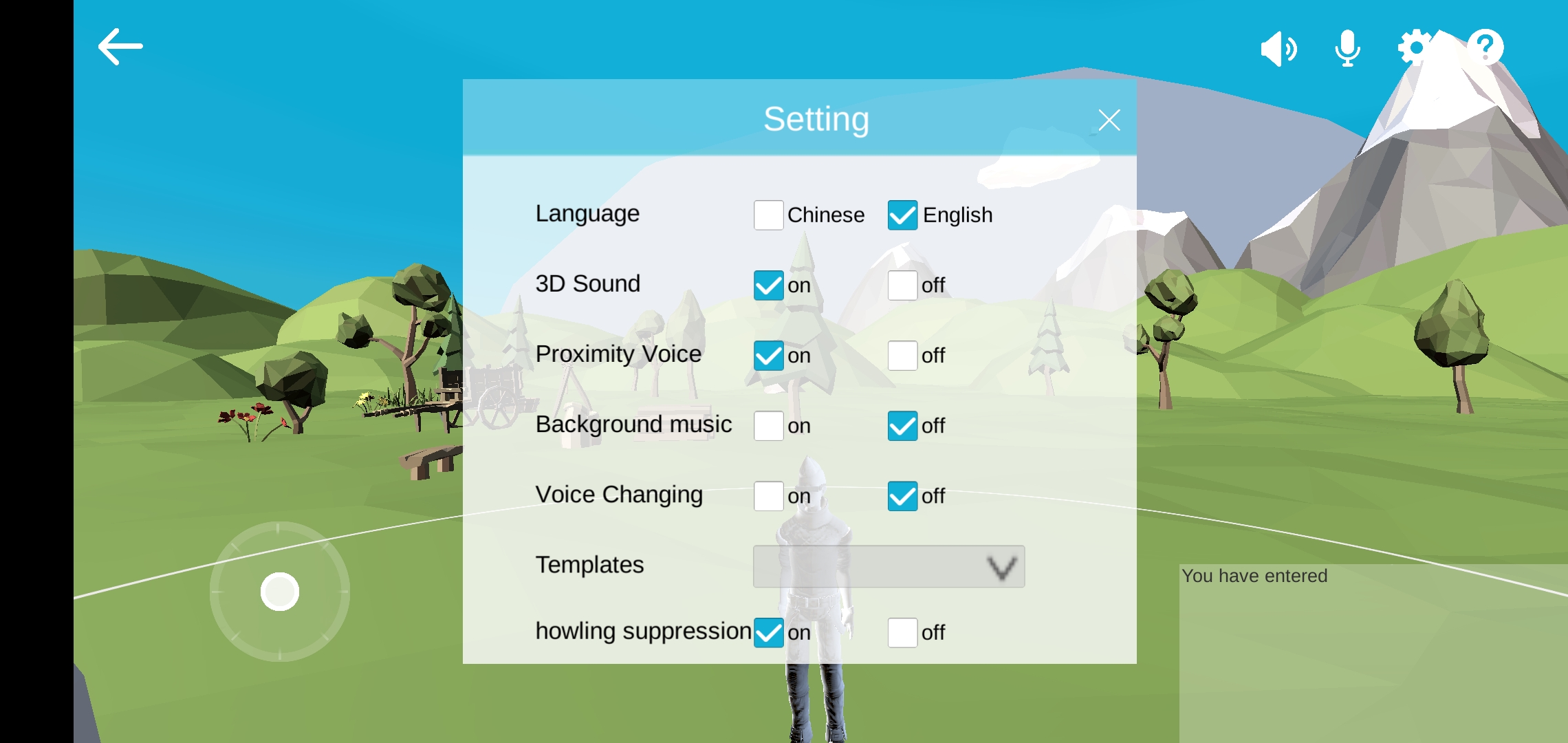
Language: Select Chinese or English.
3D Sound: After enabling the 3D voice feature, you can experience stereo sound effects and the volume change as a speaking character moves. For more information, see 3D Sound Effect.
Proximity Voice: It is also called range voice. After enabling this feature, a circle is displayed around your character. You can communicate only with players whose characters are also within this circle. When this feature is disabled, communication is not affected by the range. For more information, see Range Voice.
Background Music: After this feature is enabled, the background music will be played back.
Voice Changing: After enabling this feature, you can change your voice to the selected tone. For details, see Voice Changing.
Templates: You can select your preferred voice changing template from the drop-down list.
Howling Suppression: After this feature is enabled, howling generated in the call will be suppressed.
Step 6. Operations
1. You can turn on the microphone and speaker by clicking corresponding buttons to chat with other players in a room.
2. You can go to the settings page to enable or disable the following features: 3D voice, range voice, and voice changing.
3. On mobile devices, you can use the virtual joystick to control the movement of your character, and adjust the view by moving your finger on the screen. On Windows PCs, you can press the "W", "S", "A", and "D" keys to move forward, backward, left, and right respectively, and adjust the view by moving your mouse.
4. Assume that there are two players, namely player A and player B, in the game. Player A can experience the 3D voice effect when player B moves around player A and keeps speaking in this process. When player B moves to a position beyond the range set for the 3D voice effect, player A can hardly hear player B.
Bantuan dan Dukungan
Apakah halaman ini membantu?
Anda juga dapat Menghubungi Penjualan atau Mengirimkan Tiket untuk meminta bantuan.
masukan