Drupal is an open-source content management framework written in PHP, which consists of a content management system and a PHP development framework. It can be used to build rich-featured dynamic websites ranging from personal blogs to large communities.
This tutorial describes how to build a Drupal ecommerce website on a CVM instance.
Software environments used here include CentOS 7.2, Drupal 7.56, and PHP 5.4.16.
1. MariaDB is supported by CentOS 7 and later by default, so it is used here. Install the MariaDB service in the CVM instance with yum.
yum install mariadb-server mariadb -y
2. Start the MariaDB service.
systemctl start mariadb
3. Create a database for Drupal (the database used in this project is named drupal).
mysqladmin -u root -p create drupal
Here, drupal is the name of the database used by the Drupal service.
4. Create a user for the database.
mysql -u root -p
Authorize the user and exit the database after successful authorization.
GRANT SELECT, INSERT, UPDATE, DELETE, CREATE, DROP, INDEX, ALTER, CREATE TEMPORARY TABLES, LOCK TABLES ON drupal.* TO 'username'@'localhost' IDENTIFIED BY 'password';
FLUSH PRIVILEGES;
exit
Here, username and password are the database username and password used by the Drupal service, respectively.
Installing the Apache service
1. Install Apache in the CVM instance with yum.
yum install httpd -y
2. Launch the Apache service.
service httpd start
3. Test Apache.
Note:
In this step, you should configure an inbound rule with the source being all and the port protocol being TCP:80 in the security group of your CVM instance. For more information on how to configure the security group, see Security Group.
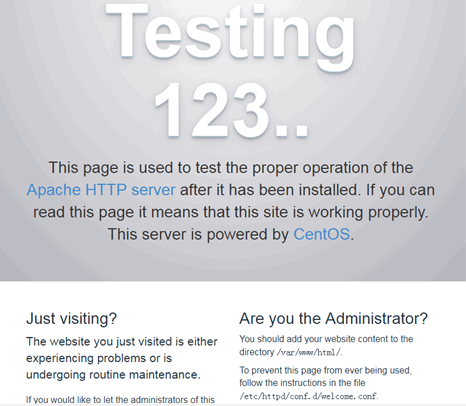
Enter http://115.xxx.xxx.xxx/ in your local browser (where 115.xxx.xxx.xxx is the public IP of your CVM instance). If the following page appears, Apache has started successfully.
Installing PHP
1. Install PHP and its extensions in the CVM instance with yum.
2. Create an info.php file in the /var/www/html directory of the CVM instance to check whether PHP is successfully installed. Below is the sample code:
<?php phpinfo(); ?>
3. Restart the Apache service.
service httpd restart
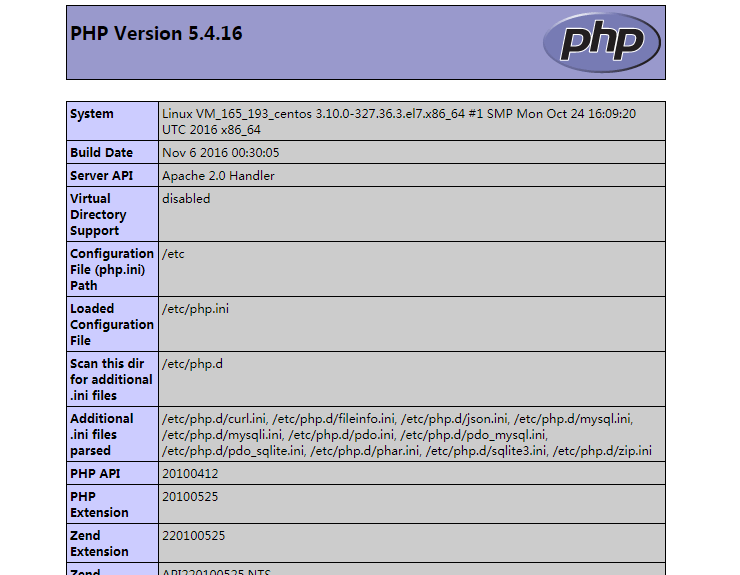
4. Enter http://115.xxx.xxx.xxx/info.php in your local browser (where 115.xxx.xxx.xxx is the public IP of your CVM instance). If the following page appears, PHP has been installed successfully.
4. Modify the owner and group to which the sites directory belongs.
chown -R apache:apache /var/www/html/sites
5. Restart the Apache service.
service httpd restart
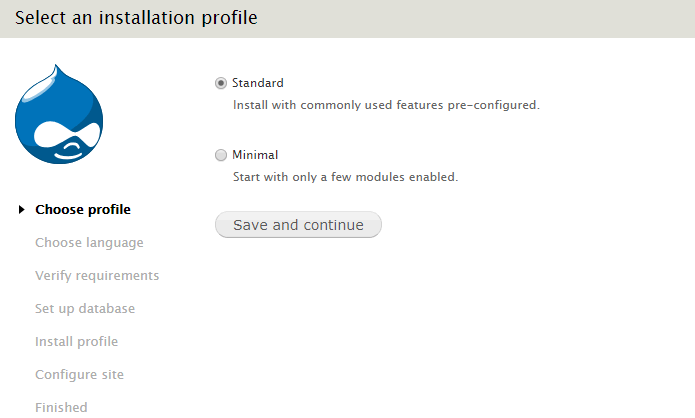
6. Enter http://115.xxx.xxx.xxx/ in your local browser (where 115.xxx.xxx.xxx is the public IP of your CVM instance) to go to the installation page of Drupal, select the version to be installed, and click Save and continue.
7. Select the language for installation and click Save and continue.
8. Set up the database and enter the database information you configured when installing the MariaDB service.
9. Enter the site information.
10. Complete the Drupal installation.
11. Then, you can visit http://115.xxx.xxx.xxx/ (where 115.xxx.xxx.xxx is the IP address of your CVM instance) to customize the website.