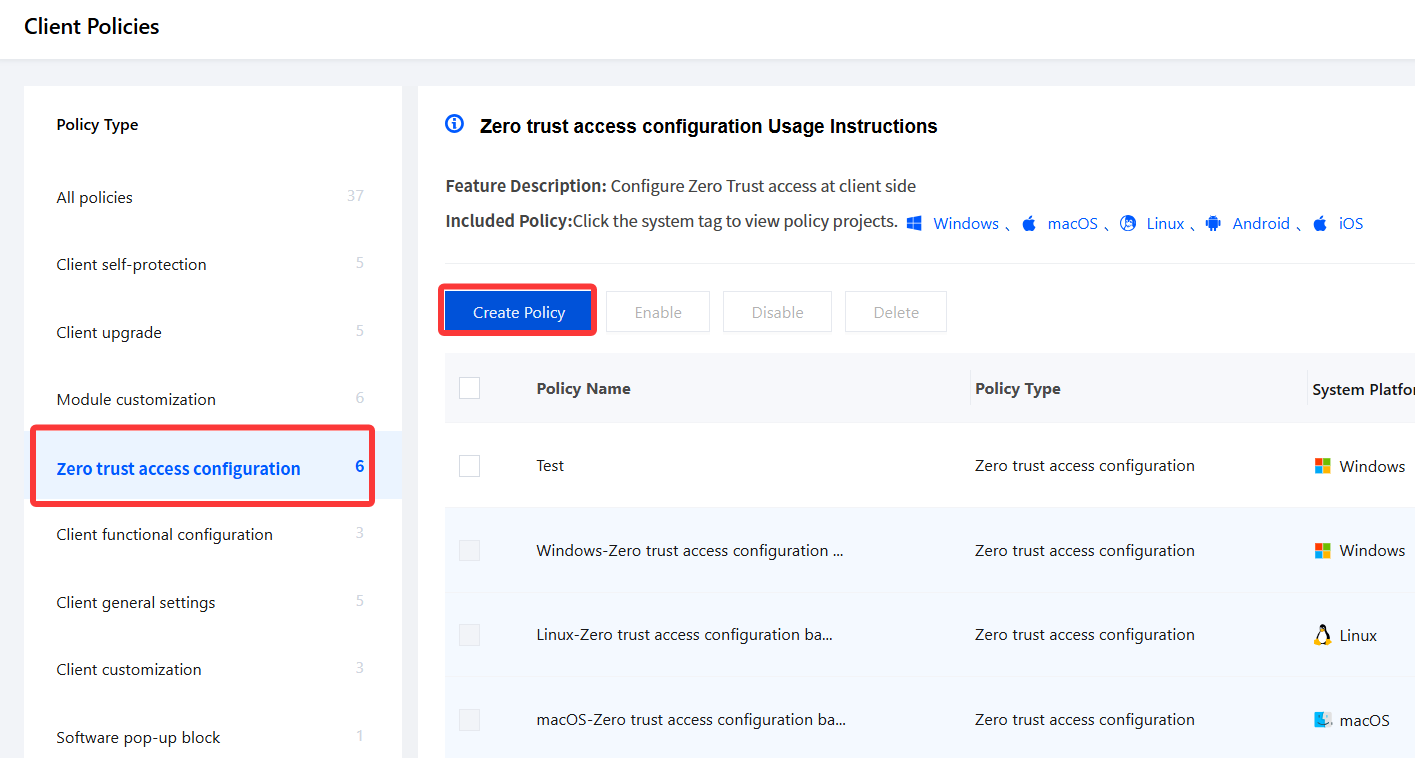
2. On the Client Management page, select Zero trust access configuration and click Create Policy.
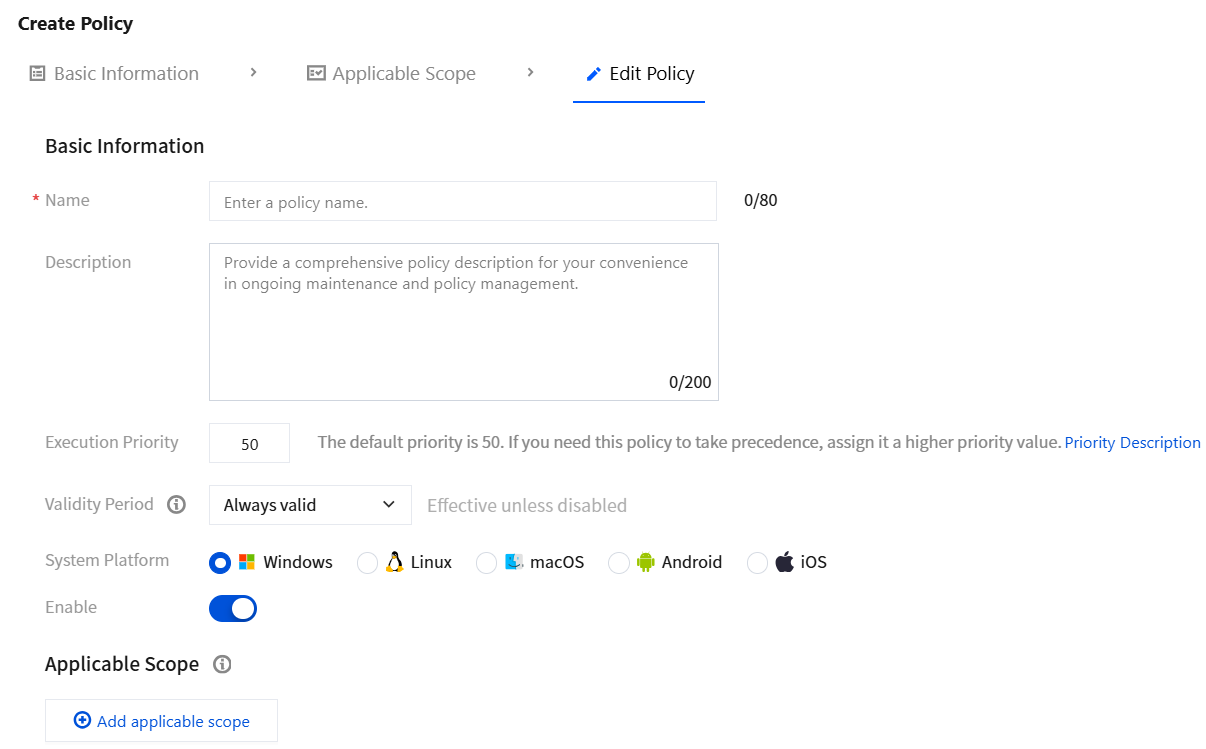
3. On the Create Zero Trust Access Configuration Policy page, configure the relevant parameters.
3.1 Enter the policy name and other parameters such as the policy description.
3.2 Click Add applicable scope, select the terminal names to be controlled/excluded, and click OK.
4. Based on your actual needs, select the following Zero Trust Access Configuration Policy and click Save.
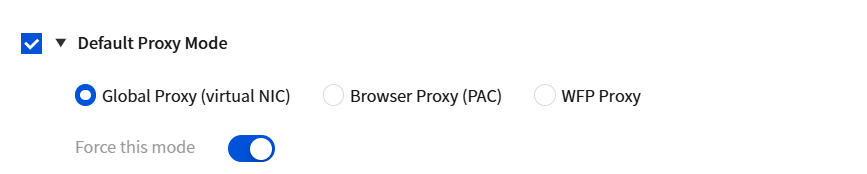
Default Proxy Mode
1. Select Default Proxy Mode, choose the desired mode, and click Save.
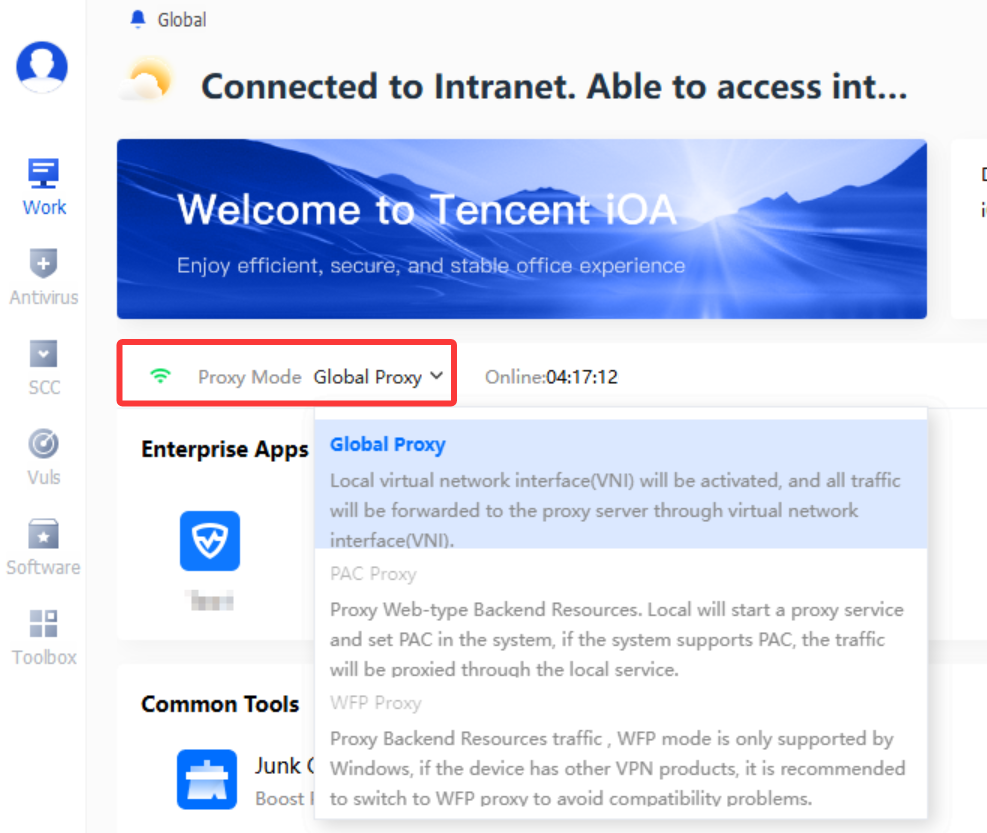
Global Proxy (Virtual NIC): A virtual NIC is started on the local device, and all traffic is routed through the virtual NIC.
Browser Proxy (PAC): A proxy service is started on the local device, a PAC link is then configured for the system, and the local service is used as the proxy. Only HTTP-related proxy is supported.
WFP Proxy: WFP is a mode supported by Windows. Similar to Global Proxy, it uses WFP technology to redirect traffic to a local proxy service.
Enable Force Use of This Mode: When forced use of this mode is configured, the client proxy mode switch option cannot be clicked (grayed out).
Virtual NIC IP Address Configuration
Select Virtual NIC IP Configuration, choose the desired mode, and click Save.
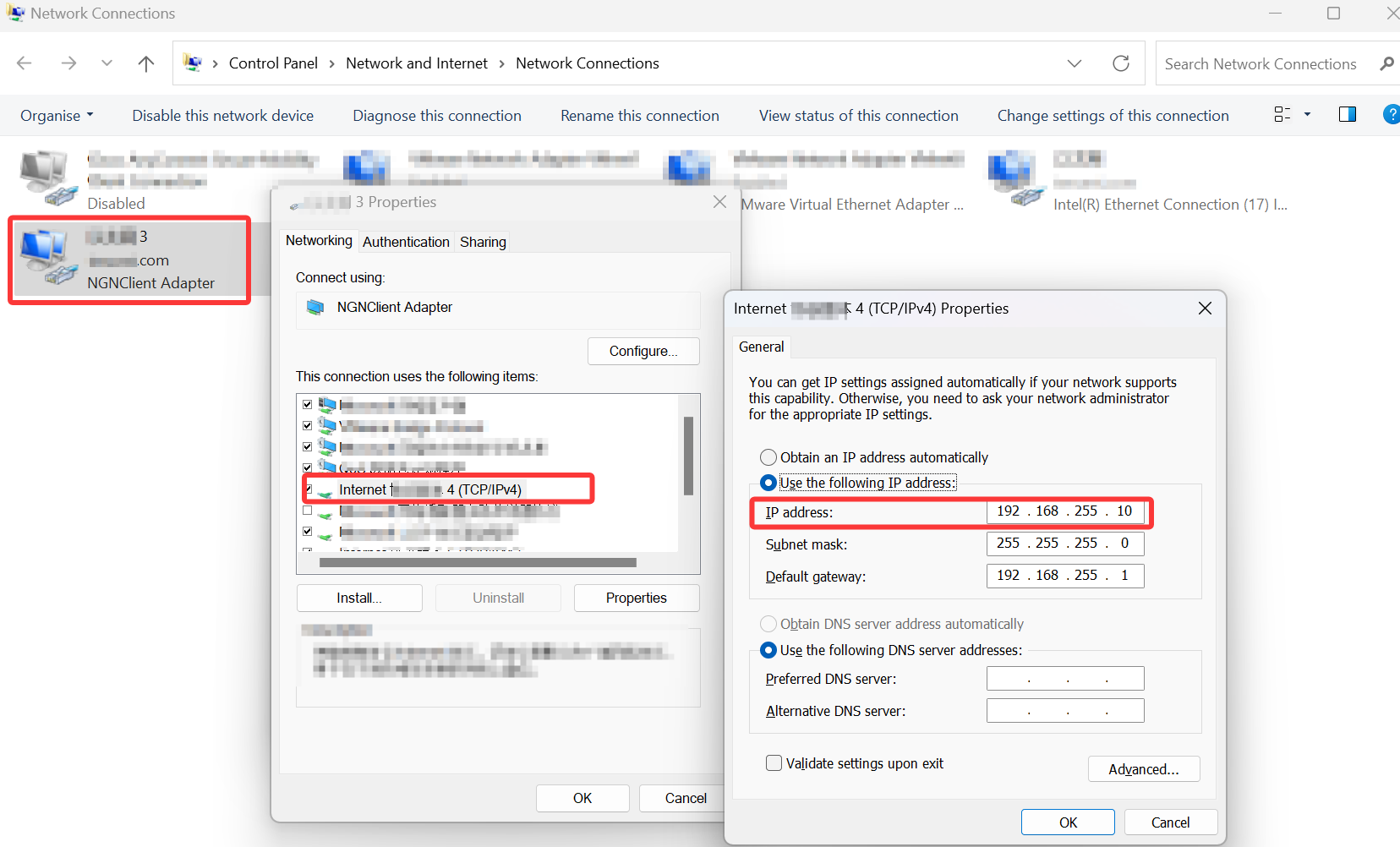
iOA System Preset IP address: After the client logs in to iOA and the SmartVPN.exe process starts, the virtual NIC is installed. Open Network and Sharing Center to view the NGN NIC properties.
DNS Interval
Select DNS Interval, modify the time, and click Save.
Note:
You can manually set the DNS interval. The default value is 2 seconds.
This configuration is used for modification when a DNS server failure occurs, reducing the frequency of abnormal retries for domain name resolution.
Modification is not recommended under normal circumstances.
Client Domain Virtual IP Pool
1. When the private network business resources added by customers are domain names, DNS resolution is required. Because the client is on a public network, the domain name may fail to resolve or may resolve to a public IP address. Therefore, iOA must provide a virtual IP address for resolution to establish NGN access connections. 100.12.0.0/22 is the default virtual IP address range, but when this range is used to access certain HTTP+HTTPS mixed services through Google Chrome, cross-origin issues may occur. Therefore, when the IP address range permits, prioritize using 10.0.0.0/8, 172.16.0.0/12, or 192.168.0.0/16.
2. Select Client Domain Virtual IP Pool, set the IP address, and click Save.
HTTPS Channel Reuse
This feature is enabled by default to improve connection establishment and transmission performance while reducing the load on both the server and client.
Domain Traffic Interception Configuration
This feature is disabled by default. When this feature is enabled, NGN starts before the client logs in.