Node Function
Widget Node belongs to information processing node, used in the workflow via interactive card to carry information, support personalized style show and content customization. For create method, see Create Widget. With Widget Node, you can:
Collect user input, such as text, options, or operation commands.
Display result content and present data information intuitively.
Transmit structured information and provide operations by the user or generated results to the subsequent node.
Directions
In the Widget Node, you need to complete the following configurations: Input Variable and Widget Issuance Method. These configurations determine the data source required for node execution and the circulation method of the process after execution, directly affecting the normal operation of node function and the effect of data interaction and visualization.
Input Variables
The input variable means the parameters used when calling the node, supporting two ways: manual input and reference variable.
|
Variable Name | The variable name can only contain letters, digits, or underscores, must start with a letter or underscore. Required. |
Description | Description of this variable. Optional |
Data source | The data source of this variable supports two options: "refer" and "input". "Refer" allows selecting output variables from all preceding nodes, while "input" supports manually filling in a fixed value. Required. |
Type | The data type of this variable is unselectable and defaults to the variable type referred or the string type input. |
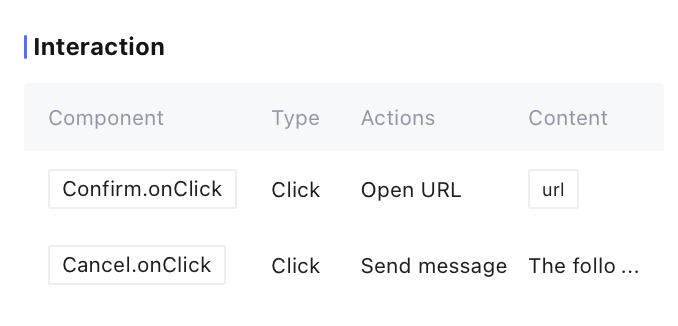
Interaction
If the Widget contains interactive operations, the configuration details will show on the node detail page.
For interactive operations supported by the platform, the operation bar can show the corresponding Action type through hover, such as:
Open URL: hover to display sys.chat;
Send message: hover to display sys.chat;
Download: hover to display sys.download.
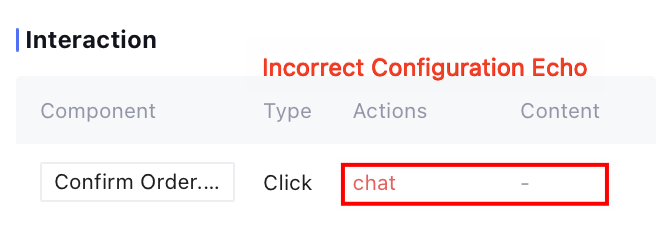
For interactive operations that cannot be configured on the platform, the operation bar content will show as red text. For details on the specific interactive configuration method, see Widget Action instructions. Configuring Widget Issuance Method
Direct backward circulation: The workflow will automatically continue to execute backward without the need to manually input or wait, suitable for scenarios such as progress feedback or result display where no user interaction is required.
Wait for user operation: The workflow will suspend and wait for the user to respond. When the user performs operations or enters information, it can proceed backward, suitable for scenarios requiring user confirmation, entering information, or performing interactive operations.
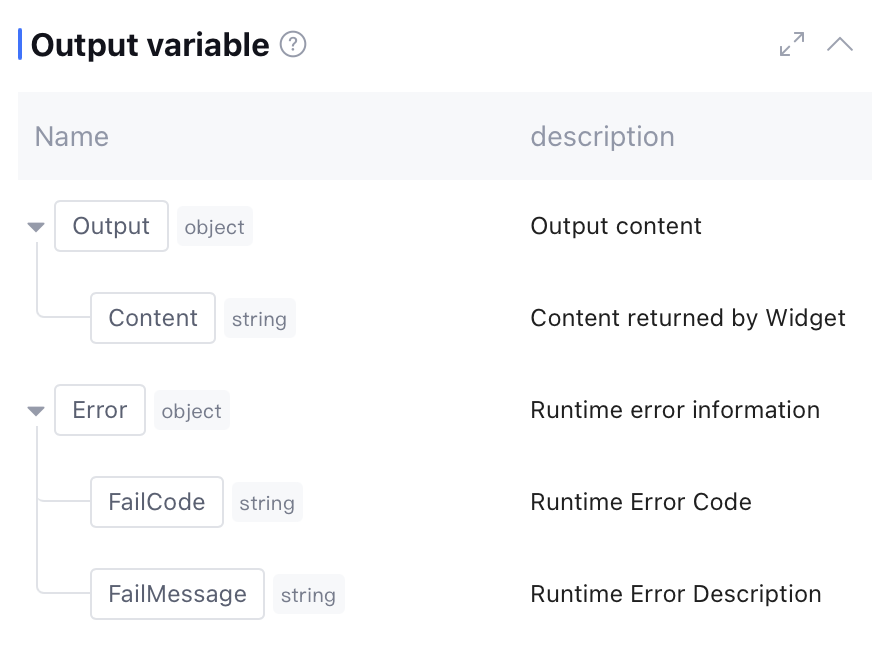
Output Variable
By default include the content of reply to users as well as runtime Error info (data type: object, this field is empty during normal operation).
Application Example