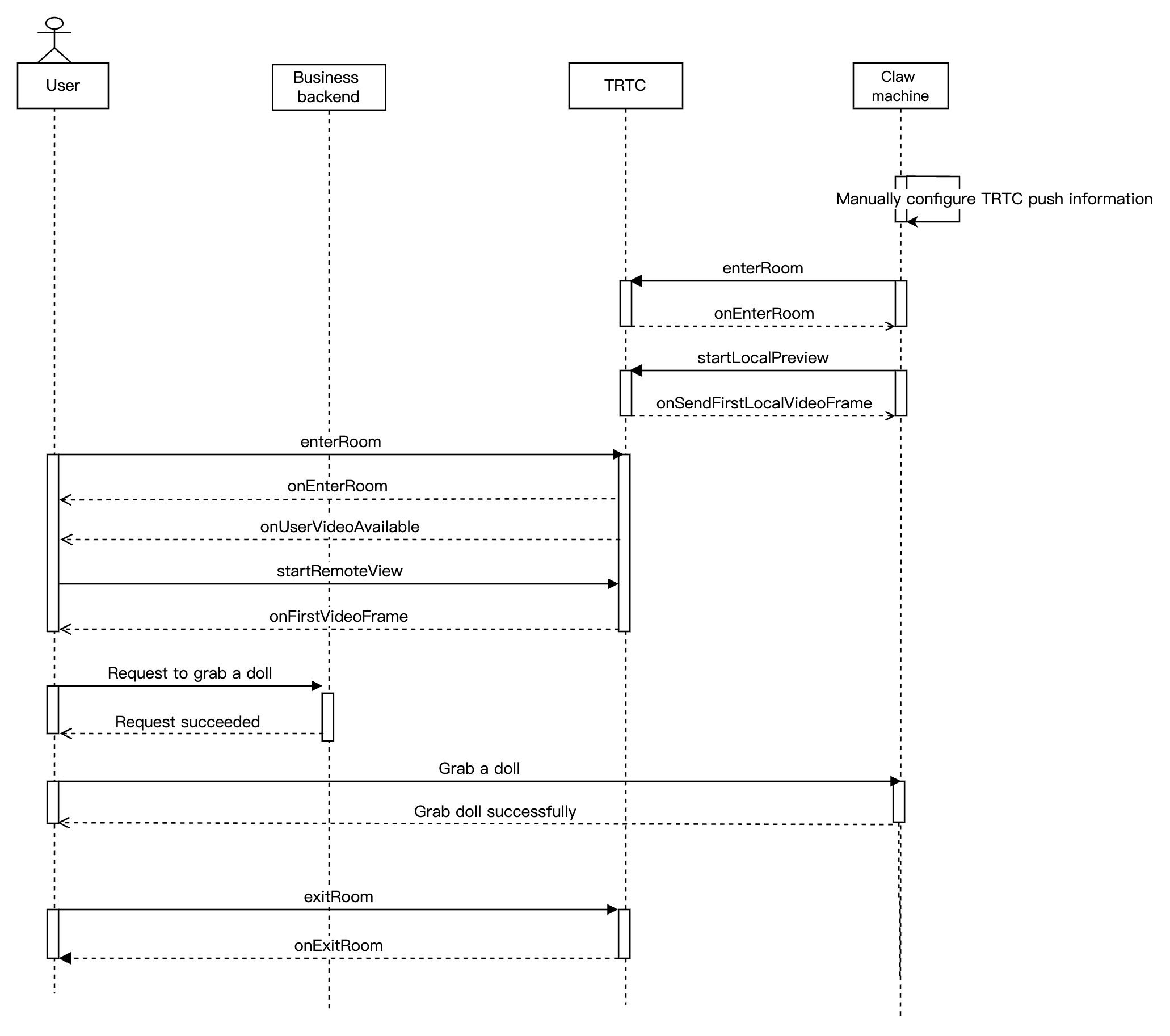
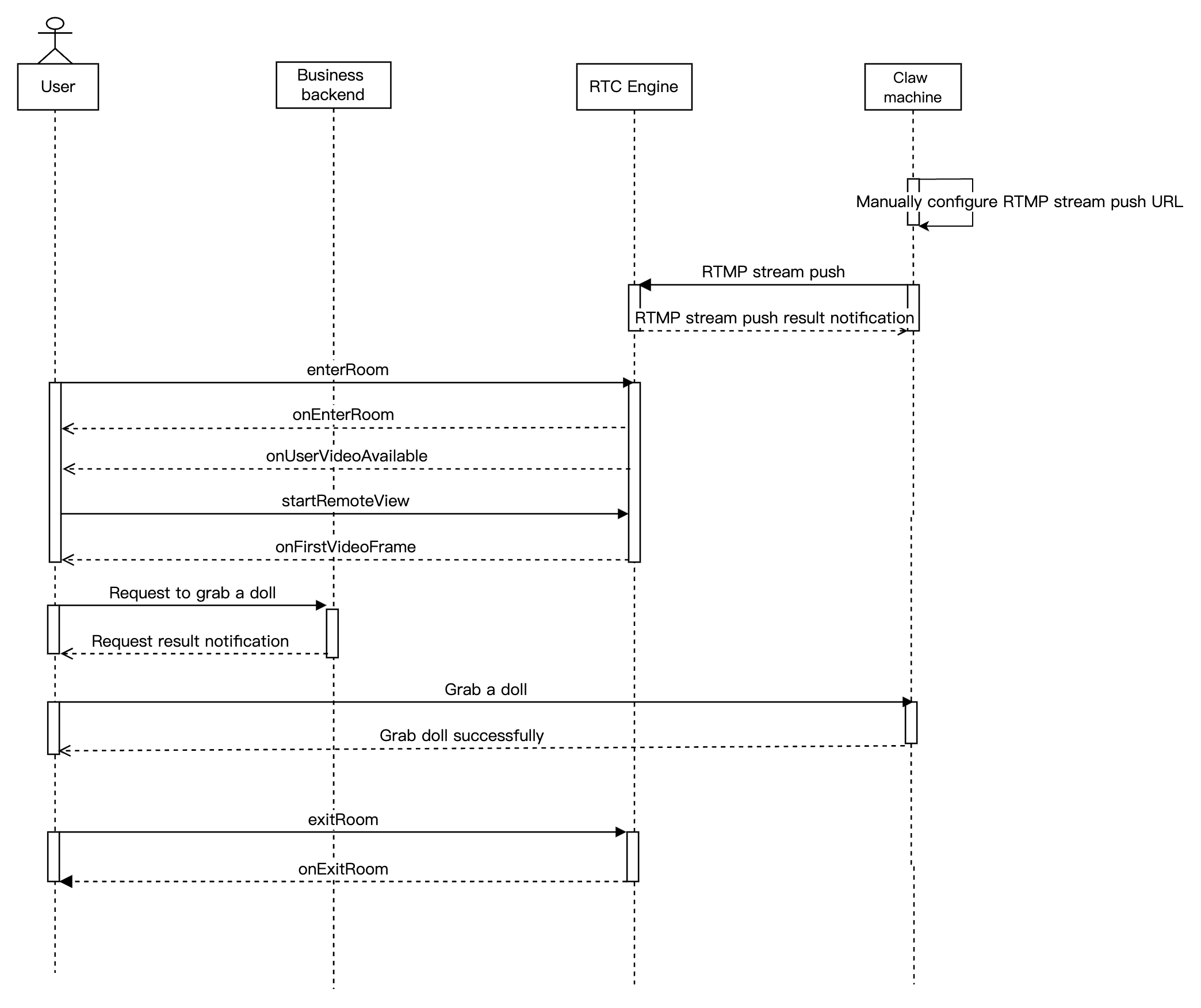
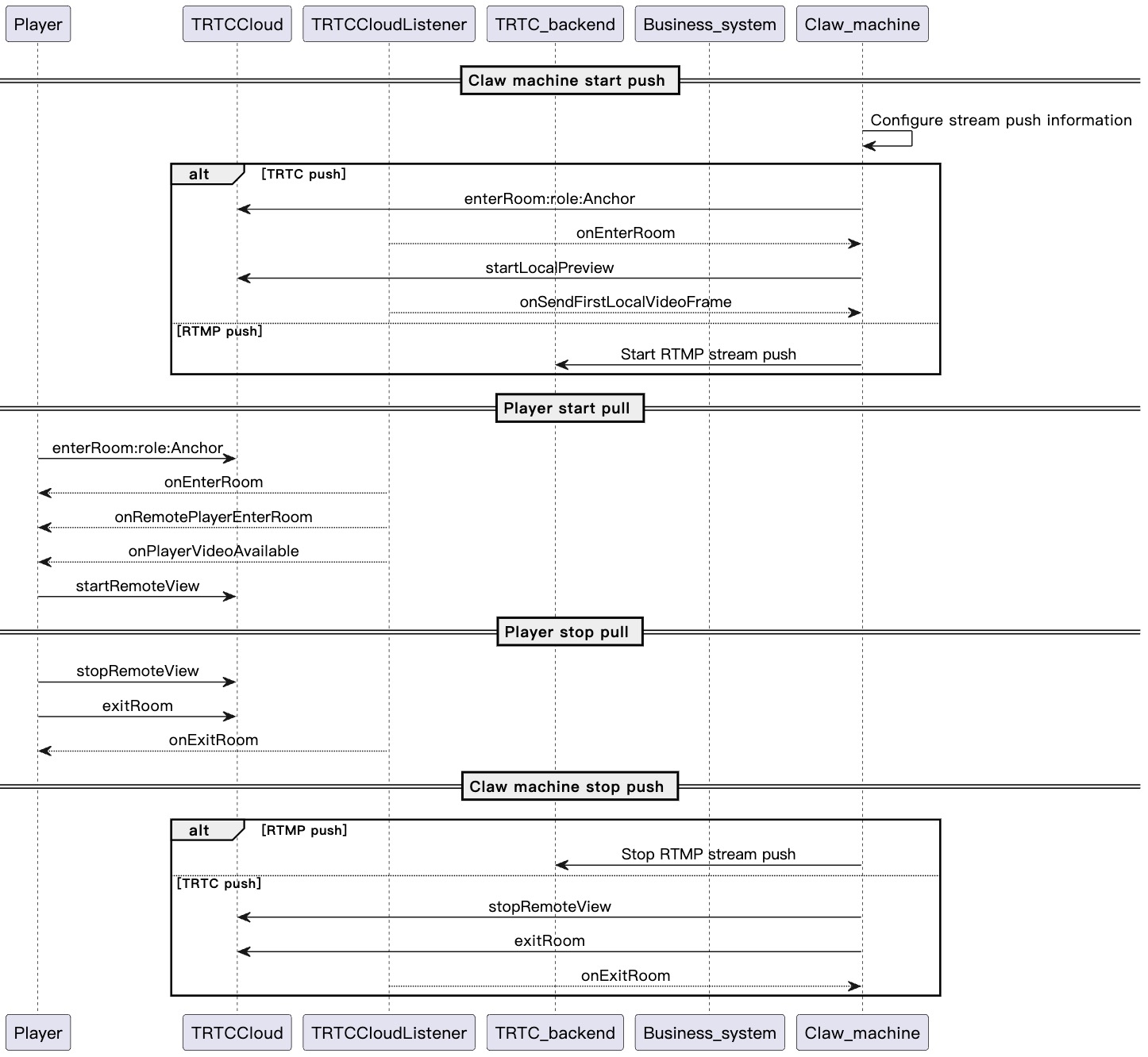
This section summarizes some common business processes in online claw machines to help you better understand the implementation of the entire scenario.
Online Claw Machine Real-Time Communication Engine (RTC Engine) Streaming
Online Claw Machine RTMP Streaming
The diagram below illustrates the sequence of RTC Engine streaming for an online claw machine, including processes such as RTC Engine streaming from a network camera and user-side stream pulling.
The diagram below illustrates the sequence of RTMP streaming for an online claw machine, including processes such as RTMP streaming from a network camera and user-side stream pulling.
Integration Preparation
Step 1: Activating the Services
The online claw machine scenario typically relies on the paid PaaS service of Tencent Cloud RTC Engine for implementation. RTC Engine provides real-time audio and video interaction capabilities. You can choose to activate the above services based on your specific business requirements.
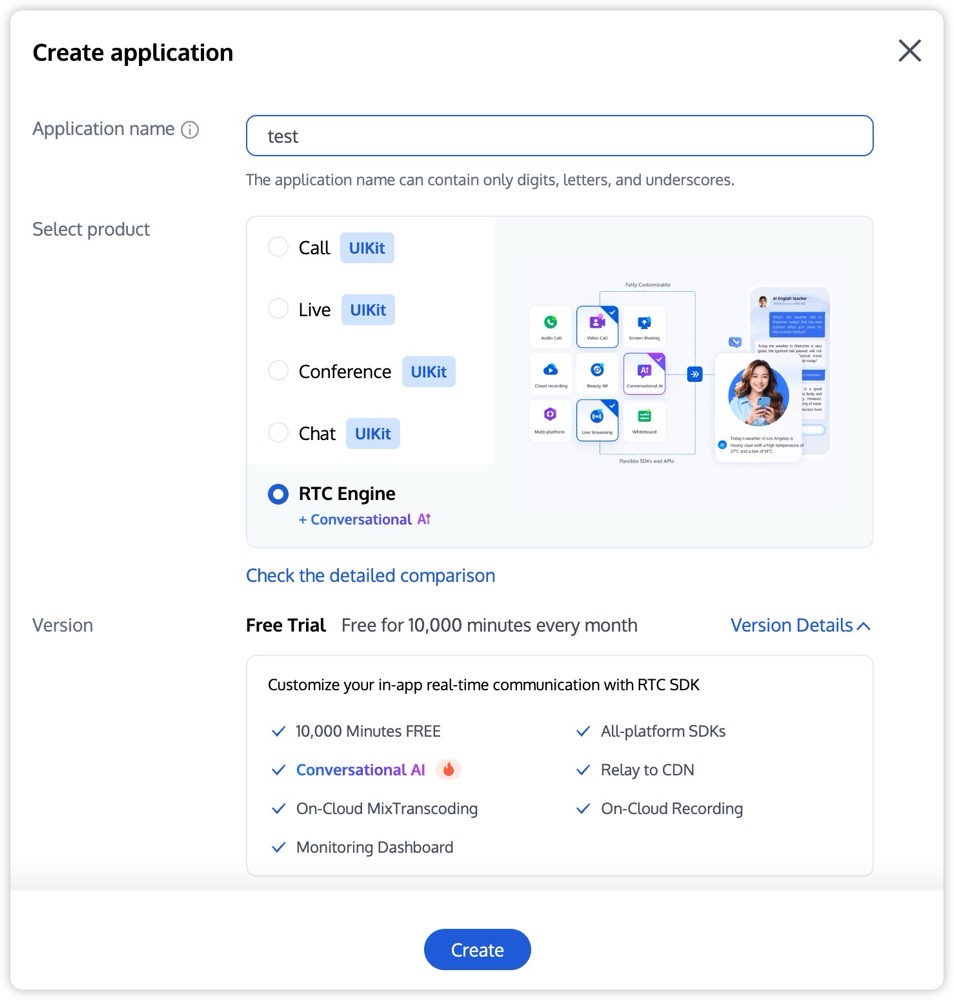
1. Log in to the RTC Engine console page. You can choose to upgrade the RTC Engine application edition as needed. For example, upgrading to the Flagship Edition unlocks more value-added feature services.
Note:
It is recommended to create two separate applications for the test environment and the production environment, respectively. When activating the RTC Engine service for the first time, you will receive a free trial duration package of 10,000 minutes.
The RTC Engine monthly packages (Free Trial, Lite, Standard, and Pro packages) can unlock different value-added feature services. For details, see RTC Engine Monthly Packages.
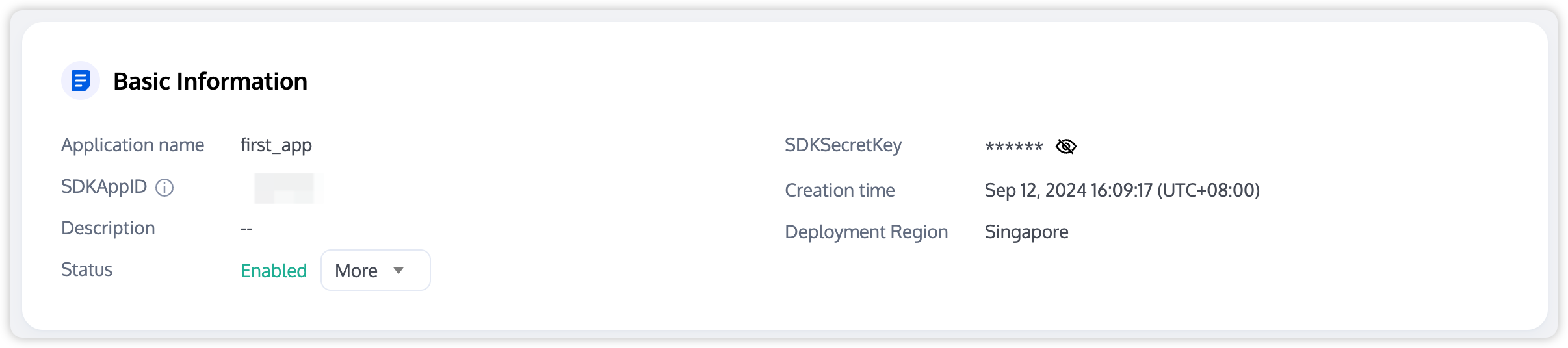
2. After the application is created, you can view its basic information under Application Management > Application Overview. Keep the SDKAppID and SDKSecretKey secure for future use, and take precautions to prevent key leakage that may result in unauthorized traffic usage.
Step 2: Importing the SDK
The RTC Engine SDK has been released to CocoaPods. You can integrate the SDK through CocoaPods.
1. Install CocoaPods.
Run the following command in a terminal window to install CocoaPods. If you have completed the CocoaPods installation, this step can be skipped.
sudo gem install cocoapods
2. Create a Podfile file.
Go to the project directory, and enter the following command. A Podfile file will then be created in the project directory.
pod init
3. Edit the Podfile file.
Choose the appropriate version for your project and edit the Podfile file.
platform :ios, '8.0'
target 'App'do
# RTC Engine Lite Edition (Recommended)
# Minimum incremental size of the installation package. Only the RTC Engine and TXLivePlayer features are supported.
pod 'TXLiteAVSDK_TRTC', :podspec =>'https://liteav.sdk.qcloud.com/pod/liteavsdkspec/TXLiteAVSDK_TRTC.podspec'
# LiteAVSDK Professional Edition
# A number of features, such as RTC Engine, TXLivePlayer, TXLivePusher, TXVodPlayer, and UGSV, are supported.
pod 'TXLiteAVSDK_Professional', :podspec =>'https://liteav.sdk.qcloud.com/pod/liteavsdkspec/TXLiteAVSDK_Professional.podspec'
end
4. Update and install the SDK.
Enter the following command in the terminal window to update the local repository files and install the SDK.
pod install
Or run the following command to update the local repository.
pod update
After the pod command is executed, an .xcworkspace project file integrated with the SDK will be generated. Double-click to open the file.
Note:
If the pod search fails, it is recommended to try updating the local repo cache of pod. The update command is as follows:
pod setup
pod repo update
rm ~/Library/Caches/CocoaPods/search_index.json
Step 3: Configuring the Project
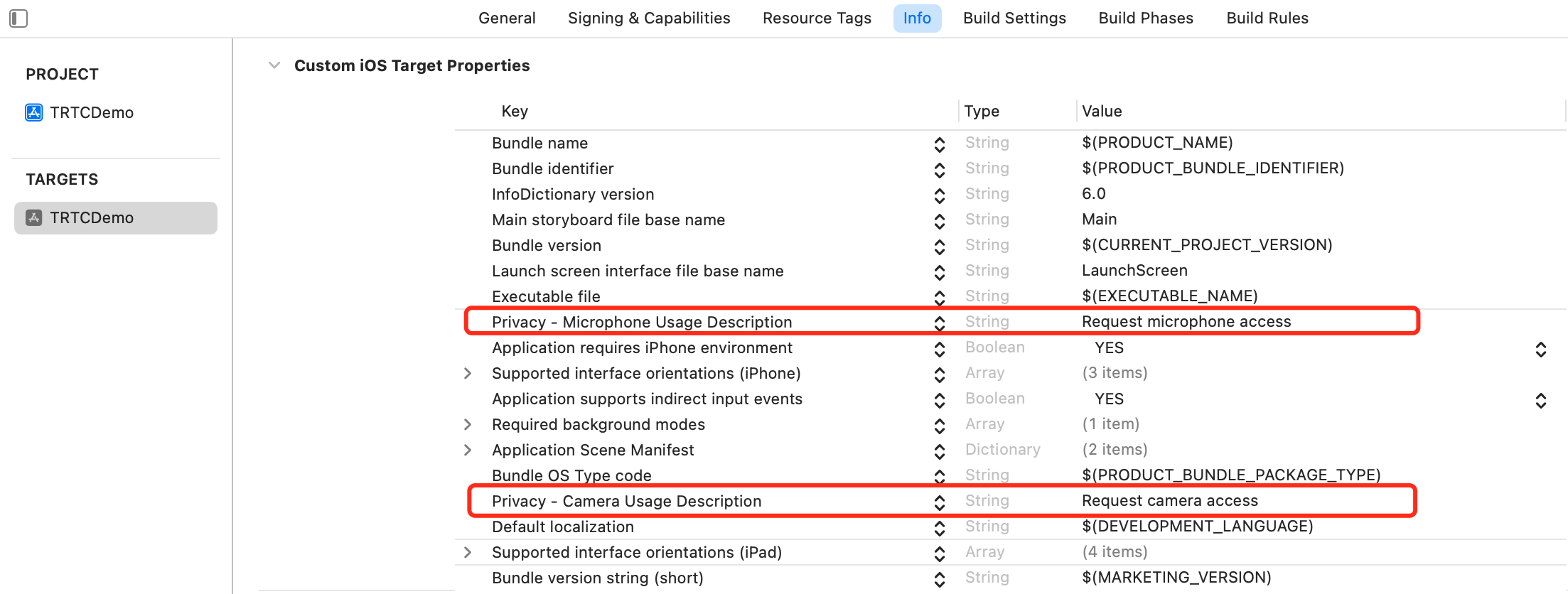
1. In the online claw machine scenario, the RTC Engine SDK requires app authorization for microphone and camera permissions. Add the following content to the Info.plist of the app, and the corresponding microphone and camera prompts will be displayed in the system pop-up authorization dialog box.
Privacy - Microphone Usage Description. Enter a prompt specifying the purpose of microphone use.
Privacy - Camera Usage Description. Enter a prompt specifying the purpose of camera use.
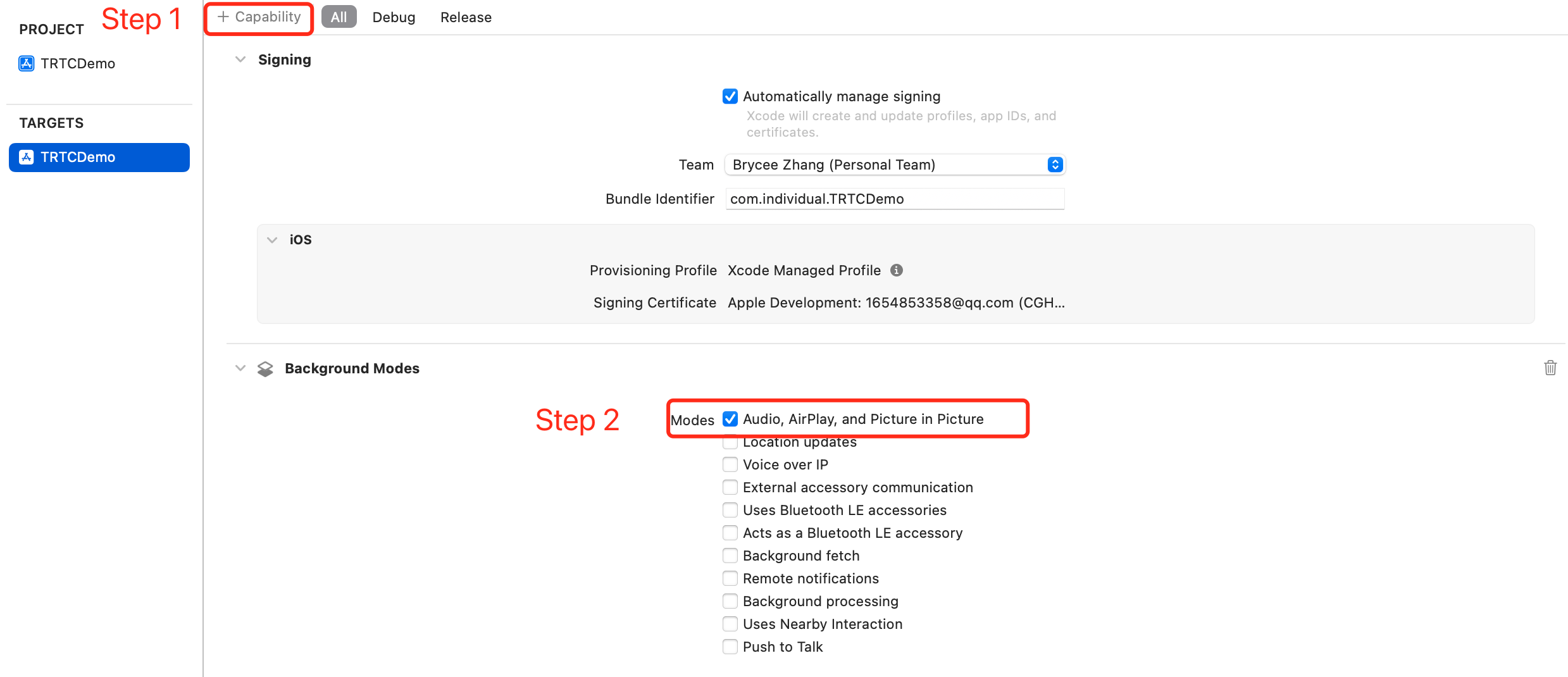
2. To allow the app to continue running certain features in the backend, select the current project in Xcode, set the setting item Background Modes to ON under Capabilities, and select Audio, AirPlay, and Picture in Picture, as shown below:
Step 4: Performing Authentication and Licensing
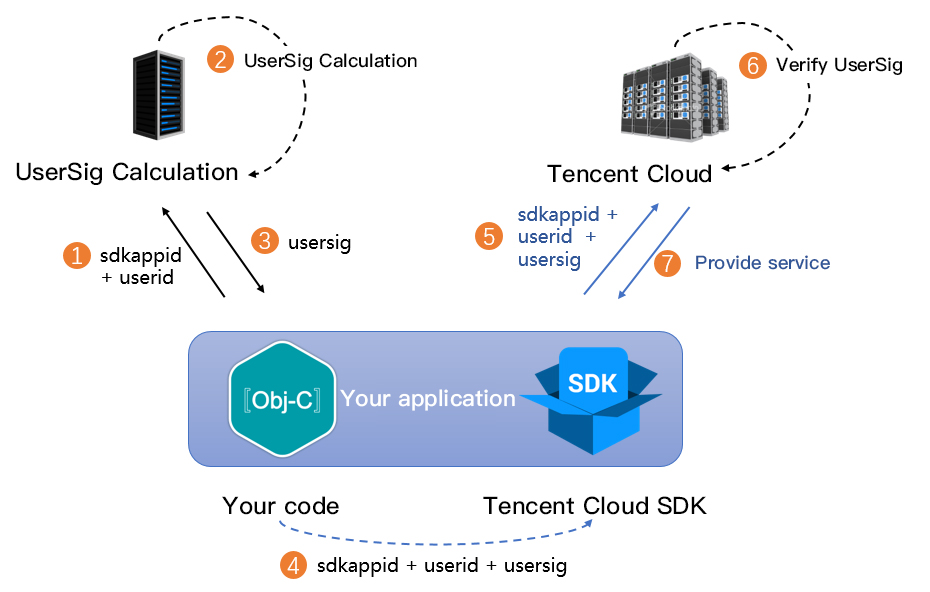
UserSig is a security protection signature designed by Tencent Cloud to prevent malicious attackers from misappropriating your cloud service usage rights. RTC Engine validates this authentication credential when entering a room.
Debugging and testing phase: You can calculate and generate the UserSig using either the client example code or the console. This method is intended solely for debugging and testing purposes.
Production phase: It is recommended to use the server UserSig calculation solution, which has a higher security level. This solution helps prevent the client from being decompiled and reversed, thereby avoiding the risk of key leakage.
The specific implementation process is as follows:
1. Before calling the initialization API of the SDK, have your app request UserSig from your server first.
2. Your server calculates the UserSig based on the SDKAppID and UserID.
3. The server returns the calculated UserSig to your app.
4. Your app sends the obtained UserSig to the SDK through a specific API.
5. The SDK submits the SDKAppID, UserID, and UserSig to the Tencent Cloud server for verification.
6. The Tencent Cloud platform verifies the validity of the UserSig.
7. After the verification is passed, the RTC Engine SDK will be provided with real-time audio and video services.
Note:
The method of calculating UserSig locally during the debugging and testing phase is not recommended for an online environment, as this method may be easily decompiled and reversed, causing key leakage.
We provide the source code for server-side UserSig generation in multiple languages (Java/Go/PHP/Node.js/Python/C#/C++). For details, see UserSig Calculation Source Code.
Step 5: Initializing the SDK
// Create an RTC Engine SDK instance (singleton mode).
self.trtcCloud =[TRTCCloud sharedInstance];
// Set an event listener.
self.trtcCloud.delegate =self;
// Notifications from various SDK events (including error codes, warning codes, and audio and video status parameters).
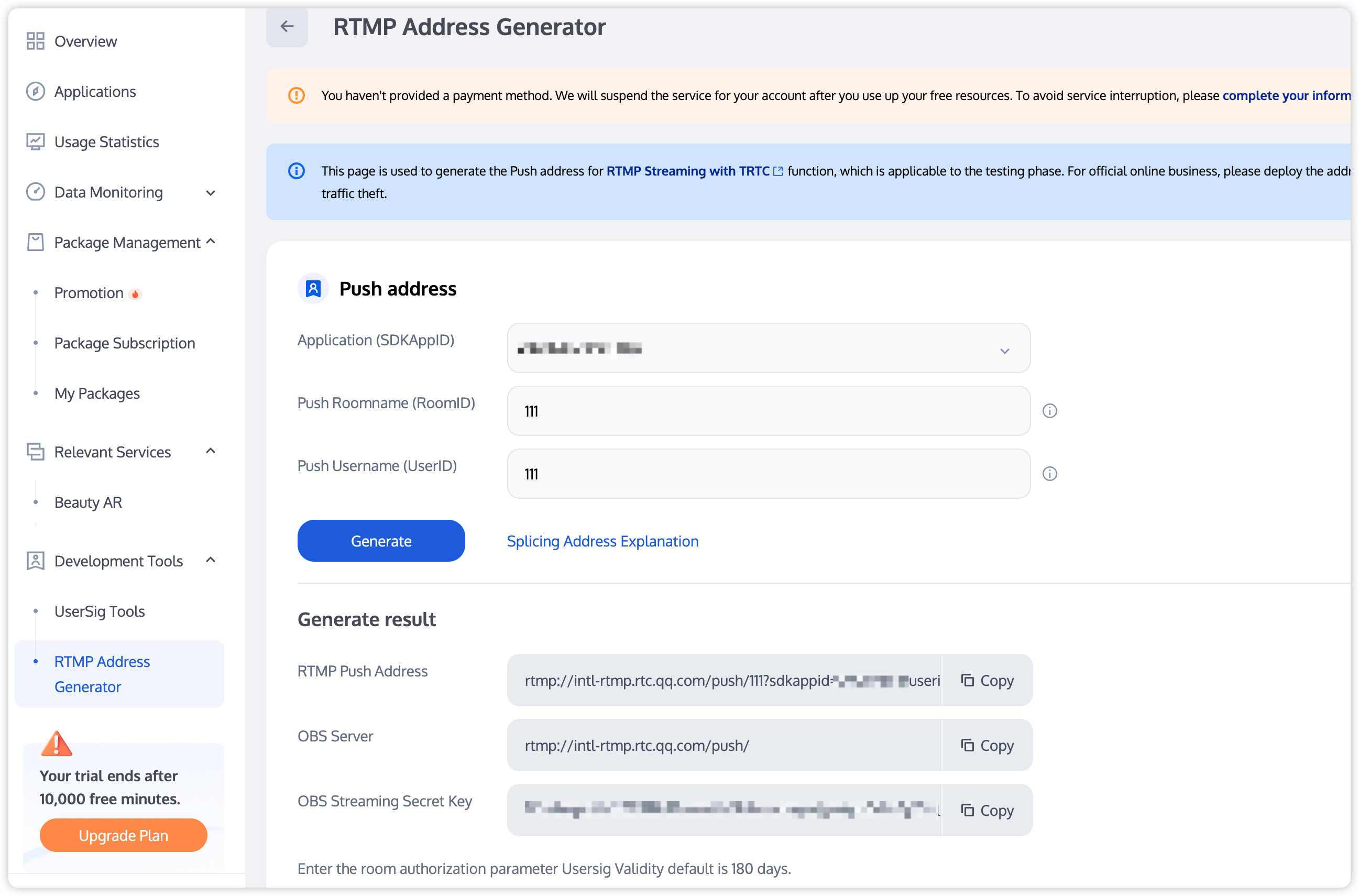
The primary domain name is intl-rtmp.rtc.qq.com, and the secondary domain name is rtmp.rtc-web.com. If the primary domain name parsing fails, you can use the secondary domain name.
The RTMP appName is push.
The room ID, application, username, and signature in the address need to be replaced with your business-specific values.
To simplify parameters, only string room IDs are supported. The room ID should not exceed 64 characters and can only contain numbers, letters, and underscores.
Note:
If other RTC Engine endpoints need to watch the RTMP stream, use a string room ID for room entry.
For the UserSig generation rules, see UserSig (Please note that the signature should be within its validity period).
2. Configure the SdkAppid, UserId, UserSig, RoomId, and other information on the RTC Engine network camera or streaming box to start streaming.
Note:
RTC Engine room IDs are divided into numeric type roomId and string type strRoomId. The rooms of these two types are not interconnected. It is recommended to unify the room ID type.
RTC Engine user roles are divided into anchors and audiences. Only anchors have streaming permissions. The user role should be specified upon room entry. If the user role is not specified, the default role is anchor.
In the online claw machine scenario, it is recommended to use the TRTC_APP_SCENE_VIDEOCALL mode for entering a room, as this ensures lower latency.
NSLog(@"Actively call exitRoom to exit the room.");
}elseif(reason ==1){
NSLog(@"Removed from the current room by the server.");
}elseif(reason ==2){
NSLog(@"The current room has been dissolved.");
}
}
Note:
After all resources occupied by the SDK are released, the SDK will throw the onExitRoom callback notification to inform you.
If you want to call enterRoom again or switch to another audio and video SDK, wait for the onExitRoom callback before proceeding. Otherwise, you may encounter various exceptional issues, such as the camera or microphone device being forcibly occupied.
2. Dissolve the room.
The server dissolves the room.
RTC Engine provides the server-side API DismissRoom for dissolving rooms with numeric types and the API DismissRoomByStrRoomId for dissolving rooms with string types. You can use these server-side APIs to remove all users from the room and dissolve the room.
The client dissolves the room.
The client does not provide an API for directly dissolving a room. Each client should call exitRoom to exit the room. Once all anchors and audiences have exited the room, the room will be automatically dissolved according to the RTC Engine room lifecycle rules. For details, see RTC Engine Exit the Room.
Exception Handling
Exception Error Handling
When the RTC Engine SDK encounters an unrecoverable error, the error is thrown in the onError callback. For details, see RTC Engine Error Codes.
1. UserSig-related errors. UserSig verification failure can lead to room entry failure. You can use the UserSig tool for verification.
Enumeration
Value
Description
ERR_TRTC_INVALID_USER_SIG
-3320
The room entry parameter UserSig is incorrect. Check whether TRTCParams.userSig is empty.
ERR_TRTC_USER_SIG_CHECK_FAILED
-100018
The UserSig verification fails. Check whether the parameter TRTCParams.userSig is filled in correctly or has expired.
2. Errors related to room entry and exit. If the room entry fails, first check whether the room entry parameters are correct. The room entry and exit APIs should be called in pairs. This means that even if room entry fails, the room exit API should still be called.
Enumeration
Value
Description
ERR_TRTC_CONNECT_SERVER_TIMEOUT
-3308
The room entry request times out. Check whether your internet connection is lost or if a VPN is enabled. You may also attempt to switch to 4G for testing.
ERR_TRTC_INVALID_SDK_APPID
-3317
The room entry parameter sdkAppId is incorrect. Check whether TRTCParams.sdkAppId is empty.
ERR_TRTC_INVALID_ROOM_ID
-3318
The room entry parameter roomId is incorrect. Check whether TRTCParams.roomId or TRTCParams.strRoomId is empty. Note that roomId and strRoomId cannot be used interchangeably.
ERR_TRTC_INVALID_USER_ID
-3319
The room entry parameter userId is incorrect. Check whether TRTCParams.userId is empty.
ERR_TRTC_ENTER_ROOM_REFUSED
-3340
The room entry request is denied. Check whether enterRoom is called consecutively to enter a room with the same ID.
3. Device-related errors. Device-related errors can be monitored. Users are prompted via UI if related errors occur.
Enumeration
Value
Description
ERR_CAMERA_START_FAIL
-1301
Failed to turn the camera on. For example, if there is an exception for the camera's configuration program (driver) on a Windows or Mac device, you should try disabling then re-enabling the device, restarting the machine, or updating the configuration program.
ERR_MIC_START_FAIL
-1302
Failed to turn the mic on. For example, if there is an exception for the microphone's configuration program (driver) on a Windows or Mac device, you should try disabling and then re-enabling the device, restarting the machine, or updating the configuration program.
ERR_CAMERA_NOT_AUTHORIZED
-1314
The camera is unauthorized. This typically occurs on mobile devices, probably because the user denied the permission.
ERR_MIC_NOT_AUTHORIZED
-1317
The microphone is unauthorized. This typically occurs on mobile devices, probably because the user denied the permission.
ERR_CAMERA_OCCUPY
-1316
The camera is occupied. Try a different camera.
ERR_MIC_OCCUPY
-1319
The microphone is occupied. For example, when the user is currently having a call on a mobile device, the microphone cannot be turned on.
Black Screen During Audience Stream Pulling
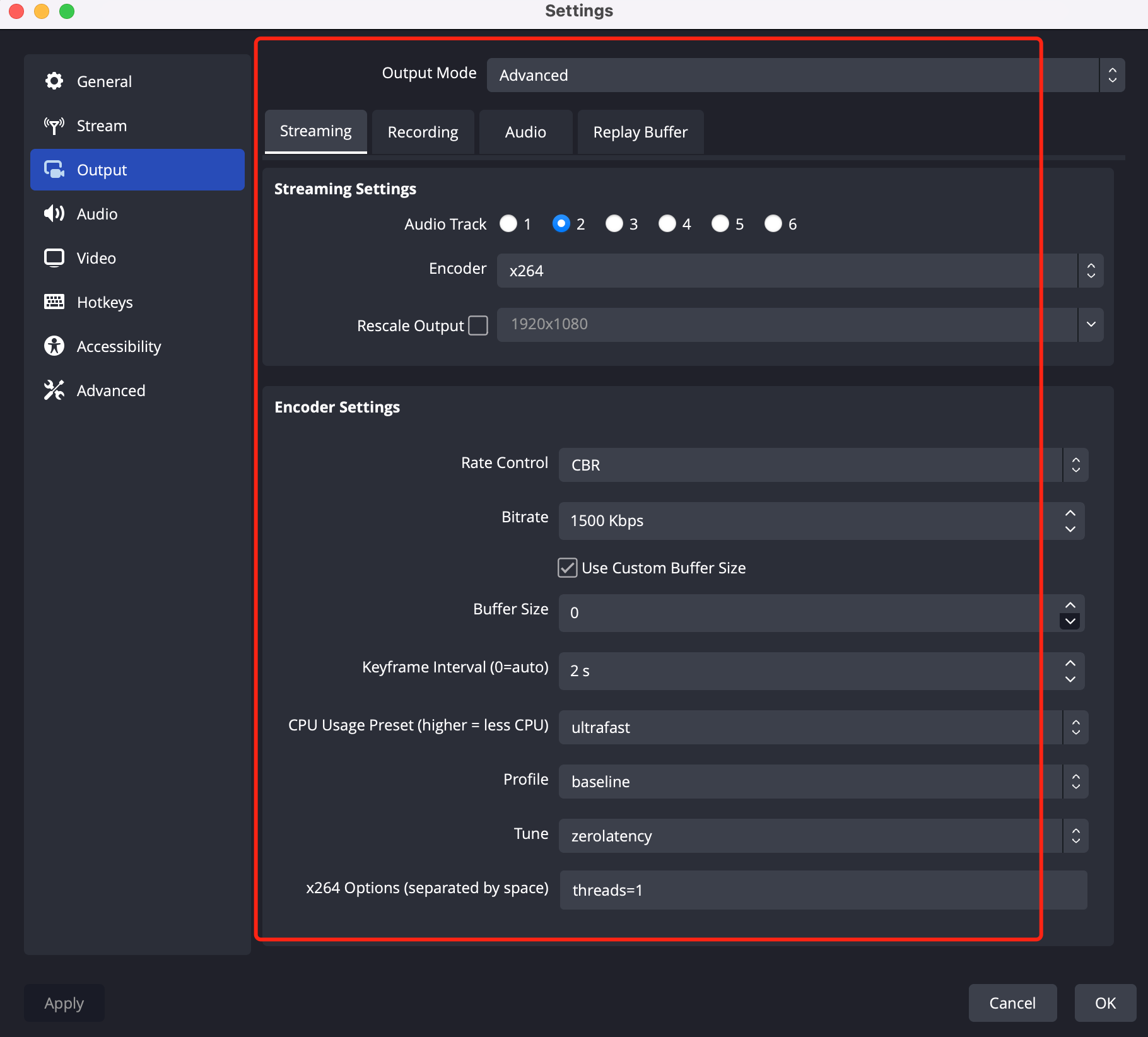
In the claw machine scenario involving RTMP streaming, the RTMP streaming feature was used to enter an RTC Engine room, and the streaming operation succeeded. However, the stream could not be pulled normally in the RTC Engine room. After problem localization, it was found that the streaming configurations included B-frames, and the RTC Engine room does not support scenarios with B-frames. As a result, the attempt to pull the RTMP stream failed. The reference streaming configurations are as follows:
Image Freeze During Audience Stream Pulling or Appearance of Third-Party Images During Stream Pulling
In the claw machine scenario, after an RTC Engine audience enters the room and pulls the stream for a period of time, they will automatically encounter an issue where the stream pull gets stuck. This is especially likely to happen after multiple triggers of the peer-join or onUserVideoAvailable callbacks, causing the audience's pulling stream to freeze on the last frame. When this happens, you can first access the dashboard to view detailed call information. If the features displayed on the dashboard indicate that the anchor has entered and exited the room multiple times, it can be basically confirmed that the issue was caused by mutual removal.
Solution: You can try disabling the streaming on the current machine to resolve the issue. If the issue remains unresolved, then check whether 2 identical streaming addresses are configured on the same machine.