Guide to Using CFS File System in Various Scenarios
Download
Mode fokus
Ukuran font
Terakhir diperbarui: 2026-08-05 17:24:12
Diterjemahkan oleh AI
This article aims to introduce how to use the CFS file system in each scenario and feature module on the TI-ONE platform.
CFS Introduction
Cloud File Storage (CFS) is a distributed file storage system provided on Tencent Cloud. It provides a scalable shared file storage service and can be used in conjunction with Tencent Cloud's CVM and other services. CFS provides a standard NFS file system access protocol, offering a shared data source for multiple CVM instances. It supports elastic capacity and performance scaling. Existing applications can be mounted on it without modification. It is a highly available and reliable distributed file system, suitable for scenarios such as big data analysis, media processing, and content management.
Basic Usage of CFS
CFS storage is used via mounting. CFS supports mounting under Linux and Windows operating systems. Since the TI-ONE platform mainly uses the Linux system, only the use of CFS on the Linux system is introduced below.
CFS is mounted on the Linux system using the mount command. You can refer to Using CFS File System on Linux Clients. The mount command requires specifying the source directory of the mount partition and the mount path of the target mount system, so that the partition file can be accessed on the target mount system (such as CVM or containers).
In the TI-ONE platform, you don't need to care about details such as the mount command. Just specify the CFS path and the target mount path when using task-based modeling or the development machine module.
Networking Mode of CFS
The specifications of CFS storage are mainly divided into General Series and Turbo Series. The Turbo Series has the characteristic of high IOPS and is more suitable for AI high-performance computing scenarios. Purchase corresponding instances according to your own needs and budget.
It is important to note that:
CFS Universal Series only supports VPC networking mode: that is, when creating a CVM, you need to specify the VPC where the CFS is located. For subsequent access to the CFS, the CVM needs to be in this VPC or interconnect with this VPC through CCN.
CFS Turbo series simultaneously supports VPC networking mode and CCN mode.
VPC networking mode: When creating a CFS instance, specify the associated VPC network of the CFS. For subsequent access to the CFS, the CVM needs to be in this VPC or interconnect with this VPC through CCN.
CCN mode: When creating a CFS instance, specify a CCN instance. All VPCs that join this CCN instance can access the CFS.
Usage Mode of CFS in TI-ONE Scenarios
The TI-ONE platform recommends using CFS to store training and reasoning materials in scenarios such as deep learning and large model training fine-tuning, including code, training models, and training datasets.
The TI-ONE platform has following scenarios:
Pay-as-you-go: You use the machines provided by TI-ONE to develop or perform task-based modeling, and you need to mount your own CFS storage to the machines under the TI-ONE platform. In this mode, the TI-ONE platform is responsible for connecting the machines and your CFS storage via network.
Monthly Subscription to manage your CVM instances: After purchasing machines in the CVM console, manage these machine resources on the TI-ONE platform for development or task-based modeling. You need to mount your own CFS storage to your CVM instances. In this mode, you need to ensure connectivity between your machine resources and the CFS storage.
Differences in the Usage of Different Networking Modes of CFS in TI - ONE Scenarios
First Method: TI-ONE Pay-As-You-Go Model + CFS VPC Networking Mode
CVM machine resources are under the TI-ONE platform account, while CFS is under your account. They are naturally not in the same VPC. Therefore, TI-ONE platform will automatically detect network interconnection between TI-ONE platform VPC and the VPC where your CFS is located. You do not need to care about the details of network interconnection. In this scenario, you only need to specify any ONE of the VPC networks under your account when creating your CFS.
Note:
If you need to mount multiple CFSs simultaneously in an instance on a development machine or in a task-based modeling task, you need to ensure that these CFSs are in the same VPC or the same CCN..
Second Method: TI-ONE Pay-As-You-Go Model + CFS CCN Networking Mode
The CVM machine resources are under the TI-ONE platform account, and the CFS is under your account and has been joined to a certain CCN instance under your account. The TI-ONE platform will automatically detect the network interconnection between the TI-ONE platform VPC and your CFS. You do not need to pay attention to the details of network interconnection.
Note:
In this scenario, due to some limitations of CCN, there may be situations where it fails. If you encounter problems, you can contact us for support and handling.
If you need to mount multiple CFSs simultaneously in an instance on a development machine or in a task-based modeling task, you need to ensure that these CFSs are in the same VPC or the same CCN..
Third Method: TI-ONE User Self-Owned Resource Management Mode + CFS VPC Networking Mode
CVM machine resources are under your account, and CFS is also under your account. You need to ensure that CFS and CVM are interoperable. The interoperable methods can be in the same VPC or through CCN.
Note:
If you need to mount multiple CFSs simultaneously in an instance on a development machine or in a task-based modeling task, you need to ensure that these CFSs and the network of the machine managed by you in TI-ONE are interoperable..
CVM machine resources are under your account, and CFS is also under your account. You need to ensure that CFS and CVM are interoperable. You can add the VPC where the CVM resides to the CCN instance where CFS resides.
Note:
If you need to mount multiple CFSs simultaneously in an instance on a development machine or in a task-based modeling task, you need to ensure that these CFSs and the network of the machine managed by you in TI-ONE are interoperable..
Different Scenarios for Mounting CFS
First Method: Use CFS on a Development Machine
After you create the CFS cloud file storage, the default CFS storage root directory is empty. You can perform file upload or creation operations by mounting it to a CVM, or you can mount it for use on a development machine.
When creating a development machine, to ensure that the development machine instance can work normally, the first selected CFS storage path will be mounted to the default work directory /home/tione/notebook of the development machine.
Among them, you can specify the source path as the root directory of CFS or any directory you created. The content in specified directories will be mounted under /home/tione/notebook.
The following are examples of mount paths and path mappings of development machines.
Example one
Mount CFS Source Path As /
Development Machine Path /home/tione/notebook
/
/home/tione/notebook
/data
/home/tione/notebook/data
/model
/home/tione/notebook/model
/code
/home/tione/notebook/code
Example II
Mount CFS Source Path As /user01
Development Machine Path /home/tione/notebook
/user01
/home/tione/notebook
/user01/data
/home/tione/notebook/data
/user02
Inaccessible
Second Method: Use CFS in Data Construction
Data Construction Input
Suppose you have already created the development machine for building single-round Q&A format data for PPL and mounted the CFS instance. Mount the CFS source directory as /, and the mount target directory is /home/tione/notebook.
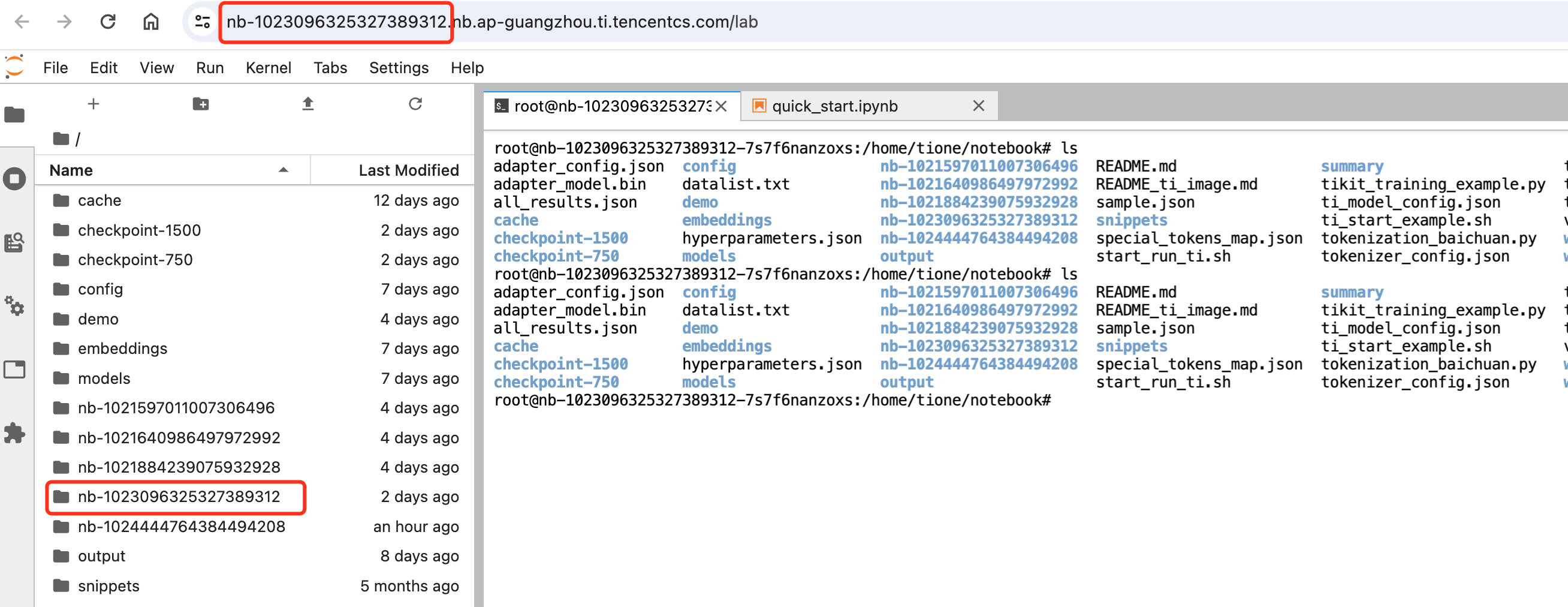
After you enter the development machine instance, the system will create a scripting tool for data construction and the corresponding directory in your mount source directory/(i.e., the mount directory of the development machine /home/tione/notebook). You can upload the corresponding data to this directory for processing.
The specific directory format of the scripting tool is: mount path/<nb-id>/<ppl-type>/raw_dataset_files.
Among them:
<ppl-type Build ppl type for selected data</ppl-type> single_round_qa_pipeline for single-round Q&A; multi_round_qa_pipeline for multi-round Q&A; unsupervised_pipeline for unsupervised.
The nb-id is the instance ID of the current development machine. You can check the corresponding ID through the url link. Please note, do not be misled by the directory shown in the development machine's file column. The default directory of the development machine is /home/tione/notebook, which is the source directory you mounted. You can open a terminal and input the pwd command to view the current path.
single_round_qa_pipeline is the script path for single-round Q&A PPL. When you select multi-round or unsupervised, the path is different.
After entering the ppl-type directory, you can view quick_start.ipynb guideline to perform further data construction operations.
Data Construction Output
After you complete the processing operation of data construction, because the CFS is mounted, the actual output file already exists in your CFS storage. So if it is needed for use in task-based modeling, you need to be able to map the path of the CFS.
When using task-based modeling, you can place the corresponding code/model/dataset on CFS and use it via mounting.
Note the mapping relationship of the mount directory.
During the development machine stage, after you debug the following code/model/data, the final data is under the CFS path /data/custom.
cfs Mount Source Path /data/custom
Development Machine Mount Path /home/tione/notebook
model
/data/custom/model
/home/tione/notebook/model
data
/data/custom/llm/data
/home/tione/notebook/llm/data
code
/data/custom/llm/code
/home/tione/notebook/llm/code
Then you perform task-based modeling. Since there are variations between task-based modeling and the development machine, data is generally mounted to /opt/ml for processing.
cfs Mount Source Path
Task-Based Modeling Mount Path
model
/data/custom/model
/opt/ml/pretrain_model
dataset
/data/custom/llm/data
/opt/ml/input/data/train
code
/data/custom/llm/code
/opt/ml/input/data/code
output
/data/custom/llm/output
/opt/ml/output
Note:
In the code for task-based modeling, where it is necessary to read data or model, the reading path is the mount path for task-based modeling.
Fourth Method: Use CFS in an Online Service
Load Model Directly From CFS
Large models are generally large in large model scenarios. The recommended usage link is: use a development machine to mount CFS to debug training code, use task-based modeling to mount CFS to execute distributed training tasks, and finally store the fine-tuned model in the CFS storage system. The online service module of TI-ONE inference scenarios supports directly reading model files from the CFS file system. At this point, you only need to specify the absolute path of your model file in CFS storage.
Note:
Partially bare metal physical machines (such as HCC A100 and HCC V100 models) do not support CFS Turbo instance mounting because they do not support ENI.
After task-based modeling is completed, we store the trained model in the path /opt/ml/output/model/saved_model.pb. Then the corresponding cfs path is: /data/custom/llm/output/model/saved_model.pb.
cfs Mount Source Path
Task-Based Modeling Mount Path
output
/data/custom/llm/output
/opt/ml/output
Use CFS As Temporary Storage When Importing Model From Model Repository
After your model has been registered in the model repository, you can import the model from the model repository to create an online service.
In pay-as-you-go billing mode, the total size of model packages supported by the local disk by default is about 45G. In monthly subscription mode, model packages will be stored on the disk mounted by the resource group node.
When the size of your model package exceeds the limit, you need to configure a CFS file system additionally. The platform will automatically use the CFS file system to store the model. At this point, you need to select a CFS file system and configure an empty CFS path. When the online service is running, this path will be mounted, and the model file from the model repository will be copied to this path for loading during service startup.
When the online service stops or is updated, the platform will automatically clean up the files in the CFS source path for the user. Please ensure there is no other data in this path..
Note:
Partially bare metal physical machines (such as HCC A100 and HCC V100 models) cannot support CFS Turbo instance mounting because they do not support ENI.
How to Achieve Directory Isolation between Subaccounts for CFS and CFS Turbo
This section will guide you on how to achieve file directory isolation between different subaccounts in the same instance of CFS and CFS Turbo via tagging.
Step One: Create a Tag
1. Log in to the tag console, in the left sidebar select tag list, select custom tag, click create tag.
2. Fill in the tag key and tag value according to the following rules:
Tag Key
Tag Value
Rule Description
1
tione_cfs_directory_isolation_rulelists
RuleA:RuleB:RuleC
On a CFS or CFS Turbo instance with a tag key of "tione_cfs_directory_isolation_rulelists", it is considered that the file instance requires directory isolation between subaccounts; otherwise, it has globally shared permissions.
Tag values can have multiple rules filled in, separated by : for isolation. Multiple rules take the union. The specific path of the rules can be defined through 3.
2
tione_cfs_default_effective_rulelists
RuleA
On a CFS or CFS Turbo instance, if, on the basis of 1, a tag with the key "tione_cfs_default_effective_rulelists" is added, then the rule RuleA in the tag value is considered the default effective rule. Even if the subaccount does not configure 4, it will take effect by default. However, only one rule can be configured. If multiple rules are configured, one will be randomly selected to take effect, which is a configuration error.
3
RuleA
PathA:PathB:PathC
One specific isolation rule. The tag key corresponds to the tag values filled in 1, 2, and 4. The tag values are the file paths to be isolated on the CFS and CFS Turbo instances. For multiple paths, take the union. The path rule must start with a slash "/", and can only contain Chinese and English, digits, underscores "_", hyphens "-", and periods ".". Folder names in the path can only start with Chinese and English, digits, or underscores "_".
special
1. Support path configuration wildcard <@subaccount>, which indicates the sub-account UIN. For example, RuleA: /home/<@subaccount>. You just need to fill in one tag path rule, and the sub-account UIN of the account being used will be automatically filled in by default.
2. Support path configuration wildcard <@subusername>, which indicates the sub-account alias. For example, RuleA: /home/<@subusername>. You just need to fill in one tag path rule, and the sub-account alias of the account being used will be automatically filled in by default.
4
cfsidxx_cfs_directory_isolation
RuleA:RuleB
On a subaccount, if a tag with the key "cfsidxx_cfs_directory_isolation" (where cfsidxx is the specific CFS or CFS Turbo instance ID) is added, then it is considered that the paths accessible to the subaccount for this file instance ID are the intersection of the tag value 4 and the tag values 1 and 2.
If a subaccount does not have tag 4 added, it does not have all permissions of the cfs instance.
Step Two: Tag CFS and CFS Turbo Instances
1. Log in to CFS console, select file system in the left sidebar, select the instance you need to isolate the directory for, click Edit Tag, and check the corresponding tag key and tag value according to step 1.
2. Add a CFS or CFS Turbo instance with the tag key "tione_cfs_directory_isolation_rulelists". For such file instances, directory isolation between subaccounts is required; otherwise, globally shared permissions will apply.
Step Three: Tag Subaccounts
1. Log in to Cloud Access Management Console, in the left sidebar select User/User List, select the subaccount you need to isolate in the directory, click Username to enter User Details, click Edit Tag Button, according to Step 1 check the corresponding tag key and tag value.
Step Four: Use Tagged CFS and CFS Turbo Instances for Training and Reasoning
1. Log in to the TI-ONE Console, in the left sidebar select Training Workshop/Task-based Modeling, click Create Task, select your tagged CFS, CFS Turbo instances. After selection, the tag value paths added to them will appear, and you can use them via dropdown selection.
2. Log in to the TI-ONE Console, in the left sidebar select Training Workshop/Development Machine, click Create Task, select your tagged CFS, CFS Turbo instances. After selection, the tag value paths added to them will appear, and you can use them via dropdown selection.
3. Log in to the TI-ONE Console, in the left sidebar select Model Service/Online Service, click Create Service, select your tagged CFS instance. After selection, the tag value paths added to it will appear, and you can use them via dropdown selection.
Note:
1. If the tag value path you fill in does not meet requirements, it will be grayed out and not allowed. Please contact the Tencent Cloud Account Administrator to readjust the tag value configuration on the tag path.
2. Path rule: It must start with a slash "/", can only contain Chinese and English, numbers, underscores "_", hyphens "-", and periods "."; folder names in the path can only start with Chinese and English, numbers, and underscores "_".