Cross-Topic Message Replication
Unduh
Mode fokus
Ukuran font
Scenarios
TDMQ for RocketMQ supports message synchronization between two clusters, whether they are in the same or different regions. This includes synchronization between 4.x clusters, between 5.x clusters, and from 4.x to 5.x clusters. Reverse synchronization, which involves copying messages from a 5.x cluster to a 4.x cluster, is not currently supported. You can replicate messages from a specific Topic in cluster A to a specific Topic in cluster B at the Topic level. When messages are replicated for a Topic, RocketMQ supports filtering based on specific conditions, such as Tag or SQL expressions. It also allows you to start or stop a replication task at any time and monitor the task's progress and health status.
Billing Rules
The cross-cluster message replication feature is currently free of charge. Before charging starts, Tencent Cloud will notify customers multiple times a month in advance through the message center, short messages, and emails.
Operation Steps
Creating a Task
Go to the TDMQ for RocketMQ console. In the left sidebar, click Cross-Cluster Replication > Create Task. Then, fill in the following fields as required:
Task Type: Select Cross-cluster topic replication.
Task Name: The name must be no more than 200 characters in length and can contain only Chinese characters, digits, letters, hyphens (-), and underscores (_).
Source Topic: Select the region, cluster, namespace, and Topic from the drop-down lists in sequence. If the required cluster or Topic is not found, you can create it on the cluster list page.
Target Topic: Select the region, cluster, namespace, and Topic from the drop-down lists in sequence. If the required cluster or Topic is not found, you can create it on the cluster list page.
Role for Replication Task. When replicating across clouds, you need to manually enter the AK and SK of the other cloud and ensure that the AK and SK have the required permissions.
Filter Type: Tag-based filtering and SQL-based filtering are supported.
Replication Start Offset: You can start replication from the latest offset or from a specified time point.
Start Task Now: If you turn on this switch, replication starts immediately after the task is created, following the task's configuration.
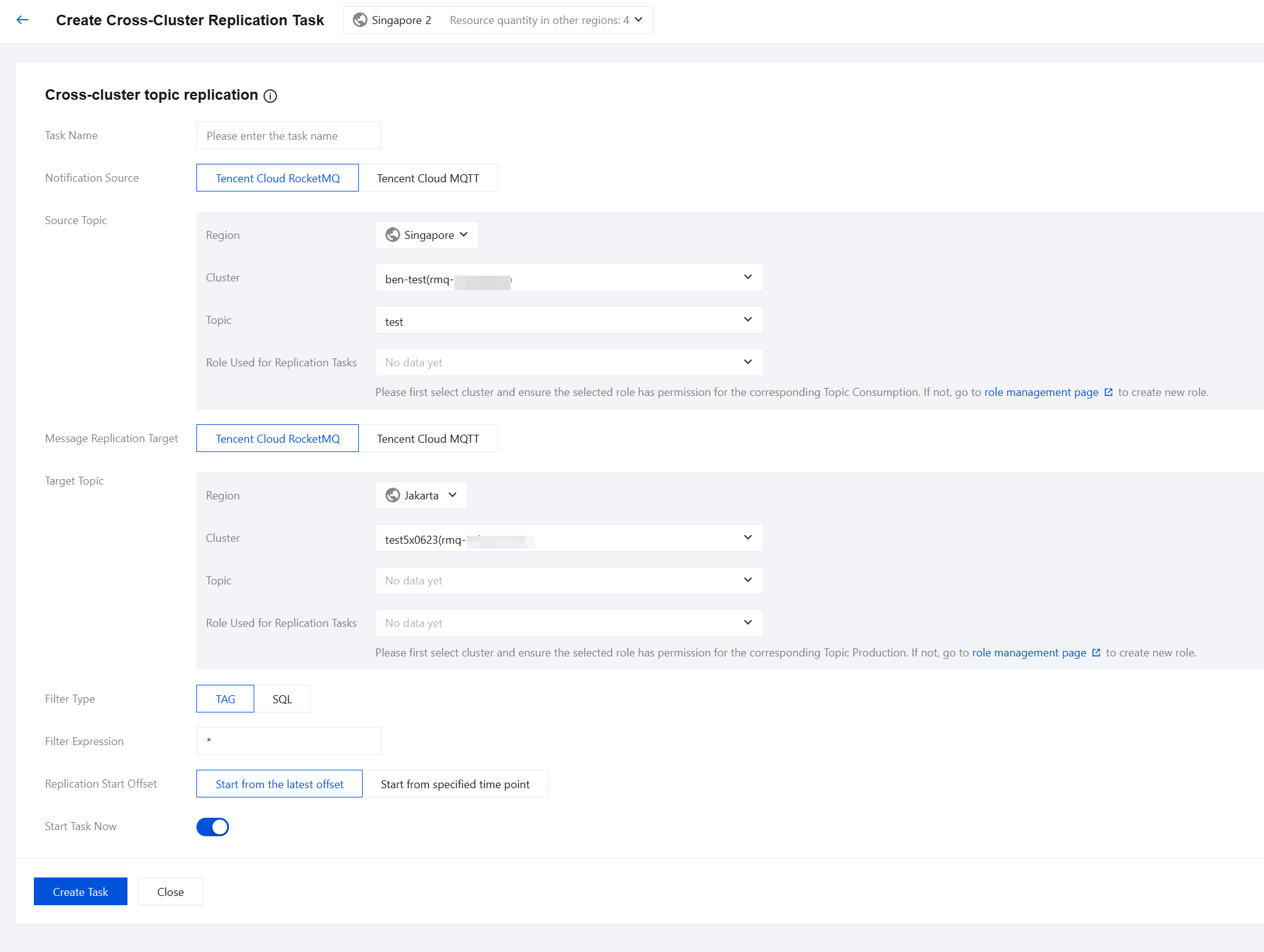
After you click Create Task, you will be redirected to the task list page. The task is created after it is initialized.
The replication task you create is one-way. That is, if you create a replication task from Topic A to Topic B, the messages in Topic A are automatically replicated to Topic B. If you need a two-way replication task, you need to create an additional replication task from Topic B to Topic A.
Replicating a Task
You can copy the configuration of an existing task to quickly create a task, facilitating message replication task creation.
Go to the TDMQ for RocketMQ console. In the left sidebar, click Cross-Cluster Replication, select a created task, and click Create Similar in the operation column. The same parameters of the replication task are automatically populated on the task creation page. You only need to make simple modifications to create a new task. (Currently, you cannot create a task with an identical configuration in the console.)
Viewing Task Details
After a task is created, you can view the new replication task on the task list page and quickly check its status. Click Start/Pause in the operation column to quickly enable or pause the task.
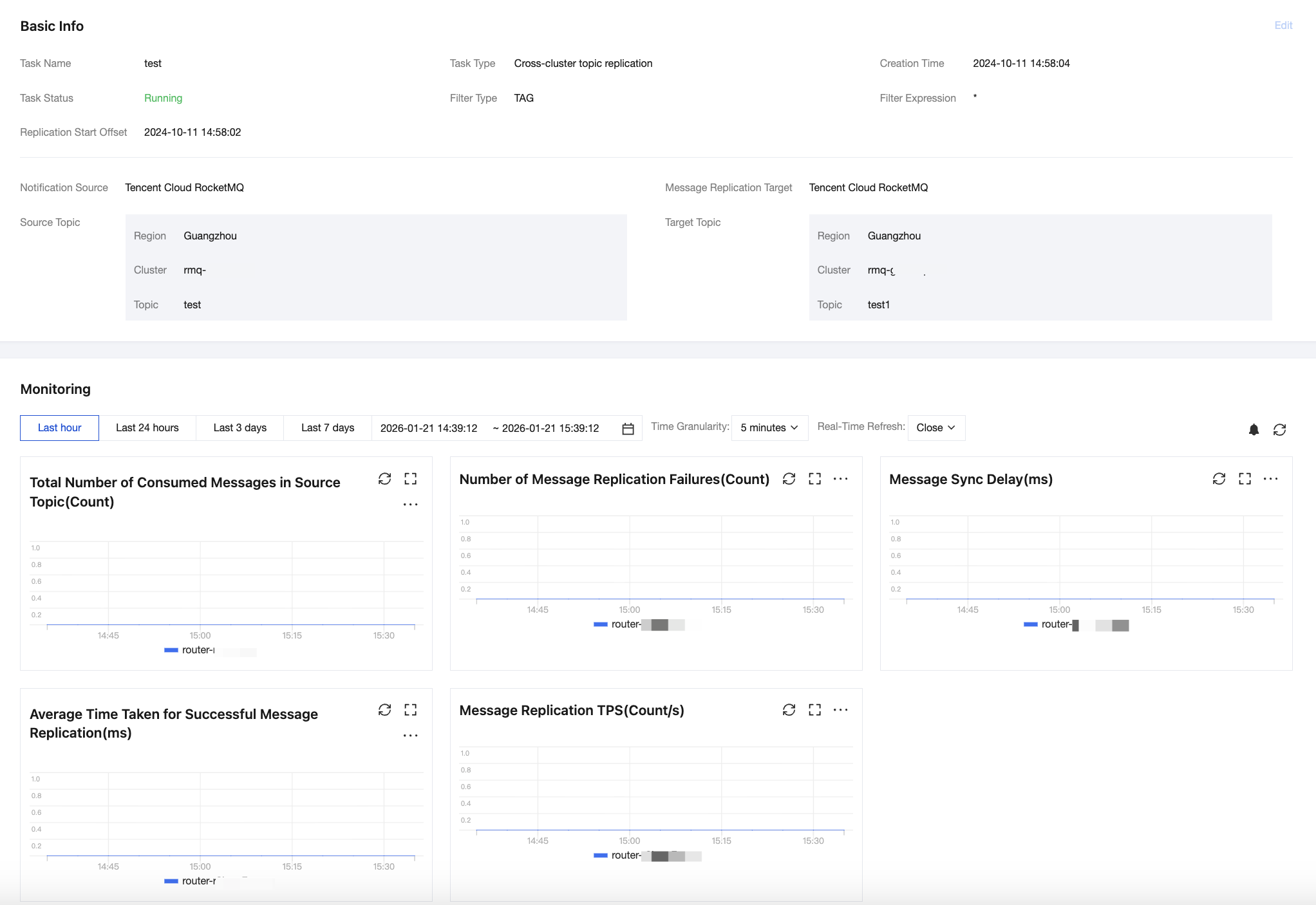
You cannot modify the configuration of running tasks. To modify the configuration of a replication task, pause the task and then click Edit in the operation column. Alternatively, go to the Task Details page and click Edit in the upper-right corner of the Basic Information section to modify the task information.
You can click the task name to go to the task details page and view detailed configurations, such as filtering rules and start time. In the Monitoring section, you can view real-time monitoring data of the message replication task, including the total number of source messages consumed, the number of messages that failed to be replicated, and the message replication delay.
Handling Exceptions
Normally, the status bar displays the status as "Running" or "Paused". If the status is "Failed to start", you need to check whether the task running status and the detailed task configuration are correct, for example, whether the SQL expression is correct. Hovering the mouse over the failed status shows the specific failure reason.

If the task status is failed, you can click Edit in the operation column, or go to the Task Details page and click Edit in the upper-right corner of the Basic Information section to correct the task information.
Bantuan dan Dukungan
Apakah halaman ini membantu?
Anda juga dapat Menghubungi Penjualan atau Mengirimkan Tiket untuk meminta bantuan.
masukan