tencent cloud

TDMQ for RabbitMQ

Release Notes and Announcements
Release Notes
Announcements
Product Introduction
Introduction and Selection of the TDMQ Product Series
What Is TDMQ for RabbitMQ
Strengths
Use Cases
Description of Differences Between Managed Edition and Serverless Edition
Open-Source Version Support Description
Comparison with Open-Source RabbitMQ
High Availability
Use Limits
TDMQ for RabbitMQ-Related Concepts
Regions
Related Cloud Services
Billing
Billing Overview
Pricing
Billing Example
Convert to Monthly Subscription from Hourly Postpaid
Renewal
Viewing Consumption Details
Overdue Payments
Refund
Getting Started
Getting Started Guide
Step 1: Preparations
Step 2: Creating a RabbitMQ Cluster
Step 3: Configuring a Vhost
Step 4: Using the SDK to Send and Receive Messages
Step 5: Querying a Message
Step 6: Deleting Resources
User Guide
Usage Process Guide
Configuring the Account Permission
Creating a Cluster
Configuring a Vhost
Connecting to the Cluster
Managing Messages
Configure Advanced Feature
Managing the Cluster
Viewing Monitoring Data and Configuring Alarm Policy
Use Cases
Use Instructions of Use Cases
RabbitMQ Client Use Cases
RabbitMQ Message Reliability Use Cases
Usage Instructions for MQTT Protocol Supported by RabbitMQ
Migrate Cluster
Migrating RabbitMQ to Cloud
Step 1. Purchasing a TDMQ Instance
Step 2: Migrating Metadata to the Cloud
Step 3: Enabling Dual Read-Write
API Reference (Managed Edition)
API Overview
API Reference (Serverless Edition)
History
Introduction
API Category
Making API Requests
Relevant APIs for RabbitMQ Serverless PAAS Capacity
RabbitMQ Serverless Instance Management APIs
Data Types
Error Codes
SDK Documentation
SDK Overview
Spring Boot Starter Integration
Spring Cloud Stream Integration
Java SDK
Go SDK
Python SDK
PHP SDK
Security and Compliance
Permission Management
Network Security
Deletion Protection
Change Records
CloudAudit
FAQs
Service Level Agreement
Contact Us
DokumentasiTDMQ for RabbitMQUser GuideManaging the ClusterLogging In to the Open-Source RabbitMQ Console

Logging In to the Open-Source RabbitMQ Console

PDF
Mode fokus
Ukuran font
Terakhir diperbarui: 2026-01-05 10:26:32

Scenarios

TDMQ for RabbitMQ clusters provide an access address for the open-source RabbitMQ console. You can use this address to access the web console and configure clusters.

Constraints and Limitations

Serverless Edition clusters do not support web console access.
Managed Edition clusters in the Shanghai Autonomous Driving Cloud do not support accessing the web console through a public network.

Operation Steps

1. Log in to the TDMQ for RabbitMQ console.
2. In the left sidebar, choose Cluster, select a region, and click the ID of the target cluster to go to the basic cluster information page.
3. On the Web Console Access Address page, obtain the web UI address and username. You can use the public or private network address to log in to the open-source RabbitMQ console:
Public Network Access Address: This method is provided by default. You can configure public network access policies to restrict IP addresses and ensure data security.
Private Network Address: This requires manual enabling. After it is enabled, you can access the web console through the private network.
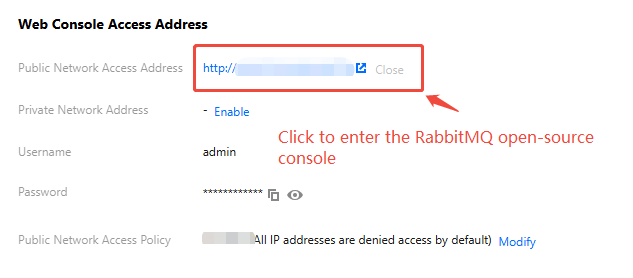
4. Open the web console access address in your browser to go to the login page.
If you use public network access, you can directly access the web page in a browser in a public network environment.
If you use private network access, you need to purchase a Cloud Virtual Machine (CVM) instance in the same network as the RabbitMQ cluster. Log in to the CVM instance, and then access the web page. For operation steps to purchase a CVM instance, see Purchasing a CVM Instance.
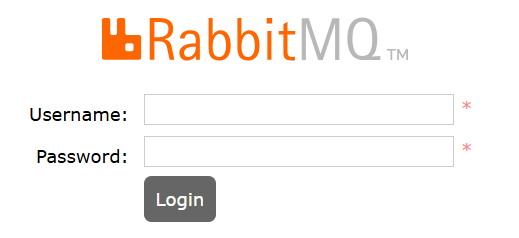
5. Enter the username and password, and click Login.

Bantuan dan Dukungan

Apakah halaman ini membantu?

masukan