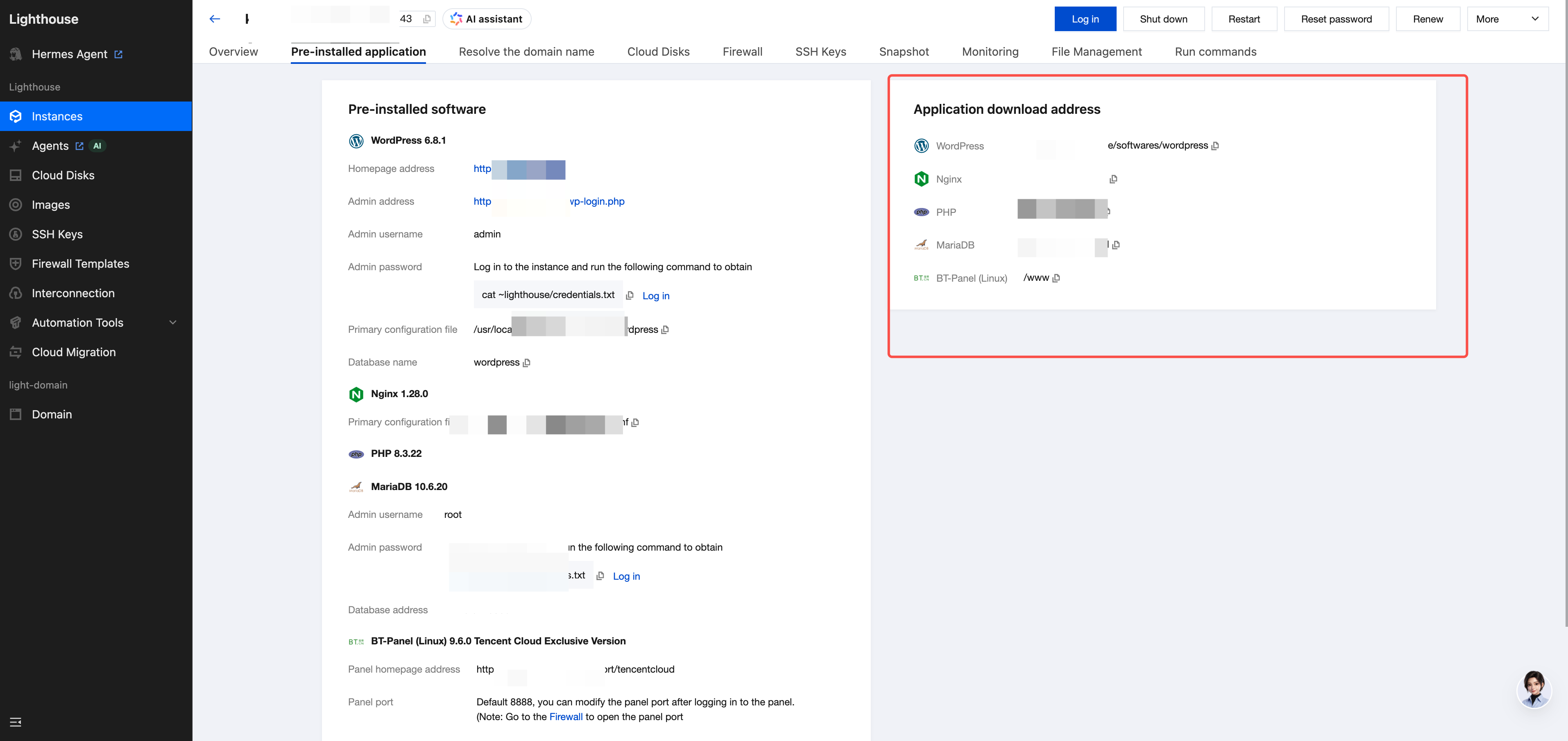
This document uses the WooCommerce 6.8.2 application image as an example. Due to differences between images, the path for configuring HTTPS may vary.
Operation Steps
1. Log in to the Lighthouse console and select Instances in the left sidebar.
2. In the Instances list, select the target instance and go to the instance details page.
3. Select the Pre-installed application tab. In the Application download address card, find the installation path of the Web Server in the current instance (for example, /www/server/nginx).
4. Log in to the server, go to the path obtained in step 3, and find the directory where the Web Server application is installed.
5. In the application installation directory, find the file named hostname.conf (for example, /www/server/nginx/conf/nginx.conf).
Note:
You can also use the cd / command to go to the root directory and search with find . -name "your hostname.conf".
6. Delete the file.
Note:
After the HTTPS configuration is deleted, clients will no longer be able to access services over HTTPS, and all requests to port 443 will fail. Back up the configuration file before proceeding and exercise caution.
rm -f the path of the found file
7. Restart Nginx.
Note:
Restarting the Nginx service will cause a brief service interruption. Perform this operation during a maintenance window.