Synonym Configuration
Download
Focus Mode
Font Size
Tencent Cloud Elasticsearch Service (ES) allows you to configure synonyms in the following two ways: uploading a synonym file or directly referencing synonyms.
Method 1. Upload a synonym file
Notes
Rolling restart of the cluster will be triggered after you upload a synonym file.
A newly uploaded/modified synonym file does not take effect for legacy indices, so you need to create a new index accordingly. For example, if the existing index
myindex uses the synonym.txt synonym file, but the file is modified and uploaded again, then the existing index myindex will not dynamically load the updated synonyms. You need to reindex the existing index; otherwise, the updated synonym file will take effect only for new indices.A synonym file must contain one synonym expression per line (the expressions support Solr rules and WordNet rules), be encoded in UTF-8, and have the
.txt file extension; for example:coke,cola => cola,cokeelasticsearch,es => es
You are allowed to upload a maximum of 10 synonym files of up to 10 MB in size each.
Directions
1. Log in to the Tencent Cloud ES Console.
2. On the cluster list page, click a cluster ID to enter the cluster details page.
3. Click Advanced Configuration and enter the Synonym Configuration page.
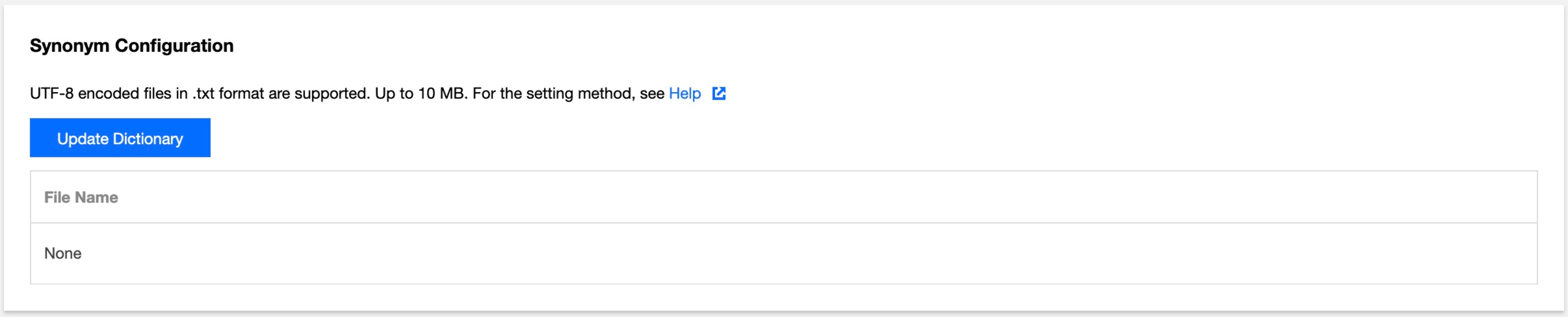
4. Click Update Dictionary and upload a synonym file on the synonym update page.
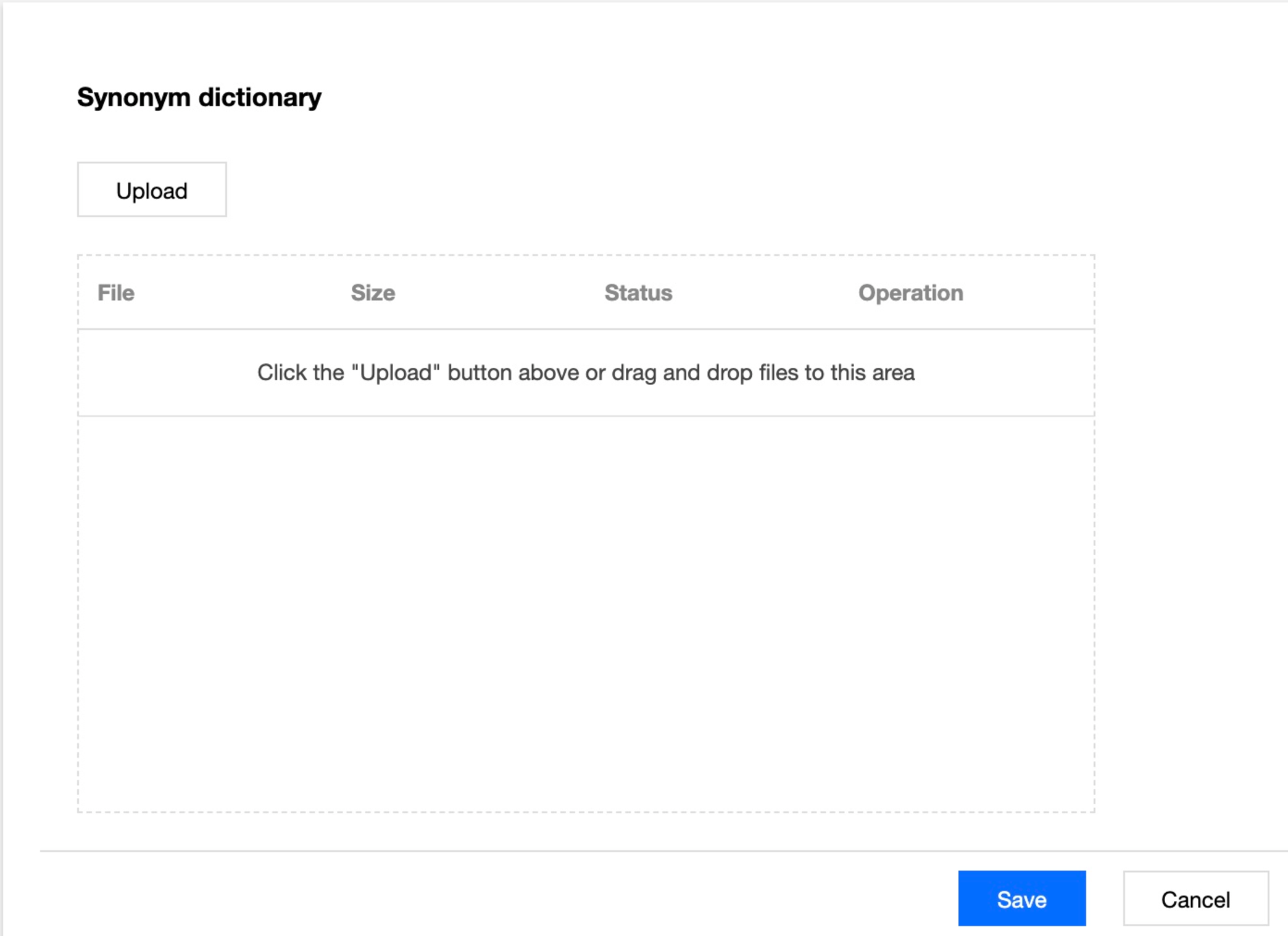
5. After the upload, click Save.
Using synonym dictionary
The following example uses the
filter filter to configure synonyms and the synonym.txt as the testing file, and the file content is elasticsearch,es => es.1. Log in to the Kibana Console of the cluster to which the synonym file has been uploaded. For detailed directions, please see Accessing Cluster Through Kibana.
2. Click "Dev Tools" on the left sidebar.
3. Run the following command in the console to create an index:
PUT /my_index{"settings": {"index": {"analysis": {"analyzer": {"my_ik": {"type": "custom","tokenizer": "ik_smart","filter": ["my_synonym"]}},"filter": {"my_synonym": {"type": "synonym","synonyms_path": "analysis/synonym.txt"}}}}},"mappings": {"_doc": {"properties": {"content": {"type": "text","analyzer": "my_ik","search_analyzer": "my_ik"}}}}}
4. Run the following command to verify the synonym configuration:
GET /my_index/_analyze{"analyzer": "my_ik","text":"tencet elasticsearch service"}
If the command is successfully executed, the following result will be returned:
{"tokens": [{"token": "tencet","start_offset": 0,"end_offset": 6,"type": "ENGLISH","position": 0},{"token": "es","start_offset": 7,"end_offset": 20,"type": "SYNONYM","position": 1},{"token": "service","start_offset": 21,"end_offset": 28,"type": "ENGLISH","position": 2}]}
In the output result,
token and es are in SYNONYM type.5. Run the following command to add some documents:
POST /my_index/_doc/1{"content": "tencet elasticsearch service"}POST /my_index/_doc/2{"content": "hello es"}
6. Run the following command to search for synonyms:
GET my_index/_search{"query" : { "match" : { "content" : "es" }},"highlight" : {"pre_tags" : ["<tag1>", "<tag2>"],"post_tags" : ["</tag1>", "</tag2>"],"fields" : {"content": {}}}}
After the command is successfully executed, the following result will be returned:
{"took": 4,"timed_out": false,"_shards": {"total": 5,"successful": 5,"skipped": 0,"failed": 0},"hits": {"total": 2,"max_score": 0.25811607,"hits": [{"_index": "my_index","_type": "_doc","_id": "2","_score": 0.25811607,"_source": {"content": "hello es"},"highlight": {"content": ["hello <tag1>es</tag1>"]}},{"_index": "my_index","_type": "_doc","_id": "1","_score": 0.25316024,"_source": {"content": "tencet elasticsearch service"},"highlight": {"content": ["tencet <tag1>elasticsearch</tag1> service"]}}]}}
Method 2. Directly reference synonyms
1. Log in to the Kibana Console of the target cluster. For detailed directions, please see Accessing Cluster Through Kibana.
2. Click "Dev Tools" on the left sidebar.
3. Run the following command in the console to create an index:
PUT /my_index{"settings": {"index": {"analysis": {"analyzer": {"my_ik": {"type": "custom","tokenizer": "ik_smart","filter": ["my_synonym"]}},"filter": {"my_synonym": {"type": "synonym","synonyms": ["elasticsearch,es => es"],}}}}},"mappings": {"_doc": {"properties": {"content": {"type": "text","analyzer": "my_ik","search_analyzer": "my_ik"}}}}}
Here, different from the method of using a synonym file, when synonyms are defined in
filter, synonyms instead of a synonym file are directly referenced: "synonyms": ["elasticsearch,es => es"]4. Run the following command to verify the synonym configuration:
GET /my_index/_analyze{"analyzer": "my_ik","text":"tencet elasticsearch service"}
If the command is successfully executed, the following result will be returned:
{"tokens": [{"token": "tencet","start_offset": 0,"end_offset": 6,"type": "ENGLISH","position": 0},{"token": "es","start_offset": 7,"end_offset": 20,"type": "SYNONYM","position": 1},{"token": "service","start_offset": 21,"end_offset": 28,"type": "ENGLISH","position": 2}]}
In the output result,
token and es are in SYNONYM type.5. Run the following command to add some documents:
POST /my_index/_doc/1{"content": "tencet elasticsearch service"}POST /my_index/_doc/2{"content": "hello es"}
6. Run the following command to search for synonyms:
GET my_index/_search{"query" : { "match" : { "content" : "es" }},"highlight" : {"pre_tags" : ["<tag1>", "<tag2>"],"post_tags" : ["</tag1>", "</tag2>"],"fields" : {"content": {}}}}
After the command is successfully executed, the following result will be returned:
{"took": 4,"timed_out": false,"_shards": {"total": 5,"successful": 5,"skipped": 0,"failed": 0},"hits": {"total": 2,"max_score": 0.25811607,"hits": [{"_index": "my_index","_type": "_doc","_id": "2","_score": 0.25811607,"_source": {"content": "hello es"},"highlight": {"content": ["hello <tag1>es</tag1>"]}},{"_index": "my_index","_type": "_doc","_id": "1","_score": 0.25316024,"_source": {"content": "tencet elasticsearch service"},"highlight": {"content": ["tencet <tag1>elasticsearch</tag1> service"]}}]}}
Help and Support
Was this page helpful?
You can also Contact sales or Submit a Ticket for help.
Help us improve! Rate your documentation experience in 5 mins.
Feedback