제품 업데이트
Tencent Cloud 오디오/비디오 단말 SDK 재생 업그레이드 및 권한 부여 인증 추가
TRTC 월간 구독 패키지 출시 관련 안내
TUIRoomKit, assisting you in better mastering the related feature operations of TUIRoomKit before joining and during the meeting process. Through this document, you can fully utilize the features of TUIRoomKit to achieve high-quality audio and video meetings.If the UI interaction of TUIRoomKit does not meet your product needs, and you have your own interaction and business logic that requires custom implementation of meeting control related interaction features, you can integrate TUIRoomEngineSDK and refer to the relevant calls of Key Code to meet your needs.Enter conference | Member management | All dute/All disable drawing |
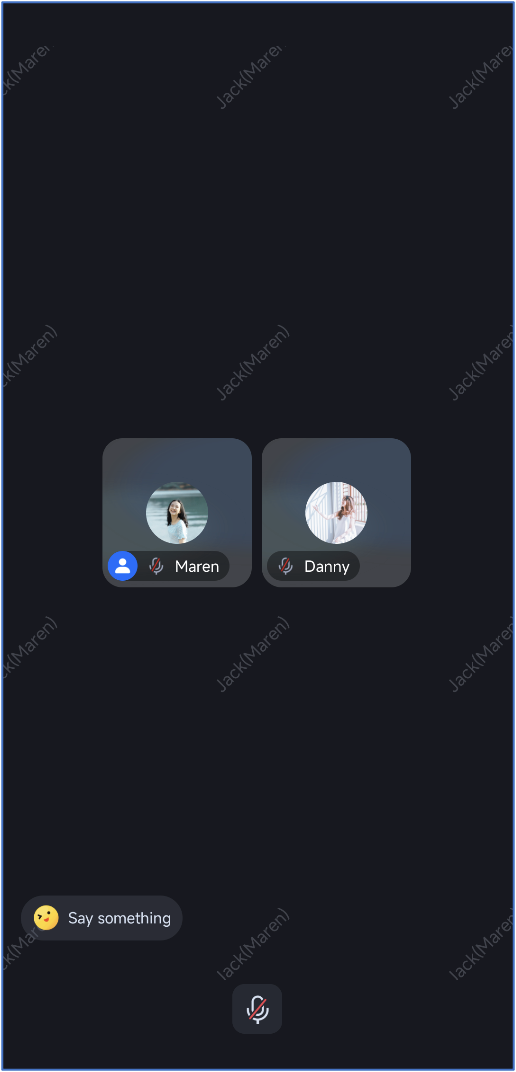 | 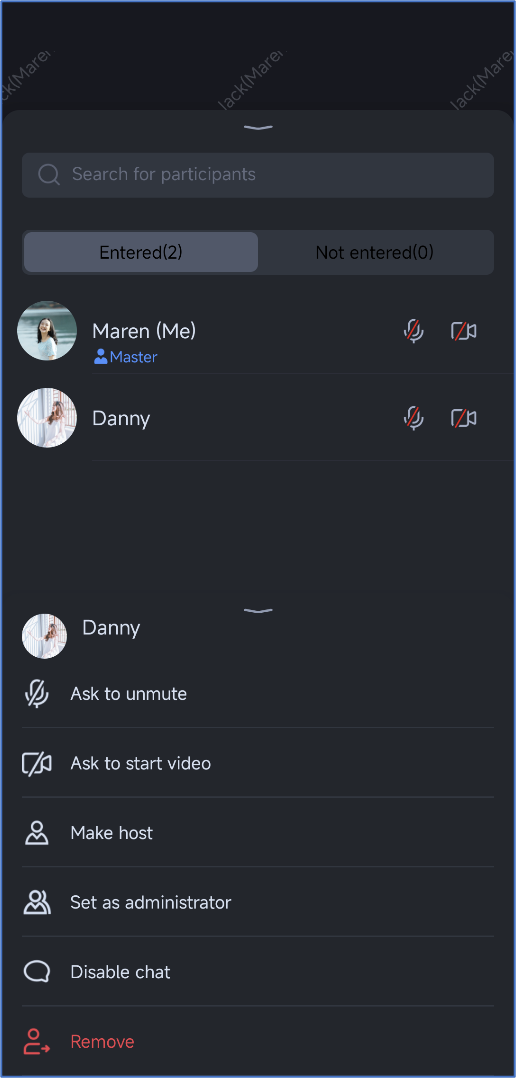 | 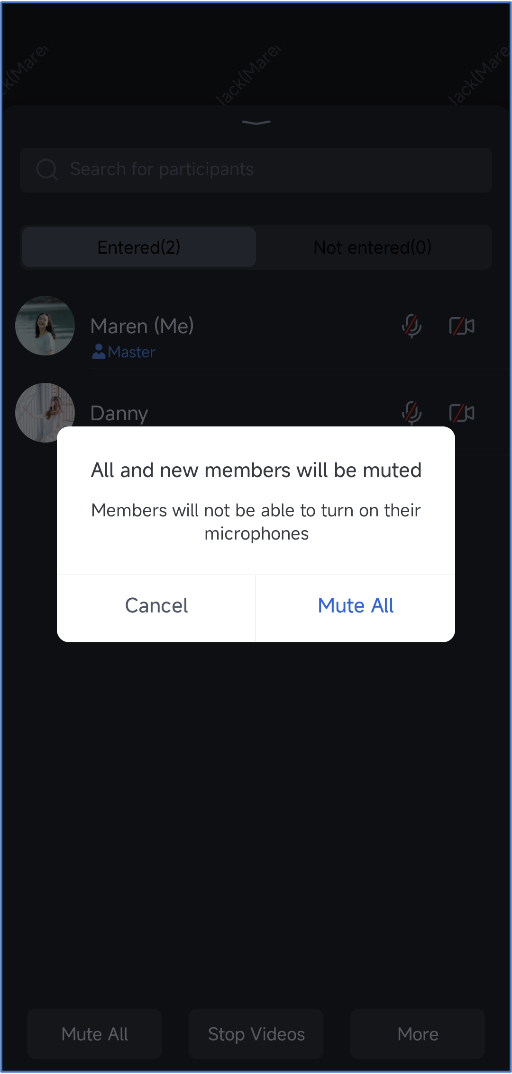 |
Pre-conference Controls | |
Create Room | You can configure the room: Enable Microphone/Camera/Speaker, All Mute, All Disable Drawing, Room Password, Room Name, Created Room Type (Free Speech/Request to Speak) |
Enter Room | You can configure the room: turn on the microphone/camera/speaker. |
In-conference controls | |
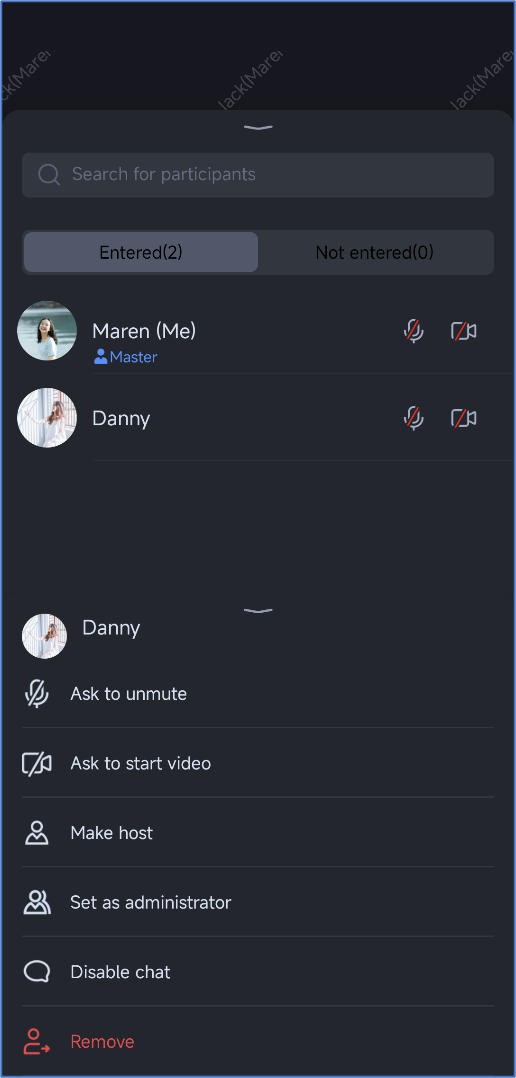
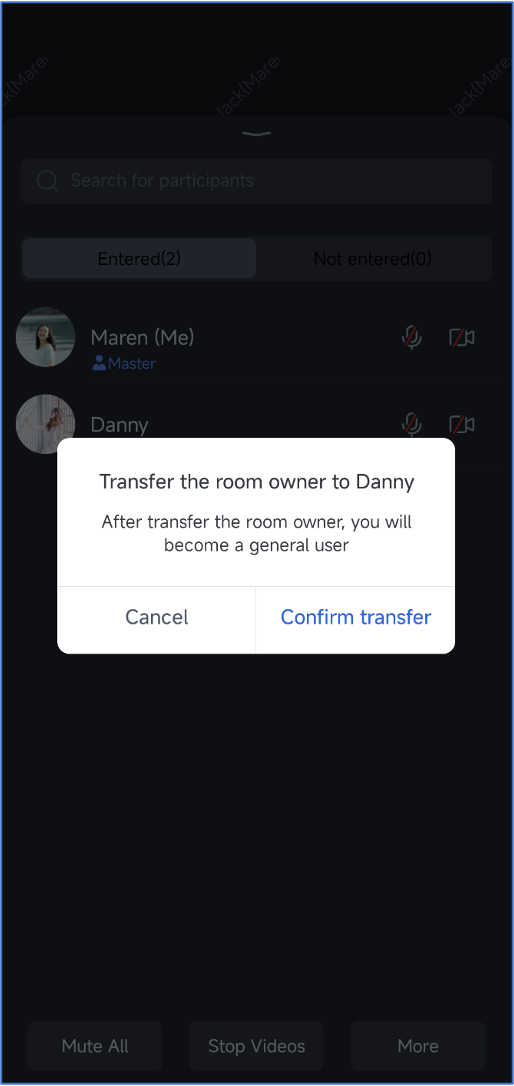
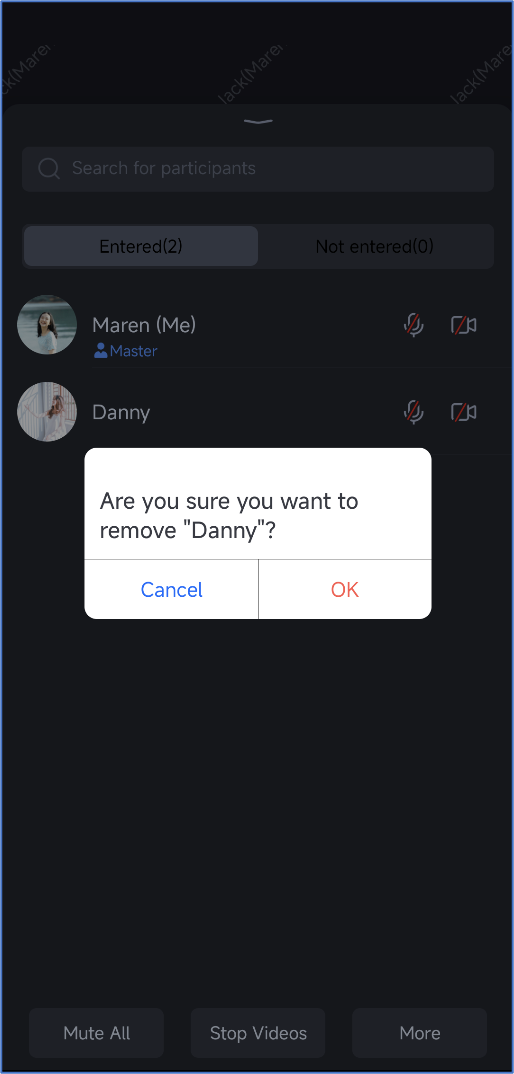
You are the roomowner or the administrator | You can control the room: all mute/prohibit drawing, invite members to the stage or kick them off (stage speaking room), set administrator and transfer ownership, kick members out of the room, turn on or off their cameras/microphones. |
TUIRoomKit pre-conference control to ensure the meet.Create room | Enter room |
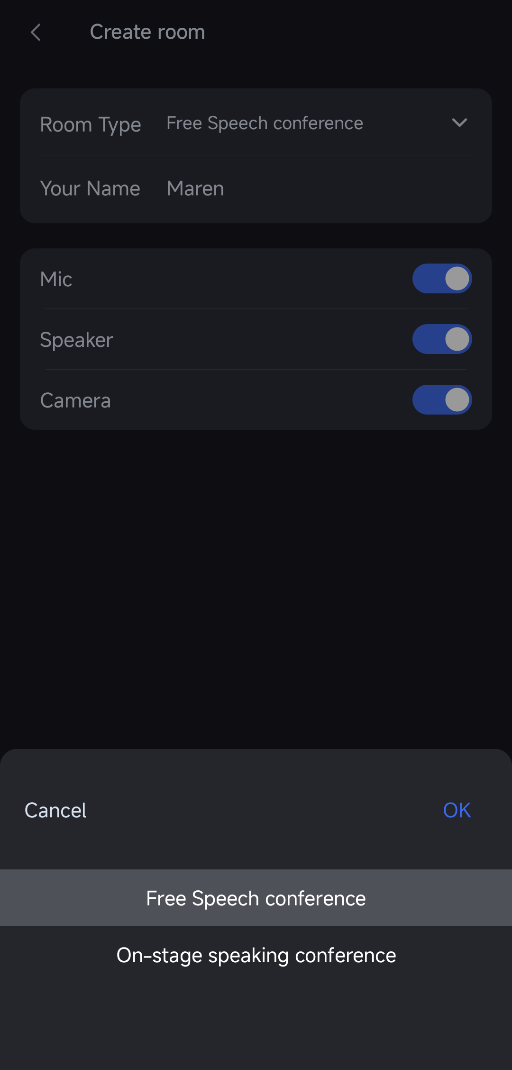 | 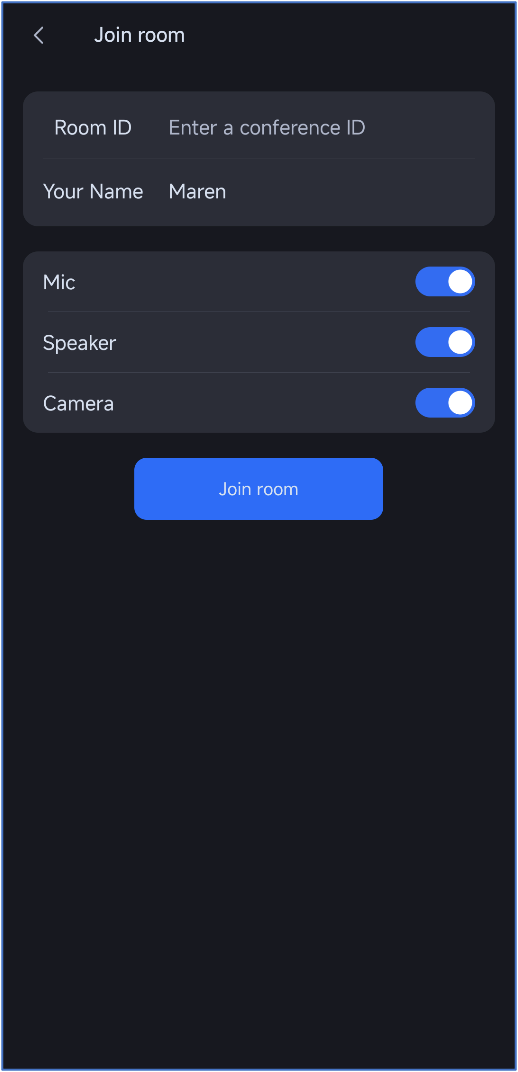 |
ConferenceDefine.StartConferenceParams params = new ConferenceDefine.StartConferenceParams("roomId of the room");params.isSeatEnabled = false; // true: On-stage speaking conference, false: Free speech conference.params.password = "password of the room"; // Room password.params.name = "name of the room"; // Room Name.params.isOpenCamera = true; // Enable Camera.params.isOpenMicrophone = true; // Enable Microphone.params.isOpenSpeaker = true; // Enable Speaker.params.isCameraDisableForAllUser = false; // Enable All Disable Drawing.params.isMicrophoneDisableForAllUser = false; // Enable All Mute.Intent intent = new Intent(this, ConferenceMainActivity.class);intent.putExtra(KEY_START_CONFERENCE_PARAMS, params);startActivity(intent);
import TUIRoomKitfunc quickStartConference() {let vc = ConferenceMainViewController()let params = StartConferenceParams(roomId: "111111") // Please replace "111111" with your defined conference numberparams.isSeatEnabled = false // true: stage speaking room, false: free speaking room.params.password = "12345" // Please replace "12345" with your defined conference password.params.name = "YourConferenceName" // Please replace "YourConferenceName" with your defined conference name.params.isOpenCamera = true // Turn on the camera.params.isOpenMicrophone = true // Turn on the microphone.params.isOpenSpeaker = true // Turn on the speaker.params.isCameraDisableForAllUser = true // Enable all disable drawing.params.isMicrophoneDisableForAllUser = true // Enable All Mute.vc.setStartConferenceParams(params: params)navigationController?.pushViewController(vc, animated: true)}
var conferenceSession = ConferenceSession.newInstance("Your conferenceId")..isMuteMicrophone = false..isOpenCamera = false..isSoundOnSpeaker = true..name = "Your Meeting Name"..enableMicrophoneForAllUser = true..enableCameraForAllUser = true..enableMessageForAllUser = true..enableSeatControl = false..onActionSuccess = () { // Callback for successful operation. You can navigate to the meeting interface hereNavigator.push(context,MaterialPageRoute(builder: (context) => ConferenceMainPage(),),);}..onActionError = (ConferenceError error, String message) {} // Callback for operation failure..quickStart();
ConferenceDefine.JoinConferenceParams params = new ConferenceDefine.JoinConferenceParams("roomId of the room to join");params.isOpenCamera = true; // Turn on the cameraparams.isOpenMicrophone = true; // Turn on the microphoneparams.isOpenSpeaker = true; // Turn on the speakerIntent intent = new Intent(this, ConferenceMainActivity.class);intent.putExtra(KEY_JOIN_CONFERENCE_PARAMS, params);startActivity(intent);
import TUIRoomKitfunc joinConference() {let vc = ConferenceMainViewController()let params = JoinConferenceParams(roomId: "111111") // Please replace "111111" with the meeting ID you want to joinparams.isOpenCamera = true // Turn on the cameraparams.isOpenMicrophone = true // Turn on the microphoneparams.isOpenSpeaker = true // Turn on the speakervc.setJoinConferenceParams(params: params)navigationController?.pushViewController(vc, animated: true)}
var conferenceSession = ConferenceSession.newInstance("Your conferenceId")..isMuteMicrophone = false..isOpenCamera = false..isSoundOnSpeaker = true..onActionSuccess = () { // Callback for successful operation. You can navigate to the meeting interface hereNavigator.push(context,MaterialPageRoute(builder: (context) => ConferenceMainPage(),),);}..onActionError = (ConferenceError error, String message) {} // Callback for operation failure..join()
Field | Type | Meaning |
isMuteMicrophone | bool | Whether to mute the microphone (default is false) |
isOpenCamera | bool | Whether to turn on the camera (default is false) |
isSoundOnSpeaker | bool | Whether to use the speaker (default is true) |
password | String | Meeting password (default is empty, not enabled) |
name | String | Meeting name (default is your conferenceId) |
enableMicrophoneForAllUser | bool | Whether to enable microphone permission for all staff (default is true) |
enableCameraForAllUser | bool | Whether to enable camera permission for all staff (default is true) |
enableMessageForAllUser | bool | Whether to enable speaking permission for all staff (default is true) |
enableSeatControl | bool | Whether to enable podium speech mode (default is false) |
Member management | Transfer homeowner | Remove from room |
 |  |  |
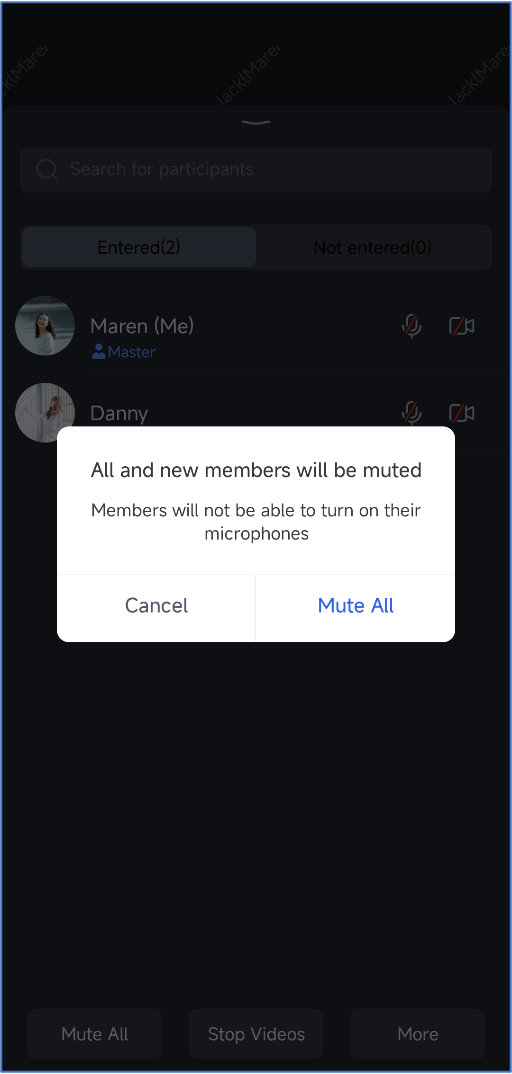
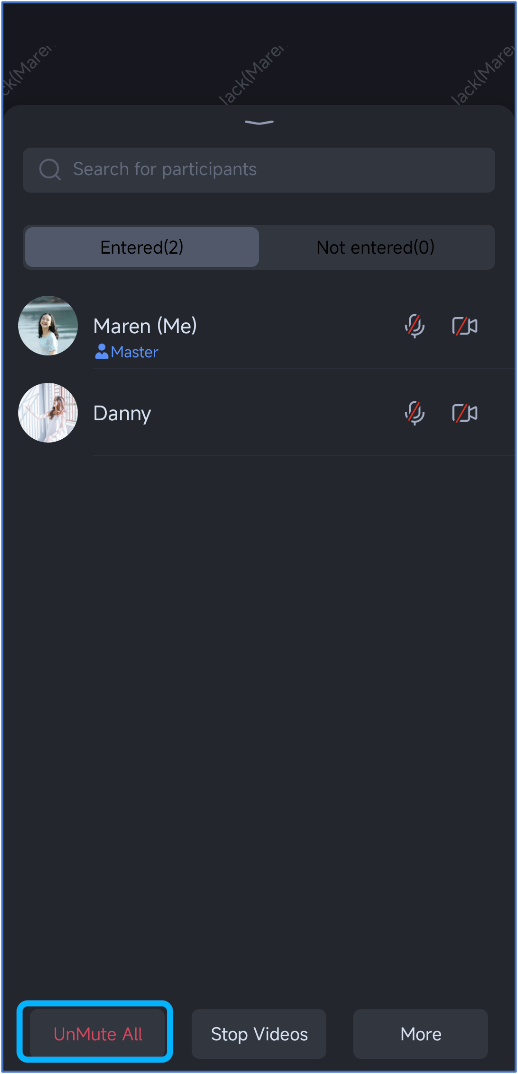
Mute All | Unmute All |
 |  |
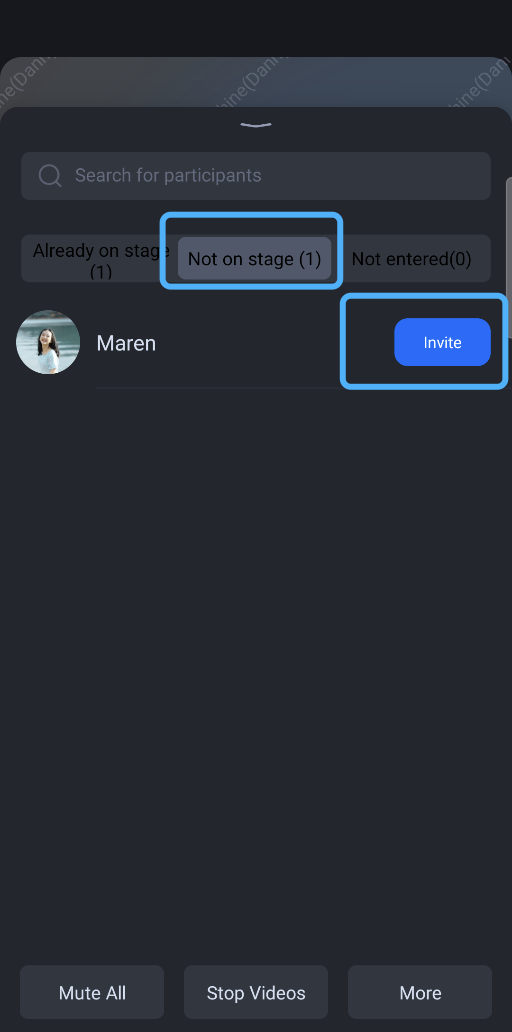
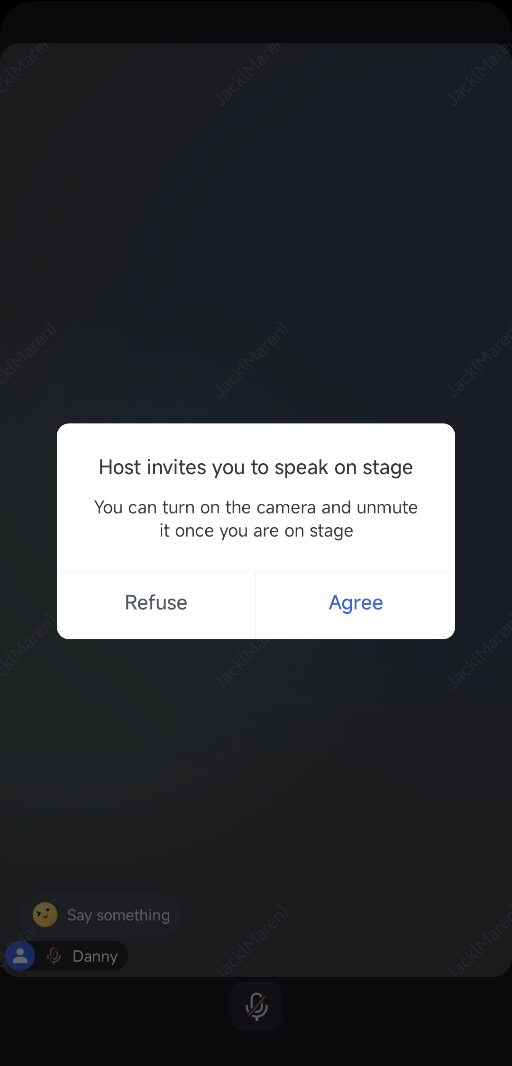
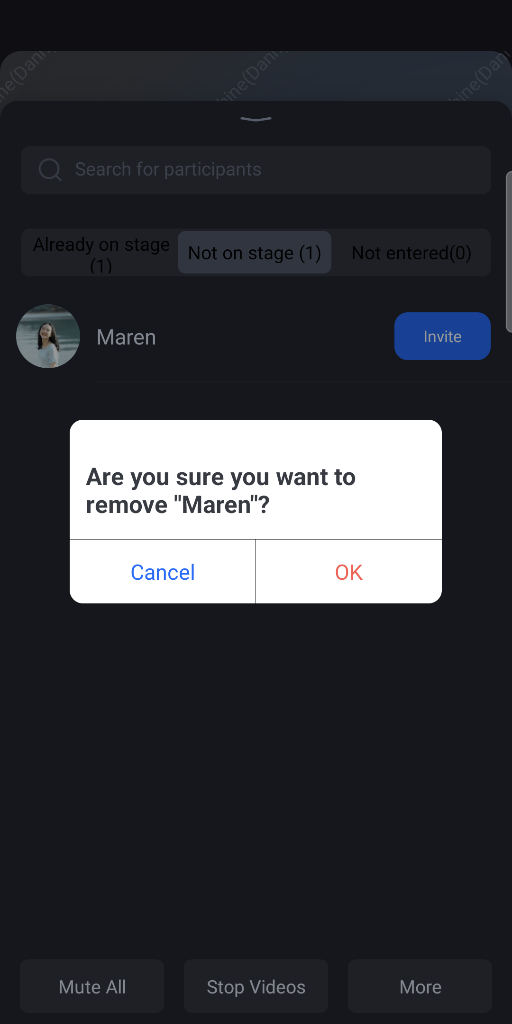
Invite to Take the Stage (Homeowner or Administrator) | Invited room | Kick Someone Off the Stage (Homeowner or Administrator) |
 |  |  |
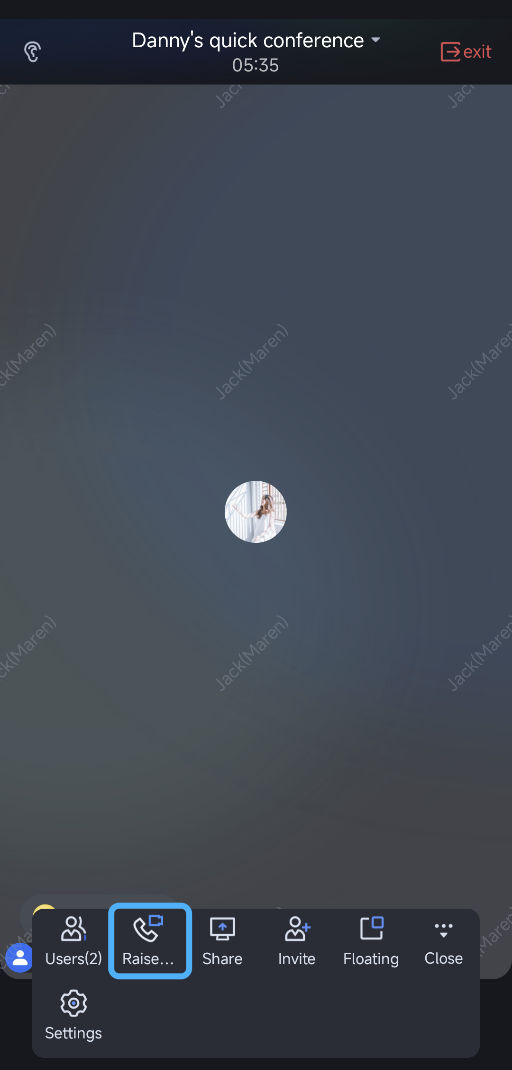
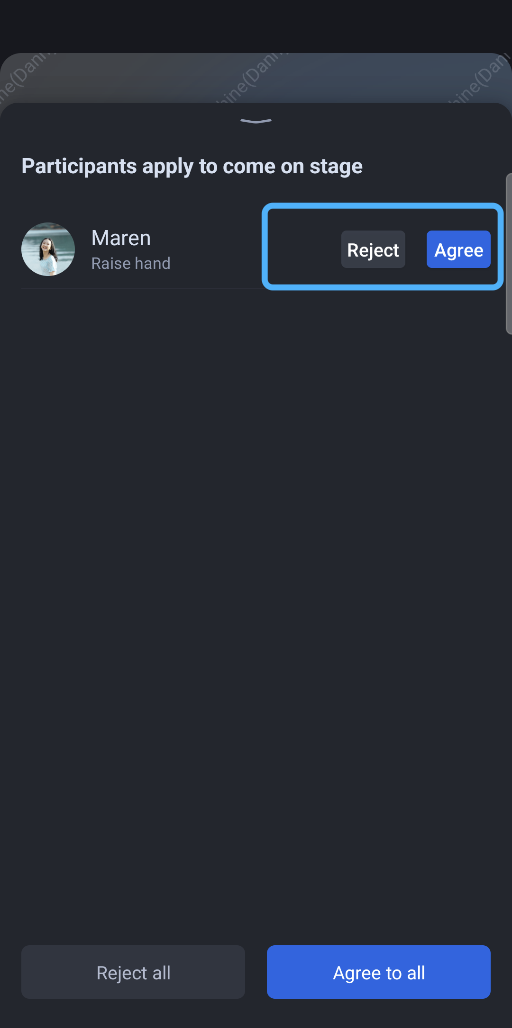
Regular member apply to take the stage | Homeowner or administrator approves taking the Stage |
 |  |
피드백