Component Overview
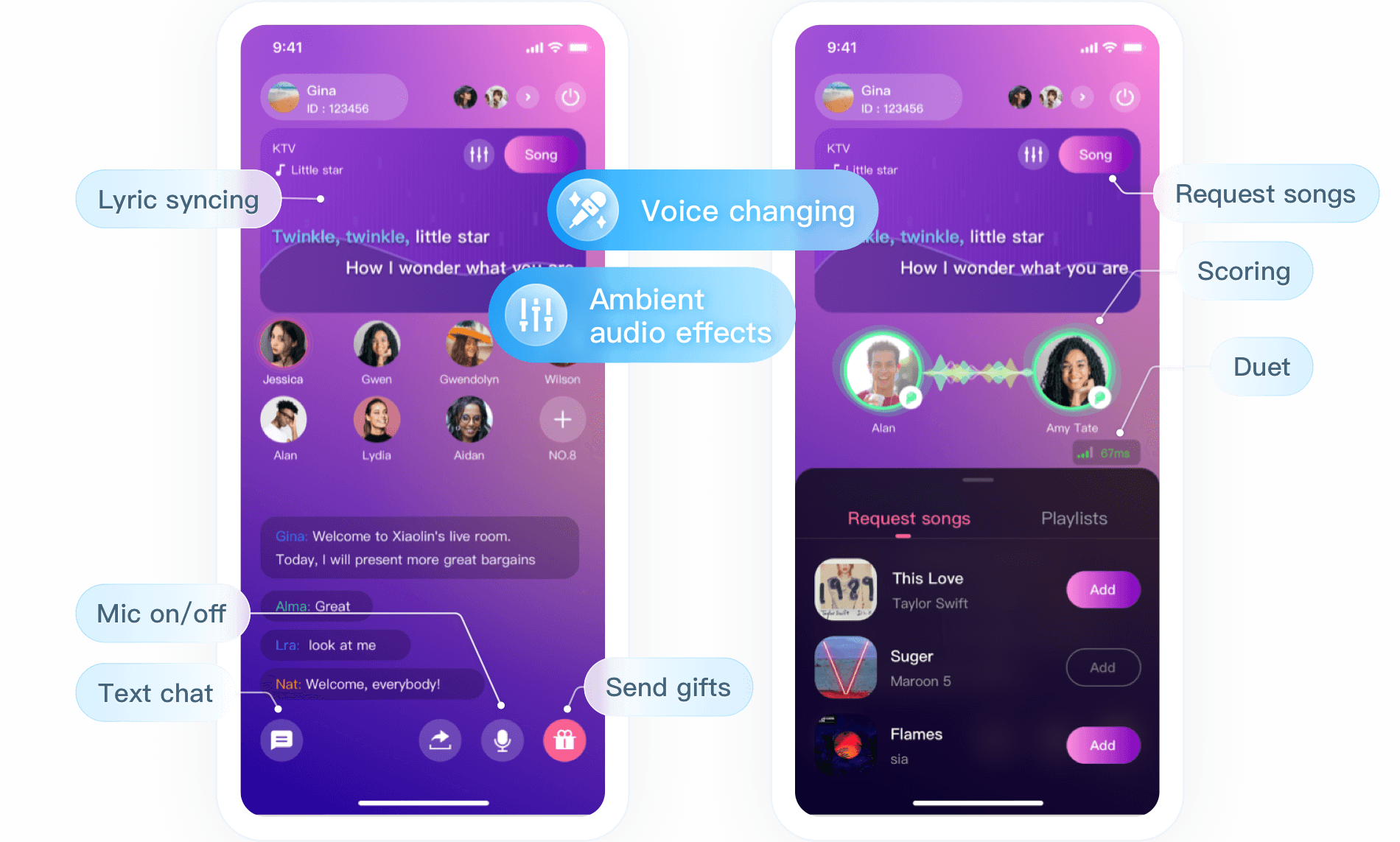
TUIKaraoke is an open-source audio/video UI component that you can integrate into your project to bring online karaoke, seat management, gift giving/receiving, text chat, and other TRTC features to your application. TUIKaraoke requires only a few lines of code and also supports the iOS platform. Its basic features are shown below:
Component Integration
Step 1. Download and import the TUIKaraoke component
Go to GitHub, clone or download the code, copy the Source and Debug directories in the Android directory to your project, and complete the following import operations: Complete import in setting.gradle as shown below:
include ':Source'
include ':Debug'
Add dependencies on TUIKaraoke to the build.gradle file in app:
Add dependencies on TRTC SDK and IM SDK to the build.gradle file in the root directory:
ext {
liteavSdk = "com.tencent.liteav:LiteAVSDK_TRTCl:latest.release"
imSdk = "com.tencent.imsdk:imsdk-plus:latest.release"
}
Configure permission requests for your app in AndroidManifest.xml. The SDKs need the following permissions (on Android 6.0 and later, the mic access and storage read permission must be requested at runtime):
<uses-permission android:name="android.permission.SYSTEM_ALERT_WINDOW" /> // Use case: This permission is required for the floating window
<uses-permission android:name="android.permission.INTERNET" />
<uses-permission android:name="android.permission.ACCESS_NETWORK_STATE" />
<uses-permission android:name="android.permission.ACCESS_WIFI_STATE" />
<uses-permission android:name="android.permission.RECORD_AUDIO" />
<uses-permission android:name="android.permission.MODIFY_AUDIO_SETTINGS" />
<uses-permission android:name="android.permission.BLUETOOTH" /> // Use case: This permission is required when a Bluetooth headset is used
In the proguard-rules.pro file, add the SDK classes to the "do not obfuscate" list.
-keep class com.tencent.** { *;}
Step 3. Initialize and log in to the component
For more information on relevant APIs, see TUIKaraoke.
TRTCKaraokeRoom mTRTCKaraokeRoom = TRTCKaraokeRoom.sharedInstance(this);
mTRTCKaraokeRoom.setDelegate(this);
mTRTCKaraokeRoom.login(SDKAppID, UserID, UserSig, new TRTCKaraokeRoomCallback.ActionCallback() {
@Override
public void onCallback(int code, String msg) {
if (code == 0) {
}
}
});
Parameter description:
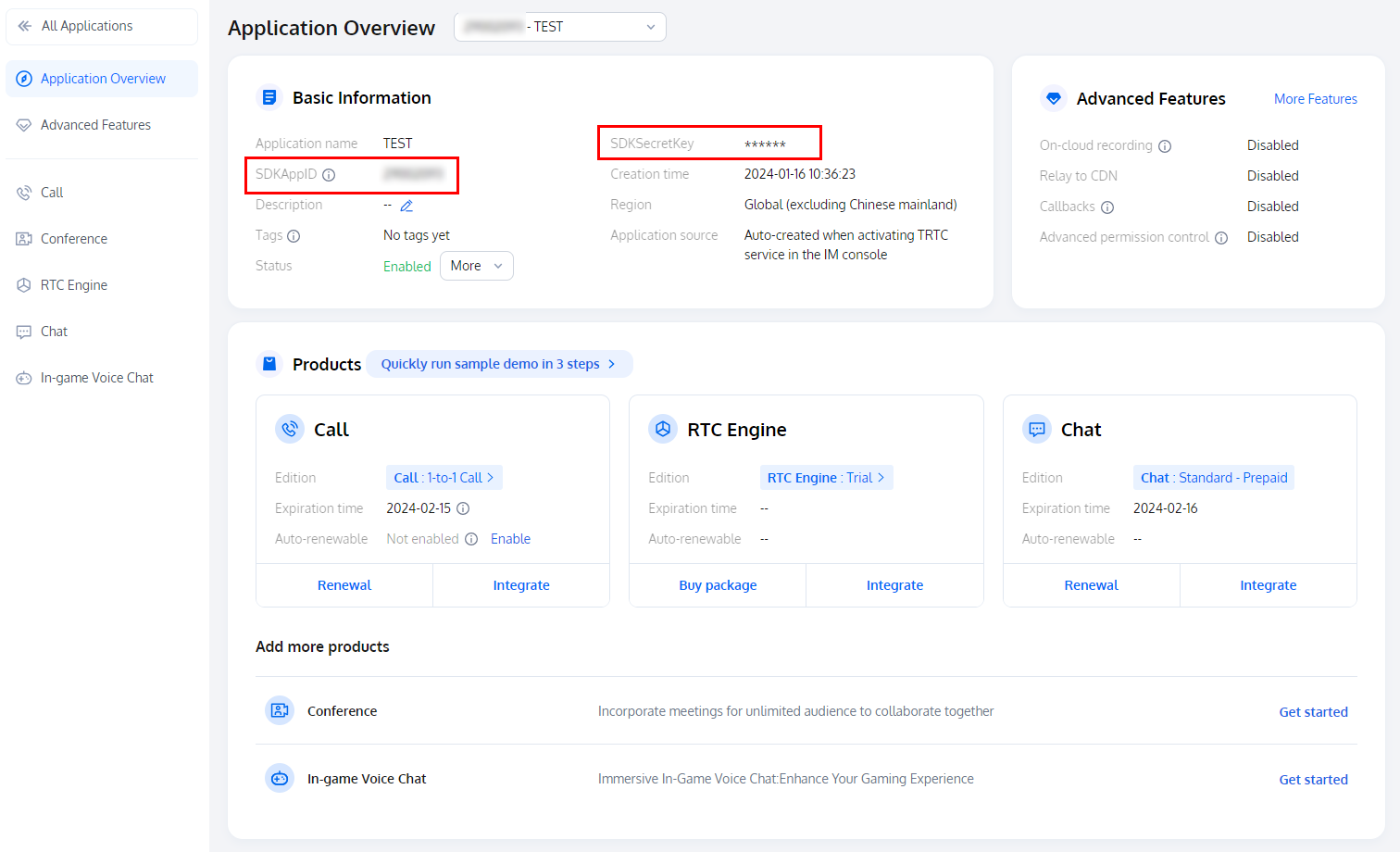
SDKAppID: TRTC application ID. If you haven't activated the TRTC service, log in to the TRTC console, create a TRTC application, and click Application Info, SDKAppID information is as shown in the figure below:
Secretkey: TRTC application key, which corresponds to SDKAppID. On the Application Management page in the TRTC console, the SecretKey is as shown below: userId: Current user ID, which is a string and can contain up to 32 bytes of letters and digits (special symbols are not supported). You can customize it based on your actual account system.
userSig: Security protection signature calculated based on SDKAppID, userId, and Secretkey. You can click here to directly generate a debugging userSig online. For more information, see UserSig. Step 4. Implement the online karaoke scenario
int roomId = "Room ID";
TRTCKaraokeRoomDef.RoomParam roomParam = new TRTCKaraokeRoomDef.RoomParam();
roomParam.roomName = "Room name";
roomParam.needRequest = false;
roomParam.seatCount = 8;
roomParam.coverUrl = "URL of room cover image";
mTRTCKaraokeRoom.createRoom(roomId, roomParam, new TRTCKaraokeRoomCallback.ActionCallback() {
@Override
public void onCallback(int code, String msg) {
if (code == 0) {
}
}
});
mTRTCKaraokeRoom.enterRoom(roomId, new TRTCKaraokeRoomCallback.ActionCallback() {
@Override
public void onCallback(int code, String msg) {
if (code == 0) {
}
}
});
int seatIndex = 1;
mTRTCKaraokeRoom.enterSeat(seatIndex, new TRTCKaraokeRoomCallback.ActionCallback() {
@Override
public void onCallback(int code, String msg) {
if (code == 0) {
}
}
});
@Override
public void onSeatListChange(final List<TRTCKaraokeRoomDef.SeatInfo> seatInfoList) {
}
4. Play back songs and try out the karaoke scenario
You can get the music ID and URL to play back a song based on your business. For more information, see Music Playback APIs.
mTRTCKaraokeRoom.startPlayMusic(musicID,url);
mTRTCKaraokeRoom.stopPlayMusic();
After completing the previous steps, you can implement the basic karaoke features. If your business needs more features such as text chat and gift giving, you can integrate the following capabilities:
Step 5. Add the text chat feature (optional)
If you want the text chat feature between anchors and listeners, implement message sending/receiving as follows:
For more information on relevant APIs, see sendRoomTextMsg.
mTRTCKaraokeRoom.sendRoomTextMsg("Hello Word!", new TRTCKaraokeRoomCallback.ActionCallback() {
@Override
public void onCallback(int code, String msg) {
if (code == 0) {
}
}
});
mTRTCKaraokeRoom.setDelegate(new TRTCKaraokeRoomDelegate() {
@Override
public void onRecvRoomTextMsg(String message, TRTCKaraokeRoomDef.UserInfo userInfo) {
Log.d(TAG, "Received a message from" + userInfo.userName + ": " + message);
}
});
Step 6. Add the gift giving feature (optional)
If you want the gift giving and receiving features, implement gift giving, receiving, and displaying as follows:
mTRTCKaraokeRoom.sendRoomCustomMsg("CMD_GIFT",date, new TRTCKaraokeRoomCallback.ActionCallback() {
@Override
public void onCallback(int code, String msg) {
if (code == 0) {
}
}
});
mTRTCKaraokeRoom.setDelegate(new TRTCKaraokeRoomDelegate() {
@Override
public void onRecvRoomCustomMsg(String cmd, String message, TRTCKaraokeRoomDef.UserInfo userInfo) {
if ("CMD_GIFT".equals(cmd)) {
Log.d(TAG, "Received a gift from" + userInfo.userName + ": " + message);
}
}
});
FAQs
Does the TUIKaraoke component support sound effect features such as voice change, tone change, and reverb?
Yes.
Note
If you have any suggestions or feedback, please contact colleenyu@tencent.com.