The Prometheus community developed JMX Exporter for exporting JVM monitoring metrics so that Prometheus can be used to collect monitoring data. After your Java business is containerized into Kubernetes, you can learn how to use Prometheus and JMX Exporter to monitor Java applications by reading this document.
Introduction to JMX Exporter
Java Management Extensions (JMX) is an extended framework for Java management. Based on this framework, JMX Exporter reads the runtime status of JVMs. JMX Exporter utilizes the JMX mechanism of Java to read JMX runtime monitoring data and then converts the data to metrics that can be recognized by Prometheus. In this way, you can use Prometheus to collect the monitoring data.
JMX Exporter provides two methods for opening JVM monitoring metrics: independent process launch and JVM in-process launch:
1. Independent process launch
Parameters are specified during JVM launch to open the RMI API of JMX. JMX Exporter calls RMI to obtain JVM runtime status data, converts the data to Prometheus metrics, and opens the port to allow collection by Prometheus.
2. JVM in-process launch
Parameters are specified during JVM launch to run the jar package of JMX Exporter as a javaagent. JVM runtime status data is read in-process and then converted to Prometheus metrics, and the port is opened to allow collection by Prometheus.
Note:
We do not recommend the independent process launch method, because it requires complicated configuration and involves an independent process. The monitoring of the process itself can incur new problems. In this document, the JVM in-process launch method is used as an example, in which JMX Exporter is used in the Kubernetes environment to open JVM monitoring metrics.
Directions
Opening JVM monitoring metrics by using JMX Exporter
Packaging images
When using the JVM in-process launch method to launch JVM, you need to specify the jar package and configuration files of JMX Exporter. The jar package is a binary file that is difficult to mount with configmap. We recommend that you directly package the jar package and configuration file of JMX Exporter into a business container image. The process is as follows:
1. Create a directory for producing images and place the JMX Exporter configuration file prometheus-jmx-config.yaml into the directory.
ssl:false
lowercaseOutputName:false
lowercaseOutputLabelNames:false
Note:
For more configuration items, refer to the official Prometheus document.
2. Prepare a jar package file. To do this, go to the GitHub page of jmx_exporter to obtain the download address of the latest jar package and run the following command to download the package to the created directory.
Now, you have completed image packaging. You can also use the docker multi-stage building feature and skip the step of manually downloading the jar package. The following shows a sample Dockerfile:
FROM ubuntu:16.04 as jar
WORKDIR /
RUN apt-get update -y
RUN DEBIAN_FRONTEND=noninteractive apt-get install -y wget
RUN wget https://repo1.maven.org/maven2/io/prometheus/jmx/jmx_prometheus_javaagent/0.13.0/jmx_prometheus_javaagent-0.13.0.jar
When an application is deployed in Kubernetes, you must modify JVM launch parameters in order to load JMX Exporter during launch. During launch, JVM reads the JAVA_OPTS environmental variable as an extra launch parameter. During deployment, you can add this environmental variable for the application. The following shows an example:
In this example, port 8088 is used to open the monitoring metrics of JVM. You can use another port as needed.
Adding a Prometheus monitoring configuration
Configure Prometheus to enable monitoring data collection. The following shows an example:
-job_name: tomcat
scrape_interval: 5s
kubernetes_sd_configs:
-role: endpoints
namespaces:
names:
- default
relabel_configs:
-action: keep
source_labels:
- __meta_kubernetes_service_label_app
regex: tomcat
-action: keep
source_labels:
- __meta_kubernetes_endpoint_port_name
regex: jmx-metrics
If prometheus-operator has been installed, you can create a CRD object of ServiceMonitor to configure Prometheus. The following shows an example:
apiVersion: monitoring.coreos.com/v1
kind: ServiceMonitor
metadata:
name: tomcat
namespace: default
labels:
app: tomcat
spec:
endpoints:
-port: jmx-metrics
interval: 5s
namespaceSelector:
matchNames:
- default
selector:
matchLabels:
app: tomcat
Adding a Grafana monitoring dashboard
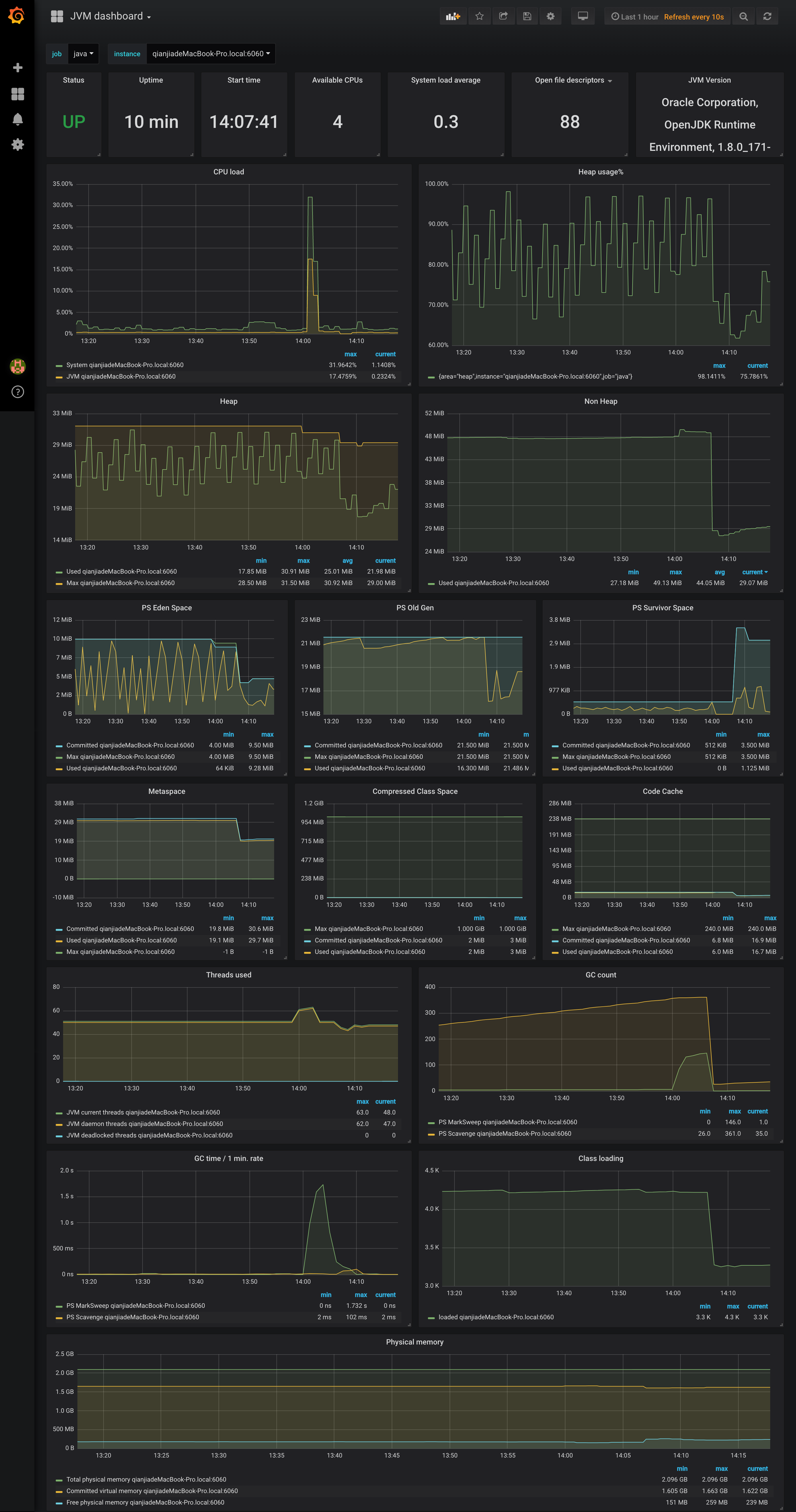
Collected data can be displayed. If you are familiar with Prometheus and Grafana, you can design a dashboard based on your specific metrics. Alternatively, you can use the dashboards provided by the community, such as the JVM dashboard. This dashboard can be directly imported for use. The following figure shows the dashboard view: