Authorization: A request header that carries authentication information to verify the legitimacy of a request. The Pic-Operations header must be included in the signature information. For details, see the Request Signature documentation.
Pic-Operations is a JSON format string. For specific parameter details, refer to Persistent Image Processing.
When fileid is the same as ObjectKey, the processed image will overwrite the original image storage; if they are different, the original image and the processed image will be stored separately.
The value of fileid needs to be passed through URL-safe Base64 encoding.
Processing Parameter Description
Operation name: thumbnail.
Parameter
Meaning
Type
Required
ObjectKey
Object filename, for example folder/sample.jpg.
String
Yes
/thumbnail/!<Scale>p
Specify the width and height of the image as Scale% of the original image. The value range is integers from 1 to 1000. Values exceeding this range will not be processed.
String
No
/thumbnail/!<Scale>px
Specify the width of the image as Scale% of the original image. The height remains unchanged. The value range is integers from 1 to 1000. Values exceeding this range will not be processed.
String
No
/thumbnail/!x<Scale>p
Specify the height of the image as Scale% of the original image. The width remains unchanged. The value range is integers from 1 to 1000. Values exceeding this range will not be processed.
String
No
/thumbnail/<Width>x
Specify the width of the target image as Width. The height is proportionally scaled. The value range is integers from 1 to 10000. Values exceeding this range will be set to 10000.
String
No
/thumbnail/x<Height>
Specify the height of the target image as Height. The width is proportionally scaled. The value range is integers from 1 to 10000. Values exceeding this range will be set to 10000.
String
No
/thumbnail/<Width>x<Height>
Limit the maximum width and height of thumbnails to Width and Height respectively. Perform proportional scaling, with the ratio being the smaller value between the width scaling ratio and height scaling ratio. The value range for Width and Height is 1 - 10000. Values exceeding this range will be set to 10000.
Note:
Width scaling ratio: Target width / Original image width; Height scaling ratio: Target height / Original image height.
String
No
/thumbnail/!<Width>x<Height>r
Limit the minimum width and height of thumbnails to Width and Height respectively. Perform proportional scaling, with the ratio being the larger value between the width scaling ratio and height scaling ratio. The value range for Width and Height is 1 - 10000. Values exceeding this range will be set to 10000.
Note:
Width scaling ratio: Target width / Original image width; Height scaling ratio: Target height / Original image height.
String
No
/thumbnail/<Width>x<Height>>
Limit the maximum width and height of thumbnails to Width and Height respectively. Perform proportional scaling down, with the ratio being the smaller value between the width scaling ratio and height scaling ratio. The value range for Width and Height is 1 - 10000. Values exceeding this range will be set to 10000. If the target width (height) is larger than the original image width (height), no processing will be performed.
Note:
Width scaling ratio: Target width / Original image width; Height scaling ratio: Target height / Original image height.
String
No
/thumbnail/<Width>x<Height><
Limit the maximum width and height of thumbnails to Width and Height respectively. Perform proportional scaling up, with the ratio being the smaller value between the width scaling ratio and height scaling ratio. The value range for Width and Height is 1 - 10000. Values exceeding this range will be set to 10000. If the target width (height) is larger than the original image width (height), no processing will be performed.
Note:
Width scaling ratio: Target width / Original image width; Height scaling ratio: Target height / Original image height.
String
No
/thumbnail/<Width>x<Height>!
Ignore the original image's aspect ratio. Specify the image width as Width and height as Height. Forcefully scale the image, which may cause deformation of the target image. The value range for Width and Height is 1 - 10000. Values exceeding this range will be set to 10000.
String
No
/thumbnail/<Area>@
Scale the image proportionally, such that the total pixel count of the result does not exceed Area.
String
No
/pad/<pad>
Scale the original image to the largest size within a rectangle of specified Width and Height, then center it and fill the blank area with the color specified by the color parameter; take value 0 or 1.
0: disable pad mode
1: enable pad mode
String
No
/color/<color>
Fill color, <color> should be set in hexadecimal RGB format (e.g., #FF0000). For details, see RGB Color Codes Chart. The value must be converted into URL-safe Base64 encoding. The default value is #FFFFFF, which represents white.
String
No
/ignore-error/1
When processing requests carry this parameter, if operations fail due to oversized files or parameter exceeds limit, it will directly return the original image without reporting an error.
String
No
Note:
Among the multiple thumbnail parameters in the table, at least one must be selected. If multiple parameters are selected, only the first one will be processed. For example, if two parameters are selected: /thumbnail/!<Scale>p/!x<Scale>p, only !<Scale>p will take effect.
Practical Example
Note:
The examples in this documentation contain only processing during download. This type of processing will not save the processed images to the storage bucket. If you have a need to save, you can check the Persistent Image Processing document and configure process upon upload or cloud data processing.
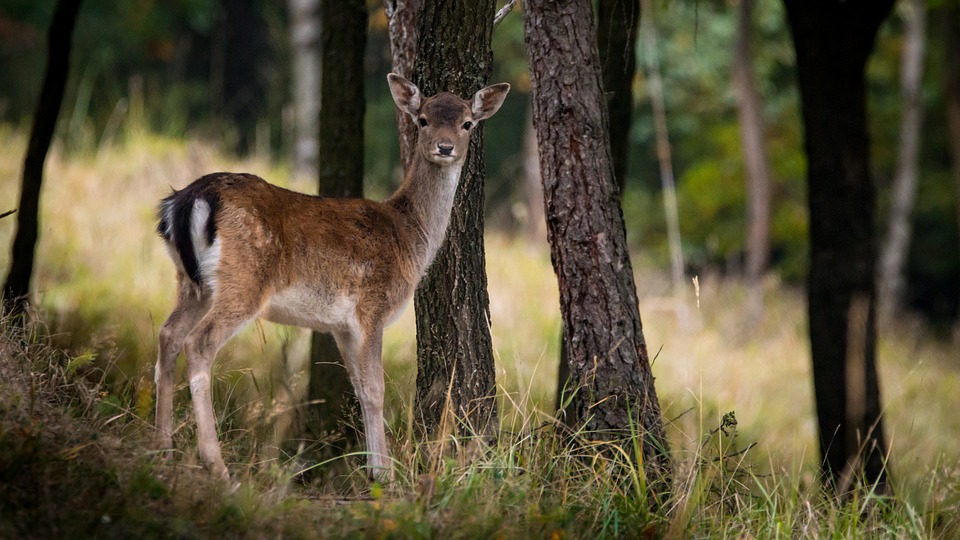
Input image:
Case One: Scaling Width and Height
Assume the image width and height are scaled to 50% of the original image. The example is as follows:
Scale the original image to the largest size within a 600 x 600 rectangle and use the specified color to fill the blank parts. The example is as follows:
<signature> is the signature part. To obtain it, please refer to Request Signature documentation.
Important Notes
To prevent unauthorized personnel from accessing and downloading the original image through links that do not carry processing parameters, you can include the processing parameters in the request signature. The processing parameters are the key in the overall parameters, with an empty value. A simple example is provided below (for reference only; the link may be expired and inaccessible). For detailed calculation methods, please refer to Request Signature.