tencent cloud

Cloud Object Storage

Release Notes and Announcements
Release Notes
Announcements
Product Introduction
Overview
Features
Use Cases
Strengths
Concepts
Regions and Access Endpoints
Specifications and Limits
Service Regions and Service Providers
Billing
Billing Overview
Billing Method
Billable Items
Free Tier
Billing Examples
Viewing and Downloading Bill
Payment Overdue
FAQs
Getting Started
Console
Getting Started with COSBrowser
User Guide
Creating Request
Bucket
Object
Data Management
Batch Operation
Global Acceleration
Monitoring and Alarms
Operations Center
Data Processing
Content Moderation
Smart Toolbox
Data Processing Workflow
Application Integration
User Tools
Tool Overview
Installation and Configuration of Environment
COSBrowser
COSCLI (Beta)
COSCMD
COS Migration
FTP Server
Hadoop
COSDistCp
HDFS TO COS
GooseFS-Lite
Online Tools
Diagnostic Tool
Use Cases
Overview
Access Control and Permission Management
Performance Optimization
Accessing COS with AWS S3 SDK
Data Disaster Recovery and Backup
Domain Name Management Practice
Image Processing
Audio/Video Practices
Workflow
Direct Data Upload
Content Moderation
Data Security
Data Verification
Big Data Practice
COS Cost Optimization Solutions
Using COS in the Third-party Applications
Migration Guide
Migrating Local Data to COS
Migrating Data from Third-Party Cloud Storage Service to COS
Migrating Data from URL to COS
Migrating Data Within COS
Migrating Data Between HDFS and COS
Data Lake Storage
Cloud Native Datalake Storage
Metadata Accelerator
GooseFS
Data Processing
Data Processing Overview
Image Processing
Media Processing
Content Moderation
File Processing Service
File Preview
Troubleshooting
Obtaining RequestId
Slow Upload over Public Network
403 Error for COS Access
Resource Access Error
POST Object Common Exceptions
API Documentation
Introduction
Common Request Headers
Common Response Headers
Error Codes
Request Signature
Action List
Service APIs
Bucket APIs
Object APIs
Batch Operation APIs
Data Processing APIs
Job and Workflow
Content Moderation APIs
Cloud Antivirus API
SDK Documentation
SDK Overview
Preparations
Android SDK
C SDK
C++ SDK
.NET(C#) SDK
Flutter SDK
Go SDK
iOS SDK
Java SDK
JavaScript SDK
Node.js SDK
PHP SDK
Python SDK
React Native SDK
Mini Program SDK
Error Codes
Harmony SDK
Endpoint SDK Quality Optimization
Security and Compliance
Data Disaster Recovery
Data Security
Cloud Access Management
FAQs
Popular Questions
General
Billing
Domain Name Compliance Issues
Bucket Configuration
Domain Names and CDN
Object Operations
Logging and Monitoring
Permission Management
Data Processing
Data Security
Pre-signed URL Issues
SDKs
Tools
APIs
Agreements
Service Level Agreement
Privacy Policy
Data Processing And Security Agreement
Contact Us
Glossary

COSBrowser

PDF
Mode fokus
Ukuran font
Terakhir diperbarui: 2024-12-03 17:52:45

What is COSBrowser?

COSBrowser is a visual interface tool launched by Tencent Cloud COS to make it easier and simpler for you to view, transfer, manage, and interact with COS resources. Currently, it is available for desktop (Windows, macOS, Linux) and mobile clients (Android, iOS). For more information, see COSBrowser Overview.

How do I download COSBrowser?

For the download URL and instructions, see COSBrowser Overview.

How do I log in to COSBrowser?

Desktop Version login
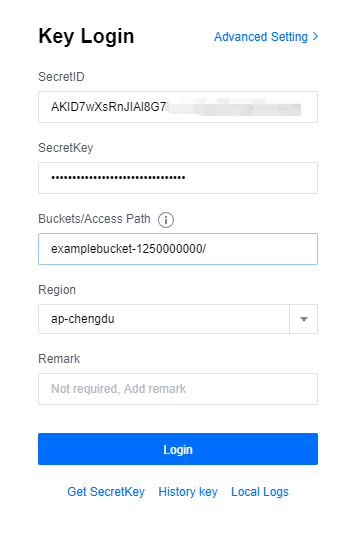
COSBrowser Desktop Version can be logged in only with a TencentCloud API key.
Parameter description:
1. TencentCloud API secretID and secretKey : You can get them on the API Key page in the CAM console. After you log in successfully, the key will be saved in Historical Key for future use.
2. Bucket/Access Path: You can leave it empty when logging in with the root account. If you use a sub-account for login, you need to enter an authorized path such as example-1250000000/test/.
Note:
You cannot log in to COSBrowser with a project key.
Mobile Version login COSBrowser Mobile Version supports the following three login options:
Login with WeChat: If your Tencent Cloud account was created through WeChat or associated with a specific WeChat account, you can use the WeChat account to quickly log in to COSBrowser.
Login with email: If your Tencent Cloud account was created through email or associated with a specific email address, you can log in to COSBrowser by entering the email address and password.
Login with permanent key: You can log in using your TencentCloud API key (SecretId and SecretKey; project key is not supported), which can be obtained on the API Key page in the CAM console. After successful login, the account will be kept logged in permanently.
Note:
If your Tencent Cloud account was created with a QQ account, you can also use the login with WeChat method to log in just by selecting login with QQ on the redirected WeChat Mini Program screen.
If you use a sub-account, you can log in with key or WeChat. For login with WeChat, just select the sub-account on the redirected WeChat Mini Program screen.
For more information, see COSBrowser Overview.

Why can't I find the storage path when I log in to COSBrowser with a sub-account?

1. Make sure that the sub-account has permission to access COS. For more information, see Granting Sub-accounts Access to COS.
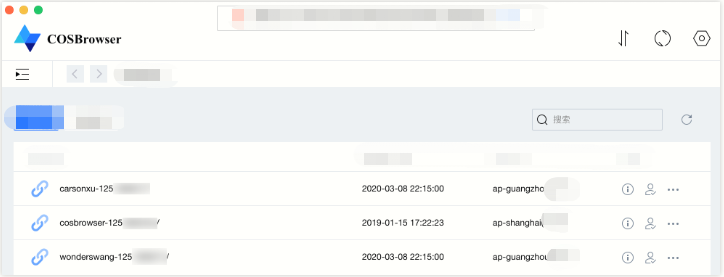
2. If the sub-account only has permission to access a specified bucket or a specified directory under a bucket, you need log in to COSBrowser and manually add a storage path in "Bucket" or "Bucket/Object-prefix" format (for example, examplebucket-1250000000), and select the region where the bucket should reside.


Can I log in to COSBrowser with a temporary key?

Login with a temporary key is not supported.

How do I enter the trial version of COSBrowser?

Notes for trial
Application trial rules:
After entering the trial version of the application, COSBrowser will automatically generate a temporary account and log in. The temporary account is for one-time use. After exit, it will be automatically logged out of, with all data erased.
The temporary account is valid for 24 hours. If you want to continue the trial after expiration, click again on this page.
Application trial restrictions:
The trial version only provides basic data management capabilities, such as uploading files, downloading files, and sharing links. To try out more features, log in with your personal account. For more information, see Getting Started with COSBrowser.

What should I do if I can't launch the COSBrowser client by double-clicking on the CentOS GUI?

You can run the ./cosbrowser.AppImage --no-sandbox command in the terminal to launch COSBrowser.

What are the system requirements for COSBrowser installation?

Currently, COSBrowser are available on Desktop Version and Mobile Version.
Desktop Version
Requirements for Windows: Windows 7 32/64-bit or later or Windows Server 2008 R2 64-bit or later
Requirements for macOS: macOS 10.13 or later
Requirements for Linux: GUI- and AppImage-enabled distributions
Mobile Version
Requirements for Android: Android 4.4 or later
Requirements for iOS: iOS 11 or later
For the download address, see Download URL.

What is the file sync feature of COSBrowser?

You can use the file sync feature of COSBrowser Desktop Version to upload specified files in your local folders to a bucket in real time. For detailed directions, see the description of the file sync feature in User Guide for Desktop Version.

Can I see all file thumbnails at a time in the file list in COSBrowser?

COSBrowser currently can't directly display the thumbnails of all files.

Why are only three buckets displayed in the list on COSBrowser Mobile Version?

The overview page of COSBrowser Mobile Version displays three buckets by default. You can scroll down to view more buckets.

Can I use COSBrowser to directly upload objects to the STANDARD_IA storage class?

COSBrowser uploads objects to the STANDARD storage class by default. You can select the storage class and access permission when uploading objects.

How do I transfer a large number of files at a greater speed?

Take COSBrowser for Windows as an example. You can navigate to Advanced Settings, and configure a greater number of concurrent files and parts under Upload and Download.
You can copy a file link as follows:
1. Select the target file in the file list and right-click Copy Link to open the Copy Custom Link window.
2. In the file list, click Details to open the Details window, directly copy the object address or create a temporary link.
Note:
If public read is enabled for the file, you can use an unsigned link, i.e., object address (valid permanently) to access it.
If private read is enabled for the file, you must use a signed link to access it. You can customize the link validity period in the Copy Link window, which is 2 hours by default.

What should I do if the error "Update failed due to permission denied" is reported when I run COSBrowser on macOS?


Cause The above issue may occur when the two files com.tencent.cosbrowser and com.tencent.cosbrowser.ShipIt under the /Users/username/Library/Caches/ directory belong to a root account and a user account, respectively. The resulting permission issue can cause update failures.
Solution Run the following command in Terminal on your Mac:
sudo chown $USER ~/Library/Caches/com.tencent.cosbrowser.ShipIt/

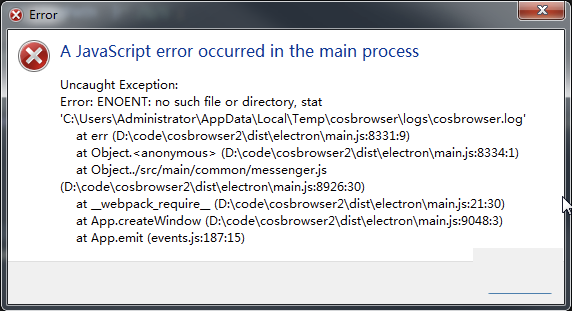
What should I do if the error "no such file or directory, stat 'C:\\Users\\XXX\\AppData\\Local\\Temp\\cosbrowser\\logs\\cosbrowser.log'" is reported and COSBrowser cannot be used?


Solution: We recommend you download v2.1.x or later.

What should I do if cosbrowser.exe installation is interrupted?

Cause This problem occurs if COSBrowser has been installed before, but its traces have not been removed from your system after manual deletion. Therefore, when you reinstall it, the installer aborts the installation as it identifies existing traces but no actual application.
Solution Manually remove the traces left after the previous installation of COSBrowser, or use a cleaner tool (such as the Software Management tool provided by Tencent PC Manager).

What should I do if a DNS error is reported when I go to the file list in COSBrowser?

The DNS error indicates that the COS domain name failed to be resolved in your local network. We recommend you change your local DNS server address to a public one such as 114.114.114.114 and try again or change the network environment for testing.

Bantuan dan Dukungan

Apakah halaman ini membantu?

masukan