tencent cloud

Cloud Workload Protection Platform

Agreements
Terms of Service
Service Level Agreement
데이터 처리 및 보안 계약
문서Cloud Workload Protection Platform

Offline Agent on Linux

포커스 모드
폰트 크기
마지막 업데이트 시간: 2023-12-26 16:40:17
This topic describes how to troubleshoot the CWPP agent running on Linux, including how to troubleshoot the failed startup of CWPP agent processes and network failures.

Failed Startup of CWPP Agent Processes

1. Enter the command ps -ef|grep YD to check whether the CWPP processes exist.
Normally, CWPP has two processes as shown below:


If the processes do not exist, possible reasons include the following:
The CWPP agent is not installed on the server or has been uninstalled from the server. Please install it by following the steps described in Getting Started
The agent has a conflict or crash, which leads to the failed startup of processes.
2. If CWPP agent has been installed on the server, troubleshoot the problem using the following method:
View the agent log stored in /usr/local/qcloud/YunJing/log.
Run the command sh /usr/local/qcloud/YunJing/startYD.sh to start CWPP.

Network Failures

If the processes exist, but CWPP is offline, the issue is caused by network disconnection in most cases. Troubleshoot the issue by following the steps below:
1. If you are unable to access the CWPP security domain, try changing the DNS. Run the following command line to check whether the CWPP security domain is accessible:
VPC or CPM environment: telnet s.yd.tencentyun.com 5574. Normally, the returned result is as shown below:


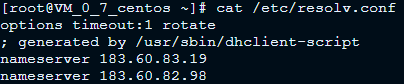
If it is inaccessible: a. Change the field dns nameserver: vim /etc/resolv.confnameserver 183.60.83.19nameserver 183.60.82.98 b. Then run telnet s.yd.tencentyun.com 5574 again to check whether you can connect to it.

c. If it can be connected, wait for a few minutes (the time length depends on the network conditions), and then you will see that the server is online again.
Basic network environment (non-VPC servers): telnet s.yd.qcloud.com 5574. Normally, the returned result is as shown below:


If it is inaccessible: a. Change the field dns nameserver: vim /etc/resolv.conf. Comment the original field nameserver first, and then add a new nameserver field. b. Then run telnet s.yd.qcloud.com 5574 again to check whether you can connect to it. c. If it can be connected, wait for a few minutes (the time length depends on the network conditions), and then you will see that the server is online again.
2. Make sure your firewall policies allow the TCP ports 5574, 8080, 80, and 9080.
3. If the CWPP processes exist and the offline state of the CWPP agent is not caused by network issues, package the agent logs (log path: /usr/local/qcloud/YunJing/log) and submit a ticket for feedback.

도움말 및 지원

문제 해결에 도움이 되었나요?

피드백