tencent cloud

Cloud Streaming Services

Panduan Pengguna
Pengenalan Produk
Ikhtisar
Produk CSS
Konsep
Fitur
Kasus Penggunaan
Kekuatan
Batas Penggunaan
Panduan Pembelian
Ikhtisar Harga
Layanan Dasar
Layanan Bernilai Tambah
Proses Pembelian
Mengubah Mode Penagihan
Melihat Tagihan
Memproses Pembayaran yang Lewat Jatuh Tempo
Pertanyaan Umum Penagihan
Live Video Broadcasting (LVB)
Ikhtisar
Kasus Penggunaan
Memulai
Integrasi SDK
Live Event Broadcasting (LEB)
Ikhtisar
LEB versus LVB
Kasus Penggunaan
Memulai
Integrasi SDK
Panduan Konsol
Ikhtisar Konsol
Ikhtisar
Manajemen Streaming
Konfigurasi Fitur
Relai
Statistik Penggunaan Penagihan
Kontrol Akses Berbasis CAM
Panduan Fitur
Push dan Pemutaran Ulang
Fitur
Layanan CSS Global
Pemberitahuan Panggilan Balik
Panduan Pengguna untuk Alat Pihak Ketiga Umum
Panduan Ops
Video Macet
Memecahkan Masalah Kegagalan Push
Memecahkan Masalah Kegagalan Pemutaran Ulang
Memecahkan Masalah Latensi Tinggi
Memecahkan Masalah Kualitas Buruk pada Video yang Di-pull
Pemecahan Masalah
Kesalahan Pencampuran Streaming Langsung `InvalidParameter.OtherError`
Pertanyaan Umum
Wilayah Layanan
Penjelasan Dasar tentang Streaming Langsung
Push dan Pemutaran Ulang
Penagihan CSS
Layanan CSS Global
Perekaman Langsung
Campuran Streaming di Cloud
Konfigurasi Domain
Kompatibilitas dengan Apple ATS
Kebijakan CSS
Kebijakan Privasi
Perjanjian Pemrosesan dan Keamanan Data
Glosarium
DokumentasiCloud Streaming Services

Managing Live Video Caster

Mode fokus
Ukuran font
Terakhir diperbarui: 2025-12-19 20:51:54
The Cloud Streaming Services (CSS) console provides the Live Video Caster (LVC) service. This document describes how to configure and use the LVC and how to manage cloud streaming after activating the LVC service.

Prerequisites

You have activated the LVC service.
You have logged in to the CSS.

Creating a Caster

1. Log in to the CSS console, select Live Video Caster from the left-hand navigation pane.
2. Click Add caster.

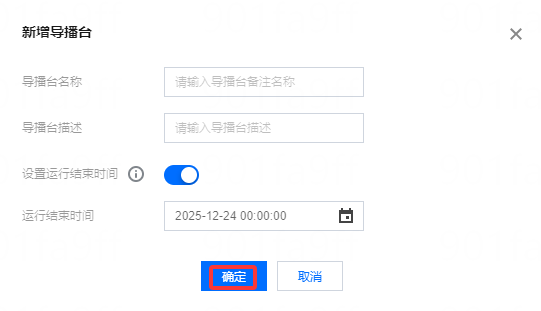
3. On the Add caster page, set the following parameters:
3.1 Caster name: Enter a custom name for the caster.
3.2 Caster description: Enter a description for the caster.
3.3 Set end time: Enabled by default.
3.4 End time: Select a time at which the caster will automatically stop.
Note:
The caster will stop at the set end time, and the preview, output, recording, and relay functions will all stop at that time.
If the end time setting is disabled, the caster will not automatically stop, which will incur unnecessary charges. In this case, you need to manually turn off the live streaming (PGM) to stop the billing.
Closing the console page will not stop the billing.

4. Click Confirm to complete the creation of the caster.
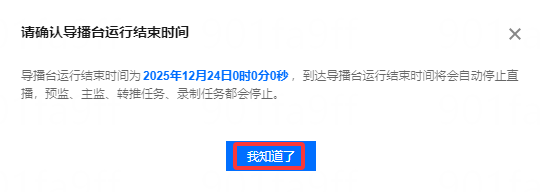
5. If the end time is set, a dialog box pops up asking for your confirmation. Click Confirm.


Opening a Caster

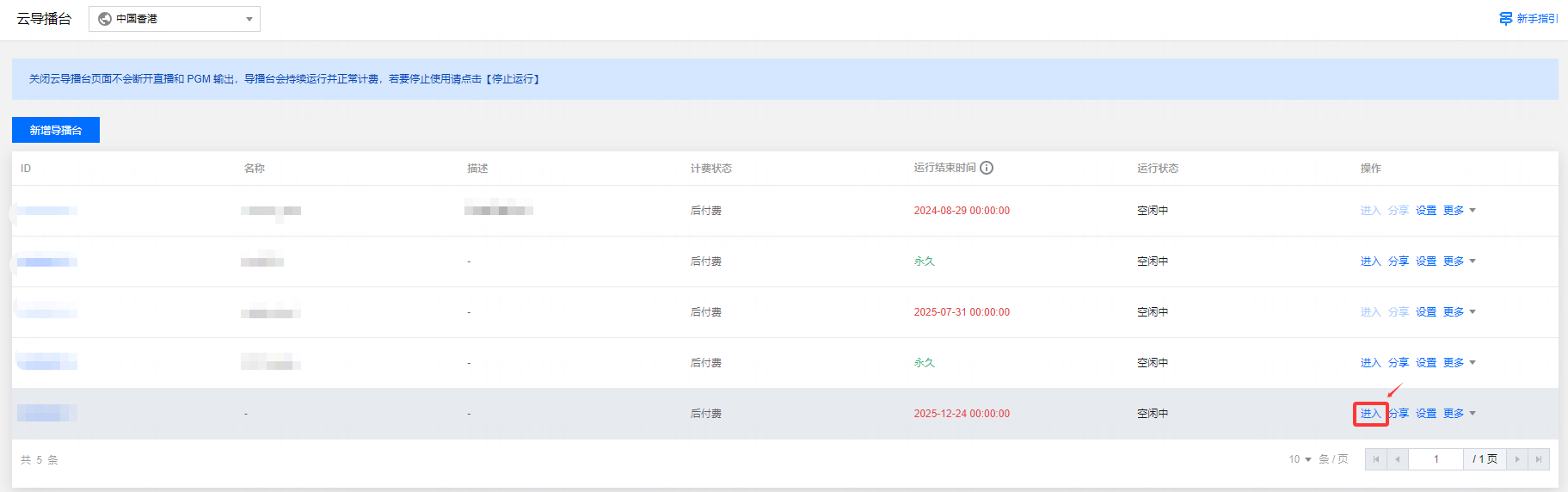
To open the Live Video Caster Console, click Open in the operation column of a caster.


Sharing

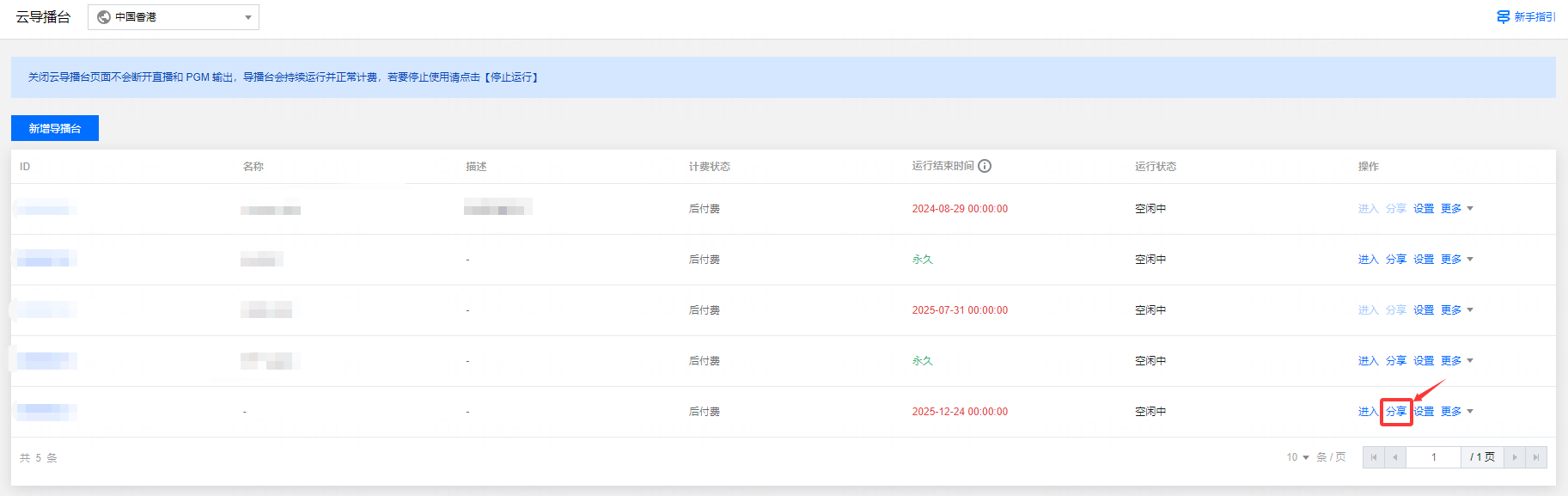
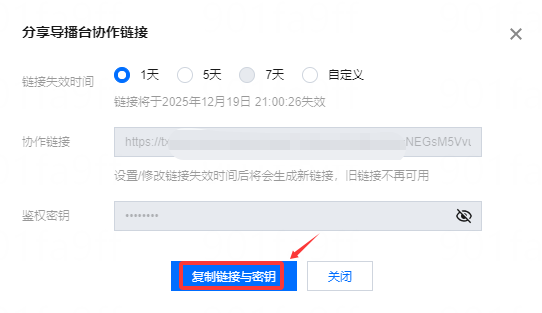
If you need to share the video caster with collaborators, you can click on Sharing in the corresponding director's console operation bar.


Video Caster Main User Perspective

Note:
Users who access the video caster via a shared link will not have their access privileges affected by the primary user.
The validity period of the video caster collaboration link is the same as the expiration time set when sharing.
Video Caster supports sharing (Share the broadcasting console collaboration link). Sharing is not possible if the video caster has exceeded its runtime.


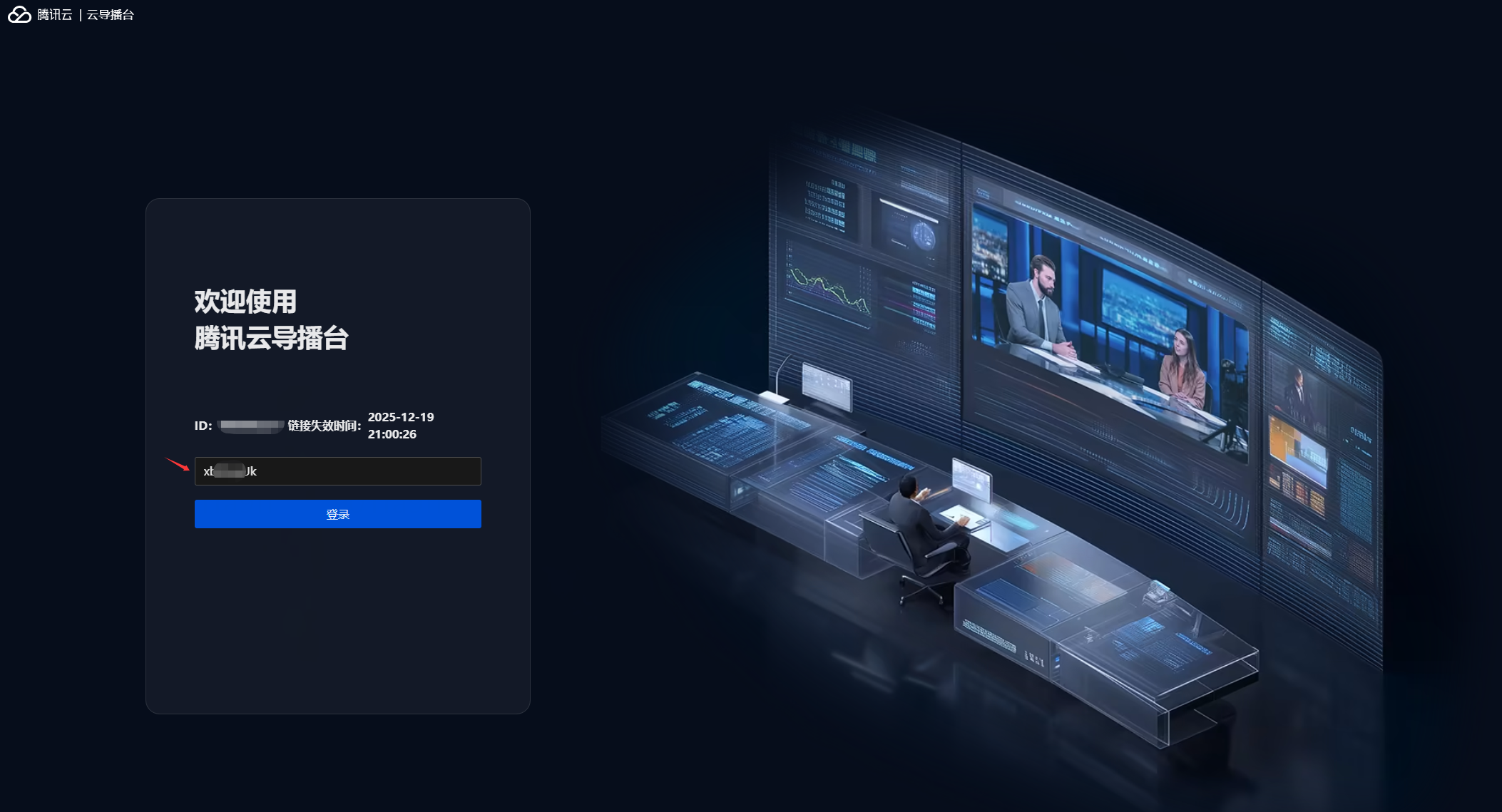
Collaborator's perspective

1. After receiving the shared link, collaborators can click it to enter the collaboration interface. Please enter your authentication key to log in.

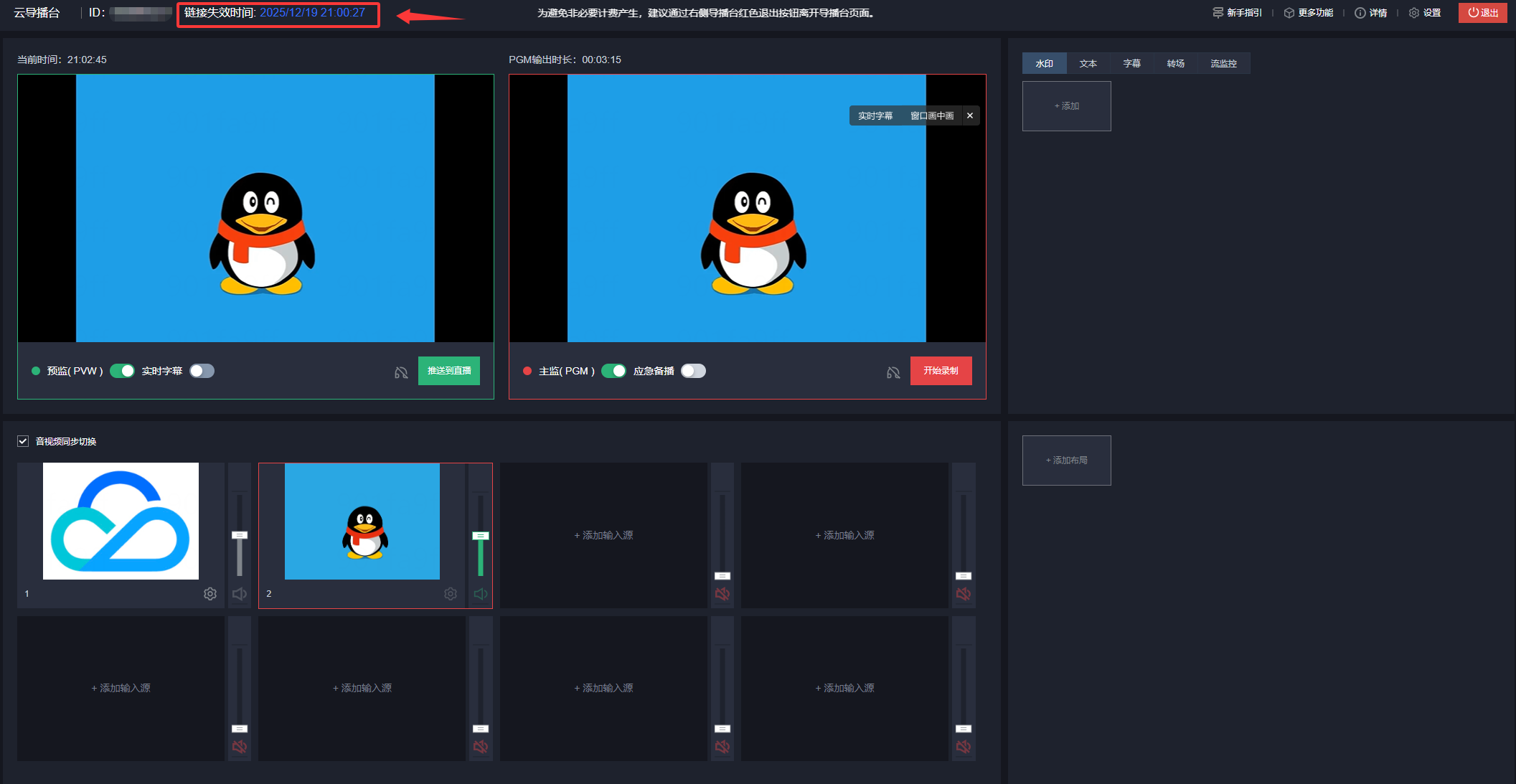
2. After logging in with their authentication key, collaborators will be directly taken to the video caster interface. You can view the link expiration time in the upper left corner of the interface.


Setting a Caster

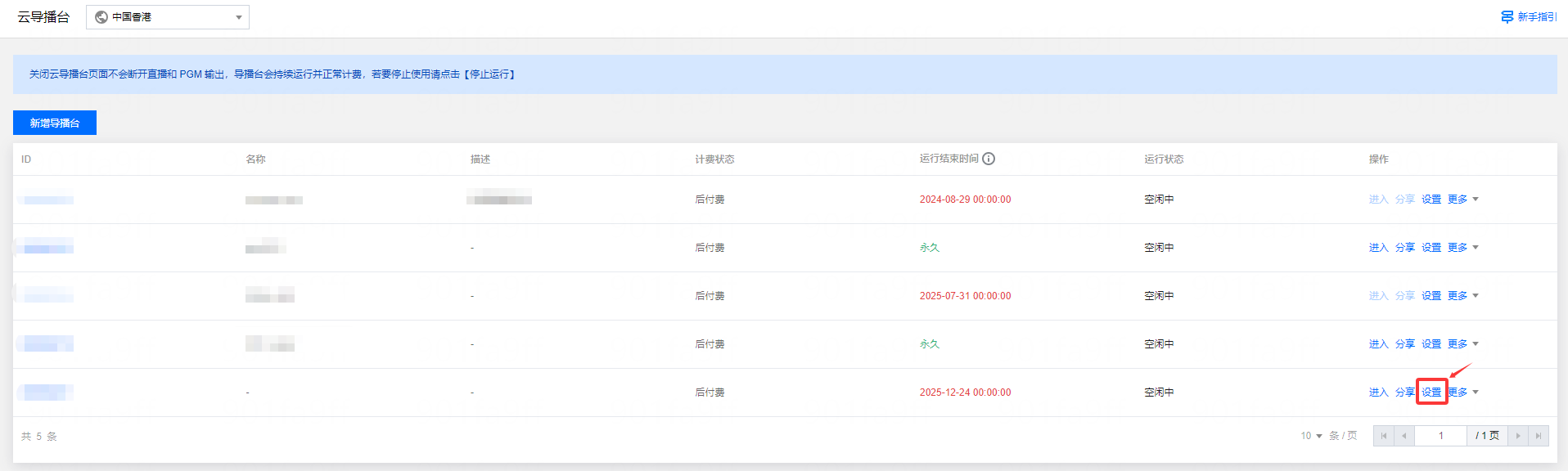
1. You can view casters you created in the Live Video Caster list.
2. To modify a caster, click Set in the operation column of the caster to enter the caster settings page.

3. After modifying the caster, click Confirm to save the modification.

Copying a Caster

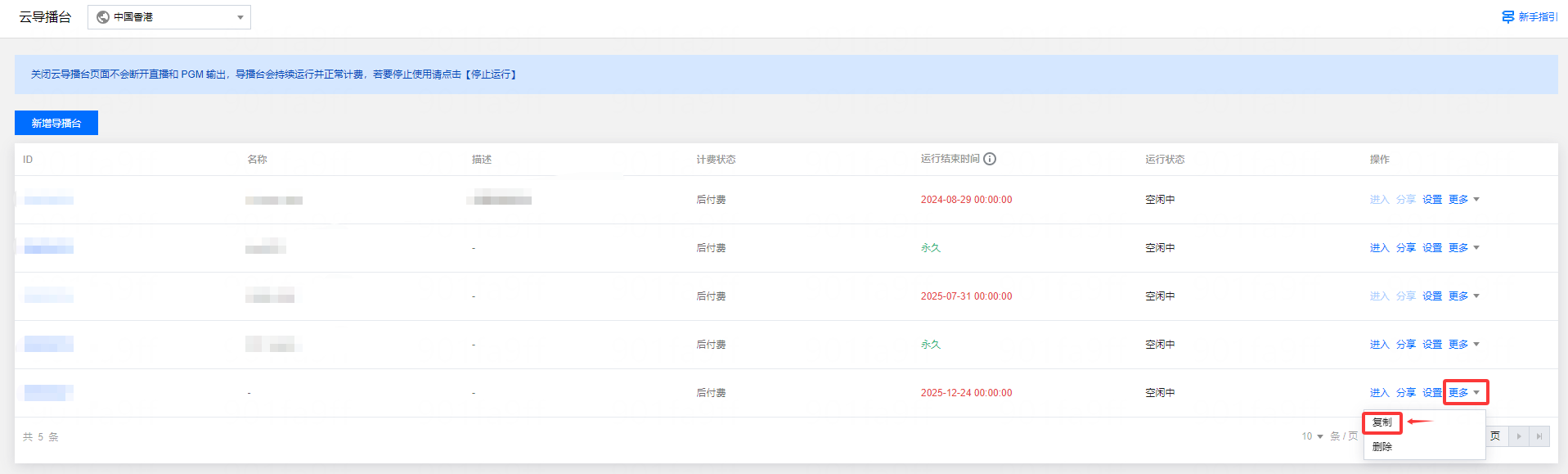
The copy function allows you to quickly duplicate existing caster instances.
1. Go to the Live Video Caster Console, and choose More > Copy in the caster operation column.

2. The default name of the copied caster is Copy of xx. You can customize the name of the caster. Click Confirm to complete the copy.


Stopping a Caster

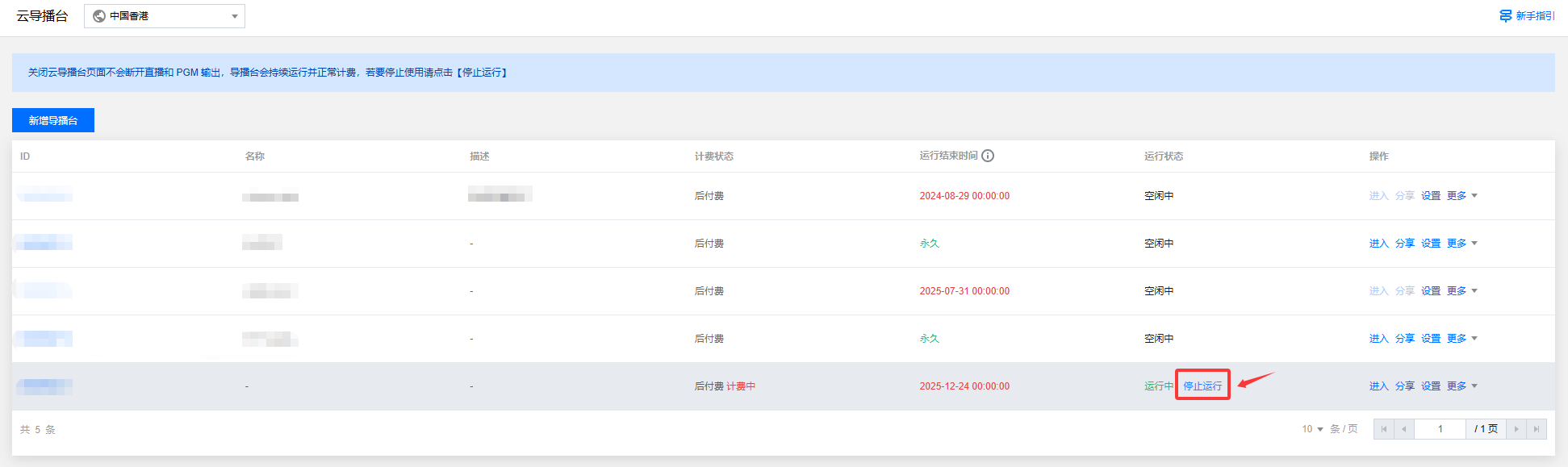
When you are finished using a caster, stop running it in a timely manner. When a caster is stopped, the preview, output, recording, and relay tasks will all stop, but all the LVC settings, including the input, layout, output, and relay settings, will be retained.
1. Go to the Live Video Caster Console and click Stop in the caster status column.

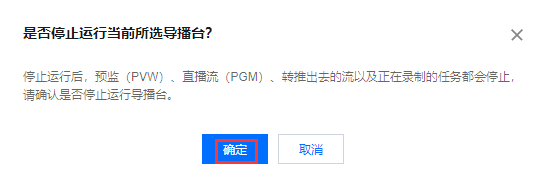
2. A dialog box pops up asking whether to stop running the caster. Click Confirm to stop the caster.


Note:
When a caster is stopped, its status changes from

to

and the billing stops.

Deleting a Caster

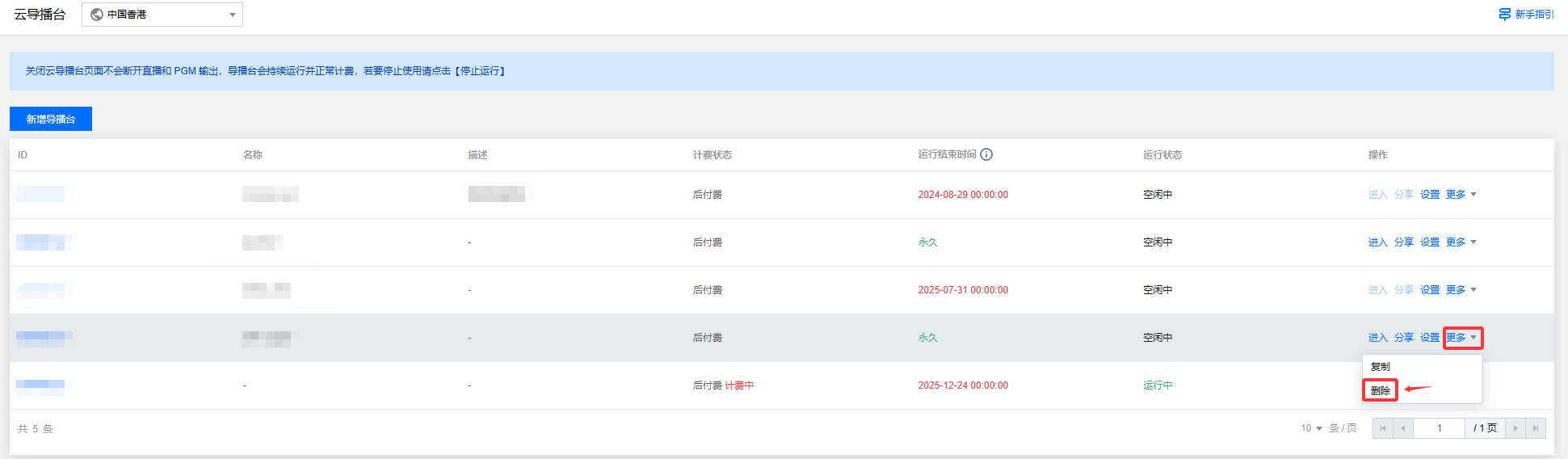
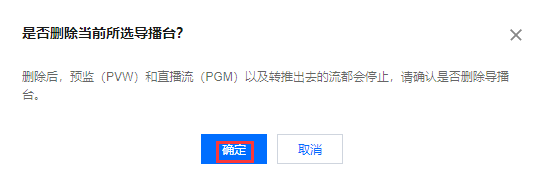
If you no longer wish to maintain a caster, you can delete it. Once a caster is deleted, all its configurations will be deleted, and its preview, output, recording, and relay tasks will stop.
1. In the operation column of the caster you want to delete, choose More > Delete.

2. In the dialog box that pops up, click Confirm to delete the caster. The deleted caster is no longer included in the instance management page.


Bantuan dan Dukungan

Apakah halaman ini membantu?

masukan