OBS (Open Broadcaster Software) supports WebRTC protocol for live streaming. This means that you can easily and quickly push live streams to Tencent Cloud Streaming Services using the WebRTC protocol on PC (Windows/Mac/Ubuntu) just like using the RTMP protocol.
In this article, we will demonstrate how to use OBS for WebRTC protocol live streaming on a PC.
You can also use the WebRTC protocol for live streaming on the web. For specific steps on Web Push, please refer to theWeb Push guide.
Supported Encoders
Video
H.264 (Best compatibility. Almost all clients can play it directly.)
AV1 (Compared with H.264, the compression rate is increased by over 40%, which can save more than 40% of bandwidth and storage costs at the same quality. Most browsers can play it directly.)
HEVC (Depends on streaming device encoders. Compared with H.264, it has a higher compression rate and poor browser support. The MLVB SDK can play it directly.)
Audio
Opus (Browser WebRTC can play it directly.)
Preparations
You can download OBS from the official website. Make sure you have installed an OBS version that supports WebRTC live streaming (v30.0 or higher, AV1 or HEVC encoding requires v30.2 or higher. Please do not use v30.1.x, as this version has introduced a bug causing video image corruption in poor network conditions).
You have activated CSS and prepared a registered domain to be added as a Push Domain (you can use the default push domain provided by the system or add a custom domain for streaming).
Notes
Please do not use OBS v30.1.x, as this version has introduced a bug causing video image corruption in poor network conditions.
CSS by default provide a test domain xxxx.livepush.myqcloud.com, which you can use for live streaming tests. However, it is not recommended to use this domain as the push domain in your production environment.
When using the WebRTC protocol for live streaming, each push domain has a default limit of 1000 concurrent streams. If you need to exceed this limit, you can contact us by submitting a ticket to request an increase.
Get WebRTC Push Address
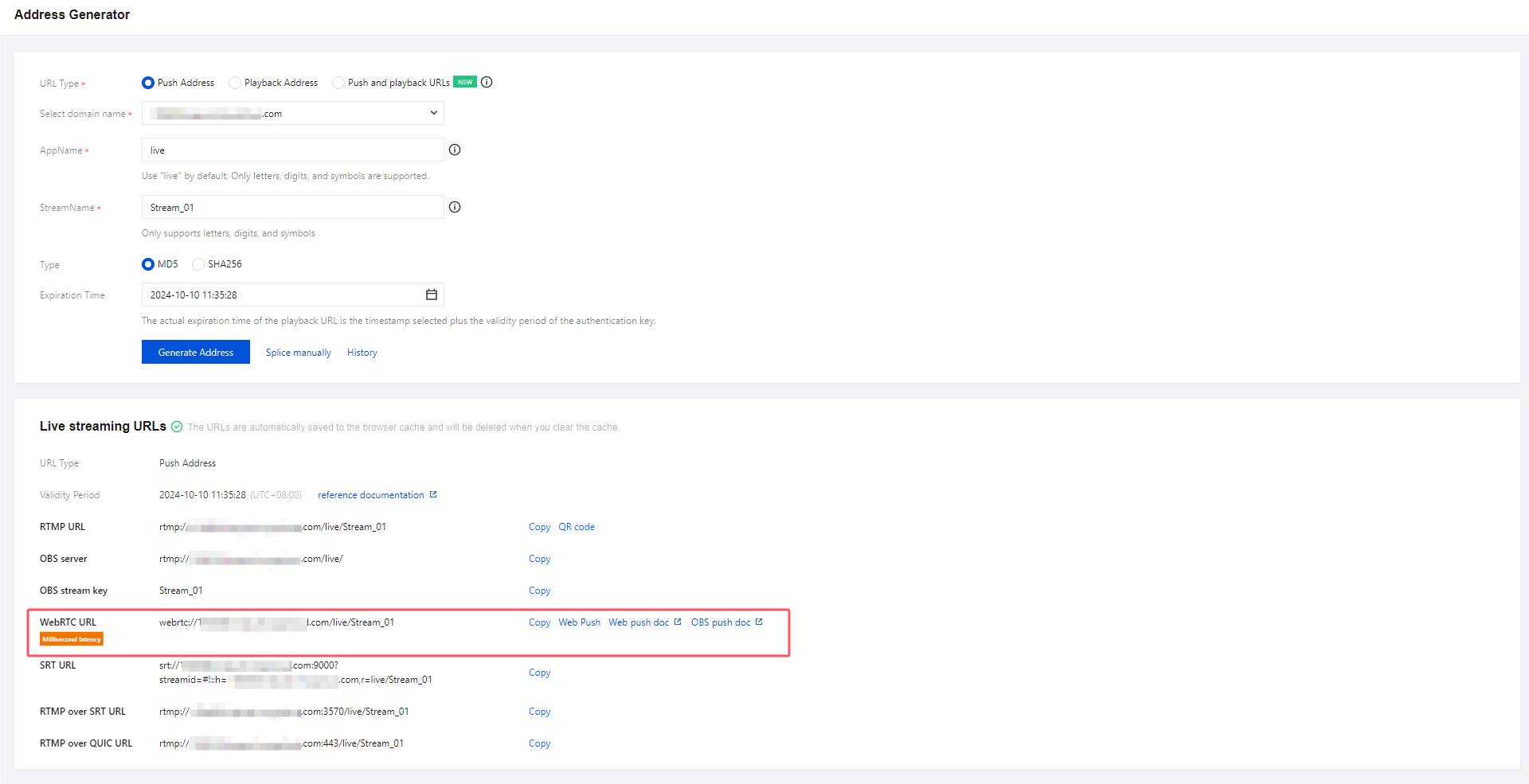
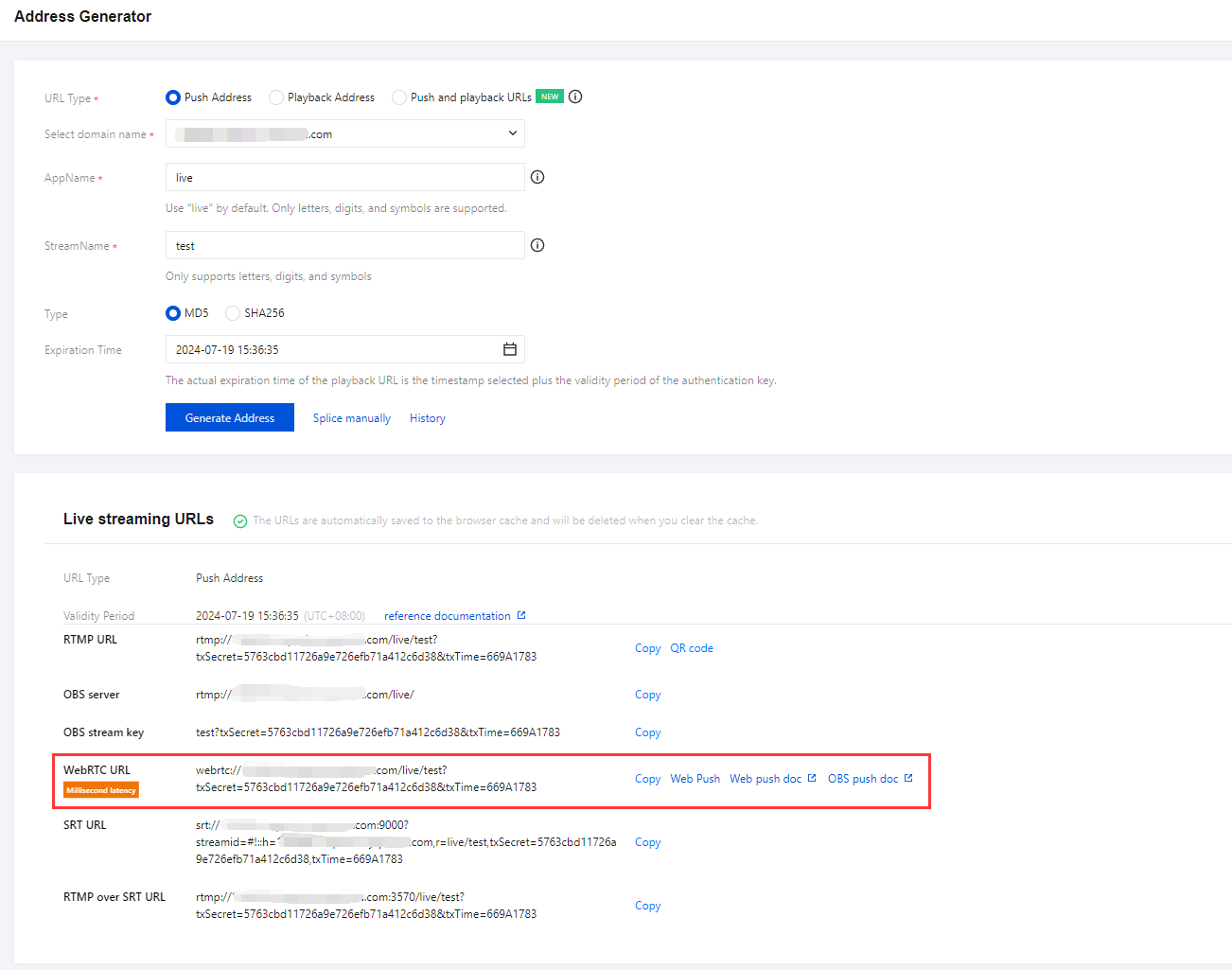
1. Log in to the CSS Console, select CSS Toolkit > Address Generator, and perform the following configurations:
1.1 Select URL Type: Push Address.
1.2 Choose the domain that you have already added to the Domain Management section.
1.3 AppName is used to differentiate the address paths of multiple apps under the same domain, with the default value being "live".
1.4 Enter a custom StreamName, for example: Stream_01.
1.5 You need to choose an encryption type, please consider your security requirements and performance trade-offs. For Type, you can choose between MD5 or SHA256, with MD5 being the default option.
1.6 Select Expiration Time, for example:2024-10-10 11:35:28.
2. Click Generate Address to obtain the WebRTC push address.
OBS Online Streaming
Step 1: Set WHIP Server Address and WebRTC Push Address
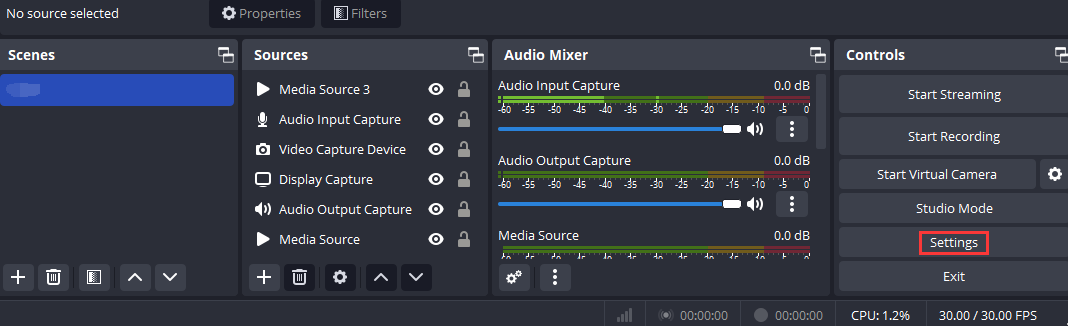
1. Open OBS, and you can access the settings interface by clicking on the Settings button in the bottom toolbar control.
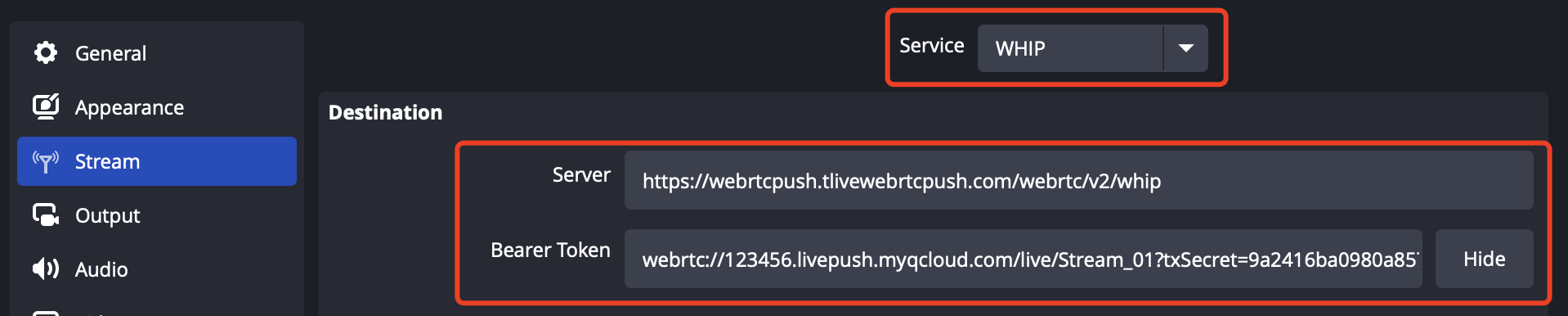
2. Click on Stream to enter the live streaming address settings interface.
Select the Service type as: WHIP
In the "Server" field, enter the Tencent Cloud Live WHIP server address:
In the "Bearer Token" field, enter the WebRTC push address you obtained, for example:webrtc://domain/AppName/StreamName?txSecret=xxxxx&txTime=xxxxx
Step 2: Set Streaming Parameters
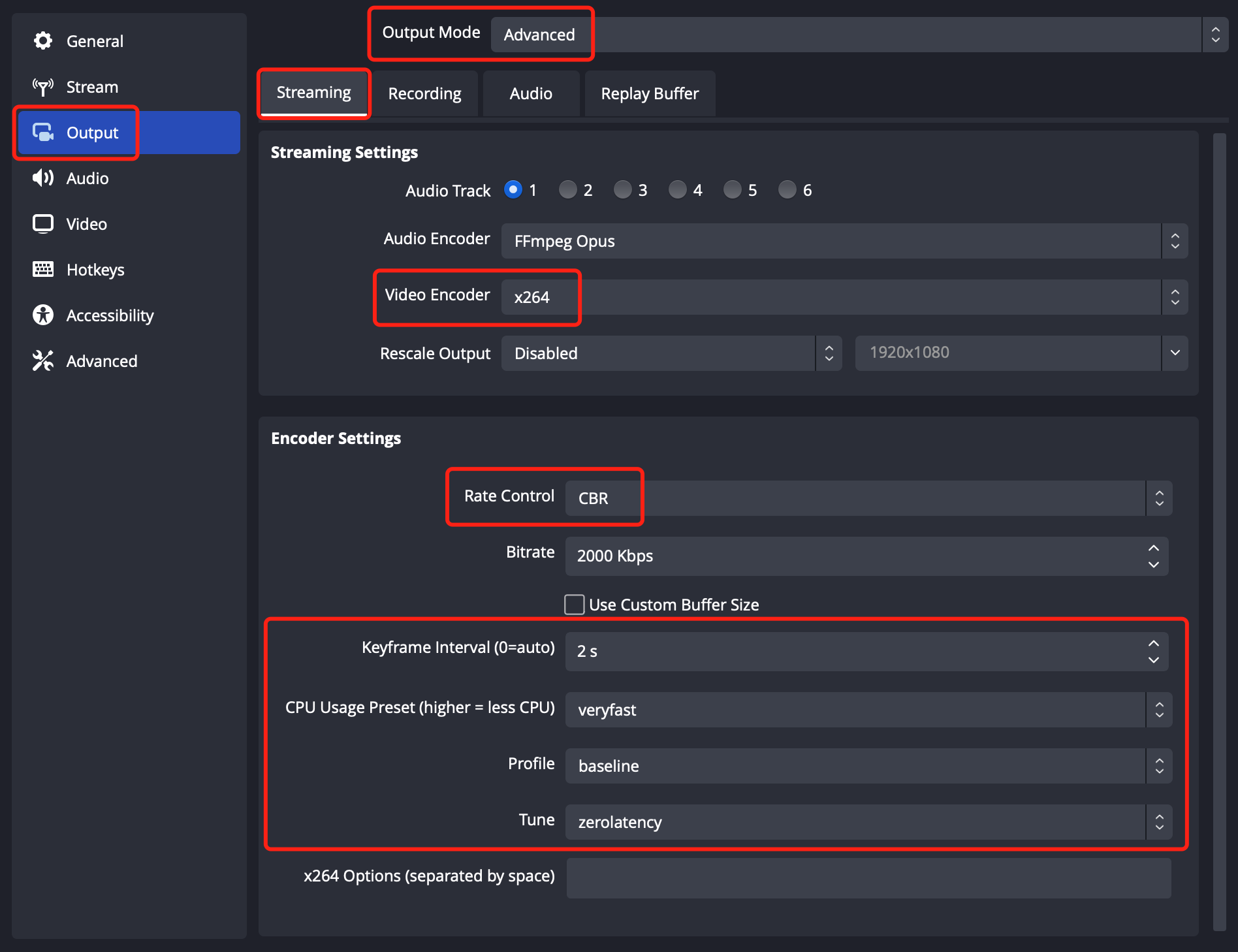
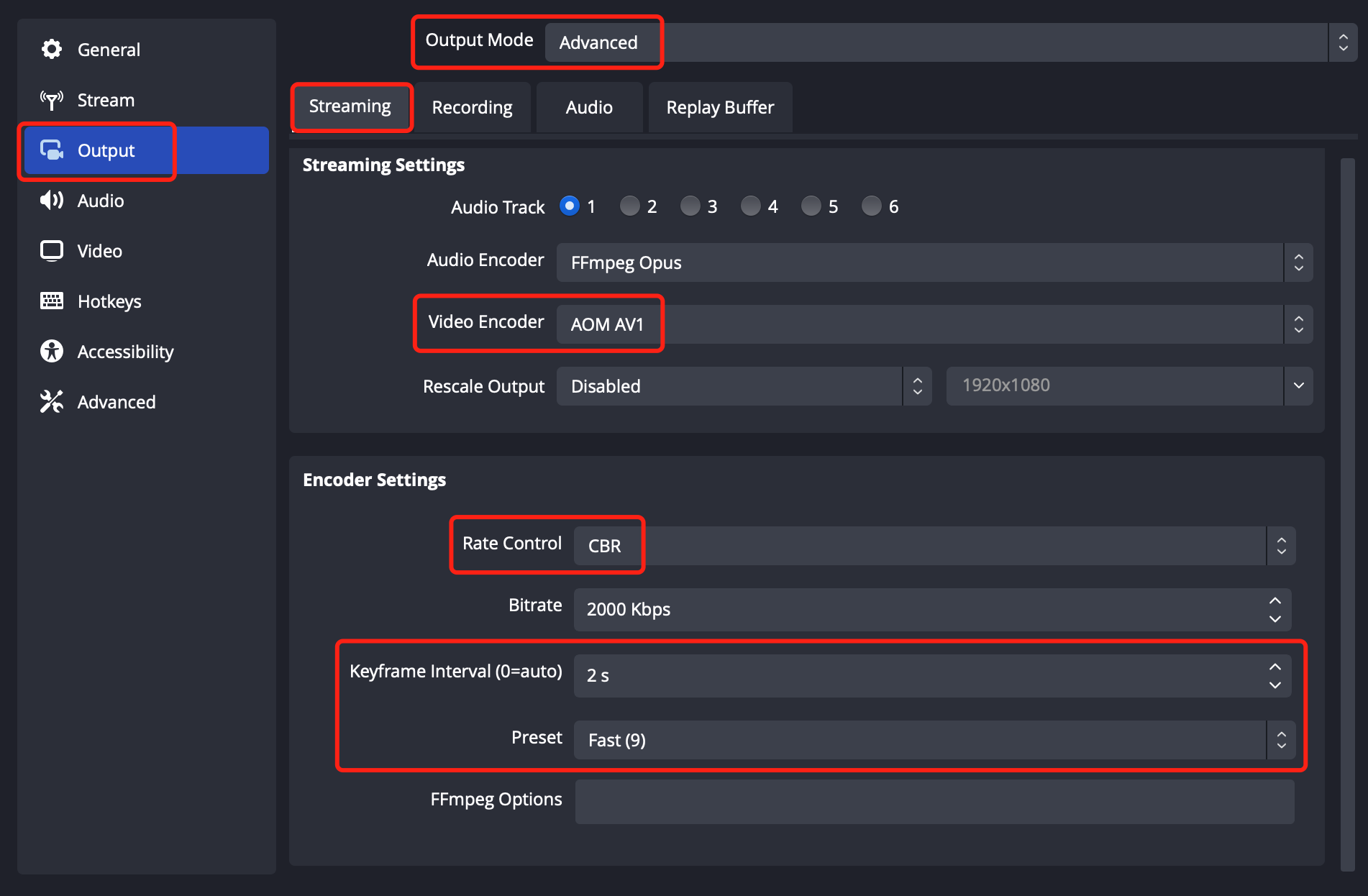
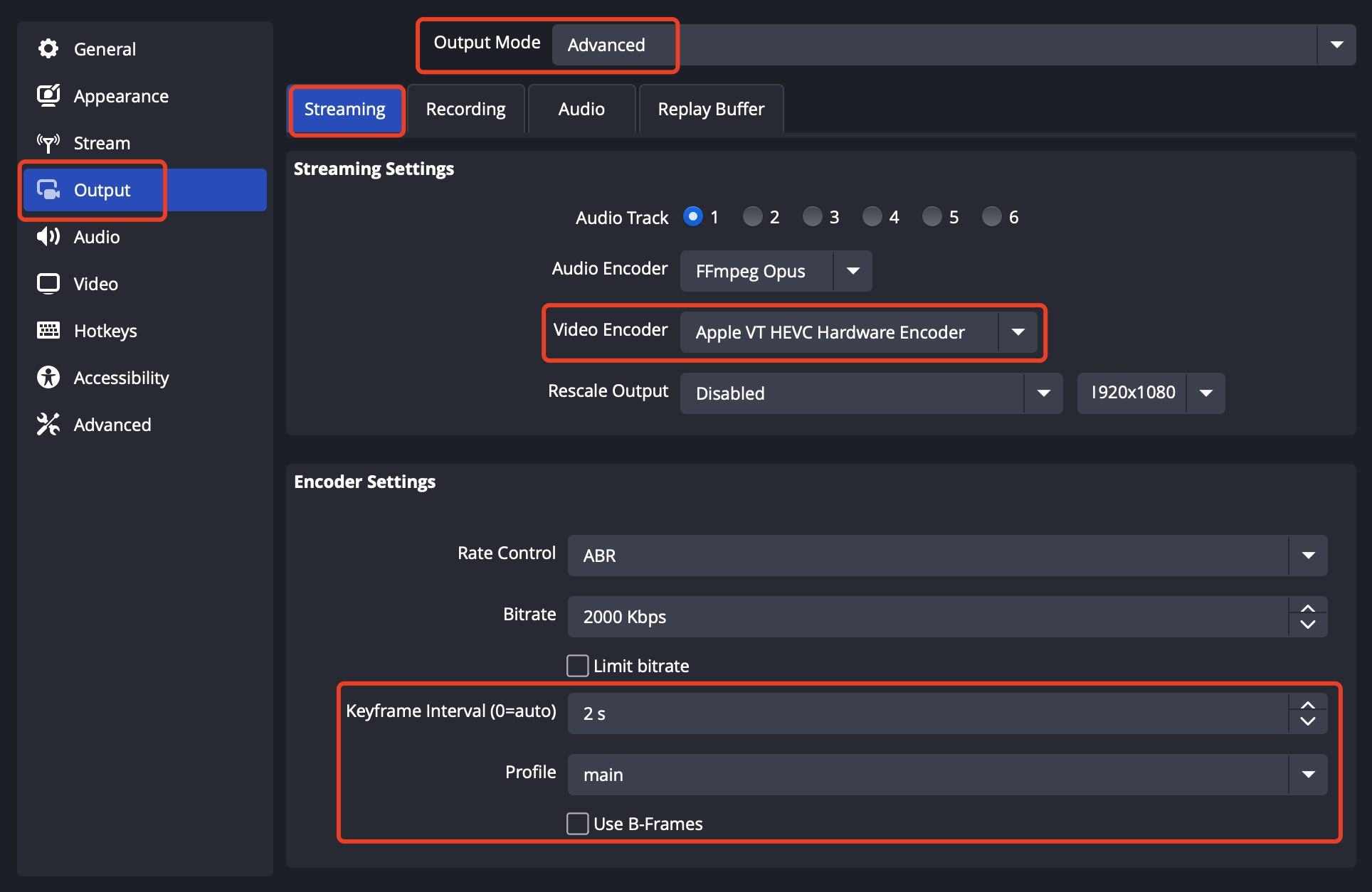
1. Navigate to the streaming parameter settings interface by clicking on Control > Settings > Output. Select the output mode as Advanced.
2. Select the Streaming option and configure parameters such as encoder, bitrate, keyframe interval, and others.
3. If you are using the LEB WebRTC solution at the playback end, please perform push settings according to the following configuration according to different encoding protocols:
Using H.264 video encoder
For the video encoder, please select x264 or another H.264 encoder supported by your device.
Using AV1 video encoder
For the video encoder, please select AOM AV1 or another AV1 encoder supported by your device.
Using HEVC video encoder
For the video encoder, please select HEVC encoder supported by your device, such as Apple VT HEVC Hardware/Software Encoder.
Note:
For WebRTC streaming, the default supported format is H.264. To enable HEVC (H.265), VP8, or VP9, you can add parameters to the streaming URL:
The default audio encoding format for OBS WebRTC push is Opus. When you use LEB for playback on the Web, since the Web supports Opus audio format by default, there is no need for cloud-based audio transcoding (from AAC to Opus) as required when pushing with RTMP protocol, and playback can be done directly.
4. Click on Stream to enter the live streaming address settings interface.
Step 3: Start Live Streaming
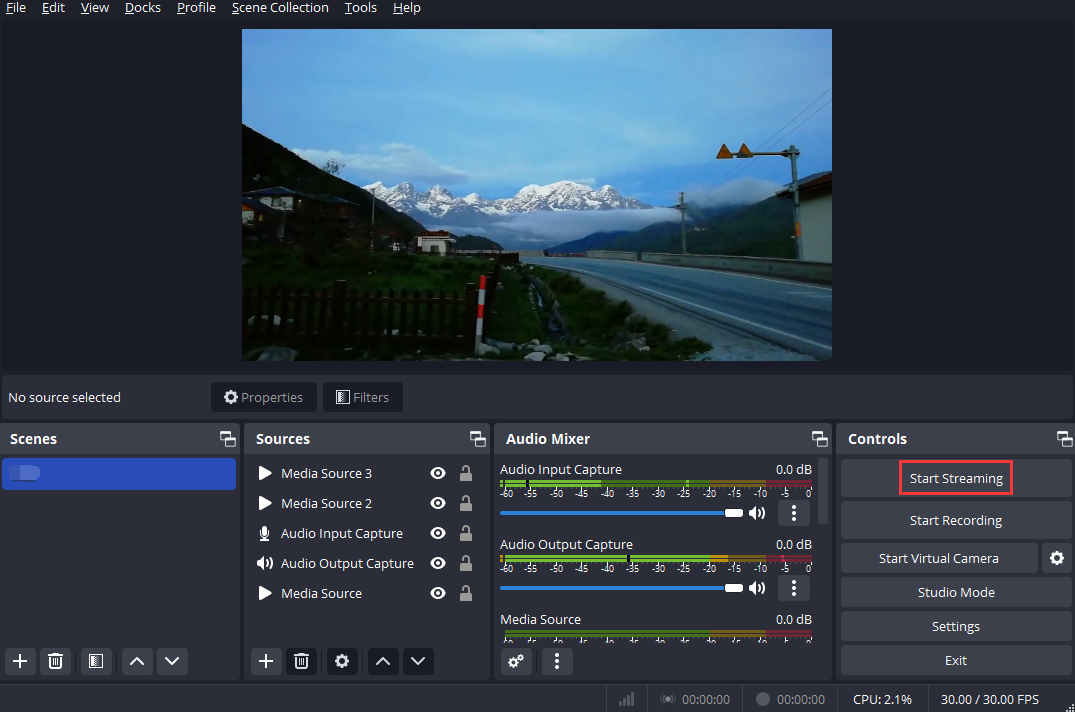
Click on Control > Start Streaming in the bottom toolbar of OBS to push the media stream to the WebRTC address you have set up.
Note:
OBS uses the WHIP (WebRTC-HTTP Ingestion Protocol) for WebRTC live streaming. WHIP is a standard HTTP-based protocol that allows you to push/pull WebRTC real-time streams to/from streaming servers or CDNs using HTML5 and various clients.
If you need to know more about the usage of OBS streaming, you can refer to Push via OBS 。
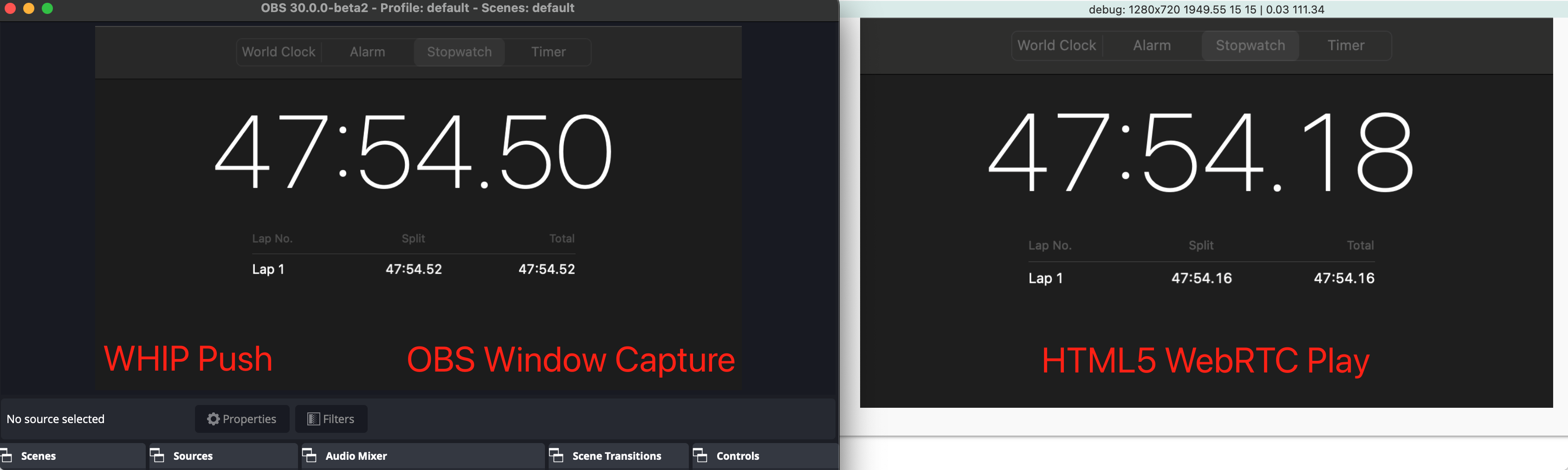
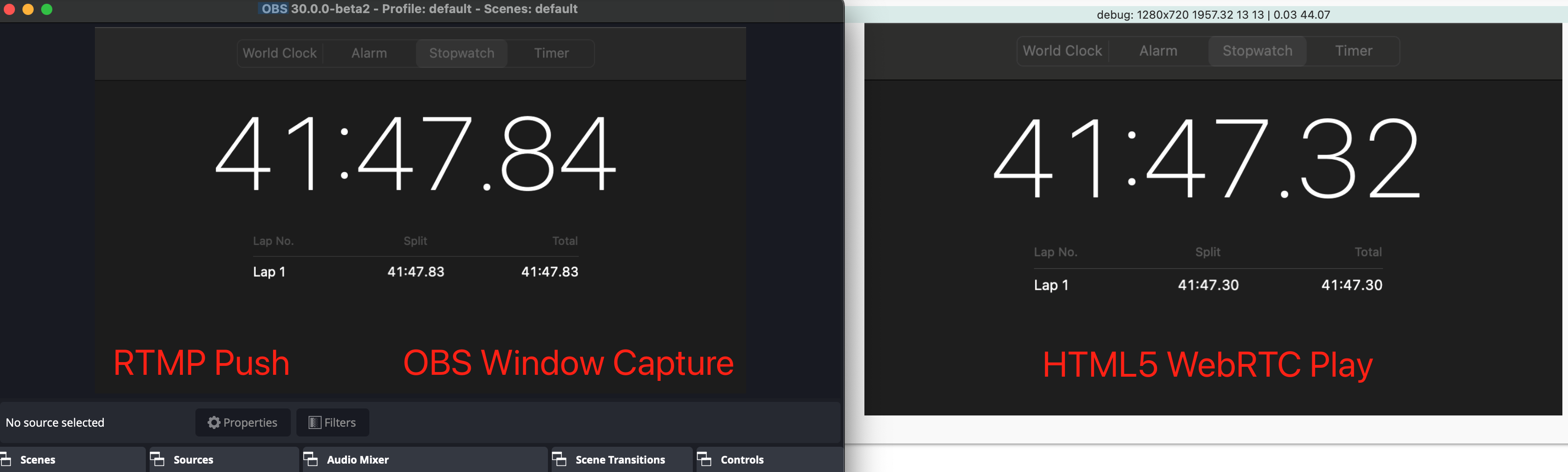
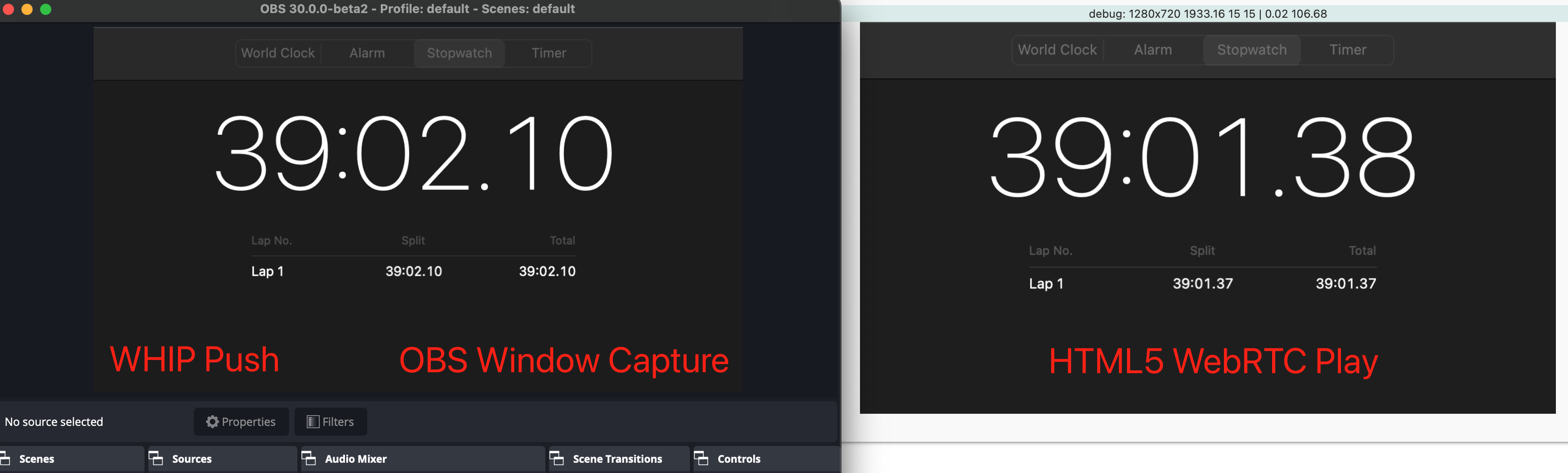
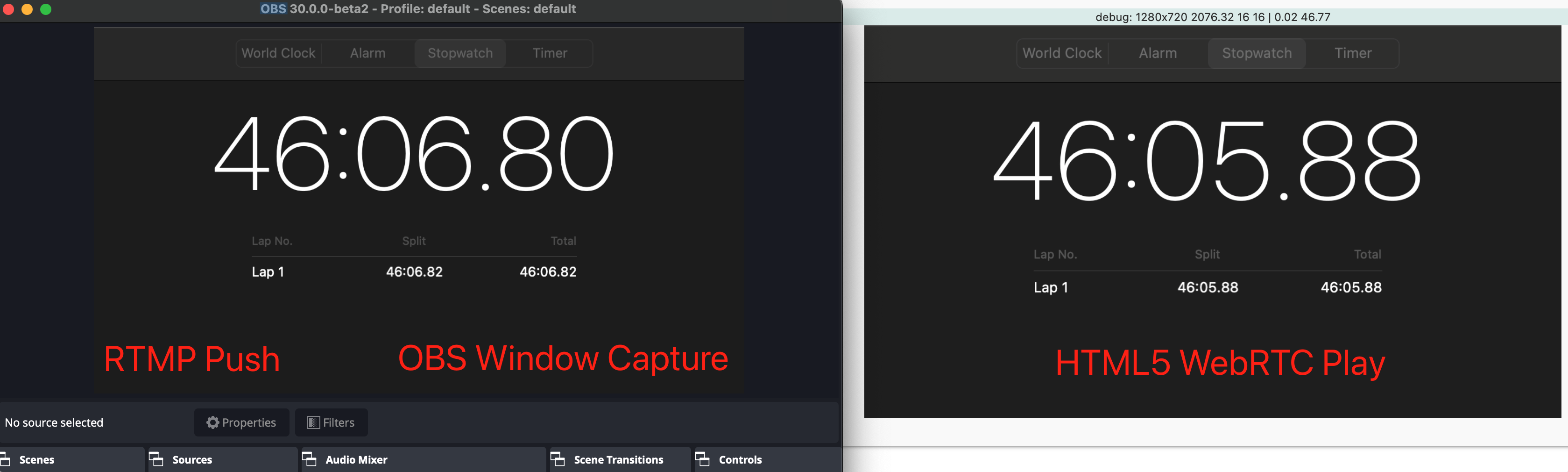
Comparing end-to-end latency between OBS WebRTC live streaming and RTMP protocol live streaming:
End-to-end latency is affected by multiple factors such as device performance, encoding parameters, network transmission, and player cache, and may fluctuate within a certain range during the live streaming process. In this scenario, we will compare the difference in end-to-end latency between x264 multi-slice encoding and single-slice encoding. The push end uses the OBS tool, and the playback end adopts Web LEB.
x264 Multi-slice Encoding Parameters:
When you configure the zerolatency (zero latency) mode in OBS's Tune options, OBS will automatically enable multi-slice encoding to improve encoding speed and reduce latency.
If you are using the LEB Web solution at the playback end, please note that some older version browsers' WebRTC may have compatibility issues with multi-slice encoding. In this case, enabling multi-slice encoding may cause a mosaic screen effect on the playback end in weak network packet loss scenarios. To avoid this issue, you can configure sliced_threads=0 in the x264 options to disable multi-slice encoding. However, disabling multi-slice encoding may introduce an additional few hundred milliseconds of encoding latency. Therefore, when configuring, please balance compatibility and latency based on your actual needs.
Push method
Describe
WHIP push streaming
About 300~500ms.
RTMP streaming
About 450~650ms.
Single Slice Encoding
When using single-slice encoding, the end-to-end latency is greatly affected by device performance. The following data is for reference only, and the actual latency may vary due to device performance and other factors:
Push method
Describe
WHIP push streaming
About 700~850ms.
RTMP streaming
About 850~1000ms.
Note:
These latency data may fluctuate due to factors such as network conditions, encoding parameters, and player buffering. In practical applications, you can adjust the encoding parameters and streaming protocols according to your requirements and device performance to achieve the desired latency and image quality performance.
Using OBS Plugin for WebRTC Live Streaming
OBS versions lower than v30.0 Beta 1 do not support WebRTC live streaming directly. Tencent Cloud Streaming Services provide an integrated OBS plugin solution for WebRTC live streaming.
Notes
The current requirements for OBS versions are 26.0 ≤ OBS version ≤ 29.0.2. You can download and install the appropriate version from the OBS Archived Versions page.
The WebRTC live streaming plugin currently only supports the Windows platform. If you want to implement WebRTC live streaming on Mac/Linux, you can use Web Push.
Configure OBS Plug-in
1. Configure plug-in data.
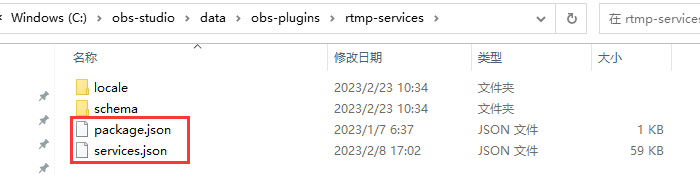
1.1 Download the OBS Plugin and, based on your local OBS version, move the two services.json and package.json files from the corresponding version's data folder to the data > obs-plugins > rtmp-services directory, replacing the existing files. (By default, obs-studio is installed on the C drive, with the corresponding directory being C:\\obs-studio\\data\\obs-plugins\\rtmp-services. Please configure it according to your actual situation.)
1.2 Copy the two JSON files mentioned above to the C:\\Users<computer_name>\\AppData\\Roaming\\obs-studio\\plugin_config\\rtmp-services directory and overwrite the existing files. (Replace <computer_name> with your actual computer name.)
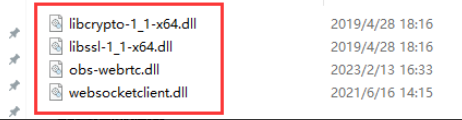
2. Configure the plug-in dynamic library.
Configure Push Link
1. Generate WebRTC push address.
Log in to the CSS Console, select CSS Toolkit > Address Generator to generate a push address. For detailed operations, please refer to the Address Generator guide.
2. Configure OBS streaming service.
2.1 Open OBS, and you can access the settings interface by clicking on the Settings button in the bottom toolbar control.
2.2 Click on Stream to enter the Stream Settings tab, select the service type as Tencent WebRTC, set the server to Default, and enter the previously generated WebRTC Push Address in the Stream Key field.
2.3 The current OBS plugin supports OBS version 29. To start live streaming, click on Streaming to enter the Stream Settings tab, select the service type as Tencent WebRTC, set the server to Default, and enter the previously generated WebRTC Push Address in the Stream Key field.