LiteAVSDK (6.5.7272)
is used for RTMP push and FLV playback. The Smart version has the above-mentioned two functions, while the LivePlay version only features FLV playback function.
Precise "sound-image-question" synchronization
Both Tencent Cloud SDK and the cloud support inserting questions or time synchronization signaling into CSS streams to achieve perfect synchronization of sounds, images and question pop-ups.
Ultra-low latency deviation at the viewer end
The latency correction technology supported by the speedy playback mode in Tencent Cloud SDK can keep the latency deviation between viewers within 1 sec, thus ensuring that viewers answer questions synchronously.
Integration with WeChat Mini Programs
Tencent Cloud SDK is integrated within WeChat by default and made publicly available as a live-player tag. Set the mode to live, and also set min-cache and max-cache to 1 to enable ultra-low latency in playback.
Method Details
NTP Time Synchronization
How it works
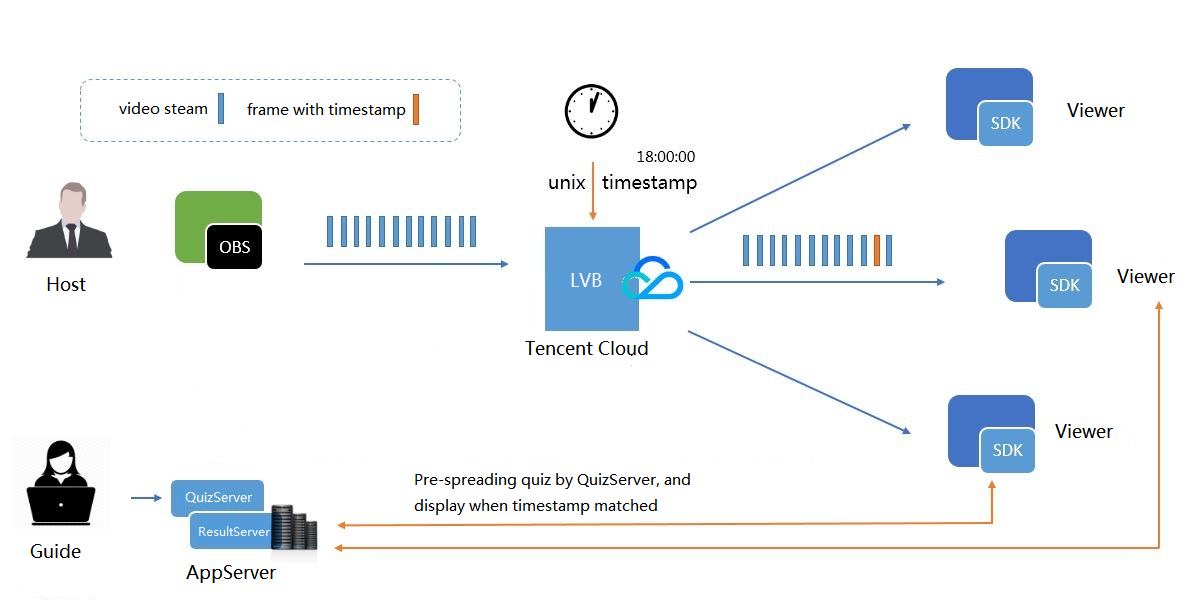
1. Tencent Cloud inserts in real time an international standard timestamp (UTC timestamp) calibrated by NTP into CSS streams every other second.
2. The program director in the studio assigns questions at the appropriate time based on the pace at which the host raises questions. The assignment system inserts the current international standard time into the questions assigned each time.
3. When playing back video streams inserted with such timestamps, SDK notifies your App of the time when the currently played back image was recorded. Take note of the latency from the studio to the cloud and make sure you correct the deviation in advance.
4. Your App can display specified questions as needed according to the time notifications saying when the current image was recorded from the SDK.
Integration Guide
Step 1: Activate Tencent Cloud CSS service
Contact us for activating Tencent Cloud CSS service and MLVB licence. You can call our customer service at +1-888-652-2736 to rush the approval process if you need it urgently.
To understand the relationship between push URL and Live room ID
To protect the push URL from being stolen
To add a NTP timestamp, append the parameter &txAddTimestamp=2 to the push URL. (txAddTimestamp=1 results in screen crashes in the mini program). The server will send a international standard SEI timestamp to the CSS stream every other second (with a deviation less than 100ms). If you use our player to play this video, you will receive a notification of the current screen NTP time every other second.
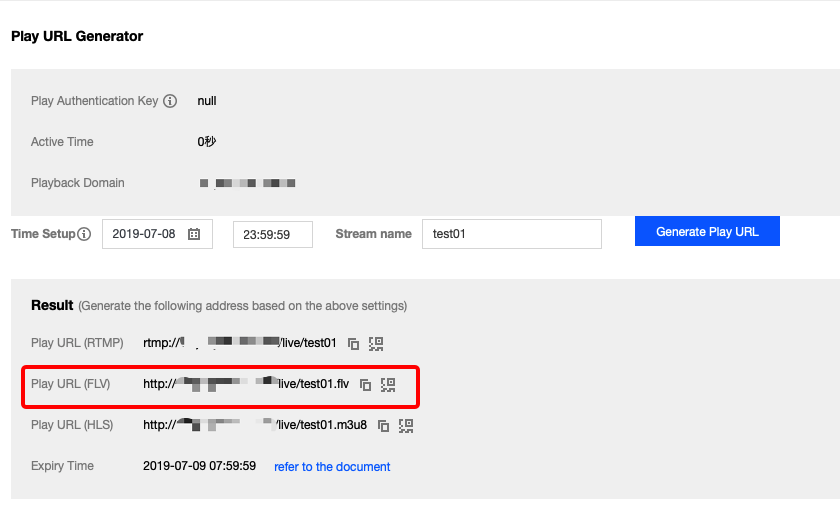
Step 3: Obtain the playback URL
There is a one-to-one mapping between the playback URL and the push URL. Please see the following figure for the mapping rule.
Be sure to use the playback URL in FLV format, because RTMP has a tendency to stutter in high-concurrency scenarios.
Step 4: Configure the push end
If you are using your App to push streams, please see the document(iOS|Android).
Step 5: Integrate the player
1. Download the SDK version listed in the second section of the document.
2. See the integration document (iOS| Android) to integrate the player. It takes about 1/2 day to finish the work in the two platforms.
3. Change the default settings
Normal CSS scenarios are set by default in the SDK, so it is necessary to change the settings as follows:
//Enable message receiving. Failure to receive messages means this function has not been enabled (default: disabled).
config.enableMessage = YES;
//
//Set the break-event point for latency to 2 seconds. (Given the latency due to the transmission from the cloud and the push end, the actual latency is more than 3 seconds: 3 seconds for SDK push latency and 4-5 seconds for obs push latency.)
config.bAutoAdjustCacheTime = YES;
config.maxAutoAdjustCacheTime = 2;
config.minAutoAdjustCacheTime = 2;
config.cacheTime = 2;
config.connectRetryCount = 3;
config.connectRetryInterval = 3;
config.enableAEC = NO;
//First setConfig and then startPlay
[player setConfig:config];
//Android Source Code
mTXLivePlayConfig =newTXLivePlayConfig();
mTXLivePlayer =newTXLivePlayer(context);
//
//Enable message receiving. Failure to receive messages means this function has not been enabled (default: disabled).
mTXLivePlayConfig.setEnableMessage(true);
//
//Set the break-event point for latency to 2 seconds. (Given the latency due to the transmission from the cloud and the push end, the actual latency is more than 3 seconds: 3 seconds for SDK push latency and 4-5 seconds for OBS push latency.)
4. Be sure to use the playback URL in FLV format, because RTMP has a tendency to stutter in high-concurrency scenarios.
Step 6: Question Distribution
If you are using your App to assign questions, you can use the sendMessage calling method in TXLivePusher. Please see the document (iOS | Android) for details.
Reliability evaluation
Some customers might worry that unstable audio/video channels will cause stutters or video data loss, and viewers will not be able to see the questions.
Frame loss with CSS audio/video data occurs on a per-GOP basis. If GOP is 1, then 1 second of audio/video data will be lost each time.
According to the node deployment by Tencent Cloud, 90% of the video stutter is caused by a slow network connection at the viewer end. In this case, using the other network connections will have the same results.
The solution to this problem is to send a question message every second (if GOP is set to 1 second) and eliminate the repeated question numbers at the viewer end. This prevents audio/video stutter from affecting the reliability of question arrival.
Step 7: Receiving question messages
Once you receive this buffer, you can parse the 8-byte (64-bit) timestamp and use the matched question (if there is a question at this time) to complete the UI display.
Switch the enableMessage toggle in TXLivePlayConfig to YES.
TXLivePlayer listens into messages by TXLivePlayListener, message number: PLAY_EVT_GET_MESSAGE (2012).
A quiz system closely associated with your business is not part the package we offer as a PaaS service provider. The system needs to be developed by yourself.
A common solution is to collect customers' answers as HTTP(S) requests to the quiz server. Please be prepared for surges of highly concurrent requests.
Some customers may ask whether the IM system can be used to do the quizzes. The answer for now is no, because the IM system is tailored for message distribution, while quizzes are for information collection.
Step 9: Displaying quiz result
The quiz will be closed after the questions are displayed for a period of time. The quiz system will then gather the results and deliver them to the viewers.