tencent cloud

Tencent Cloud Distributed Cache (Redis OSS-Compatible)

Password-Free Access

Download
Focus Mode
Font Size
Last updated: 2026-08-25 18:02:33
AI-Translated & Reviewed

Scenarios

Storage Engine Redis/Valkey Edition supports two authentication methods: password-based access and password-free access. Users can choose flexibly based on their business security requirements.
Password Authentication: suitable for production environments with high security requirements, ensuring data access security through password authentication.
Password-Free Authentication: suitable for secure and controllable private network environments (such as the internal test environment of a VPC), simplifying the connection process.
Note:
To protect core data security, the system defaults to and recommends using password authentication. It is not recommended to enable the feature that requires no password. If you still need to enable this feature after evaluation, it is recommended to build an access allowlist by configuring security group rules to implement fine-grained control over the IP address range that can access the instance, thereby effectively blocking potential security threats.
Memcached Edition only supports password-free access and does not support password authentication or creating new accounts.

Differences in Password-Free Access

The password-free authentication method of Tencent Cloud Distributed Cache differs from that of the Redis Community Edition:
Scenario
Tencent Cloud Distributed Cache
Redis Community Edition
After password-free access is enabled, the password in the access parameters is empty.
Verification failed.
Verification succeeded.

Setting Password-Free Access

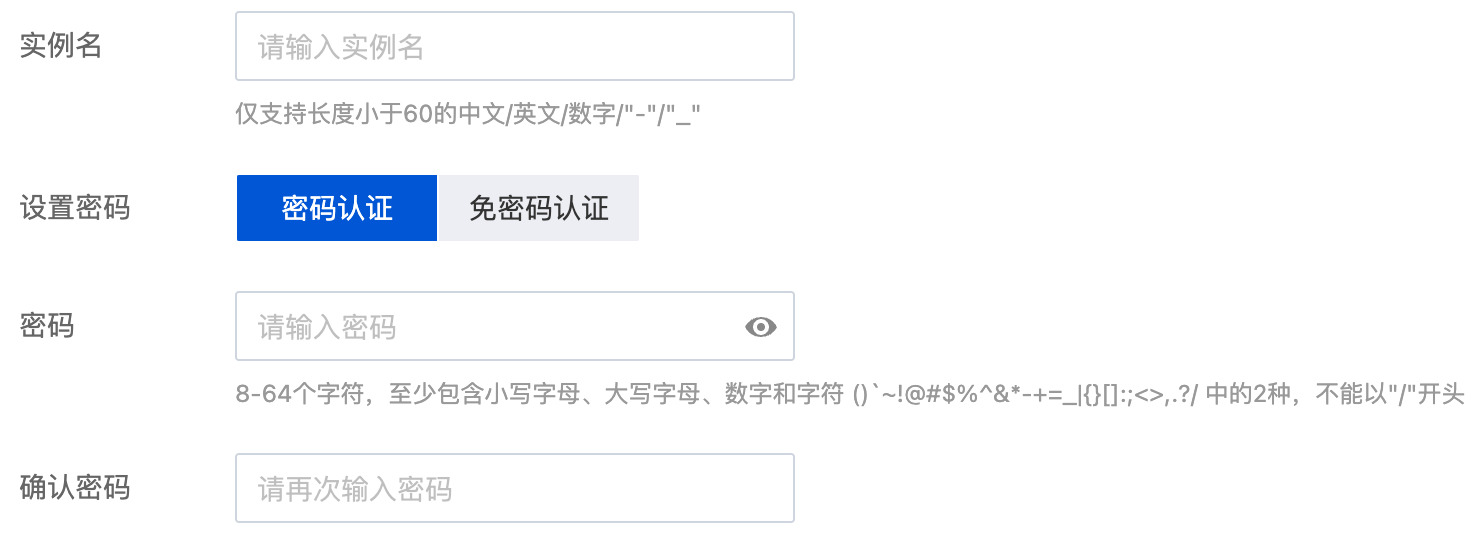
Select password-free access when creating an instance

1. Log in to the Tencent Cloud Distributed Cache console, and click Create Instance in the instance list.
2. In the Set Password section on the purchase page, select Password-Free Authentication. After the instance is created successfully, it can be accessed without password.


Enable password-free access for existing instances

1. In the instance list, click Instance ID to enter the instance details page.
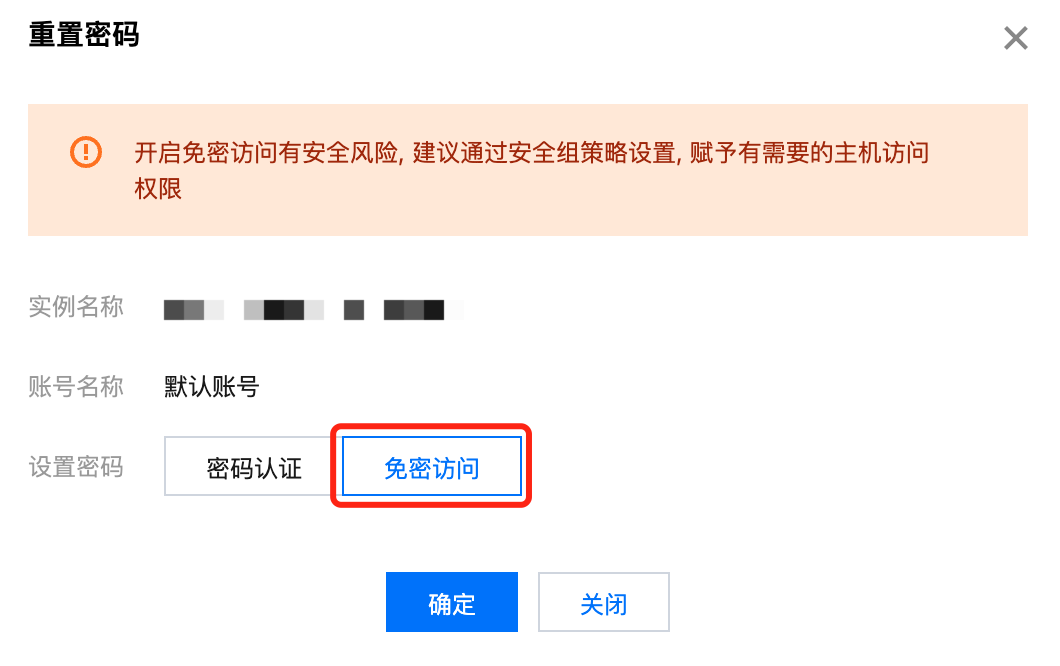
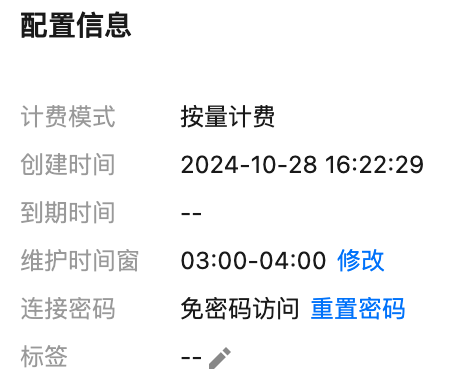
2. In the Configuration Info area of the Instance Details page, click Reset Password on the right of Connection Password.
3. The Reset Password dialog box is displayed. In the Set Password area, select Password-Free Access.

4. Click OK.

Viewing Password-Free Access Status

In the instance list, click an instance name to enter the Instance Details page, and check whether Password-Free Access is enabled in Configuration Info > Connection Password.


Disabling Password-Free Access

In Configuration Info > Connection Password, you can disable Password-Free Access by resetting your password in Reset Password.

Related APIs

API
Description
Resets password. If you leave the Password parameter empty, password-free access will be enabled.

Help and Support

Was this page helpful?

Help us improve! Rate your documentation experience in 5 mins.

Feedback