How to Configure Alarms for Storage Overuse Lock Events
ダウンロード
フォーカスモード
フォントサイズ
最終更新日: 2026-09-10 11:40:39
AI翻訳・品質チェック済み
This document describes how to configure storage overuse lock event alarms for TencentDB for MySQL instances.
Background
When you are using TencentDB for MySQL, if the purchased storage space (disk size) of an instance is nearly full (How to Determine Whether Storage Space Is Overused), the system locks the instance and prohibits write operations to prevent data loss and ensure system stability. After the instance is locked, it supports only data reads, not writes. To restore read/write operations and avoid impacting your business, you need to release storage space by scaling out or deleting some database tables in the console. If you have many instances, you may not be able to monitor the disk usage of each instance in a timely manner. In this case, you can configure storage overuse lock event alarms, so that the system pushes event notifications and you can scale out or release storage space in time (How to Resolve Storage Overuse Locking Caused by Data Files Occupying All Storage Space).
List of Events Related to Storage Overuse Lock
Event Alarm
Trigger Timing
Recommended Action
OverusedPreReadonly
The data file size exceeds the purchased storage space.
The instance can still be read and written. Scale out or clean up data as soon as possible to avoid entering the locked state after 24 hours.
OverusedReadonlySet
Not restored to the non-overuse state within 24 hours after pre-locking.
The instance is read-only. Scale out or clean up data immediately to restore read and write access.
OverusedUnlockPreReadonly
The data file size is restored to within the purchased storage space during the pre-locking period.
No processing is required.
OverusedReadWriteSet
Complete scale-out or data cleanup during the locking period.
Monitor the recovery of service writes.
Configuring Event Alarms via the Event Bus
Step 1: Enable the Event Bus
Before using EventBridge, you need to activate the service on the product page. For how to activate the service with a root account and authorize sub-accounts to use it, see Activating EventBridge.
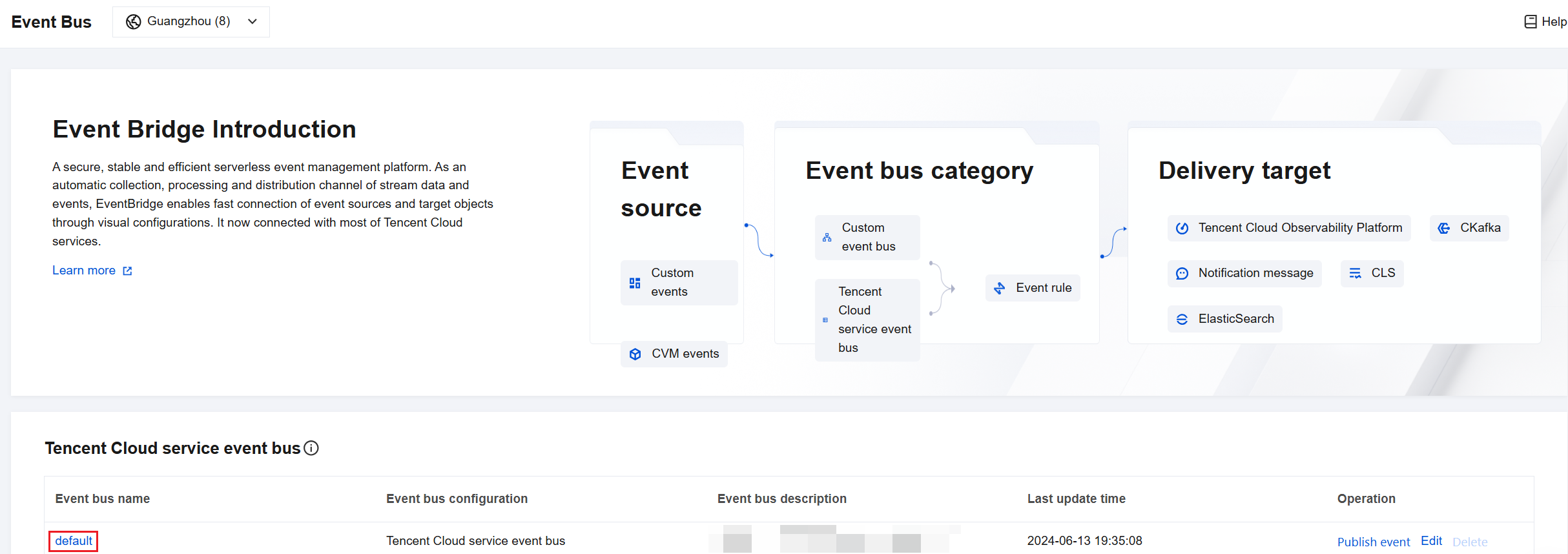
2. Select the region as Guangzhou in the upper area.
3. Click the default event set under Cloud Service Event Sets.
4. Click Manage Event Rules, and then click Create on the redirected page.
5. Complete the following configurations on the event rule creation page, and then click Next.
Parameter
Description
Rule name
Fill in the rule name, which can only contain letters, digits, underscores, and hyphens. It should start with a letter and end with a letter or digit. The length should be 2 to 60 characters.
Rule description
Fill in the rule description, which can only contain digits, Chinese characters, English letters, and common punctuation marks. The length should be no more than 200 characters.
Tag
Customize whether to enable tags. If tags are enabled, you can add tags to this event rule.
Data conversion
Based on the event type, two different push templates are provided. You can select one based on actual conditions. For alarm events, it is recommended to select the alarm notification template.
Event sample
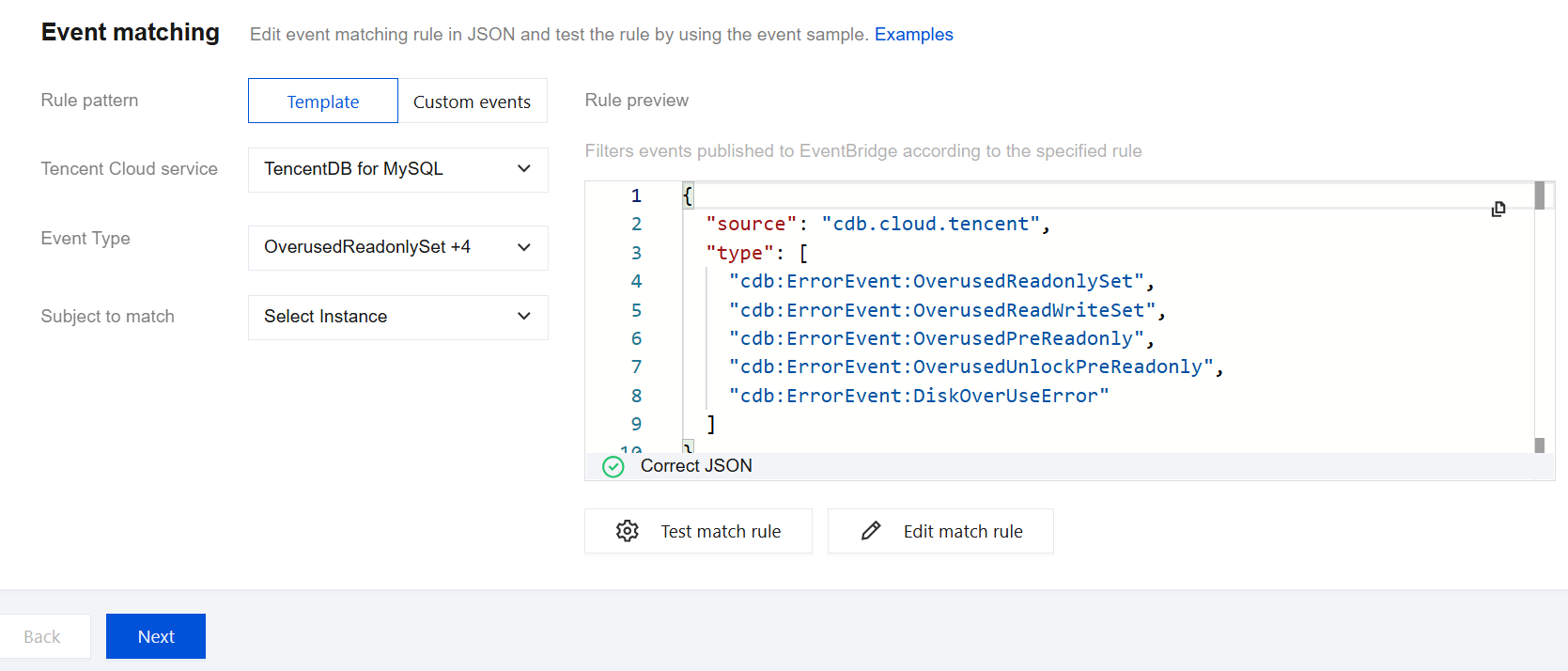
Provides event structure examples for reference when event matching rules are configured. You can find the target template under event example selection for reference. Select TencentDB for MySQL as the cloud service type. For the event example, you can select one of the following: OverusedPreReadonly, OverusedReadonlySet, OverusedUnlockPreReadonly, OverusedReadWriteSet.
Rule pattern
Form mode and custom event are supported. Here, it is recommended to use the form mode for more convenience.
Tencent Cloud service
Select TencentDB for MySQL.
Event Type
Select the following here: OverusedPreReadonly, OverusedReadonlySet, OverusedUnlockPreReadonly and OverusedReadWriteSet.
Subject to match
Select the matching object for event alarms (the MySQL instance for which you want to set event alarms).
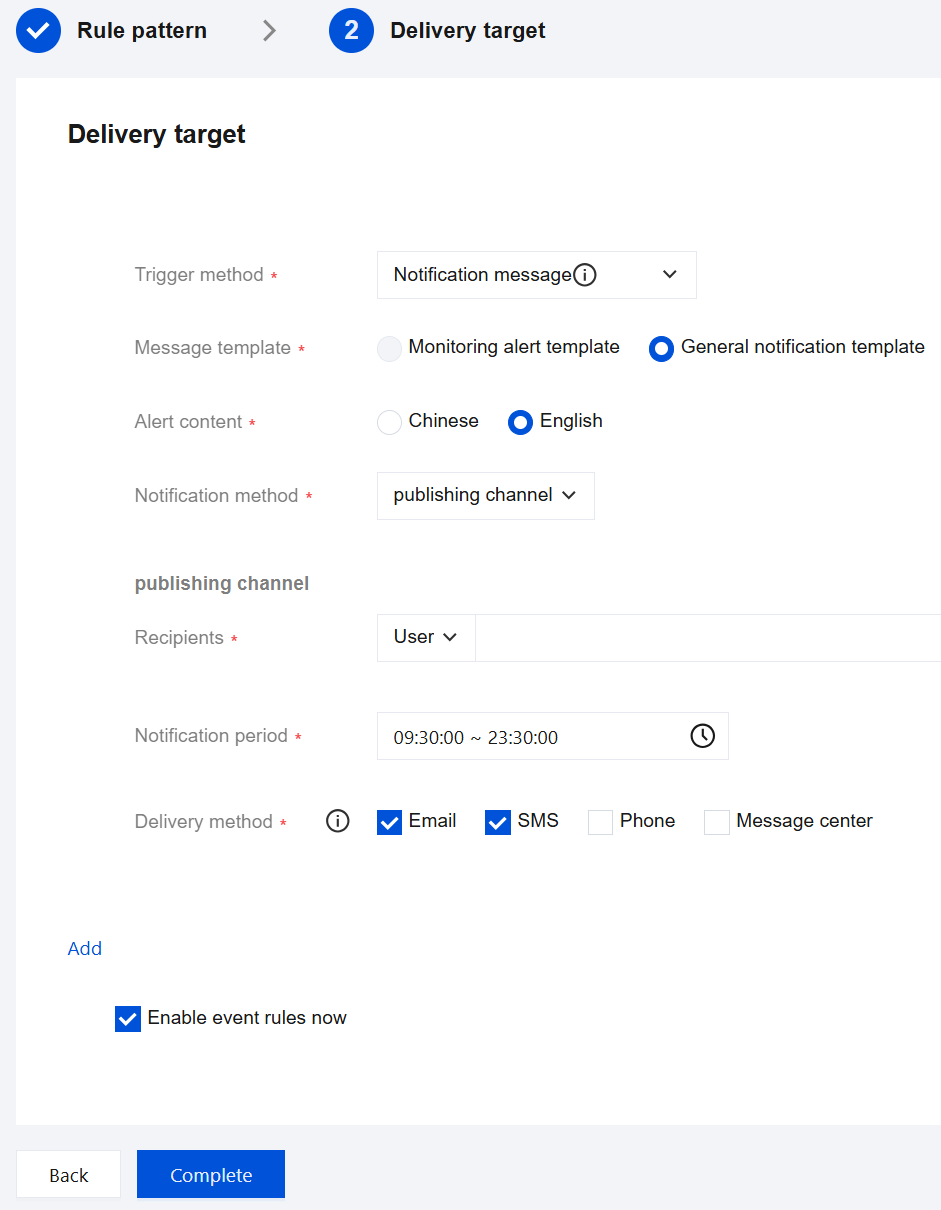
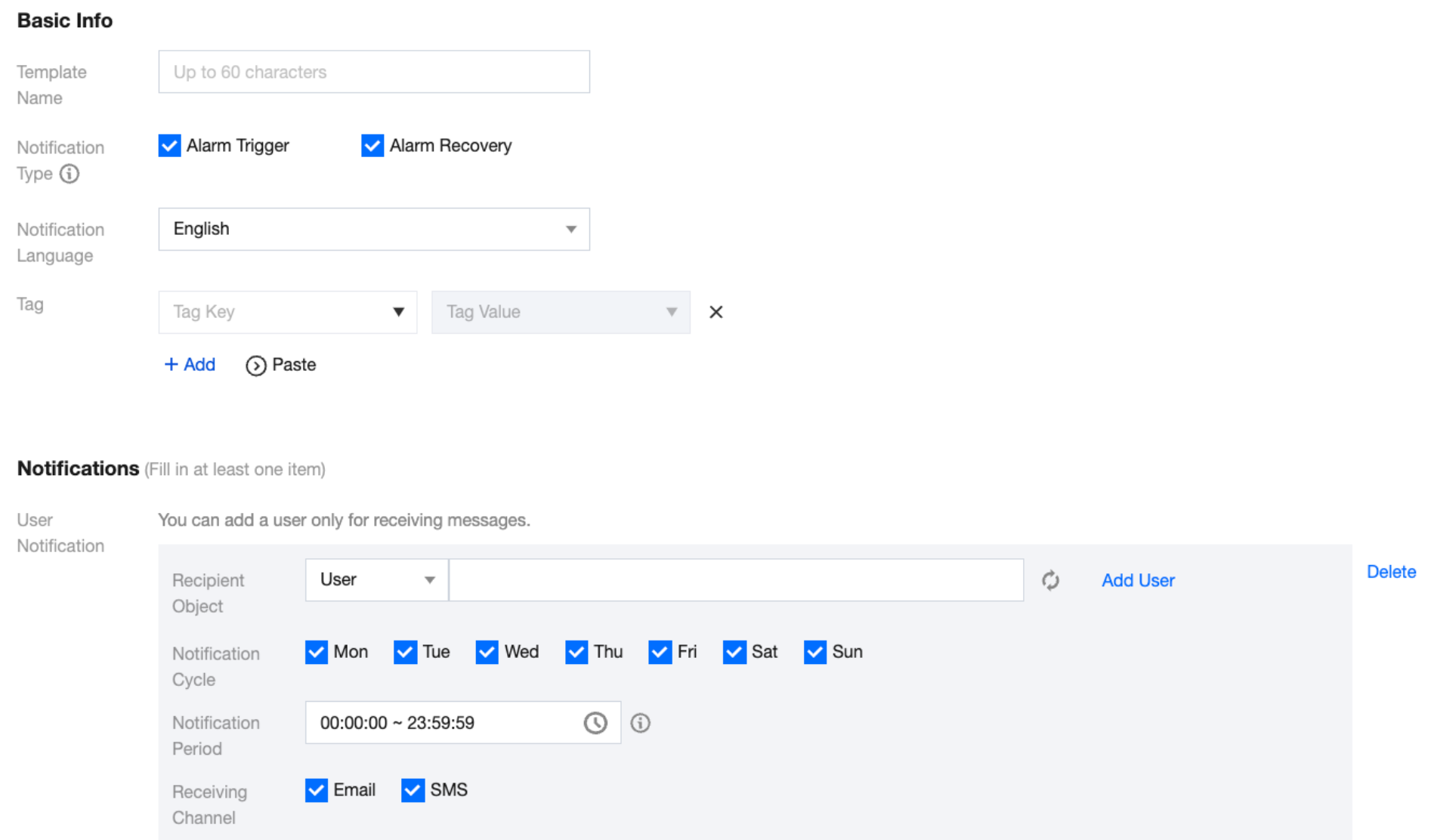
6. On the event target page, complete the relevant configurations, select Enable Eevent rules now, and click Complete. (There are multiple trigger types for you to choose from as needed. The following figure uses "Message Push" as the trigger type as an example. Channel pushes will be sent to the configured contacts. You need to set the receiving users separately in the recipient field. The notification period should be confirmed through negotiation with the corresponding account users. The receiving channel can be email, in-site message, SMS, or phone.)
Note:
To configure multiple event targets, click Add.
7. After the event message push settings are completed, if a configured event alarm occurs, the system will push notifications through the receiving channels of the recipients you configured.
Configuring Alarm Policies via TCOP
1. Log in to the TCOP console, and choose Alarm Management > Policy Management in the left navigation pane.
2. On the alarm policy list page, click Create Policy.
3. On the policy creation page, complete the settings for basic information, alarm rules, and alarm notifications.
Policy Type: Choose Cloud Database > MySQL > Host Monitoring.
Alarm Object: You can find the object instance to associate by selecting the region where the object resides or searching for the object's instance ID.
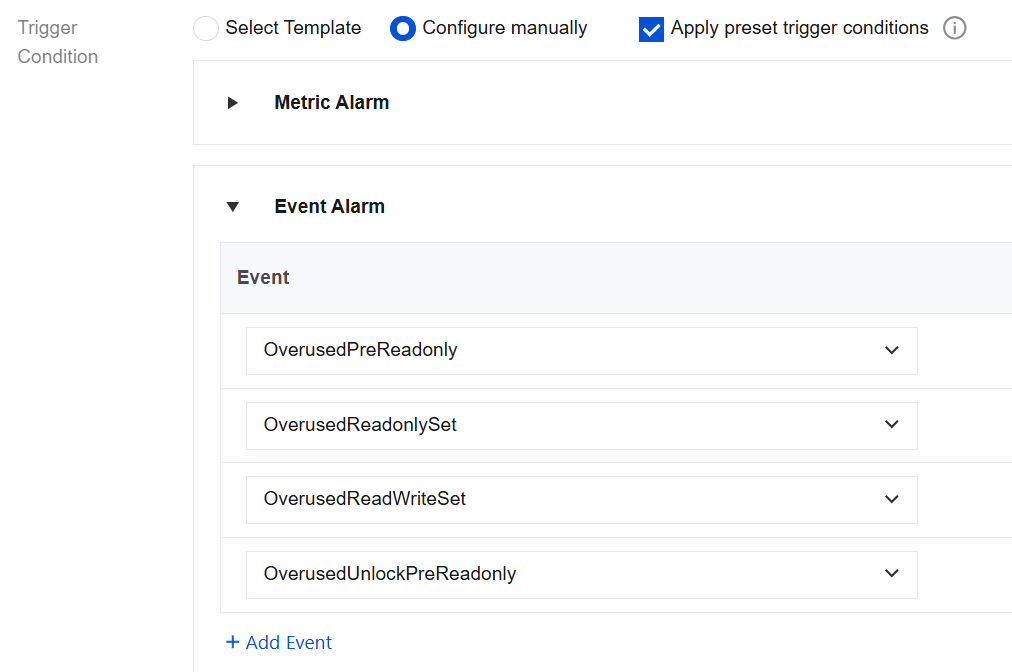
Trigger Condition: Select Manual Configuration, and click Add Event to find alarms related to storage overuse lock.
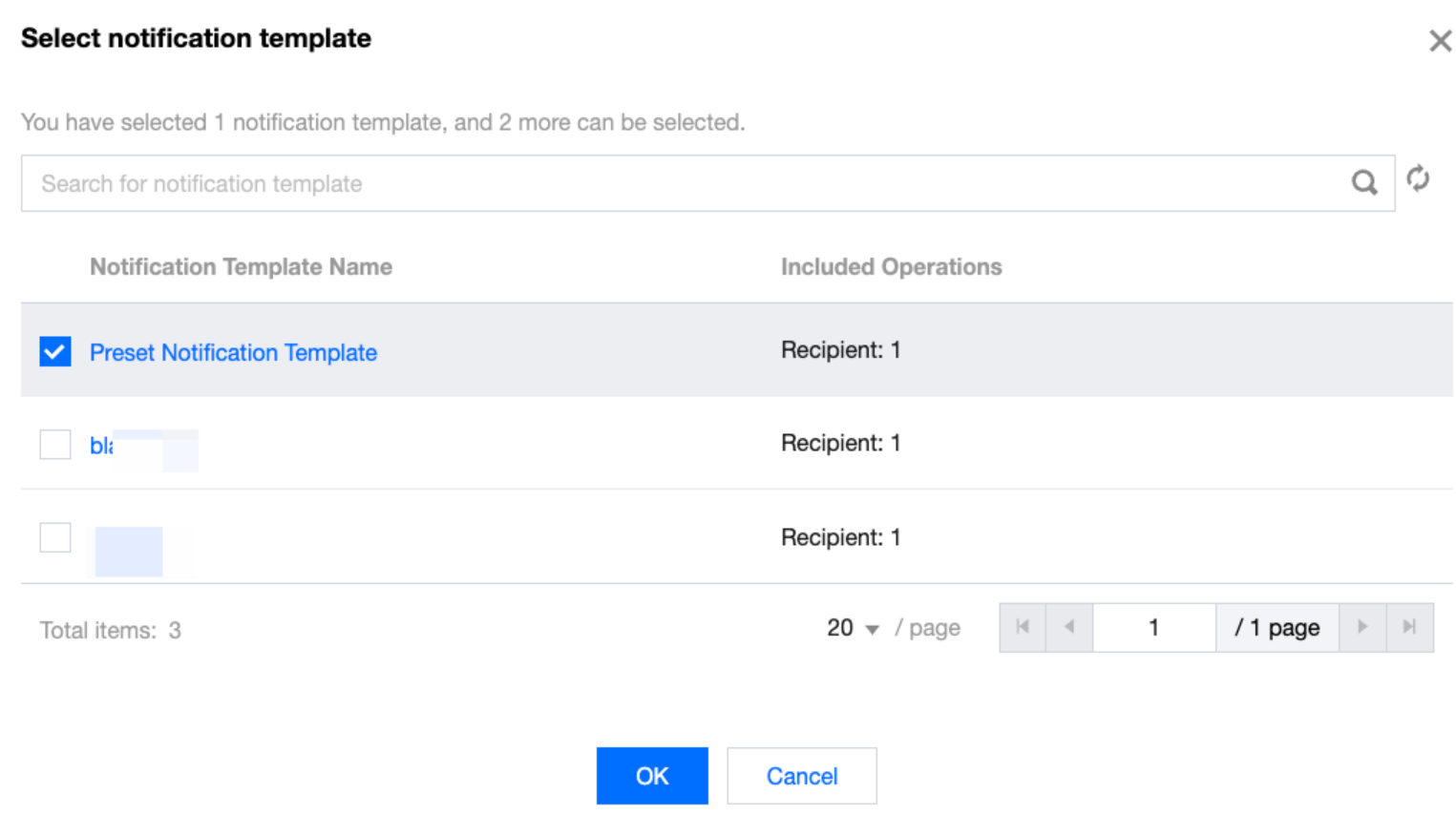
Configure Alarm Notifications: You can select system preset notification templates or custom notification templates. Each alarm policy can be bound to up to three notification templates. For custom notification templates, see Create Notification Template.