tencent cloud
最新优惠
产品
解决方案
价格中心
合作伙伴网络
云市场
探索更多
Prev
Next
内容分发网络 CDN
动态与公告
产品动态
公告
新手指引
产品简介
产品概述
产品优势
应用场景
基本概念
使用限制
CDN性能说明(抽样)
购买指南
CDN 购买指南
ECDN 购买指南
快速入门
从零开始配置 CDN
接入域名
配置 CNAME
域名归属权验证
域名接入常见问题
配置指南
域名管理
域名配置
统计分析
刷新预热
日志服务
安全加速
服务查询
离线缓存
权限管理
权限配置
控制台权限说明
子账号或协作者开通实时日志的方法
场景教学
CDN 加速 COS 资源
实践教程
CDN 迁移至 EdgeOne 工具使用指南
CDN - CVM
CDN - COS
DNSPod 一键配置 CNAME
CDN日志定时存储
API 文档
History
Introduction
API Category
Content Management APIs
Real-time Log APIs
Domain Name Management APIs
Service Query APIs
Data Query APIs
Abandoned APIs
Making API Requests
Log Query APIs
Configuration Management APIs
Other APIs
Data Types
Error Codes
常见问题
功能特性问题
计费相关问题
域名接入问题
缓存配置问题
刷新预热问题
统计分析问题
HTTPS 相关问题
访问相关问题
故障相关问题
故障处理
状态码说明及处理建议
不同节点缓存内容不一致
接入 CDN 后,网页访问速度慢
流量命中率偏低
CDN 域名突然出现404状态
页面展示异常-访问跨域报错
资源缓存未生效
CDN Service Level Agreement
词汇表
文档
内容分发网络 CDN
配置指南
统计分析
实时监控
数据对比
数据对比
Download
聚焦模式
字号
最后更新时间: 2024-12-31 14:50:11
新版实时监控页面的各子页面,均支持数据曲线对比功能。
1.
登录
CDN 控制台
,在左侧目录中,选择【统计分析】>【实时监控】,进入管理页面。
2.
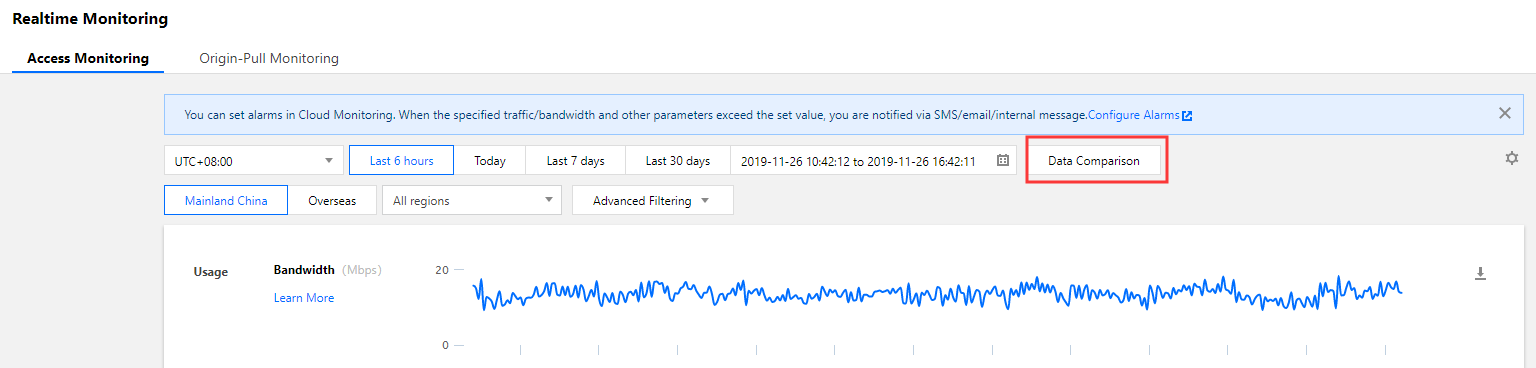
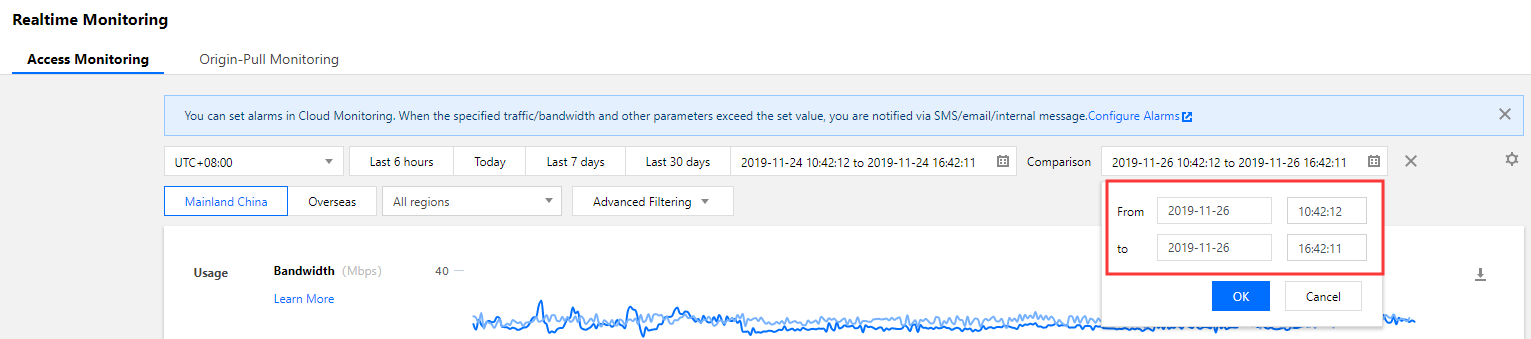
查询指定时间区间监控曲线后,单击【数据对比】,指定时间周期,即可进行数据对比展示。
为了方便您的使用,指定开始时间后,系统将自动往后补齐结束时间;指定结束时间,系统将自动向前补齐开始时间,保证对比的时间周期一致。
上一篇: 面板配置
下一篇: 访问监控
帮助和支持
本页内容是否解决了您的问题?
是
否
您也可以
联系销售
或
提交工单
以寻求帮助。
填写满意度调查问卷,共创更好文档体验。
点击前往
文档反馈