After logging in to the Windows CVM instance via VNC, perform the following operations:
Note:
The following operations use a CVM instance running the Windows Server 2012 operating system as an example.
1. In the CVM instance, click . Select Task Manager to open the Task Manager page. 2. Select Performance tab, and click Open resource monitor.
3. On the Resource Monitor page, identify the process that consumes a lot of bandwidth. Based on your actual business, determine whether the process is normal.
If this process is a service process, check whether the high bandwidth utilization is caused by changes in access traffic and whether you need to optimize the capacity or upgrade the CVM configuration as instructed in Changing Instance Configuration. If this process has an exception, the high bandwidth utilization may be caused by a virus or a trojan. If so, you can manually terminate the process or use security software to kill the virus. You can also back up data and then reinstall the operating system.
Note:
In Windows, many virus processes can disguise themselves as system processes. You can select Task Manager > Processes to check the process information and preliminarily identify the virus.
Normal system processes have complete signatures and descriptions, and most of them are located in the C:\\Windows\\System32 directory. While virus programs may have the same names as system processes, they lack signatures and descriptions. In addition, their locations are often abnormal.
If this process is a Tencent Cloud component process, please submit a ticket, and we will help you locate and troubleshoot the problem. After logging in to the Linux CVM instance via VNC, perform the following operations:
Note:
The following operations use a CVM instance running the CentOS 7.6 operating system as an example.
1. Run the following command to install the iftop tool. This tool monitors traffic for Linux CVM instances.
Note:
For Ubuntu system, run the apt-get install iftop -y command.
2. Run the following command to install lsof.
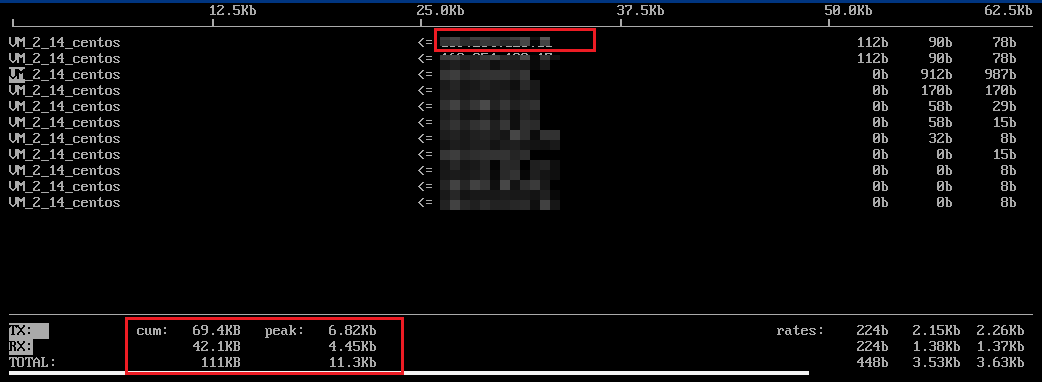
3. Run the following command to run iftop.
"<=" and "=>" indicate the direction of the traffic.
"TX" indicates the traffic is outbound.
"RX" indicates the traffic is inbound.
"TOTAL" indicates the total traffic.
"Cum" indicates the total traffic from the moment iftop started to run until now.
"peak" indicates the traffic peak.
"rates" indicates the average traffic over the last 2, 10, and 40 seconds.
4. Based on the IP address of the consumed traffic in iftop, run the following command to check the process connected to this IP address.
For example, if the IP address of the consumed traffic is 201.205.141.123, run the following command:
lsof -i | grep 201.205.141.123
If the following result is returned, the majority of the CVM bandwidth is consumed by the SSH process.
sshd 12145 root 3u IPV4 3294018 0t0 TCP 10.144.90.86:ssh->203.205.141.123:58614(ESTABLISHED)
sshd 12179 ubuntu 3u IPV4 3294018 0t0 TCP 10.144.90.86:ssh->203.205.141.123:58614(ESTABLISHED)
5. View the process that consumes a lot of bandwidth and check whether the process is normal.
If this process is a service process, check whether the high bandwidth utilization is caused by changes in access traffic and whether you need to optimize the capacity or upgrade the CVM configuration as instructed in Changing Instance Configuration. If this process has an exception, the high bandwidth utilization may be caused by a virus or a trojan. If so, you can manually terminate the process or use security software to kill the virus. You can also back up data and then reinstall the operating system.
If this process is a Tencent Cloud component process, please submit a ticket, and we will help you locate and troubleshoot the problem.