When you shut down or restart the CVM, a failure may occur. While it is a rare event, you can troubleshoot as follows:
Possible Causes
High CPU or memory usage.
ACPI has not been installed on the Linux CVM.
System update of the Windows CVM takes too long.
Windows CVM has not completed initialization yet when you purchase it for the first time.
The operating system is damaged due to installed software or viruses such as Trojan.
Troubleshooting
Check CPU/memory usage
1. Check CPU/memory usage based on the operating system of the CVM.
For Windows CVM: Right-click the "Taskbar" and select Task Manager on the CVM.
For Linux CVM: Execute the top command to view information in %CPU and %MEM columns.
2. Terminate processes with high CPU or memory usage.
If you still cannot shut down or restart the CVM, please execute forced shutdown or restart. Check whether ACPI has been installed
Note:
This operation is for Linux CVM.
Execute the following command to see if an ACPI process exists.
ps -ef | grep -w "acpid" | grep -v "grep"
Check whether WindowsUpdate is running
Note:
This operation is for Windows CVM.
On the operating system interface of Windows CVM, click Start > Control Panel > Windows Update to see if any patches or programs are being updated.
Windows may perform patching when the system is shutting down. The update may take a long time, causing CVM shutdown/restart to fail. We recommend you wait for the Windows update to complete and then try to shut down or restart the CVM.
Check whether the CVM has completed initialization
Note:
This operation is for Windows CVM.
When you purchase Windows CVM for the first time, initialization may take longer because Sysprep is used to distribute images. Before the initialization is complete, Windows will ignore shutdown and restart operations.
If the Windows CVM you purchased is initializing, we recommend you wait for the initialization to complete before shutting down or restarting the CVM again.
Check whether the software installed is normal
Use a check tool or antivirus software to see if the software installed on the CVM is normal or attacked by viruses such as Trojan.
If an exception is found, the system may be damaged, causing shutdown and restart to fail. We recommend you uninstall the software, back up data or scan with security software, and then reinstall the system.
Forced shutdown/restart
Note:
Forced shutdown/restart provided by Tencent Cloud can be used if you fail to shut down or restart the CVM after multiple attempts. This feature allows you to force a shutdown or restart on the CVM, which may cause data loss or damage the file system.
2. On the instance management page, select the CVM you want to shut down or restart.
Shut down CVM: Click More > Instance Status > Shutdown.
Restart CVM: Click More > Instance Status > Restart.
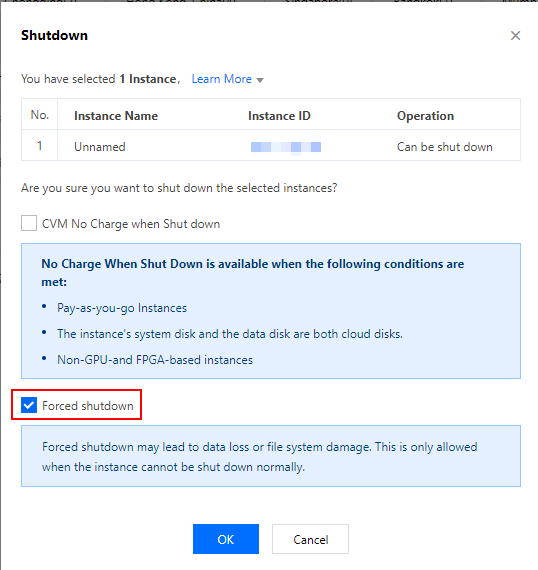
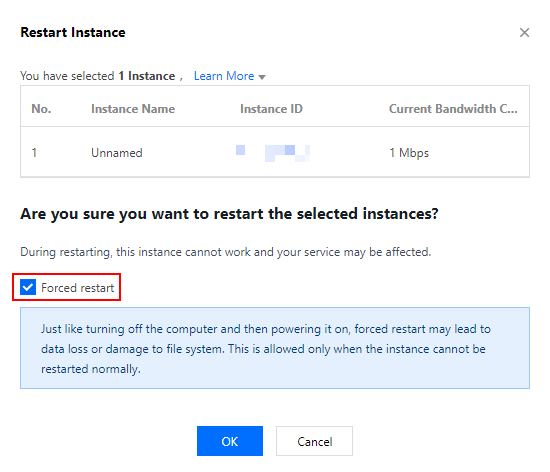
3. In the Shutdown or Restart Instance window that pops up, check Forced Shutdown or Forced Restart, and Click Ok.
Check Forced Shutdown, as shown below:
Check Forced Restart, as shown below: