Cloud Firewall
ダウンロード
フォーカスモード
フォントサイズ
Feature Introduction
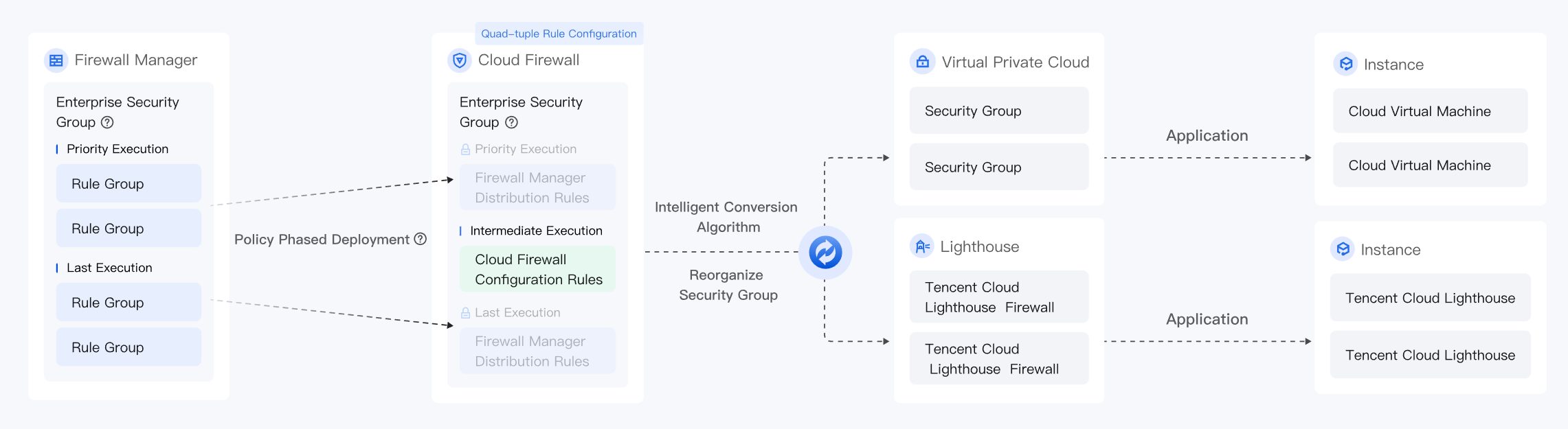
The CFW - Internet Boundary Rules, CFW - NAT Boundary Rules, CFW - VPC Boundary Rules, and CFW - Enterprise Security Groups modules under Rule Management provide the capability to distribute and manage CFW access control rules across accounts. After selecting the corresponding module, you can distribute, manage, and monitor the associated rule groups. This enables one-time orchestration and multi-account distribution, which helps maintain Ops consistency and reduces management costs in complex environments.
Operation Steps
Create Rule Issue
1. Log in to the FWM console. In the left-side navigation pane, select Rule Management.
2. On the Rule Management page, click Create Rule Issue.
3. On the Create Rule Issue page, configure the following parameters:
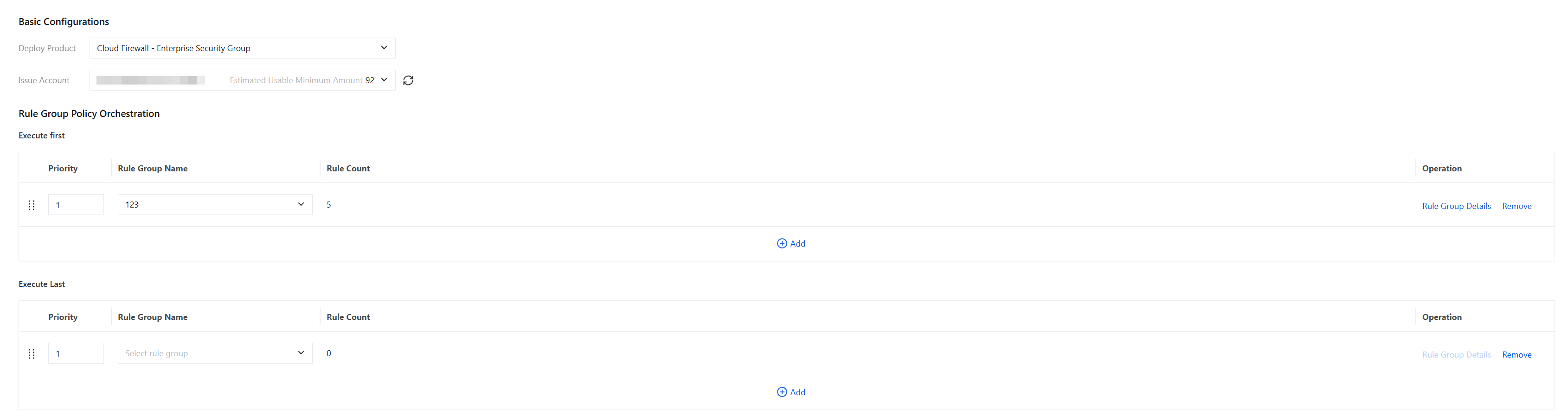
Parameter Name | Description |
Deploy Product | Select the CFW module to which the rule needs to be deployed. |
Issue Account | Select the target account or account group to which the rule needs to be deployed. Account: Deploy the rule to one or more specified member accounts. Note: If there is no target account, go to Member Management page Select Account and enable management, then try again. For details, see Member Management. Account Group: Deploy the rule to the entire account group. When members are added to or removed from the group, FWM automatically generates corresponding pending deployment records for them. For details about account groups, see Manage Account Group. |
Excut e first | Configure the rule group with the highest priority, and click Add to add it. |
Priority | The execution sequence of rules, where a smaller number indicates a higher priority. Only the priority of the first rule is editable, and the priorities of subsequent rules automatically increment. Note: You can only edit the priority of the first rule. The priorities of subsequent rules are then incremented sequentially, and the rule that originally held that priority is automatically shifted down. Press and hold the left mouse button to drag and sort the created rule group policies. Their priorities will change accordingly. |
Rule Group Name | Select the rule group to be deployed from the drop-down list. Note: If the existing rule groups do not meet your requirements, click New Rule Group. The system will then navigate to the Rule Group > Selected Depoly Product > New Rule Group page. For detailed steps, refer to New Rule Group. |
Rule Count | (Automatically displayed) The total number of rules contained in the selected rule group. |
Operation | Rule Group Details: View the basic information and rule list of this rule group. Remove: Remove this rule group from the current orchestration. |
Execute Last | Configure the rule group with the lowest priority, and click Add a New One to add it. The parameter description is the same as that for Excute first. |
4. After the parameters are configured, you can choose from the following operations:
Save and Preview Changes (Supported only by CFW - Enterprise Security Group): Save the deployment rule group and preview the changes to the security group rules bound to the instances associated with the deployment rules.
After confirming the information is correct, click Immediate Distribution to execute the deployment.
Alternatively, you can click Close. The system will then save your deployment rule and return to the Rule Deployment Management page.
Immediate Distribution: Deploy this rule, along with all rules across all security products that are not deployed, pending deployment, or failed to deploy.
Save: Save to the rule deployment management list. To take effect, you must manually click Immediate Distribution in the rule deployment management list later.
Manage Rule Issue
On the Rule Management page, select the CFW module for which you need to manage deployment rules. You can manage the created rules by performing operations such as querying, sorting, deploying, editing, and deleting.
Query Rule
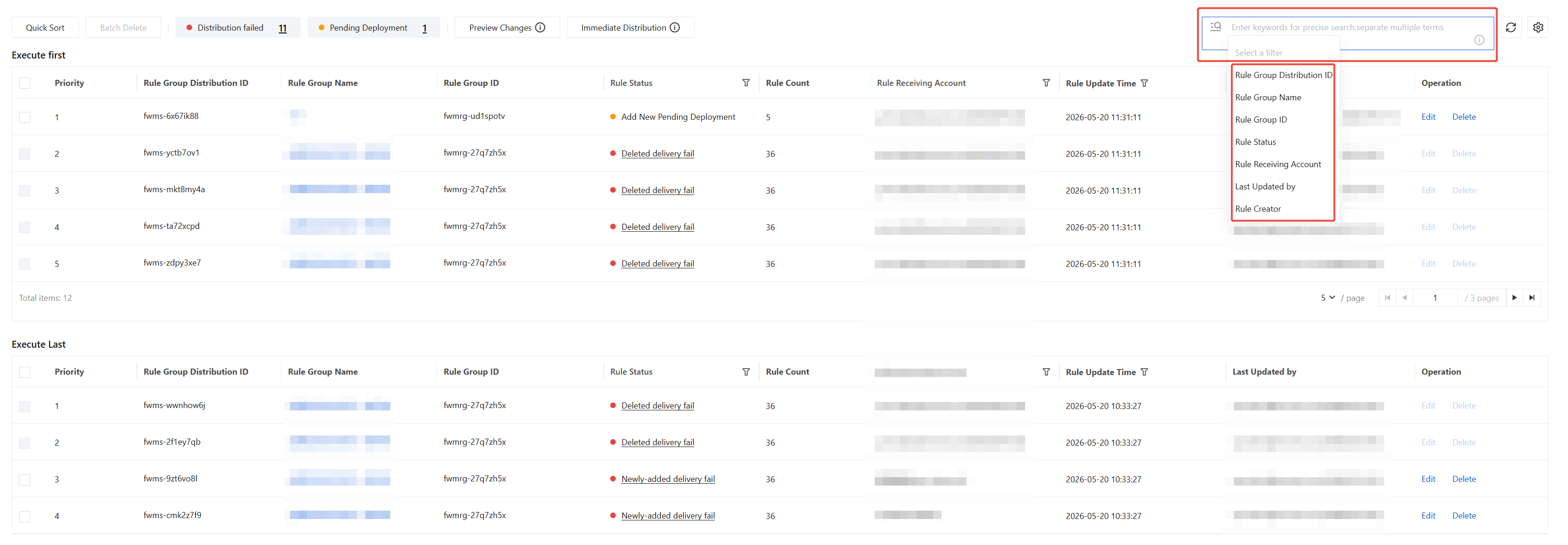
You can use the search box above the list to query by entering keywords such as rule group deployment ID or rule group name. Separate multiple conditions with the Enter key.
Quick Sort
The top-to-bottom order of rules in the list indicates their priority from high to low. To adjust the order, follow the steps below:
1. Click Quick Sort above the list.
2. Hover the mouse over the rule row you need to adjust. When the cursor changes to a drag icon, press and hold the left mouse button and drag up or down.
3. After adjusting to the target position, click Save. Rules at the top of the list have higher priority than those at the bottom. The system automatically updates the priority values.
Distribute Rule
Rule deployment can be performed in the following ways:
Preview Changes (Supported only by CFW - Enterprise Security Group): When creating or editing a deployment rule, click Save and Preview Changes, or click Preview Changes on the rule deployment management list page. A new page then displays the details of the rule changes. After confirming that everything is correct, click Immediate Distribution on that page.
Immediate Distribution: When creating or editing a deployment rule, click Immediate Distribution, or click Immediate Distribution on the rule deployment management list page. This directly triggers the deployment process.
Note:
Deployment will deploy all rules across all security products that are not deployed, pending deployment, or failed to deploy.
Edit Rule Group
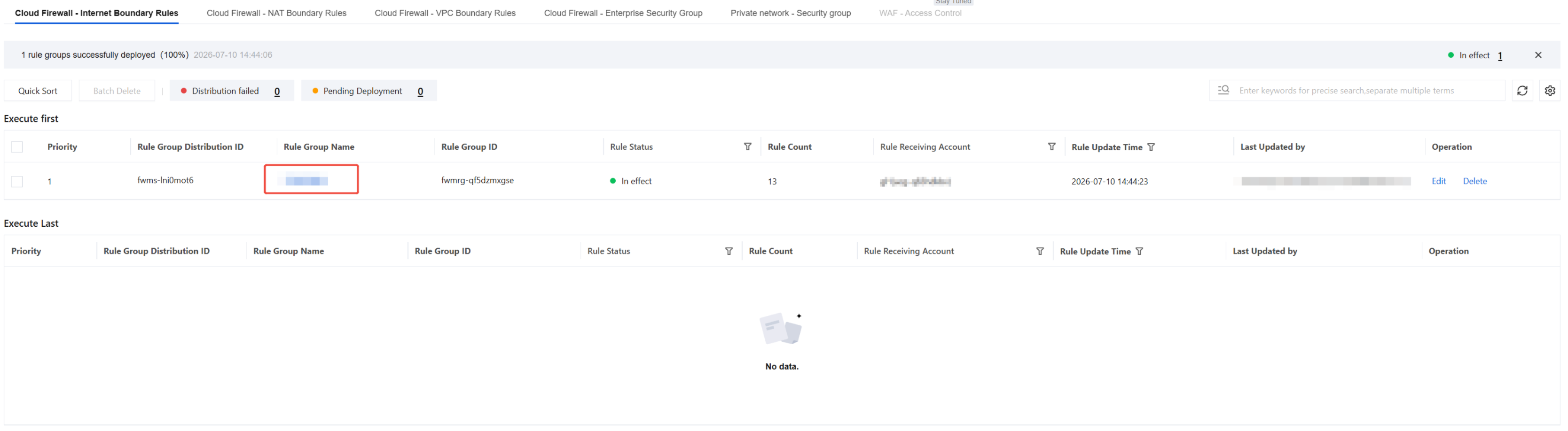
Click the rule group name in the rule list to navigate to the edit page for that rule group. For details on rule group parameters, see Rule Group.
Edit Rule
1. In the Actions column of the target rule, click Edit to go to the edit page.
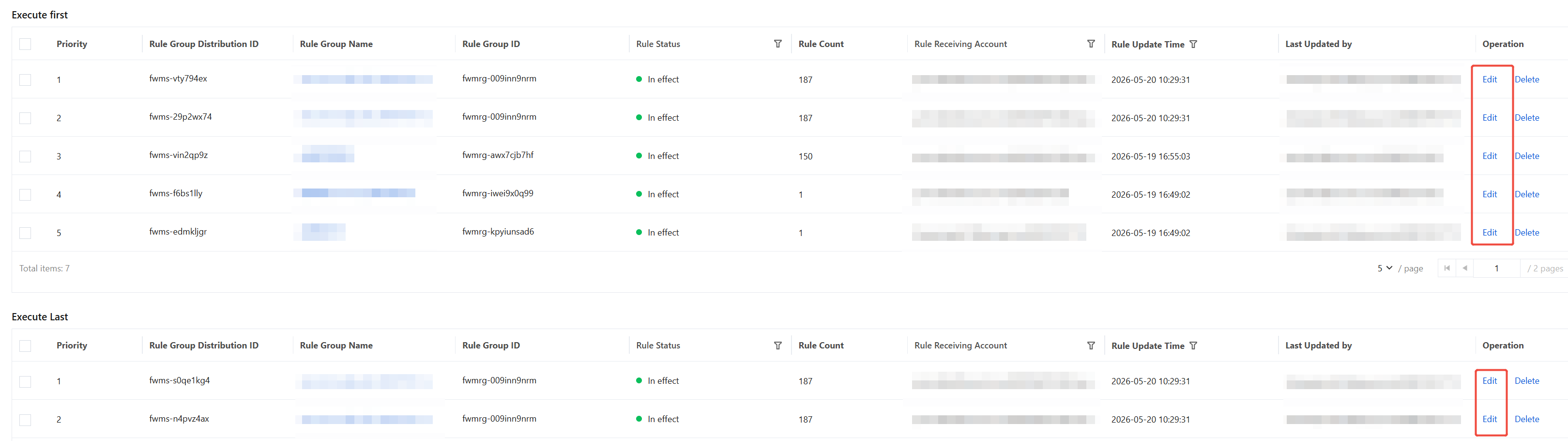
2. On the edit page, you can modify the Issue Account in the Basic Configurations, as well as the Priority and Rule Group Name in the Rule Group Policy Orchestration. For parameter details, see Create Rule Issue.

3. Click Rule Group Details to view the basic information and rule list of that rule group.
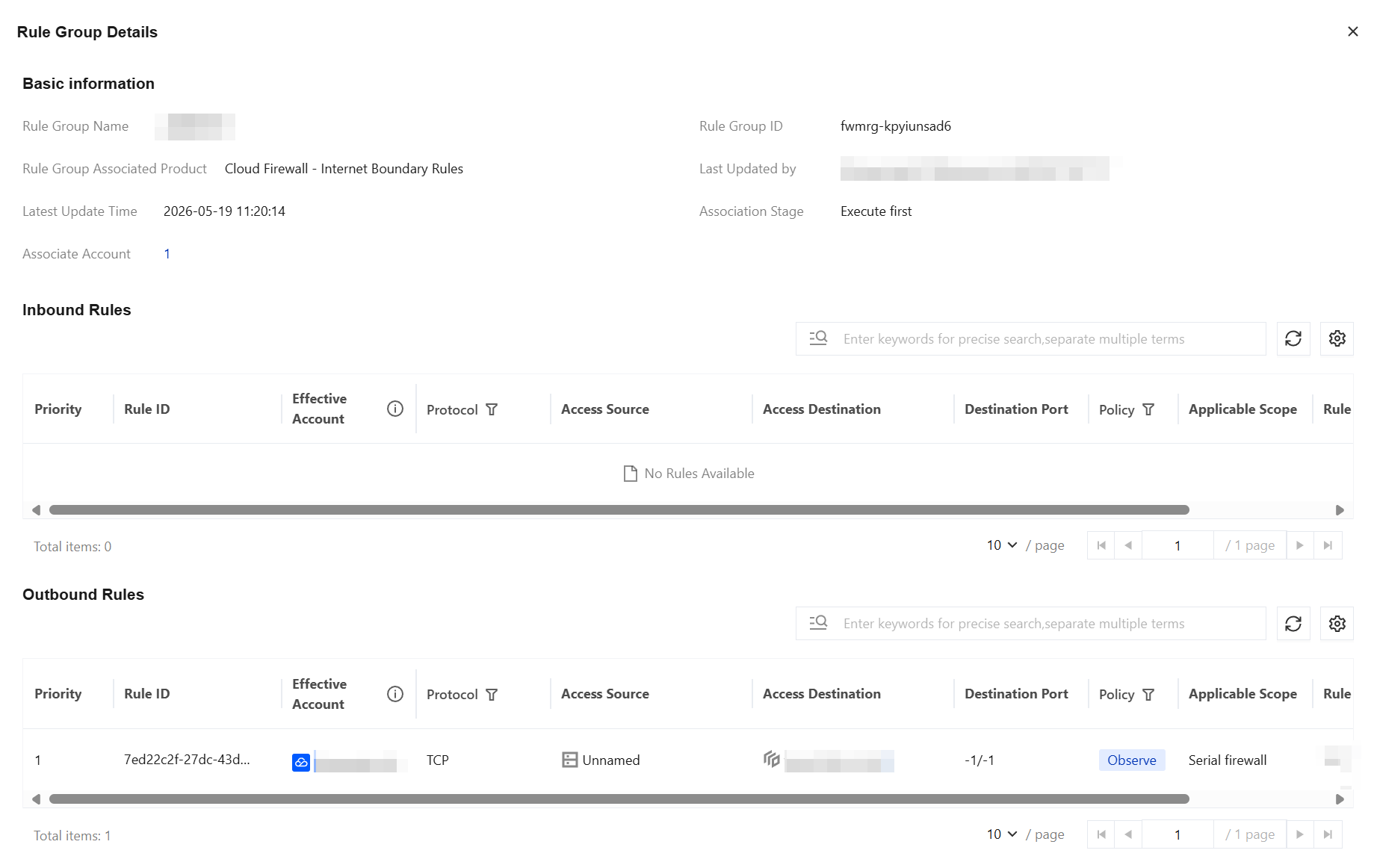
4. After the parameters are configured, you can choose from the following operations:
Save and Preview Changes (Supported only by CFW - Enterprise Security Group): Save the deployment rule group and preview the changes to the security group rules bound to the instances associated with the deployment rules.
After confirming the information is correct, click Immediate Distribution to execute the deployment.
Alternatively, you can click Close. The system will then save your deployment rule and return to the Rule Deployment Management page.
Immediate Distribution: Deploy this rule, along with all rules across all security products that are not deployed, pending deployment, or failed to deploy.
Save: Save to the rule deployment management list. To take effect, you must manually click Immediate Distribution in the rule deployment management list later.
Delete Rule
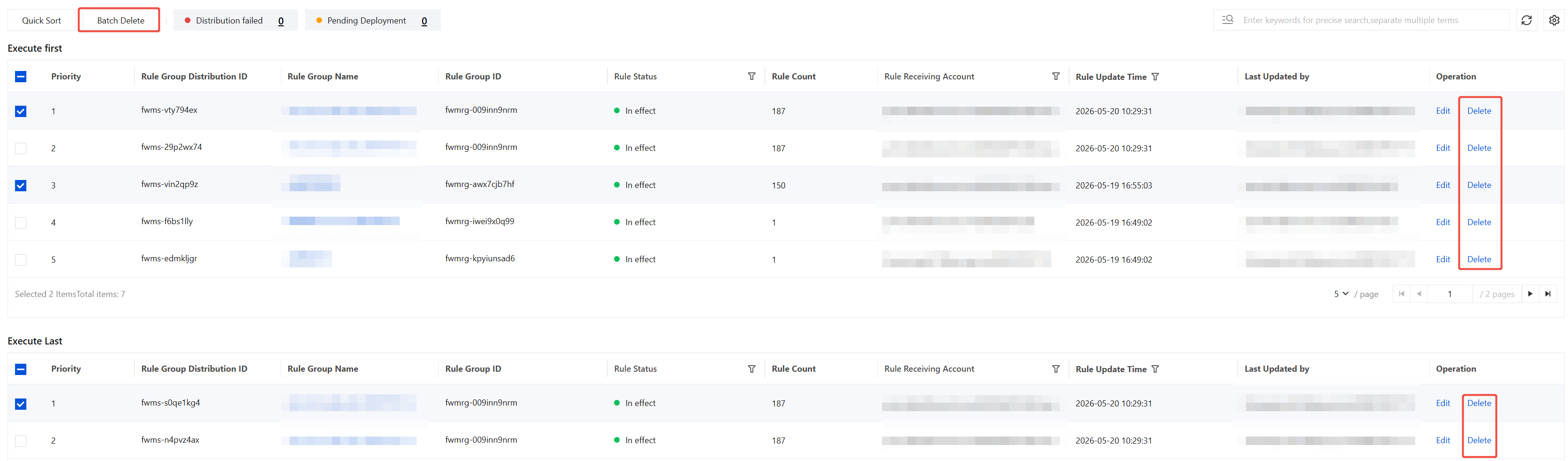
Delete a Single Rule: In the Actions column of the target rule, click Delete.
Batch Delete: First, select multiple rules, and then click Batch Delete above the list.
Note:
Deleted rules cannot be recovered.
Rules with the "Add New Pending Deployment" status are directly removed from the list.
Rules with the "In effecrt/Update Pending Deployment" status are changed to the "Deleted Pending Deployment" status. To take effect, you must click Immediate Distribution.
Synchronizing Assets
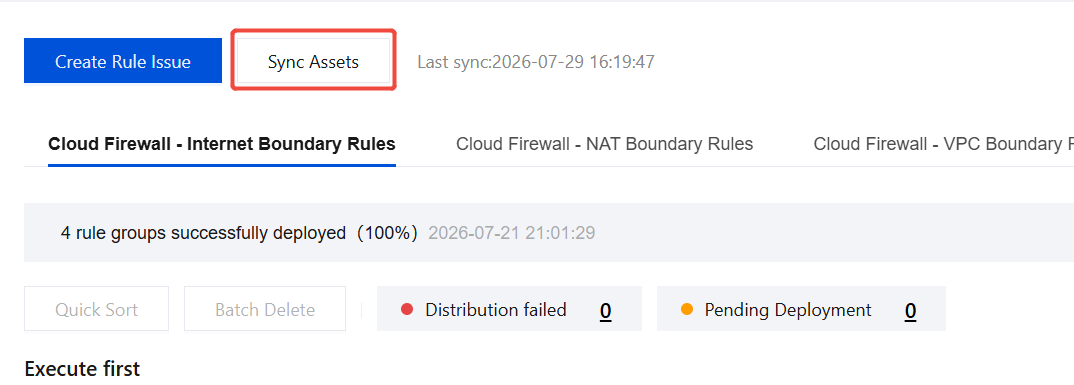
Asset data is updated periodically. To obtain the latest data, you can manually trigger a sync by clicking Sync Now in the upper-left corner of the page.
フィードバック