Access log
Download
Focus Mode
Font Size
Note:
Scenarios
The GA 2.0 access log feature records information about client requests transmitted through GA 2.0 instances. After you enable access logs, you can deliver them to Cloud Log Service (CLS) and perform real-time log search and analysis in the CLS console to help troubleshoot issues and analyze user behavior.
Access logs are configured at the granularity of "listener + endpoint group" and support Layer-4 (TCP/UDP) and Layer-7 (HTTP/HTTPS) protocols.
Prerequisites
You have created a GA 2.0 instance and configured listeners and endpoint groups.
You have created a logset and log topic in CLS. If you have not created them yet, see Creating a Logset and Log Topic.
The region where the endpoint group with the access log feature enabled resides must support CLS. For details, see Regions Supported by CLS.
Operation Steps
Creating Access Logs
1. Log in to the GAAP console and go to the Instance Management page.
2. Click the target instance ID to go to the instance details page.
3. Select the Access Log tab and click Create.
4. In the Create Access Log dialog box, configure the following parameters:
Parameter | Description |
Listener | Select the listener whose logs need to be collected. |
Endpoint Group | Select the endpoint group whose logs need to be collected. |
Storage Region | The storage region is the same as the endpoint group region. The CLS storage region cannot be modified. |
Logset | Select the target log set. If no suitable log set is available, click Create to go to Create Log Set. |
Log topic | Select the target log topic. If no suitable log topic is available, click Create to go to Create Log Topic. |
Log fields to report | The fields reported by GA 2.0 include default reported fields and custom reported fields. The fields selected here are custom fields. For field descriptions, see Appendix below. |
5. After the configuration is complete, click OK.
Viewing Access Logs
1. On the Access Log tab of the target instance, view the list of created access log configurations.
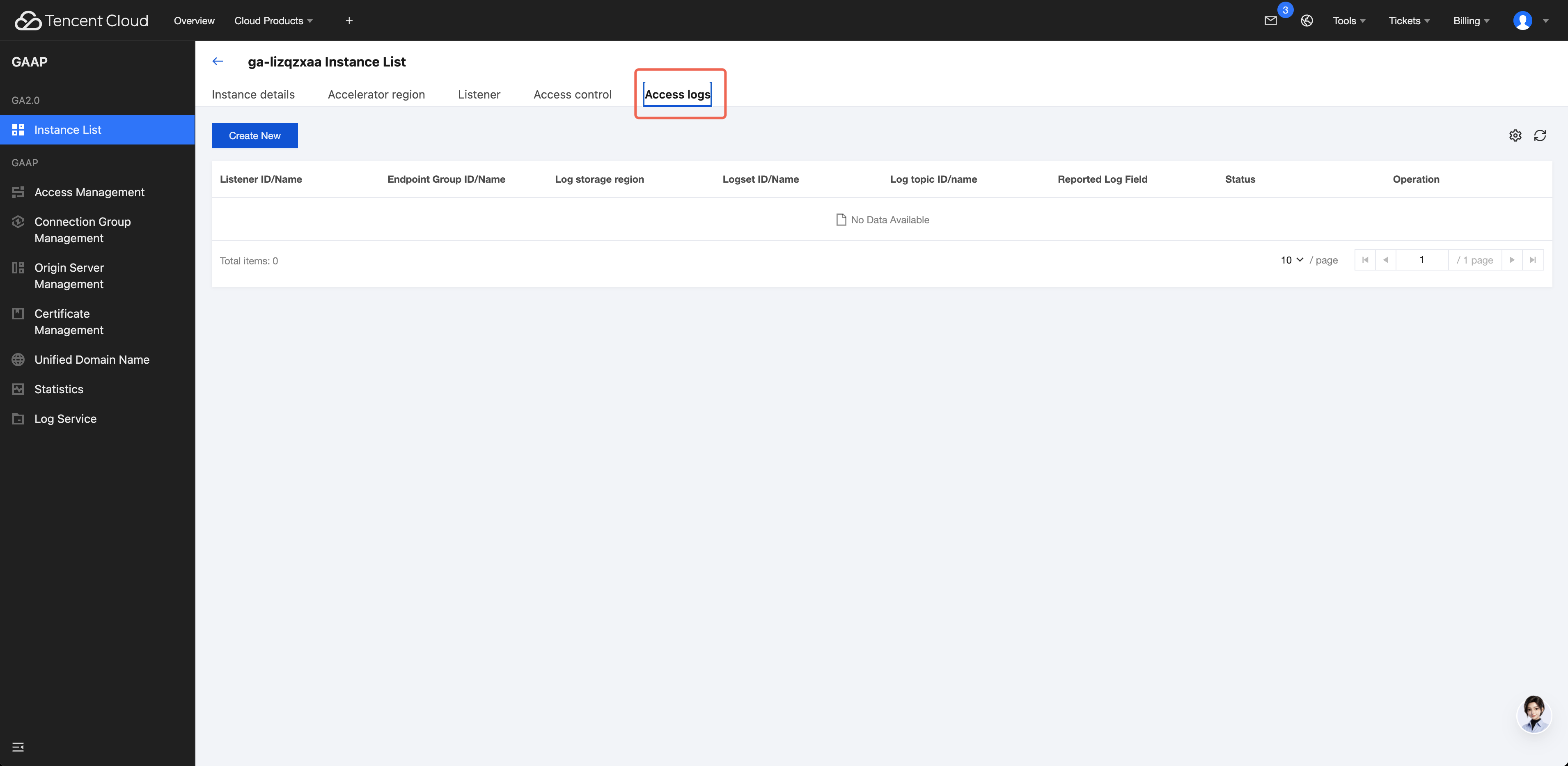
2. Click Logset or Log Topic to go to the CLS console to view and search logs.
Editing Access Logs
1. On the Access Log tab, find the target log configuration and click Edit.
2. You can modify the Reported Log Fields on the modification page.
3. After the modification is complete, click OK.
Stopping/Starting Access Logs
Stop Collection: On the Access Log tab, find the target log configuration and click Stop. After stopping, the system will no longer deliver new access logs. Delivered logs will remain in CLS and will not be affected.
Start Collection: For a stopped log configuration, click Start to resume log delivery.
Deleting Access Logs
1. On the Access Log tab, find the target log configuration and click Delete.
2. In the confirmation dialog box, carefully read the prompt message. After confirming that the information is correct, click OK to delete.
Note:
After deletion, Global Acceleration logs will no longer be delivered to this log topic, and delivered logs will not be deleted.
Appendix: Access Log Field Descriptions
Default Reported Fields
The following fields are enabled by default when you create an access log:
Field Name | Description |
uniq_ga_id | GA instance string ID (for example, ga-a6zuyqpa) |
lsr_id | Listener string ID (for example, lsr-fea93cwj) |
epg_id | Endpoint group string ID (for example, epg-hh6jejs8) |
server_ip | On-ramp acceleration IP address |
time_local | Local time string (for example, 15/Jan/2026:13:27:53 +0800) |
bytes_received | Number of bytes received from the client |
bytes_sent | Number of bytes sent to the client |
remote_addr | Client IP address |
remote_port | Client Port |
status | Layer 4: session status Layer 7: HTTP response status code |
protocol | Layer 4: TCP or UDP Layer 7: the application layer protocol of the client request (for example, HTTP/1.0, HTTP/1.1, HTTP/3) |
Optional Fields for Layer 4 (TCP/UDP)
Field Name | Description |
session_time | Session duration |
upstream_bytes_received | Number of bytes received from the endpoint |
upstream_bytes_sent | Number of bytes sent to the endpoint |
Optional Fields for Layer 7 (HTTP/HTTPS)
Field Name | Description |
request_method | Request method (GET/POST) |
scheme | Request protocol (http/https) |
request_uri | URI of the client's original request |
uri | URI of the current request |
host | Domain name accessed by the client |
remote_user | Username for basic authentication ("-" if not authenticated) |
http_user_agent | Client browser identifier |
http_referer | Request source URL ("-" when access is performed directly from the address bar) |
http_x_forwarded_for | Records the client's original IP address and the chain of proxy server IP addresses that the request passed through. |
content_type | Request content type |
body_bytes_sent | Size of the HTTP body sent to the client (excluding headers) |
request_time | Total time from receiving the first byte of the client request to sending the last byte of the response (in seconds) |
sent_http_content_type | Response content type |
upstream_header_time | Time taken for the endpoint's response headers to arrive |
upstream_response_length | Response body length returned by the endpoint |
upstream_response_time | Full response time of the endpoint |
upstream_status | HTTP status code returned by the endpoint |
upstream_bytes_received | Number of bytes received from the endpoint |
upstream_bytes_sent | Number of bytes sent to the endpoint |
Help and Support
Was this page helpful?
You can also Contact sales or Submit a Ticket for help.
Help us improve! Rate your documentation experience in 5 mins.
Feedback