tencent cloud

TDMQ for MQTT

Release Notes and Announcements
Release Notes
Product Introduction
TDMQ Product Series Introduction and Selection
What Is TDMQ for MQTT
Scenarios
Technical Architecture
Product series
MQTT Protocol Compatibility Notes
Comparison with Apache
High Availability
Product Constraints and Usage Quota
Basic Concepts
Supported Regions
Billing
Billing Overview
Renewal Instructions
Viewing Consumption Details
Overdue Payment Instructions
Refund
Getting Started
Guide for Getting Started
Preparations
Public Network Access
VPC Network Access
User Guide
Usage Process Guide
Configuring Account Permission
Creating a Cluster
Managing Topic
Connecting to the Cluster
Querying Messages
Managing Client
Managing a Cluster
Viewing Monitoring Metrics and Configuring Alarm Policies
Data Integration
Integrating Data Into SCF
Integrating Data Into CKafka
Integrating Data into RocketMQ
Development Guide
MQTT 5 Advanced Features
Data Plane HTTP API Description
Quota and Flow Control Mechanism Description
Configuring a Custom Domain Name
Configuring SQL Filtering
Configuring Point-to-Point Subscription
MQTT over QUIC
Managing Client Subscription
Message Enhancement Rule
Use Cases
Must-Knows for MQTT Client Development
Observability
Topic and Wildcard Subscriptions
​​API Reference
History
Introduction
API Category
Making API Requests
Cluster APIs
Topic APIs
Authorization Policy APIs
User APIs
Client APIs
Message Enhancement Rule APIs
Message APIs
Data Types
Error Codes
SDK Reference
Access Point Format
Java SDK
C SDK
Javascript/Node.JS/Mini Program
Go SDK
iOS SDK
JavaScript SDK
Dart SDK
Python SDK
.NET
Security and Compliance
Permission Management
FAQs
Related Agreement
Privacy Policy
Data Privacy And Security Agreement
TDMQ for MQTT Service Level Agreement
Contact Us

Querying Messages

PDF
Focus Mode
Font Size
Last updated: 2026-04-01 16:30:54

Scenarios

The MQTT console provides the message query feature. When you need to troubleshoot issues, you can query the details of a specific message within a time range, such as the message content, message parameters, and the producer IP that sent the message.

Querying Messages

1. Log in to the MQTT Console.
2. In the left sidebar, click Message Query. Select a region and then enter the query condition as prompted.
Cluster: Select the cluster where the topic to query is located.
Topic: Select the topic to query. You can enter the topic name or the topic filter used for subscription.
Start Time: Select the earliest time point for the message query. The precision is down to the millisecond.
Message Count: Displays the next x messages after the selected time point in strict chronological order.
3. Click Query. The list below displays all query results with pagination.
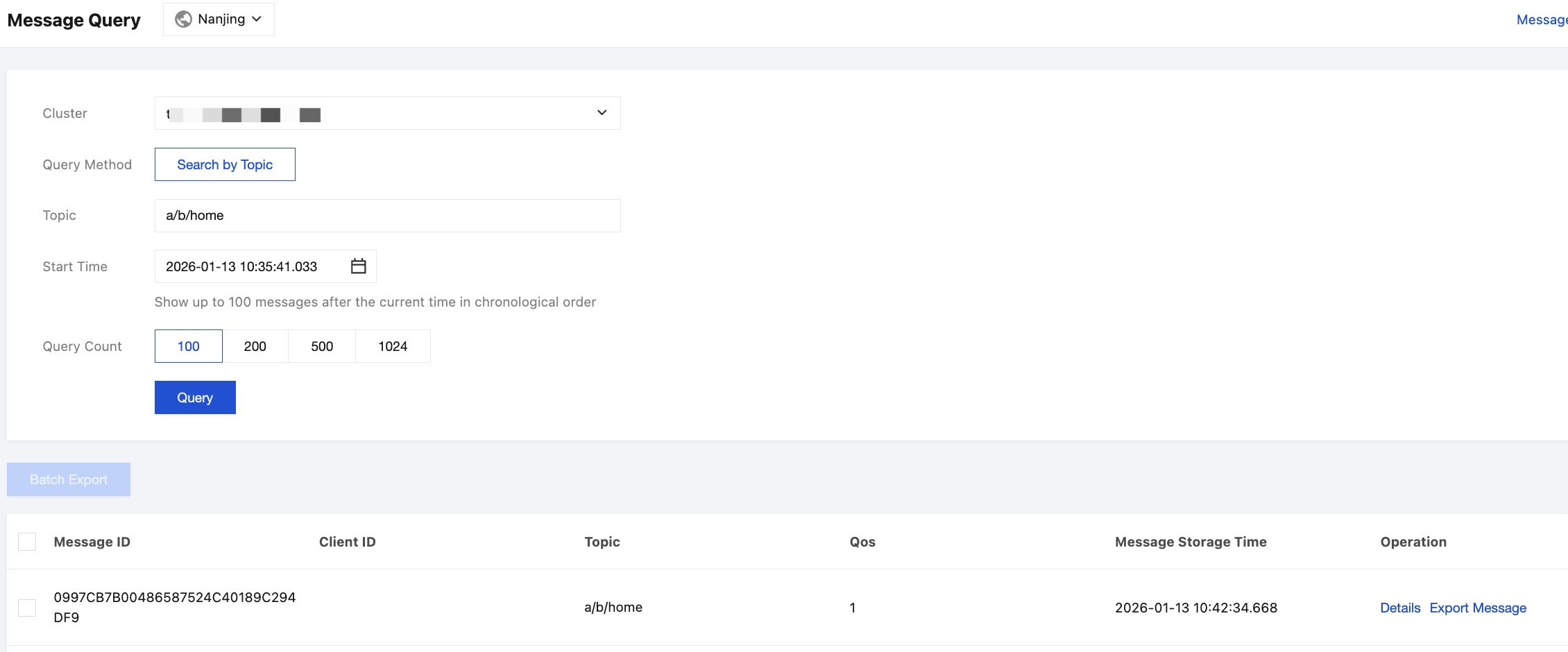
4. Find the message whose content or parameters you want to view, and click Details in the Operation column to view the basic information, content (message body), detailed parameters, and consumption status of the message.
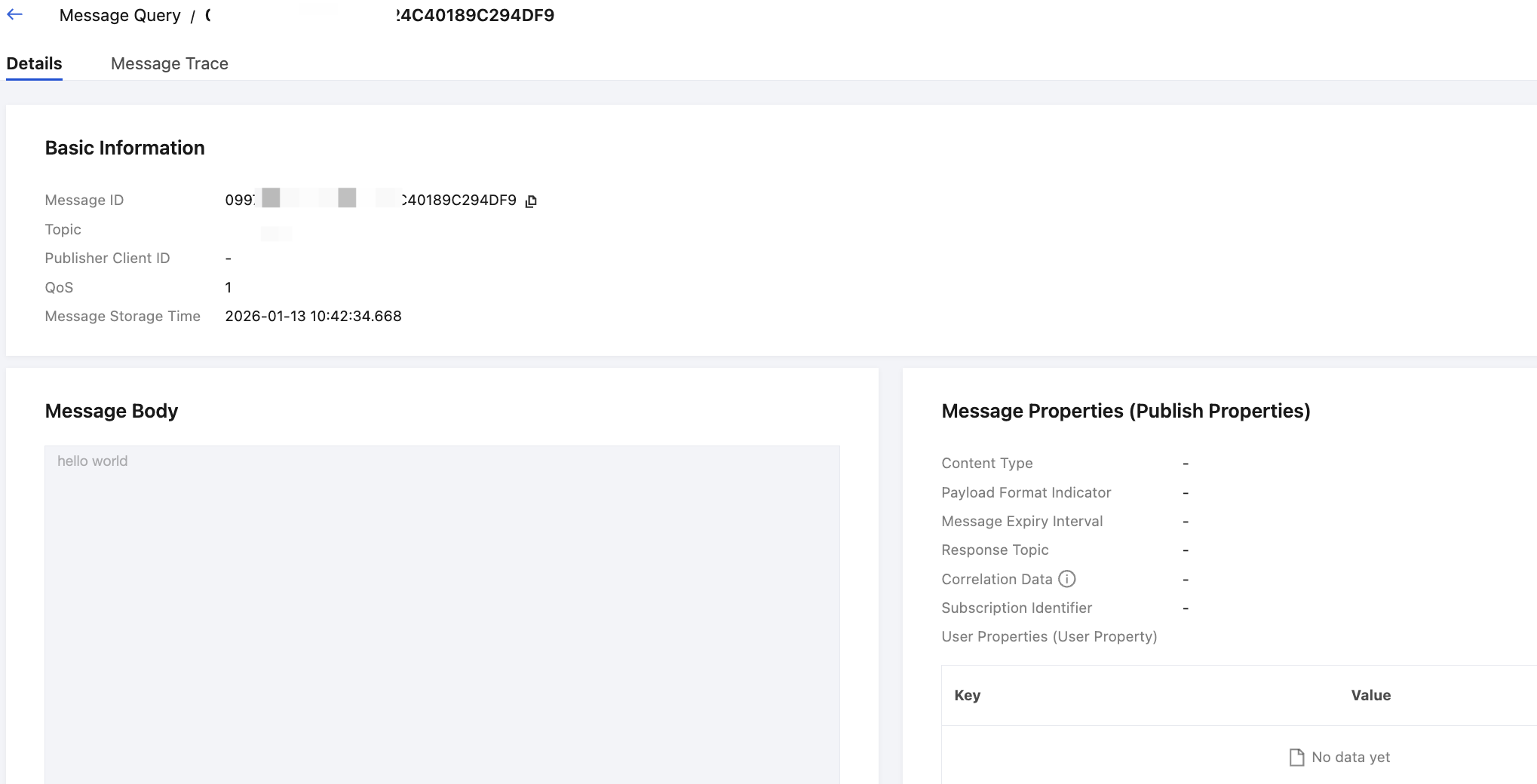
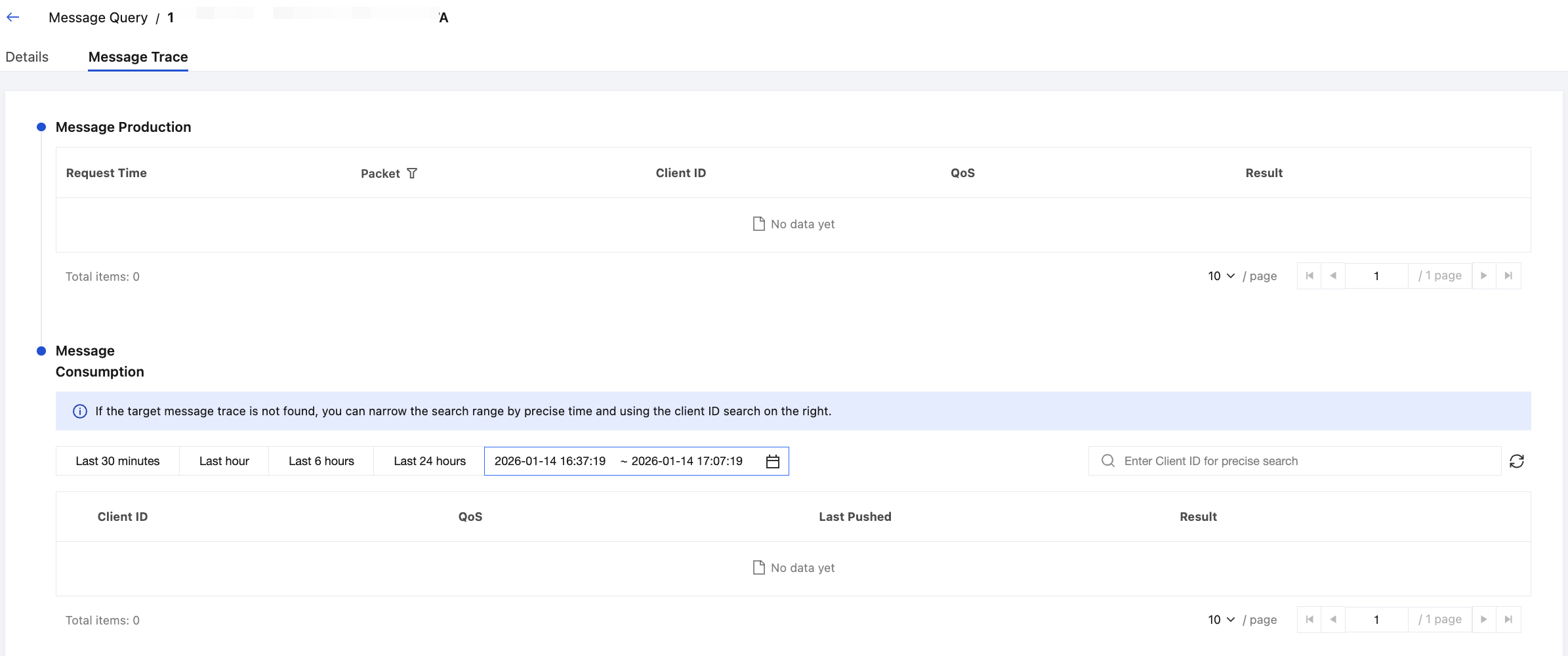
5. On the Details page, click the Message Trace tab to view the message trace.

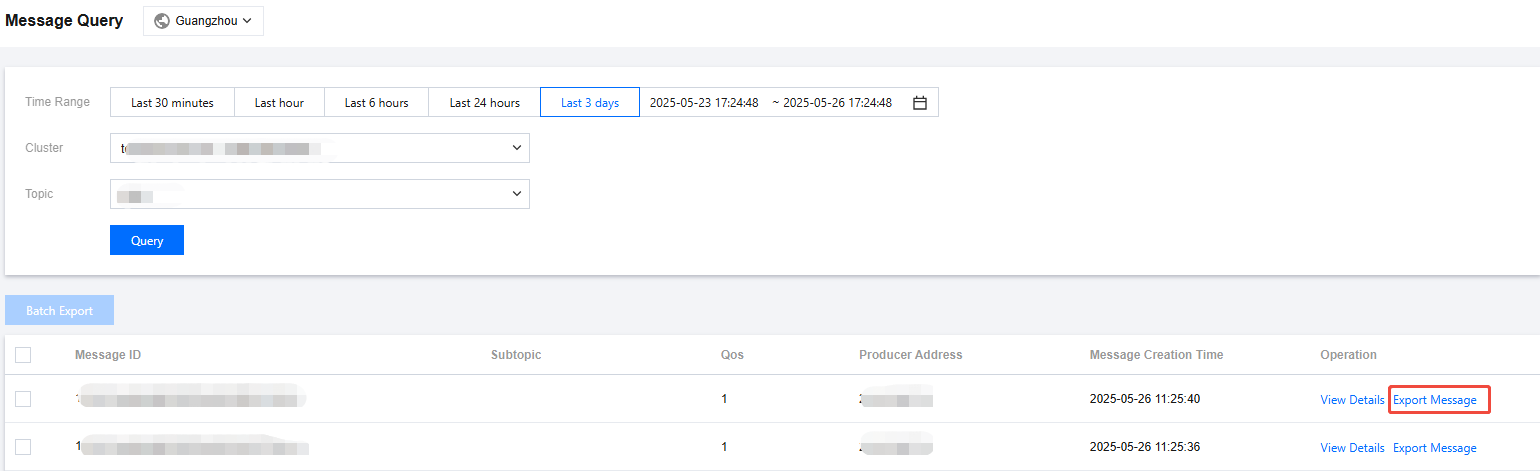
Exporting Messages

After finding a message, you can click Export Message in the Operation column to export information such as the message ID, sub-Topic, QoS, and time attributes. You can also select multiple messages for batch export. After exporting the messages locally, you can process them as needed, such as copying the message body or sorting by time.


Help and Support

Was this page helpful?

Help us improve! Rate your documentation experience in 5 mins.

Feedback