Scenarios
Your client may be unable to access the VPC network in the following scenarios: the client is a sensor, in-vehicle terminal, or smart home appliance typically deployed in large numbers and widely distributed; the client is a mobile device; or the client is deployed in a hybrid-cloud or cross-cloud environment without high-speed channels or dedicated network links. In such cases, you can connect your client to the MQTT server via the public network, and enable public network routing to achieve cross-network production and consumption. If public network access is enabled, it is recommended to configure a secure access policy that strictly restricts IP access to ensure data security.
This document introduces how to enable public network routing, adjust public network bandwidth configurations, and delete public network bandwidth in the TDMQ for MQTT console.
Restrictions and Limitations
After the public network is enabled, you need to pay public network fees. For specific pricing, see Billing Overview. Only one public network route can be created for a cluster.
Operation Steps
Enabling the Public Network and Configuring a Security Policy
2. In the left sidebar, choose Resource > Cluster List, select a region, and click the ID of the target cluster to go to the cluster basic information page.
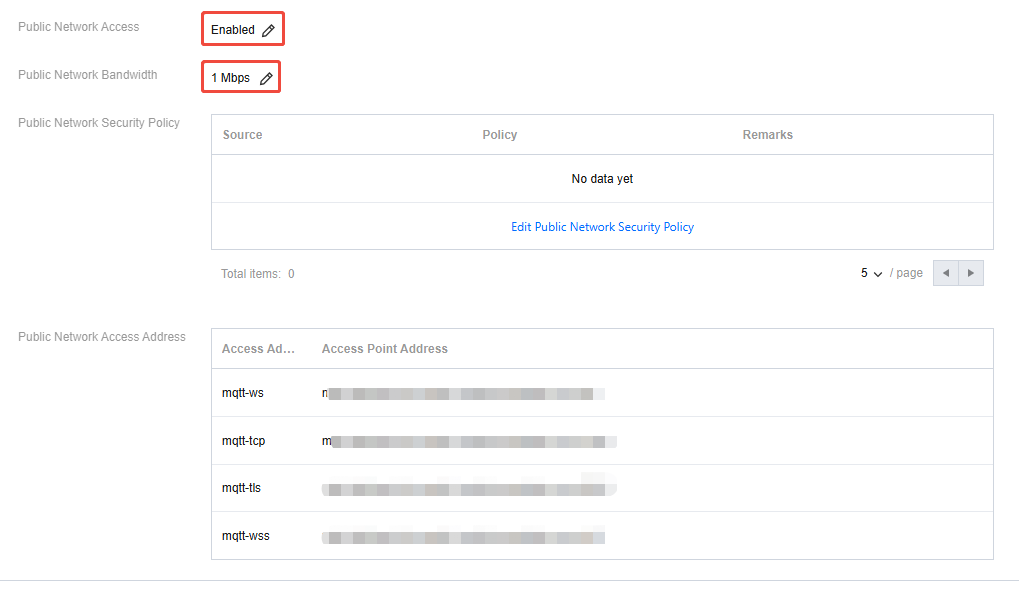
3. If you have enabled public network access, you can see the specific public network bandwidth in the Access Information module. If you haven't enabled public network access, see procedure 4.
4. In the Access Information module, click Enable next to public network access.
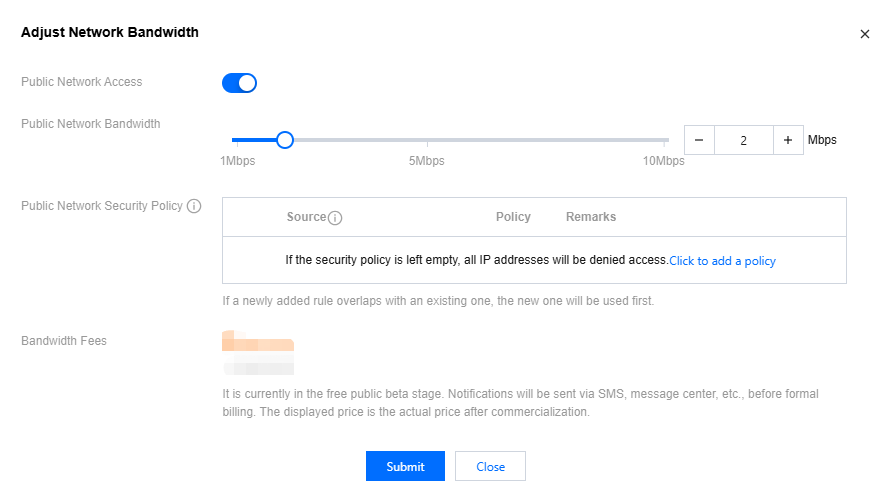
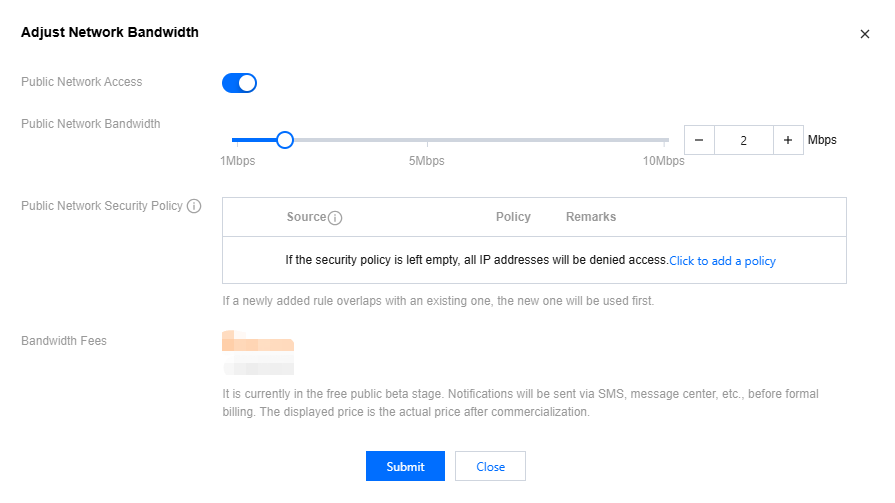
5. In the pop-up window, after enabling public network bandwidth, select the required public network bandwidth size and configure the public network security policy.
IP addresses or IP ranges can be specified in public network security policies. If no security policy is set, all IP access is denied by default. If a new rule is identical to an existing one, the most recently added entry takes priority.
Note:
The IP address sources support the following formats:
Single IP address: for example, 192.168.0.1
CIDR: for example, 192.168.1.0/24
Entering 0.0.0.0/0 permits access from all IP addresses. Use with caution.
6. Click Submit and complete the payment, then return to the console. The public network will show as Enabling. Wait for the public network to be enabled.
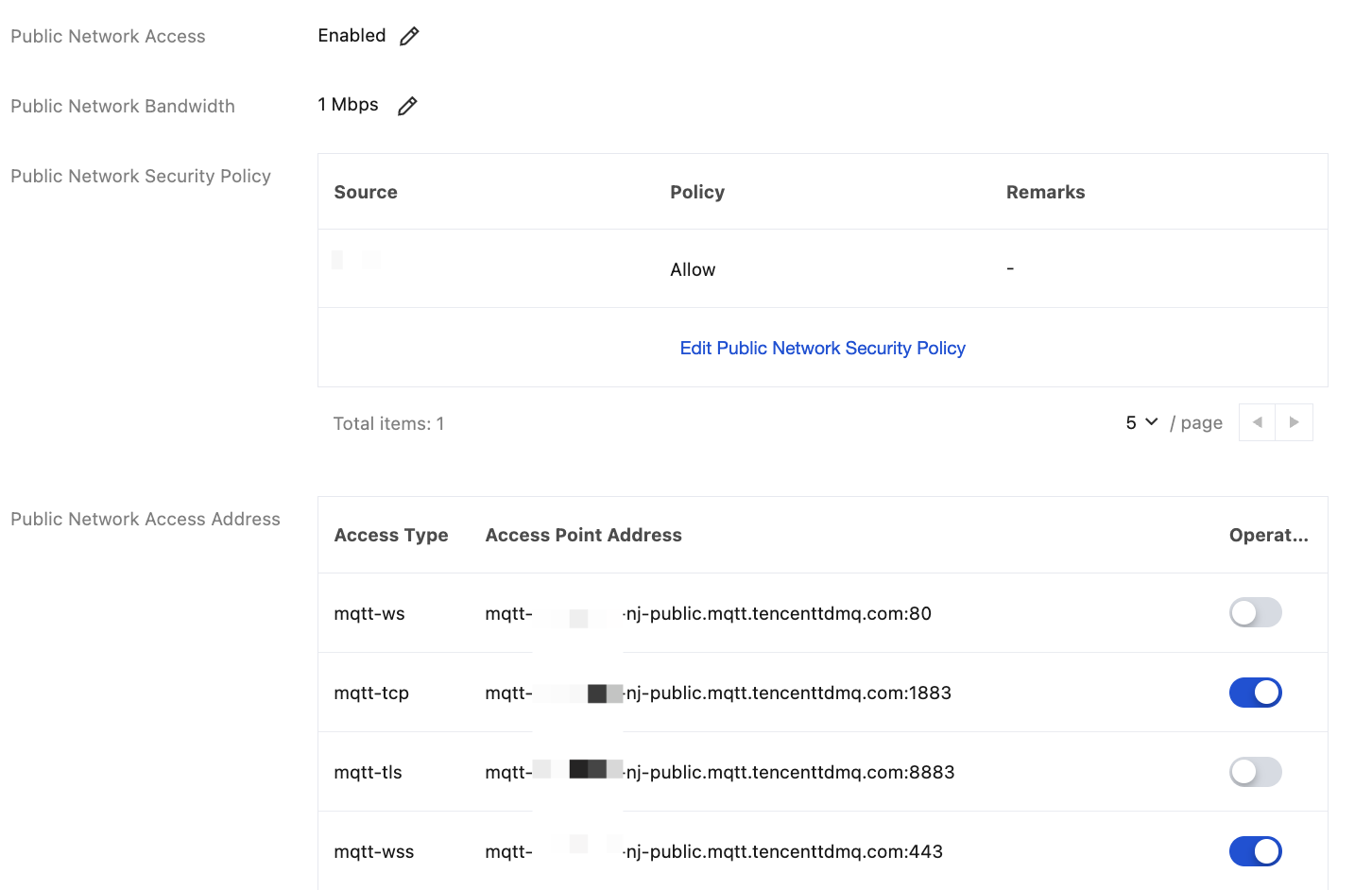
7. After enabling, in the Client Access module, you can see that the Public Network Access Address row displays information such as the public network bandwidth and the IP address. You can enable or disable access points for certain protocols in the Action column.
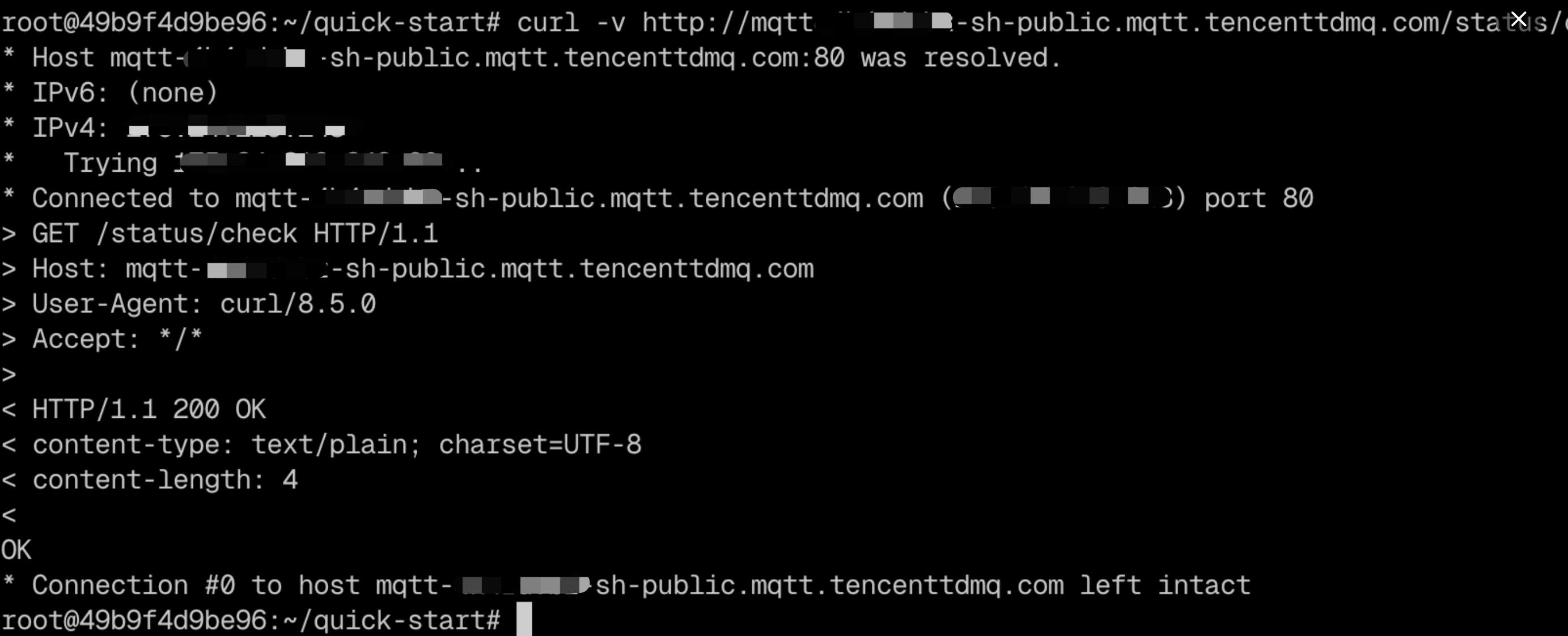
8. You can verify network connectivity using the following command:
curl -v http://mqtt-xxxx-sh-public.mqtt.tencenttdmq.com/status/check
Here, mqtt-xxxx-sh-public.mqtt.tencenttdmq.com is the access point to be verified.
If the network is connected, the output is similar to the following:
Adjusting Public Network Bandwidth Configurations
1. On the Cluster page, click Adjust Network Bandwidth in the Action column.
2. In the pop-up window, modify the public network bandwidth and click Submit to complete the adjustment of the public network bandwidth configuration.
Disabling the Public Network (Deleting the Public Network Route)
1. On the Cluster List page, click Adjust Network Bandwidth in the Action column.
2. In the pop-up window, click the toggle button to disable public network access, and then click Submit. The public network will be disabled.