Scenarios
You can use the policy feature of the Cloud Access Management (CAM) console to grant the read/write permissions for MQTT resources owned by the root account and bound with tags to sub-accounts based on tags. Sub-accounts that obtain the permissions can then control resources under the corresponding tags.
Prerequisites
A sub-account has been created for an employee using the Tencent Cloud root account. For detailed operations, see Creating a Sub-account. At least one MQTT cluster resource instance is available.
At least one Tag is available. If no tag exists, you can choose the Tag console > Tag List to create one. Operation Steps
Step 1: Binding a Tag to a Resource
2. Select the target cluster, click Edit Resource Tag in the upper left corner, and bind the resource tag to the cluster.
Step 2: Authorizing by Tag
2. In the left sidebar, select Policy, click Create Custom Policy, and select Authorize by Tag for the policy creation method.
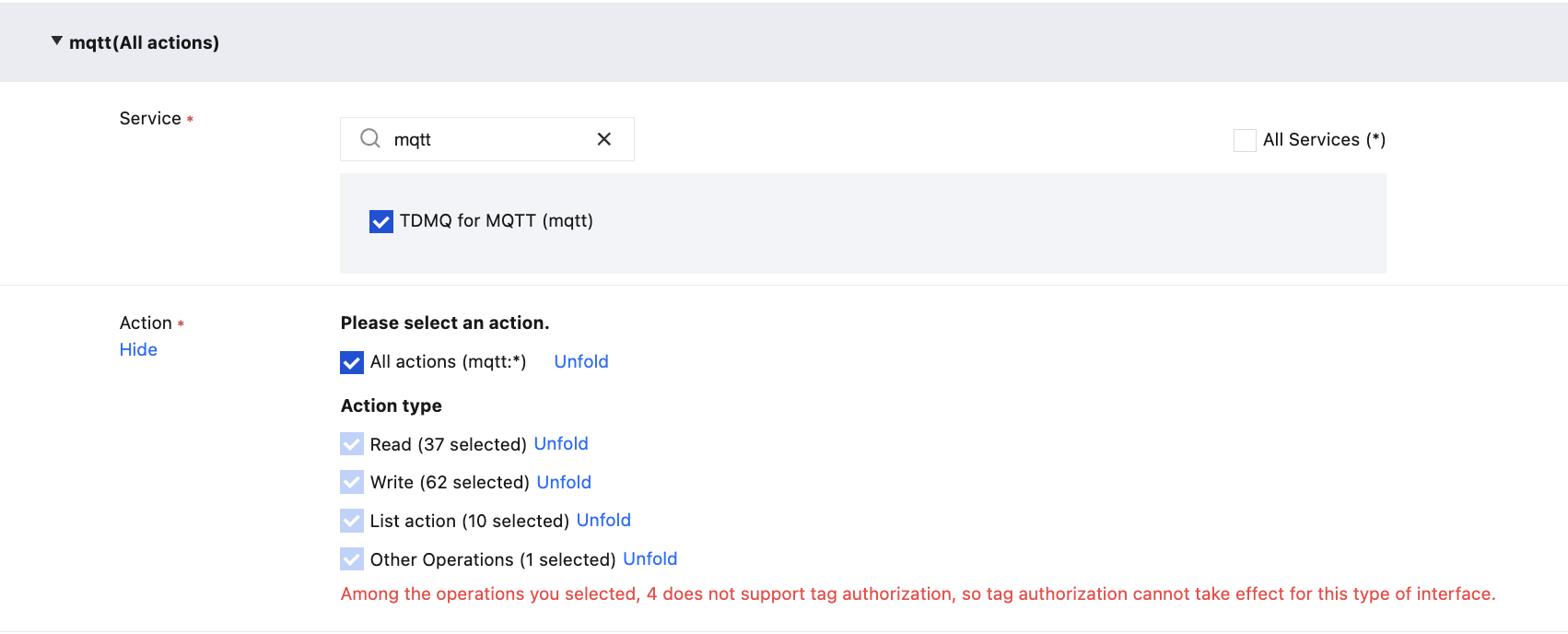
3. In the Visual Strategy Generator, enter mqtt in Service to filter, select TDMQ for MQTT (mqtt) from the results, select All actions (*) under Action, or select corresponding actions as needed.
Note:
All APIs of a service are included in Action. You can use "Whether authorization by tag is supported" to filter APIs and check whether they support authorization by tag.
Yes: APIs that support authorization by tag. They have action permissions for resources associated with correpsonding tags.
No: APIs that do not support authorization by tag. In subsequent steps, you can choose whether to grant action permissions for all resources to these APIs.
To support authorization for multiple services, you can click Add in the upper-left corner to add multiple authorization statements and configure authorization policies for other services.
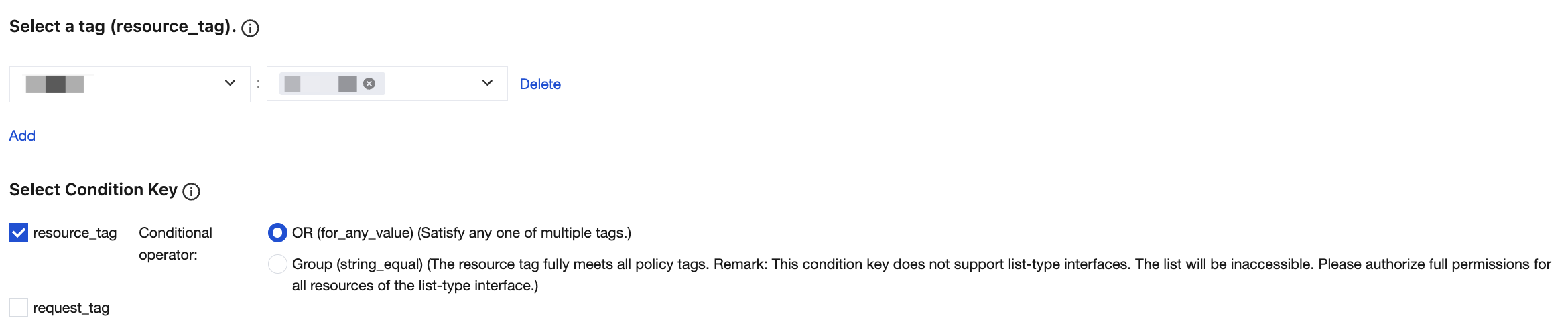
4. In the Select Tag position, select the tag key and tag value bound to the cluster resource. Multiple tags are in an OR relationship, and only one of them needs to be met.
5. In the Select Condition Key section, select condition keys. You can select both resource_tag and request_tag, or select either one of them.
6. Determine whether to grant the permission of "resource": "*" to APIs that do not support tags. If you select this option, APIs that do not support tags will have action permissions for all resources.
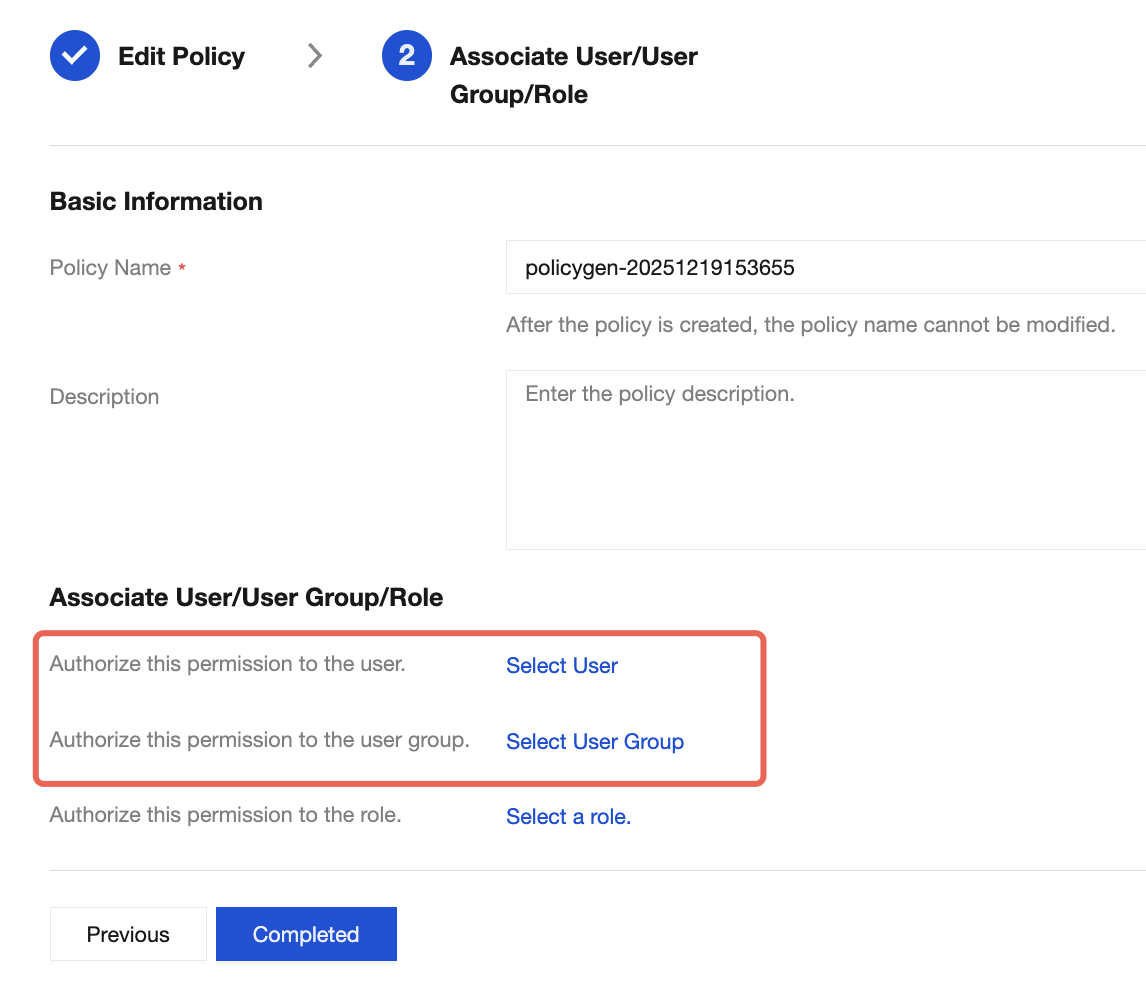
7. Click Next, set Policy Name, which is automatically generated by the console, defaulting to "policygen" with a numerical suffix generated based on the creation date. You can customize it.
8. Click Select User or Select User Group to select the user or user group to grant resource permissions.
9. Click Complete to enable the sub-account to control resources under the specified tag based on policies.