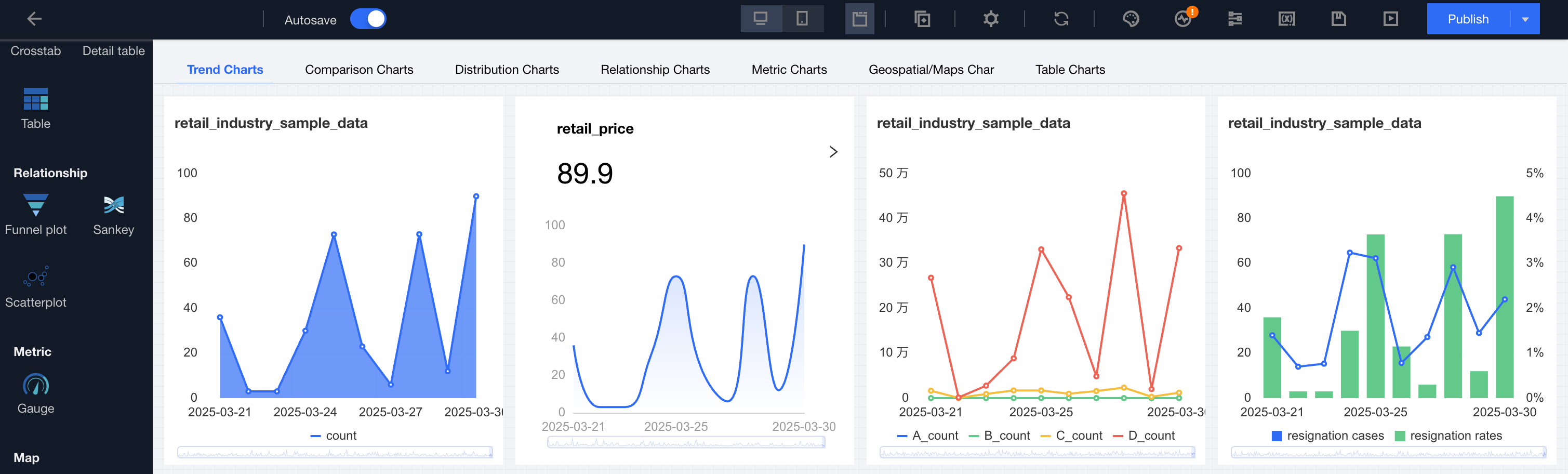
Page tab mode supports switching between different tag pages to read components under tags. Unlike the Tab Component, a webpage tab can add multiple charts and any components within a tag item.
Legend Effect
Usage
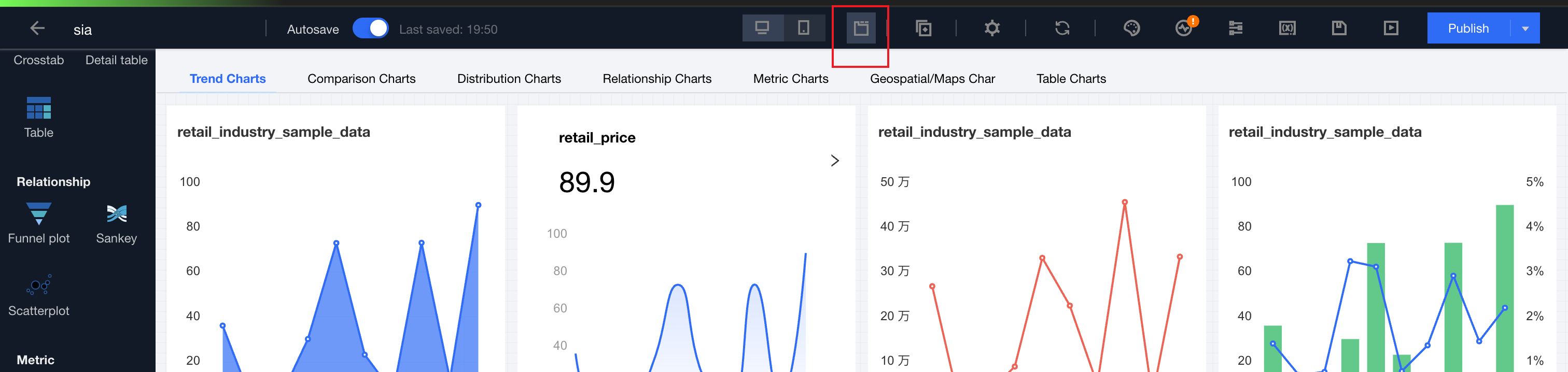
1. Switch to "Tab Mode" in the canvas:
2. Click Edit, add a tag and set tag items (see component settings for details);
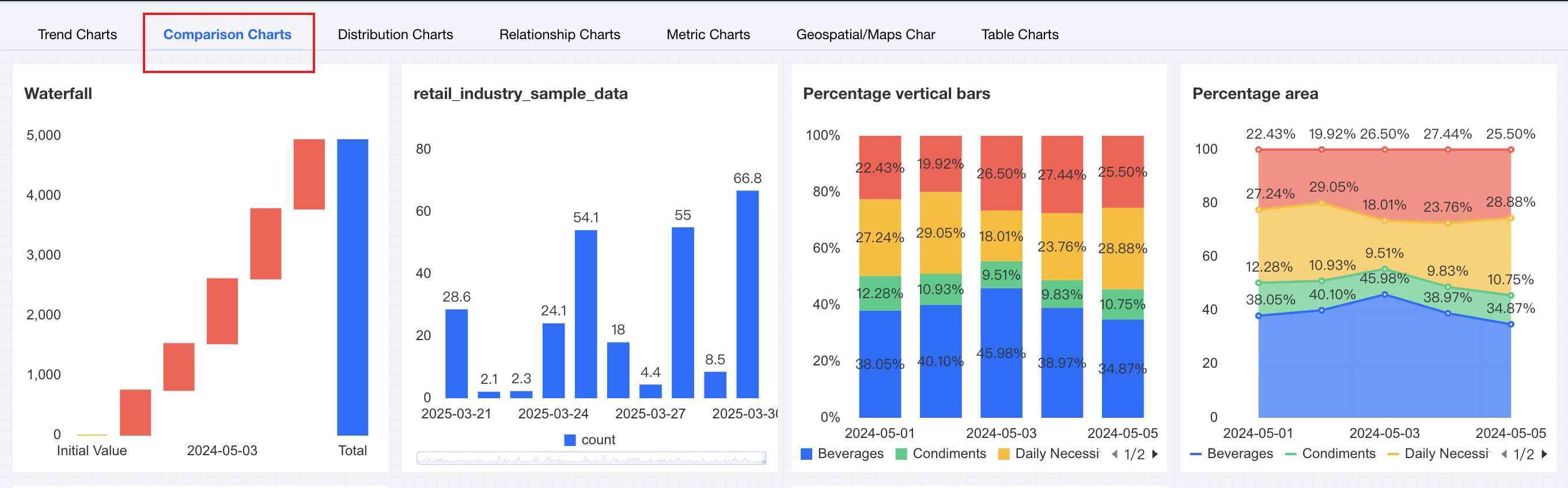
3. Click the tag in the component to switch to the currently active tag item:
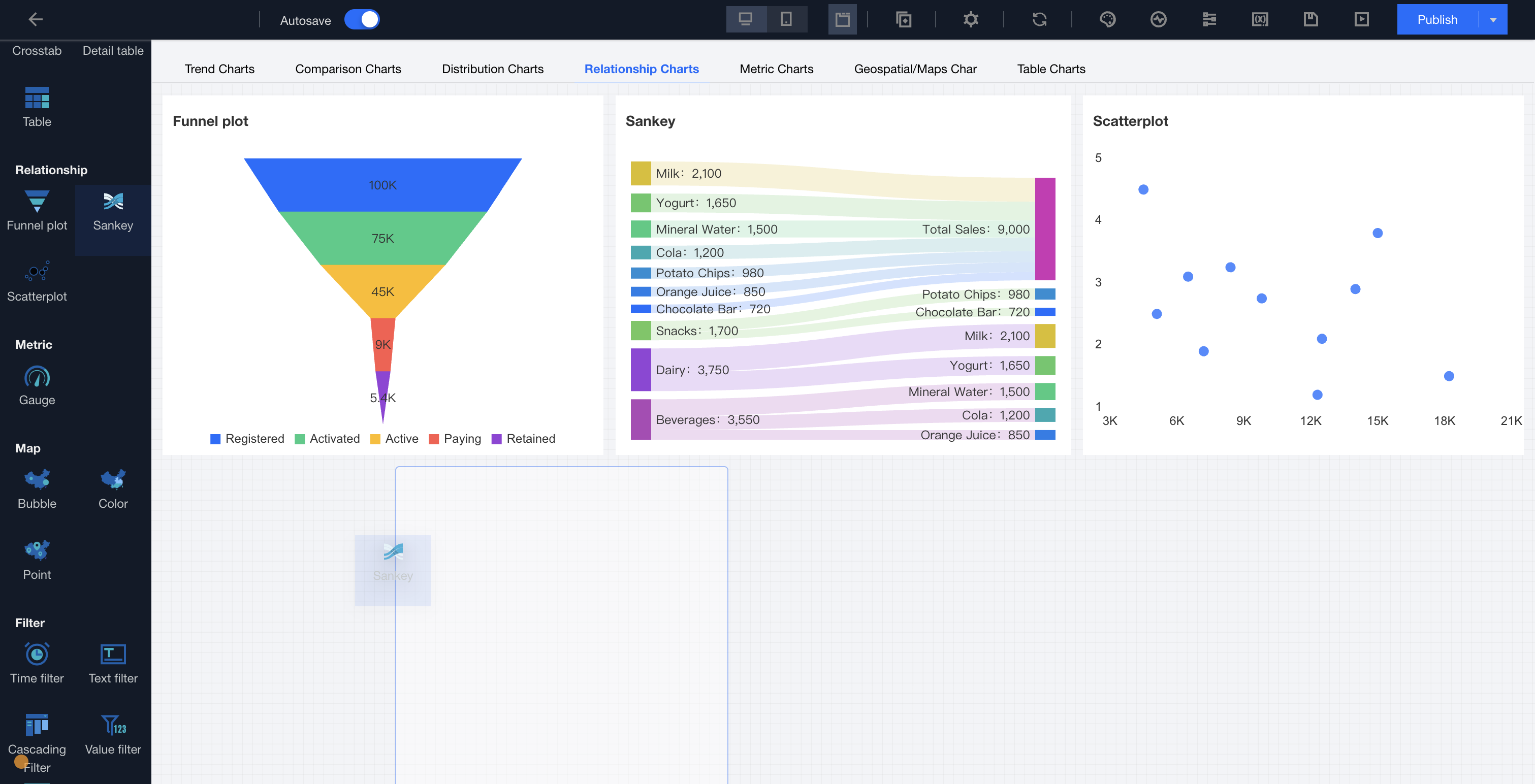
4. Drag the component to the corresponding tag item content area.
Component Settings
Categorize Settings
Setting Item
Setup Instructions
tag item
tag item name
Display name for tag item
tag item sort
Click the up and down arrows on the left side to sort tag items.
Adding a Tag
Click to add a tag item, supporting up to 10 tag items
Delete tags.
Click on the right delete icon to delete a tag item, with a minimum of 1 tag item reserved.
Tag style
tag alignment
Set the tag alignment mode and select from three types: 1. Left 2. Centered 3. Right
Tag format
Set the display form of tags, with two types to select: 1. Text type 2. Button type
Tag location
Two types are available:
1. Fixed at Top: The tag tab stays at the top of the screen and does not move with page scroll.
2. Fixed at Bottom: The tag tab stays at the bottom of the screen and does not move with page scroll.
Note
Switch from Tab mode to normal mode and keep only the first tag page content.