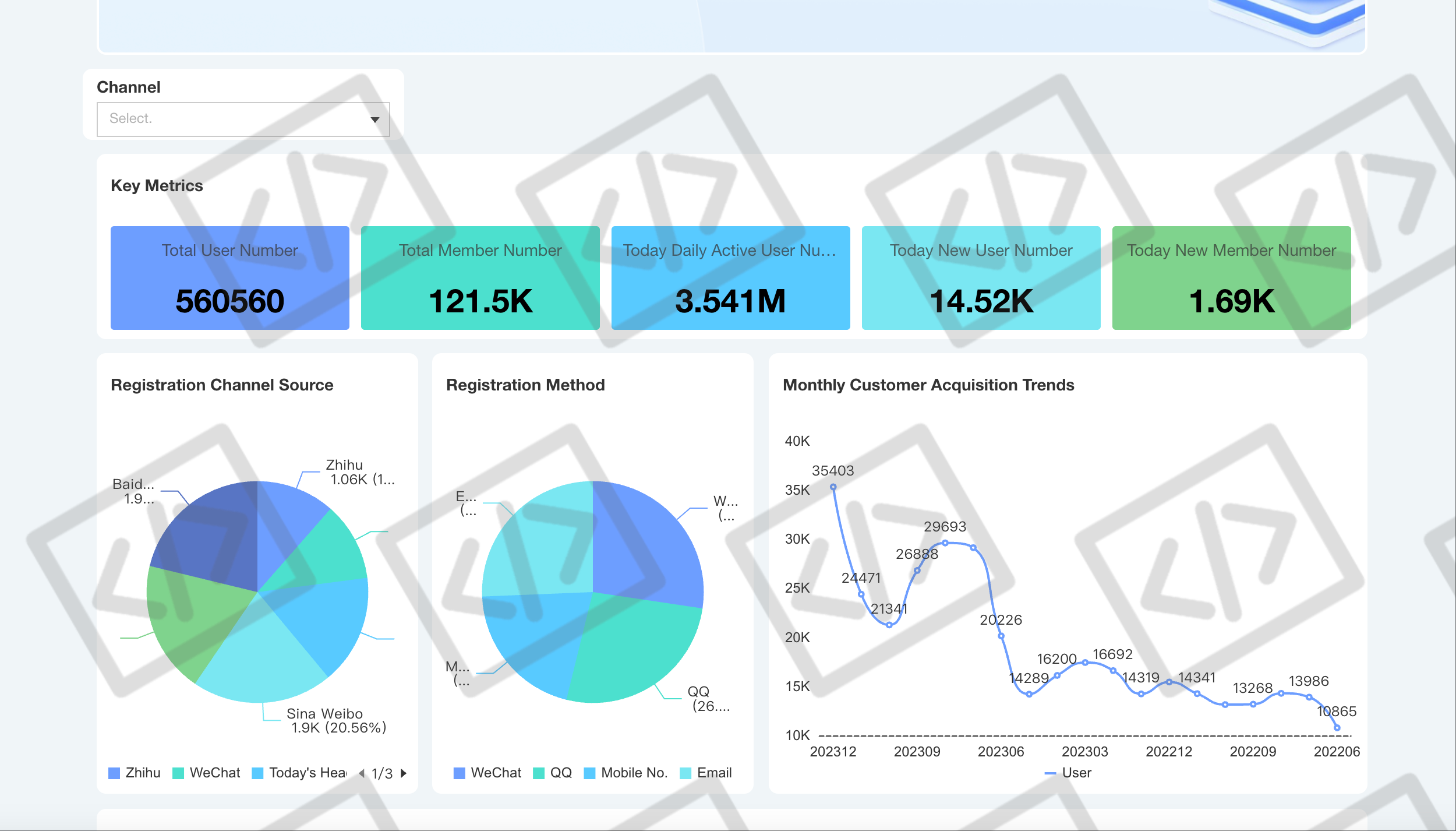
The watermark feature in report dissemination allows tracking the origin of data leaks, minimizing data breach risks.
Tencent Cloud Business Intelligence (BI) supports image and text watermarks, with text watermarks enabling the insertion of dynamic variables, including user information.
Edition support: Basic Edition, and Professional Edition.
In this document, you will learn:
How to set up image watermarks.
How to set up text watermarks.
How to set up dynamic text watermarks.
Setting up Watermarks
1. Enable or disable the watermark feature.
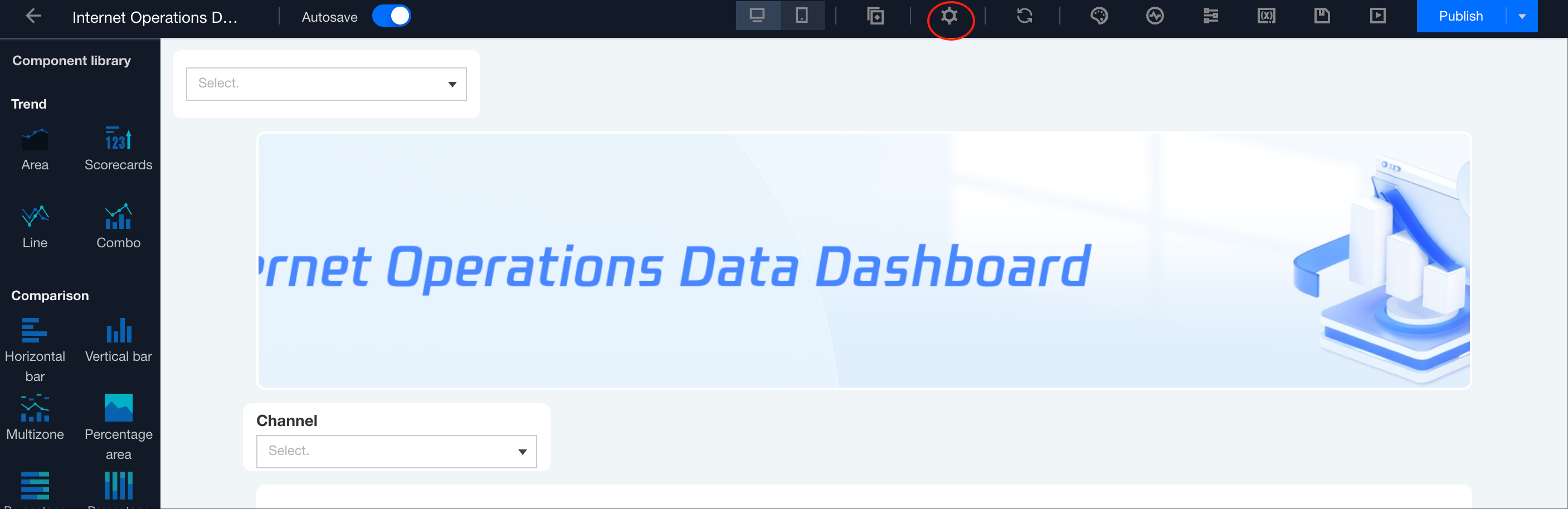
1.1 Go to the page editing interface: the console > the project > the page > edit.
1.2 Click the "Page Settings" icon to open the page settings pop-up layer.
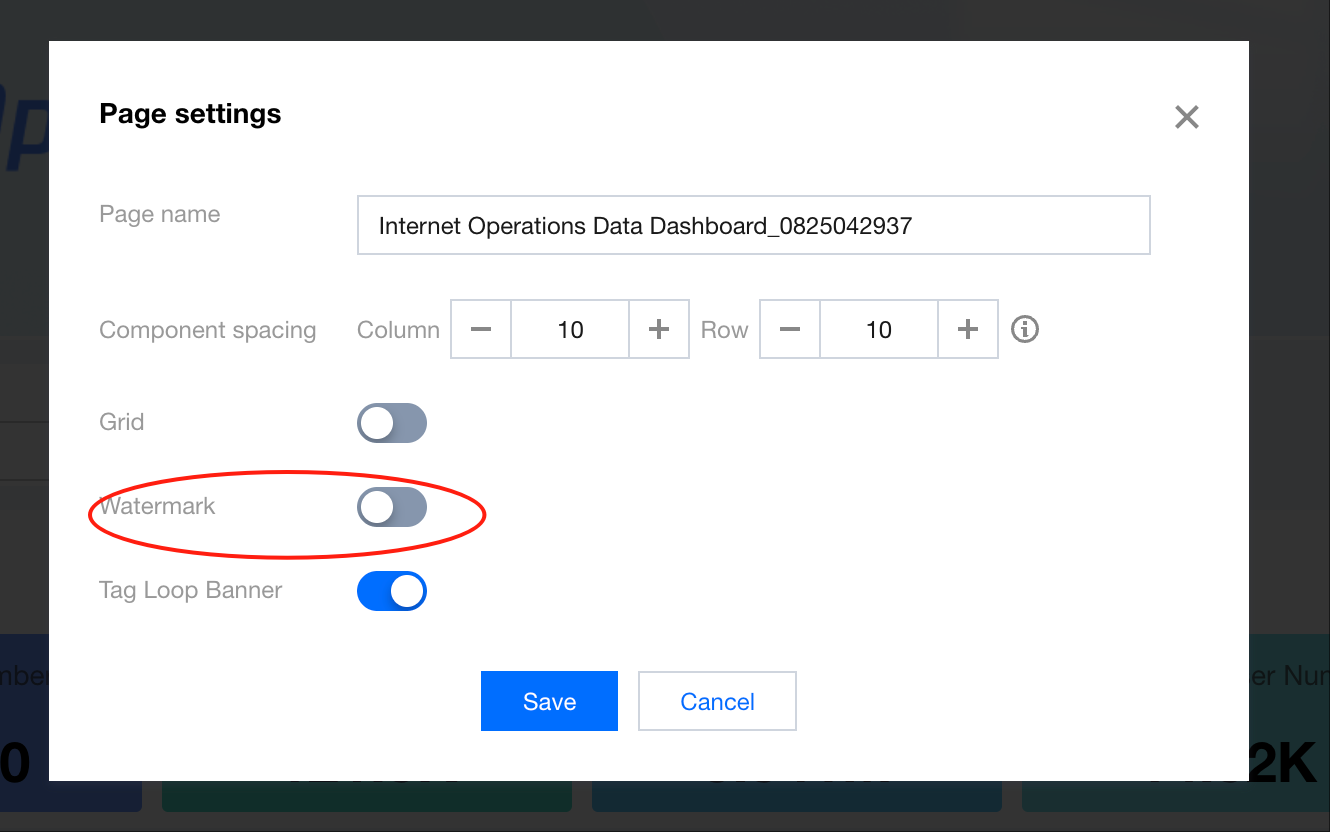
1.3 In the watermark settings, you can enable or disable the watermark feature.
2. Text watermark settings.
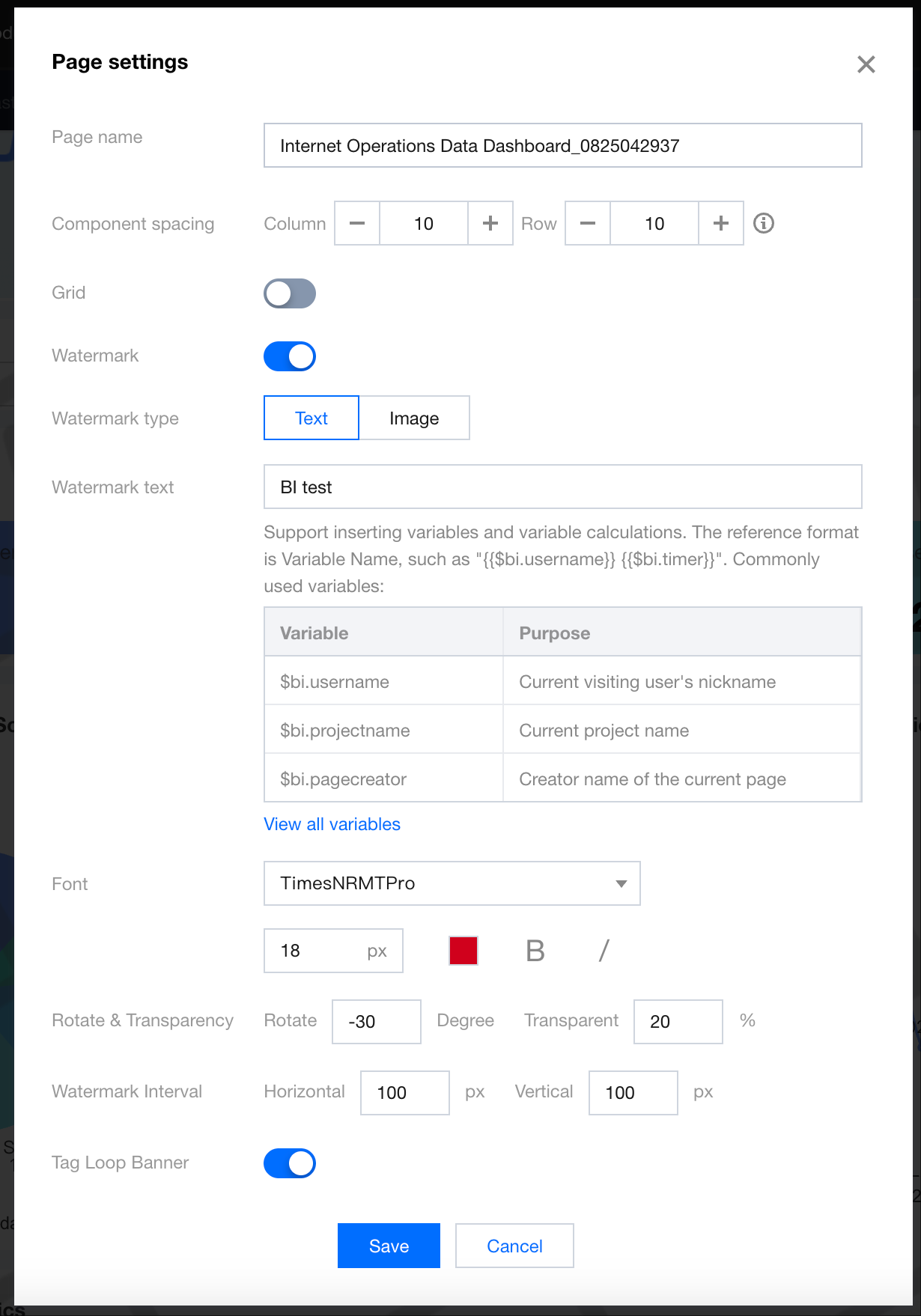
When the watermark type is set to "Text", the following options can be configured.
Setting Item
Description
Example
Watermark text
Support both static value input and variable value input based on the interface instructions.
To show "For internal circulation only", you only need to enter "For internal circulation only".
To display the current account ID in the report watermark, enter "{{$bi.subuin}}".
Text style
Support font type, text size, text color, bold, and italic formatting.
-
Rotation & transparency
Support rotation angle and transparency.
Rotation: Support -360 to 360 degrees, with the horizontal 3 o'clock position as 0 degrees. Positive values represent clockwise rotation, while negative values represent counterclockwise rotation.
Transparency: Support a range of 0 to 100 to adjust the watermark's transparency.
-
Watermark spacing
Support setting the horizontal and vertical spacing between 2 watermarks.
-
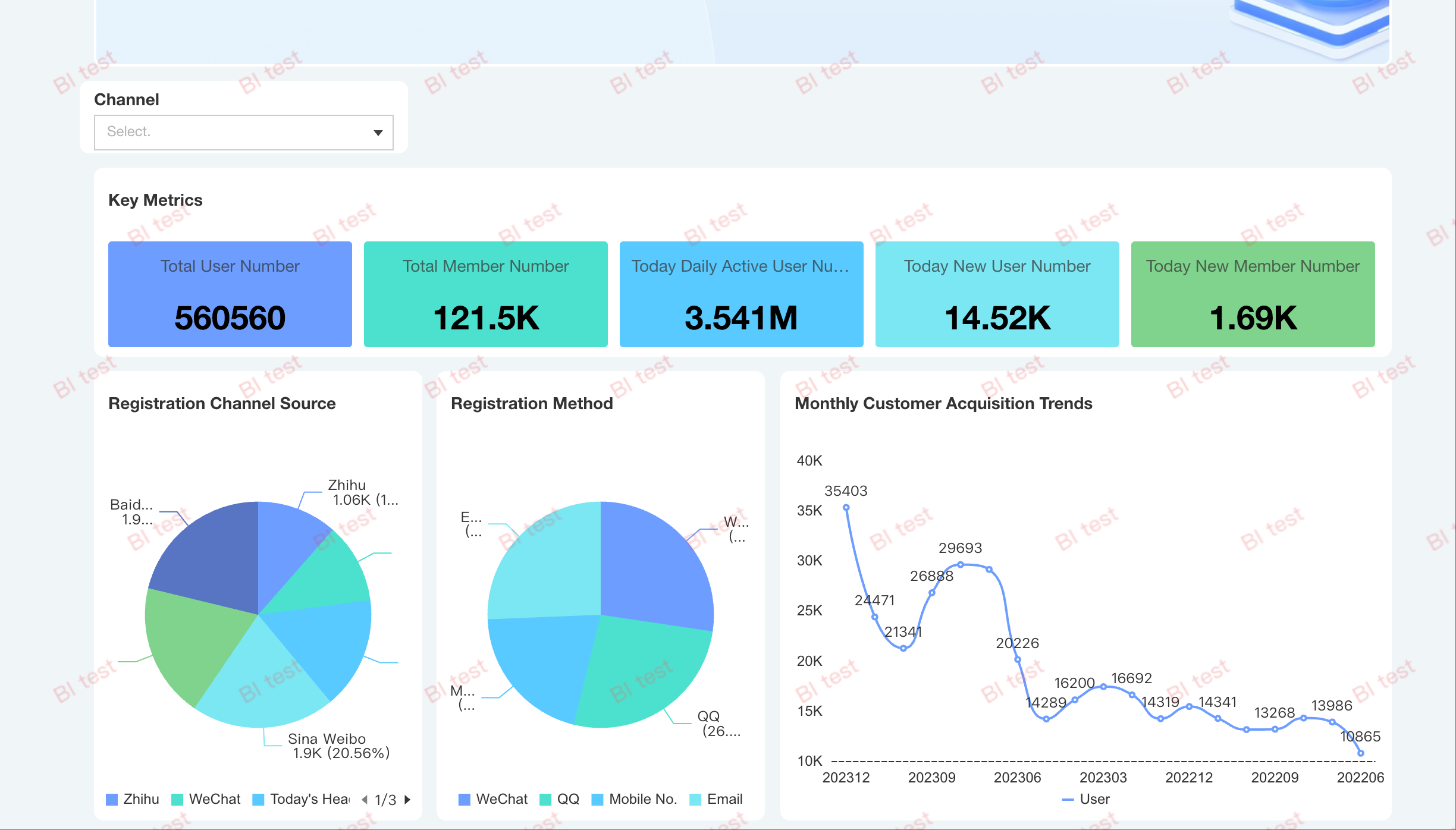
The effect after enabling the text watermark:
3. Image watermark settings.
When the watermark type is set to "Image", the following options can be configured.
Setting Item
Description
Example
Watermark image
Support JPG, PNG, and GIF formats (dynamic GIF images will be converted to static, displaying only the first frame), with an image size of less than 2MB.
-
Display size
By default, the image will be displayed in its original size. For images that are too large or too small, you can adjust the display area. After the adjustments are completed, the image will be proportionally scaled and displayed in the center within the designated size area.
The original image size is 2000 x 1000. To avoid distortion and prevent the image from covering the entire chart, you can set the image to display as a 200 x 100 image in the report.
Rotation & transparency
Support rotation angle and transparency.
Rotation: Support -360 to 360 degrees, with the horizontal 3 o'clock position as 0 degrees. Positive values represent clockwise rotation, while negative values represent counterclockwise rotation.
Transparency: Support a range of 0 to 100 to adjust the watermark's transparency.
-
Watermark spacing
Support setting the horizontal and vertical spacing between 2 watermarks.
-
The effect after enabling the image watermark:
Other Notes
If the edition in use does not support variables or the variable parsing fails, the variable part will be displayed as empty (for example, "Viewer{{viewer}}" will show as "Viewer" if the variable "viewer" cannot be parsed).
After the page is shared, variables related to the user identity, including the user UIN, cannot be read. Therefore, if the watermark contains variables for the visitor identity information, the variables will fail to parse. However, the creator information can still be parsed.
Push notifications will not display watermarks in screenshots.