DokumentasiTencent Cloud Agent Development Platform
What Is Widget
Unduh
Mode fokus
Ukuran font
Terakhir diperbarui: 2026-02-04 16:03:06
Diterjemahkan oleh AI
Widget Overview
Widget is an interactive custom display card that can be embedded on the page of an app's dialogue window. Unlike traditional plain text replies, Widget presents complex output content in a more intuitive way. Users can directly perform follow-up questions, information confirmation, and result viewing via components on the Widget, thereby effectively enhancing dialogue understanding efficiency and user experience.
Widget is not a complete page, but a feature unit serving the dialogue process.
Main Features
Diverse Ways to Create
Support users to create through multiple methods such as Widget Template, code creation, natural language generation, and direct import of Widget files provided by the official website, meeting the needs of users with different technical backgrounds.
Various Component Library
The official website has built-in various types of components (Component), meeting the needs of scenarios such as clarification, information collection, and data presentation. Users can define the style and action of each component by configuring component properties (Props).
Intuitive Interactive Experience
Intuitive presentation: Widget can show complex information through a clear hierarchy, enabling clear and concise information delivery.
Smooth interaction: Widget simplifies traditional "conversational" command input into intuitive operations like click and select, optimizing dialogue experience and improving operational efficiency.
Role of Widget
Information collection
When users are required to make clear selections or complete information confirmation in process, guide them to supplement required information through interaction methods such as dropdown menu, single/multiple selection, and input box, reducing understanding deviation and follow-up questions.
Trigger operation
In the scenario where users are required to advance the process or execute action, present executable work intuitively through buttons, submission and other methods. Users can trigger the subsequent process with one-click, such as continue dialogue or redirect to corresponding page.
Display information
For results, status, or structured data output, display in card format to highlight key information and help users understand quickly.
Use Cases
Widget is suitable for various scenarios requiring efficient operation or intuitive display of information. Through the following typical scenario examples, you can intuitively experience how Widget enhances dialogue effects.
Clarify and ask
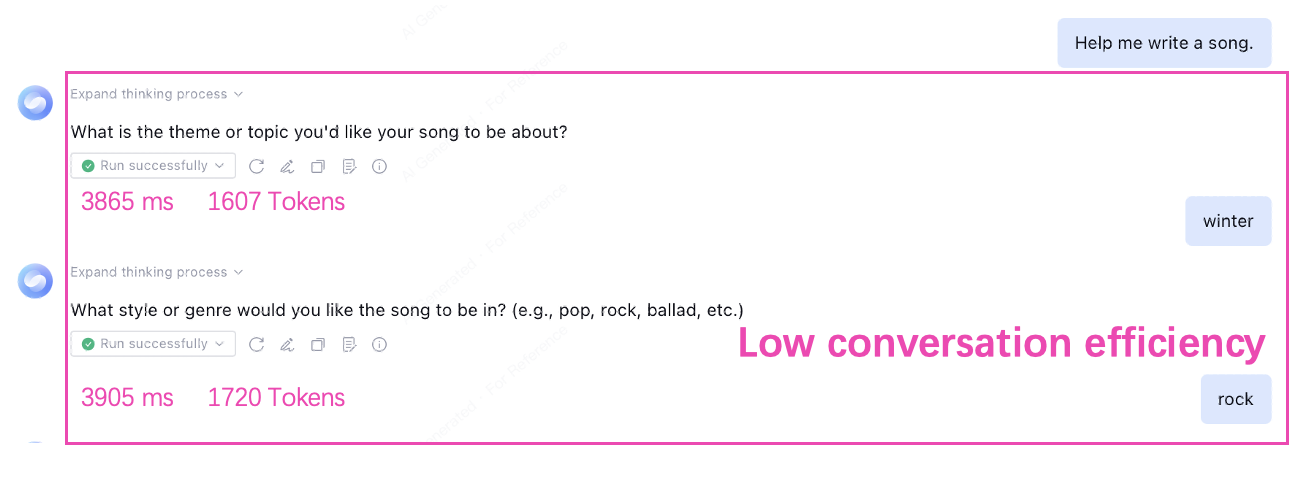
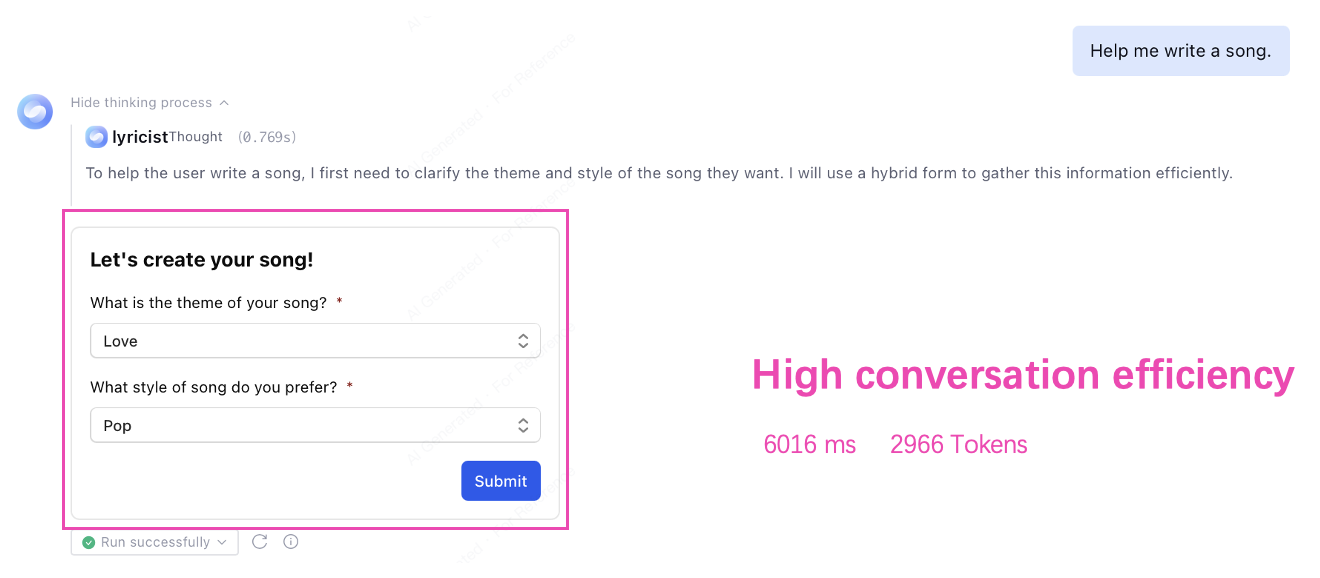
Take the application lyrics author_pay trial version as an example. When the user initiates a request, the application performs clarification and asks:
The original text format requires multi-round dialogue and is inefficient.
After configuring the Widget, the app uses it to guide the dialogue and supplement information, completing clarification in one go with high efficiency.
Text Form Clarification and Ask
Widget Format Clarification and Ask
Process Feedback
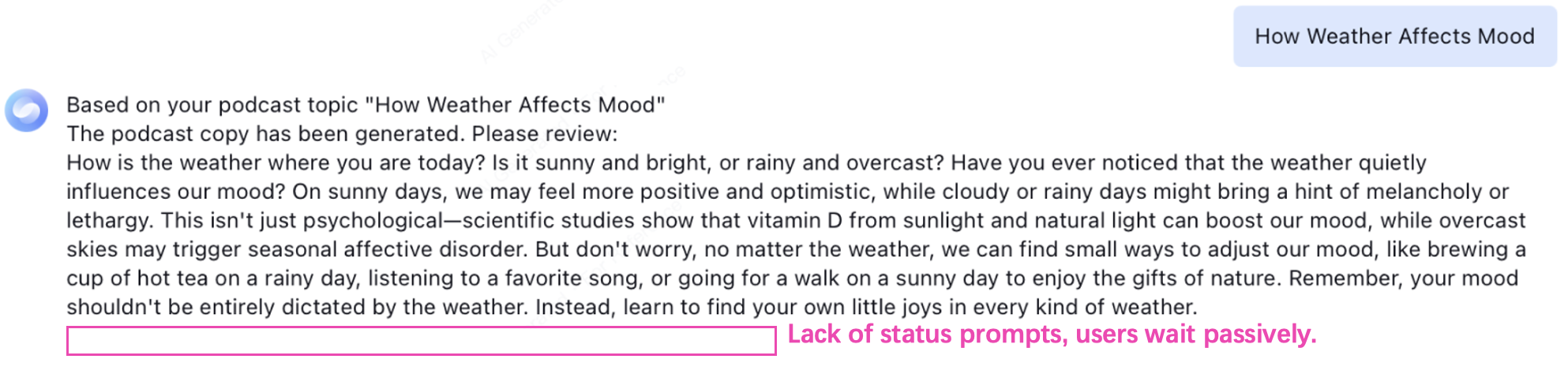
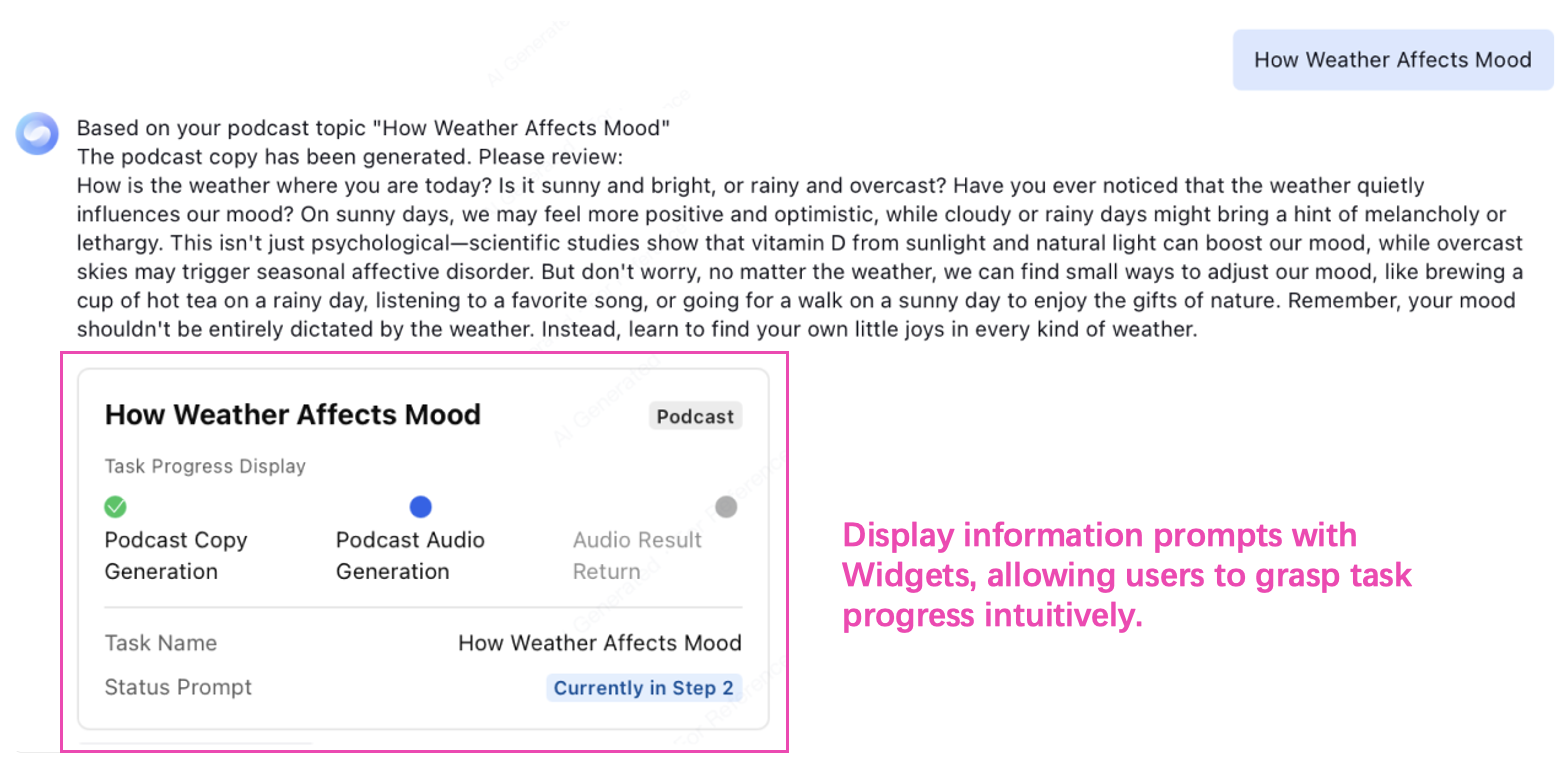
Take the application Podcast Generation as an example. When a user triggers a request to generate a podcast with a specified topic, they need to wait for the task to complete.
Before configuring the Process Feedback Widget, users can only passively wait during execution and are unable to determine if the task is still being processed, which may cause a false positive of task stalling.
After configuring the Process Feedback Widget, the user can intuitively understand progress changes, is in task awareness status, and improves experience.
Text Format Process Feedback
Widget Format Process Feedback
Information confirmation
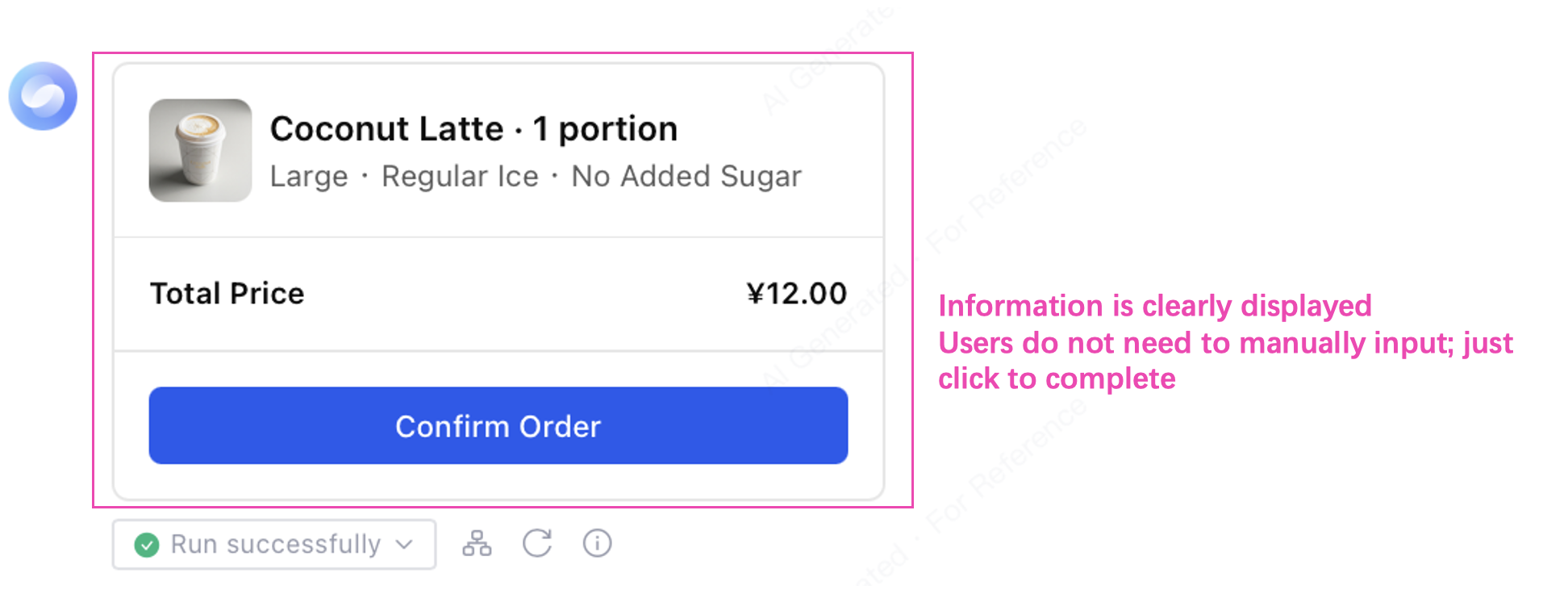
Taking the Intelligent Ordering application as an example, during the user ordering process, it is necessary to confirm the order information:
Before configuring the Information Confirmation Widget, users are advised to manually enter for confirmation, and the presentation of information is insufficient.
After configuring the Information Confirmation Widget, users can complete confirmation with a click without manual input, simplifying operation. Meanwhile, the information to be confirmed is clear at a glance and easy to read.
Text Format Information Confirmation
Widget Format Information Confirmation
Result Display
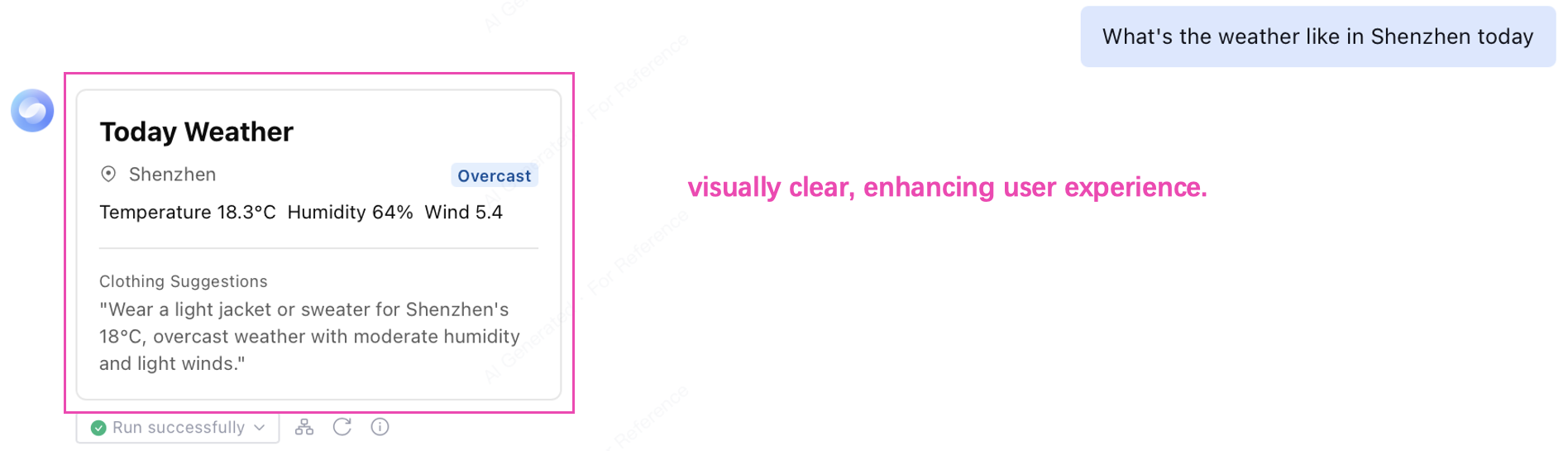
Take the weather inquiry application for example. When a user triggers a request for weather inquiry, the application returns query results:
Original text format presents single information.
After configuring the Widget, the display result shows clear information structure and beautiful presentation.
Text Format Result Display
Widget Format Result Display
How Widget Works
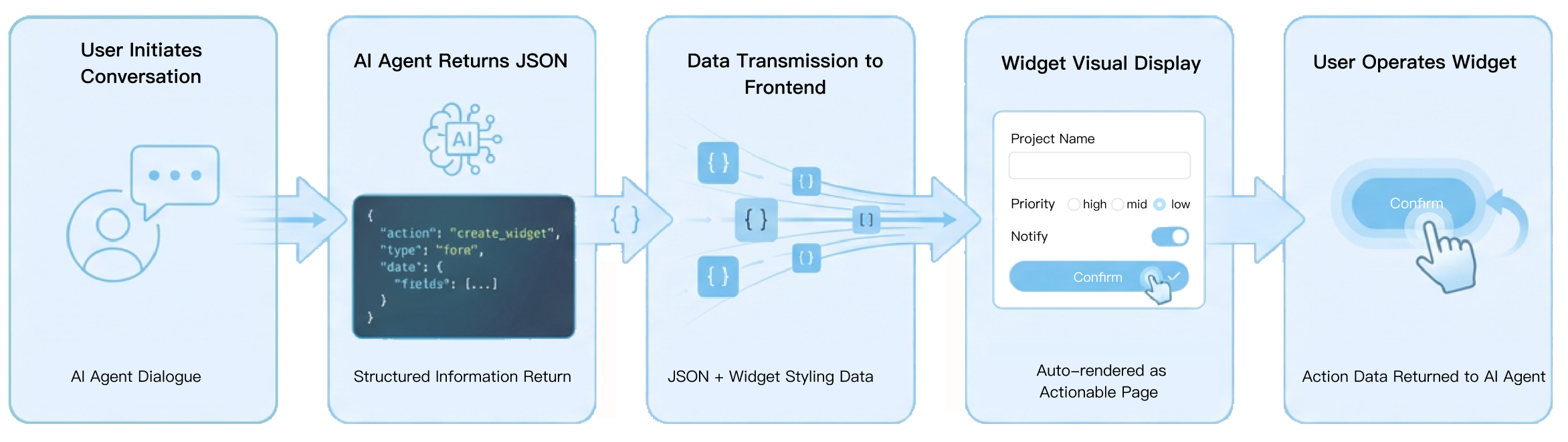
Widget, based on structured data, converts the output of Intelligent Agents into interactive, displayable interface components during the dialogue.
The overall workflow is as follows:
1. User initiates dialogue
Users enter a question or command in natural language to initiate a dialogue request.
2. Intelligent Agent returns structured JSON
The Intelligent Agent generates and returns structured JSON data in the specified data format based on the Widget configuration.
3. Transmit data to frontend
Structured JSON data is transmitted to the frontend, which parses the data and completes interface rendering based on the Widget configuration.
4. Widget Display and Interaction
For Widgets only used for result display, show them directly in the dialog box with no need for user further operation.
For Widgets requiring user interaction, the user must perform operations such as input, select, or confirm.
5. User operation information return
If the Widget requires no action by the user, the process ends in the first phase.
If the Widget requires user action, the operation result will be converted to structured data and transmitted to the Intelligent Agent as input for subsequent task execution.
Key Concepts
Widget Template
Widget Template is used for the preset Widget best practice on the platform. It can only be viewed and cannot be directly edited or used.
If you need to use a certain template, please first copy it to your space. After copying, a new Widget will be generated and displayed in Widget under development. Only the copied Widget can be used in application.
Widget Development
Widget Development is used for the actual work to create and manage Widgets.
Widgets created in this Tab:
Directly belong to the workspace.
Edit, debug, and use after creation.
Use directly in Agent or workflow.
Not restricted by read-only templates.
Component
Component is an official preset minimal functionality unit that constitutes a Widget. Users create a Template to composite and configure components, and define a Data Structure to standardize the data format. Widget components are divided into the following categories:
1. Container component: This type of component is used to organize other components, define the area and layout structure of a Widget, including:
Template orchestrates components to build the layout, style and interaction of a Widget, usually consisting of a container component and other components.
Data Structure
Schema regulates the data type and format of variables introduced in Template to underwrite the accurate filling of data in Default value to Widget.
Default value
Default value provides data for variables in Widget Template, showing as placeholder content when actual data is not entered by user.
Precautions for Using Widget
When using Widget, pay attention that generally Widget is only valid in the current dialogue stage by default. Once the dialogue proceeds, the already manipulated Widget cannot be retried.
For interactions that need to be repeatable in subsequent dialogues (such as download sys.download, redirect sys.go_to_url), you can set the alwaysEnabled field in the component to make the corresponding button support repeated clicks after the dialogue proceeds. For details, see Button and Widget Action Instructions.